Add students to a class, or to a group class for extra help, in your school LMS
Enroll students in a class from its own page, spot who has no class yet, and run a group class for extra help beside the sections.
Every screen in the films is the real product, shown on a demo school made for them.
A student only gets the work shared with a class once they are in it. Adding students takes a few clicks from the class's own page, which also tells you how much room the class has left. If your school runs a small group for extra help in one subject, a student can be in that group and stay in their own section.
The film enrols Advik, who had no class, into 10-A, then adds Ananya and Diya to 10-W, a group for extra help in Mathematics, and checks each student's page.
Step by step
Open the class
On the school admin dashboard, press Classes, then the class you want to fill, here 10-A.
Watch from 0:00See its students and the room left
The Students tab lists the class's students. Press Add students at the top right. The top line says how many more the class can take, and below are the students of that grade who are not in this class, each with the class they are in now.
Watch from 0:16Enroll a student with no class
Type a name to find the student. In the film, Advik has no class yet. Tick the box and press Enroll 1 student, and the class count goes up by one. Press Open on his row: his page shows his class, 10-A.
Watch from 0:45Open a group class
Back on Classes, the film opens 10-W, a group for extra help that takes only Mathematics, taught by Demo Teacher.
Watch from 1:11Add students to the group
On its Students tab, press Add students. Each student shows the class they are already in, so you can see who is who. Tick Ananya and Diya and press Enroll 2 students. Work sent to 10-W now reaches only these two.
Watch from 1:41Check a student in two classes
Open Ananya's page. She is still in 10-A and is now also in 10-W, so she gets the work for both.
Watch from 2:02
Good to know
The class tells you its room
Add students shows how many more students the class can take before you enroll anyone. The most a class can take is set under More options when the class is added.
A group class reaches only its students
Work sent to a group class goes to the students in that group and no one else, while those students still get everything sent to their own section.
Filmed on a demo school
Advik, Ananya and Diya are demo students, and 10-W was a group class made for the film. The school was put back afterwards.
Questions
- Can a student be in two classes at once?
- Yes. In the film Ananya stays in 10-A and is also added to 10-W, a group for extra help in Mathematics. Her page shows both.
- How do I see which students have no class yet?
- Add students lists each student of that grade with the class they are in, and shows the ones with no class. On the Students page you can also choose Not in a class.
- How do I know if a class is full?
- Press Add students on the class. The top line says how many more students it can take.
What the film saysThe narration, scene by scene.
Add students to a class. This is the school admin dashboard. Here is how to add students to a class.
Open a class. On the left, press Classes. Then press 10-A.
Its students. Press the Students tab. It lists the eight students in 10-A.
Room in the class. At the top right, press Add students. At the top, it says how many more the class can take.
Who can join. Below, every Class 10 student who isn't in 10-A, with the class they are in now.
A student with no class. Type a name: Advik. Advik isn't in a class yet. Tick the box, and press Enroll 1 student.
Nine now. Now 10-A has nine students.
The student's page. Find Advik, and press Open. Advik's page shows the class: 10-A.
A group class. A student can also join a second class. On the left, press Classes. Press 10-W, a group for extra help in Mathematics.
Mathematics only. It takes only Mathematics, with Demo Teacher.
Add to the group. Press the Students tab, then Add students. Each student shows the class they are in.
Two students. Type Ananya, and tick the box. Then type Diya, and tick that box. Press Enroll 2 students.
Only the group. Now 10-W has two students. Work sent to 10-W reaches only them.
Two classes at once. Open Ananya's page. Ananya is still in 10-A, and also in 10-W.
Coming up. Next: Hand over a subject to a new teacher.
Watch next
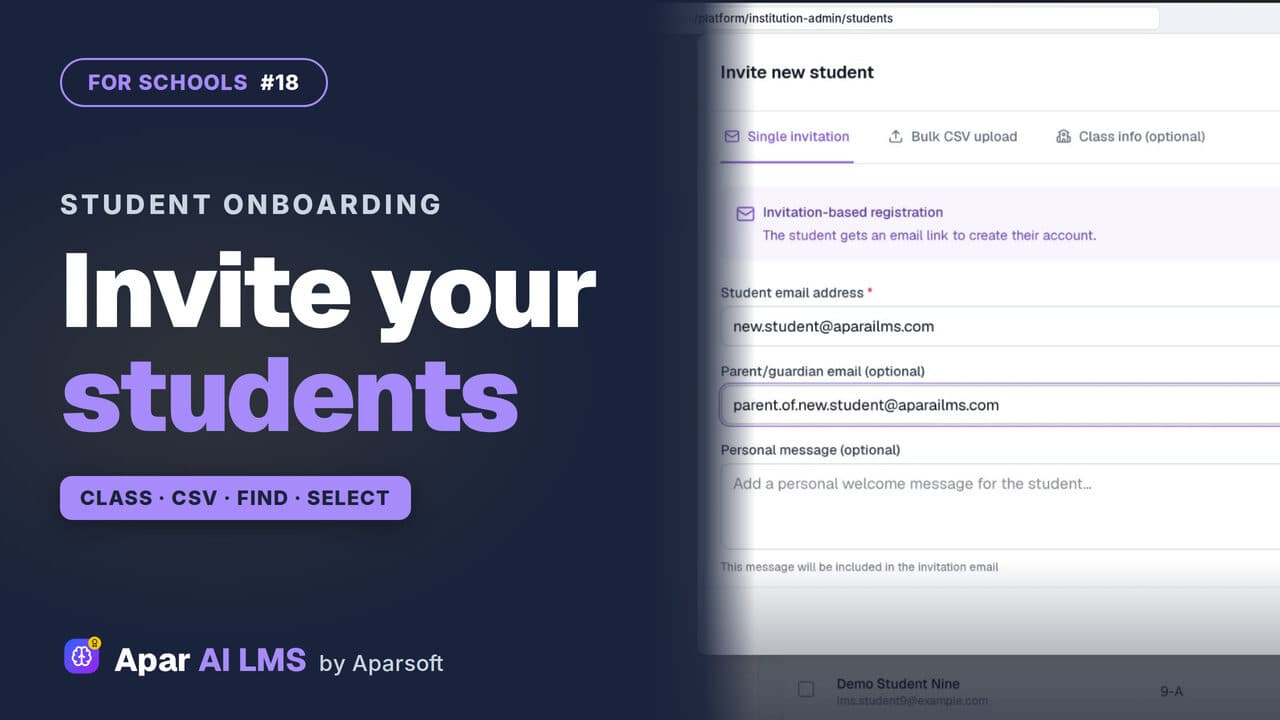 Length2:21#18 · School office
Invite and Manage Students in Your LMS
Invite students into their class by email or CSV, then find them by class or name and act on several at once.
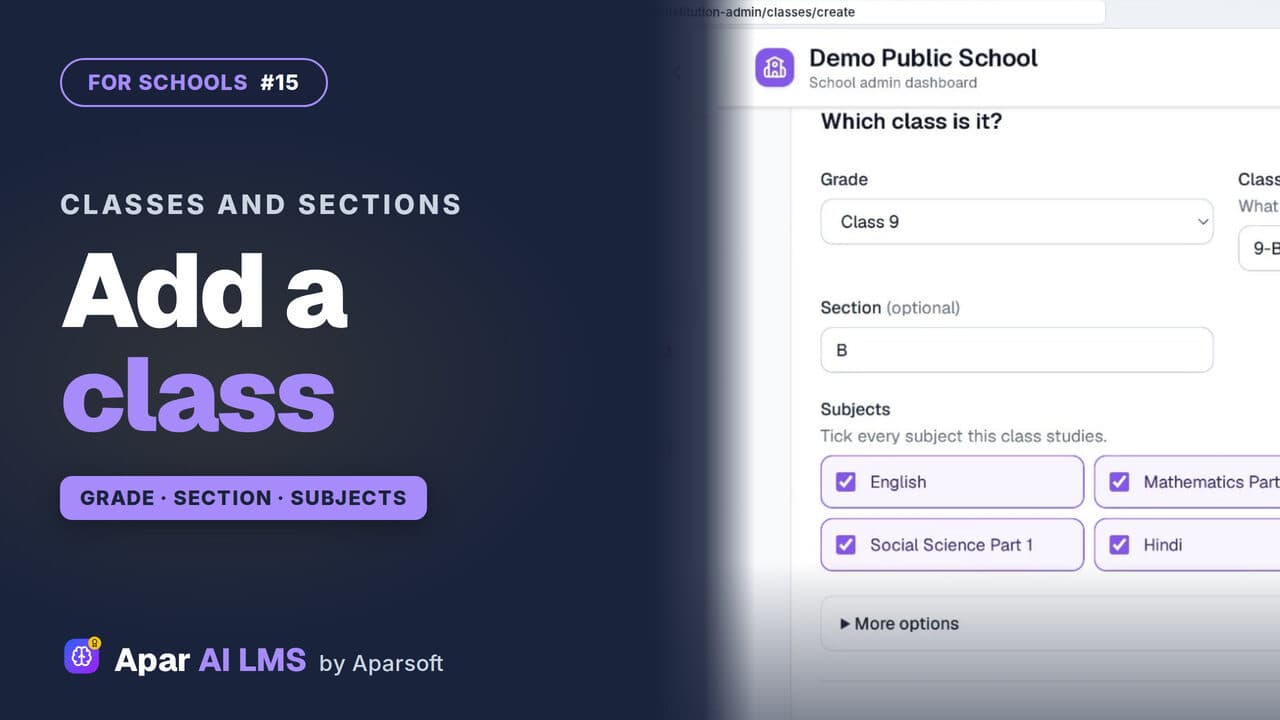 Length2:03#15 · School office
Add Classes and Sections to Your School LMS
Add a class with its grade, name, section and subjects. The teachers can wait; the new class gets its own page at once.
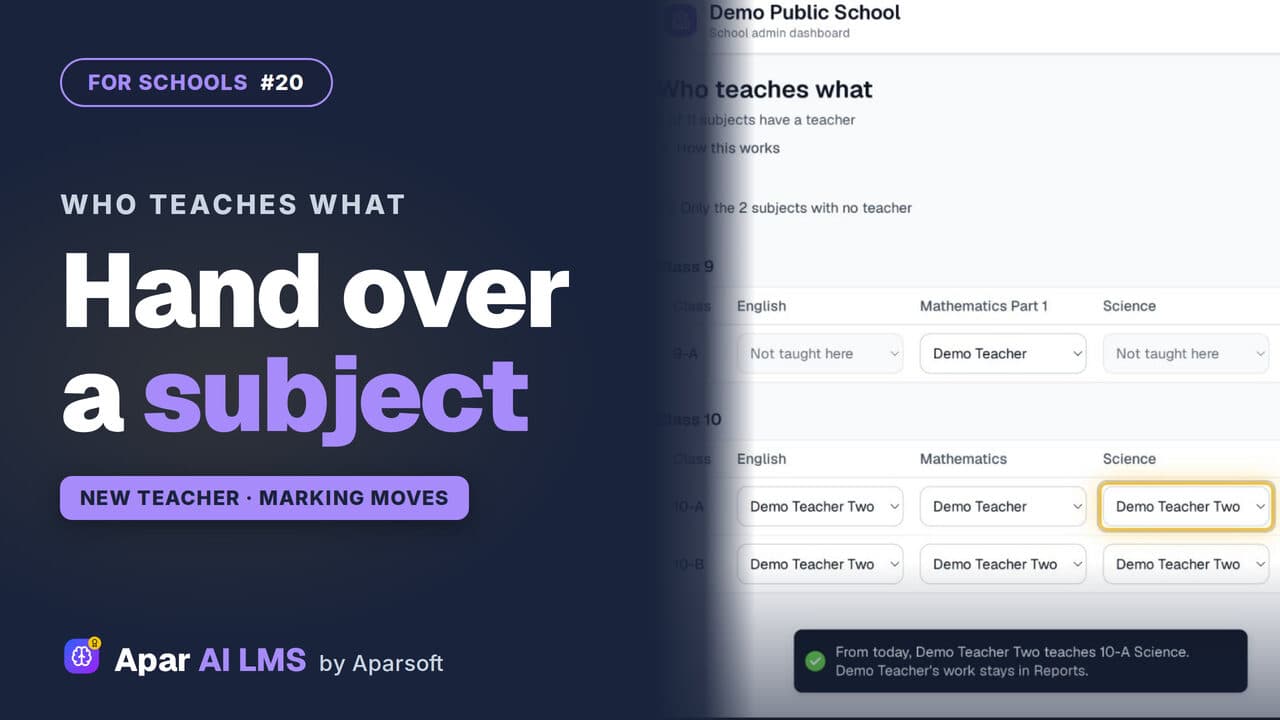 Length2:00#20 · School office
Teacher Change: Hand Over a Subject Mid-Year
Change a subject's teacher in one pick. The class and its waiting answers move to the new teacher; the old teacher's marks stay on record.
Try it on your own school
Start the 2-month free trial. No payment.
- No payment
- No commitment
- Onboarding included