Apar AI LMS walkthrough: a school's year, from setup to fees
From the first sign-in to the fees: the order a school actually uses Apar AI LMS in, in under three minutes.
Every screen in the films is the real product, shown on a demo school made for them.
The overview film shows what Apar AI LMS can do. This walkthrough shows it in the order your school would actually use it over a year: set up the school, teach every chapter with AI help for students, and keep track of marks, reports and fees.
Use this guide as a map. Each step names the part of the product the film shows and points you to the detailed guide for it.
Step by step
Set up from one checklist
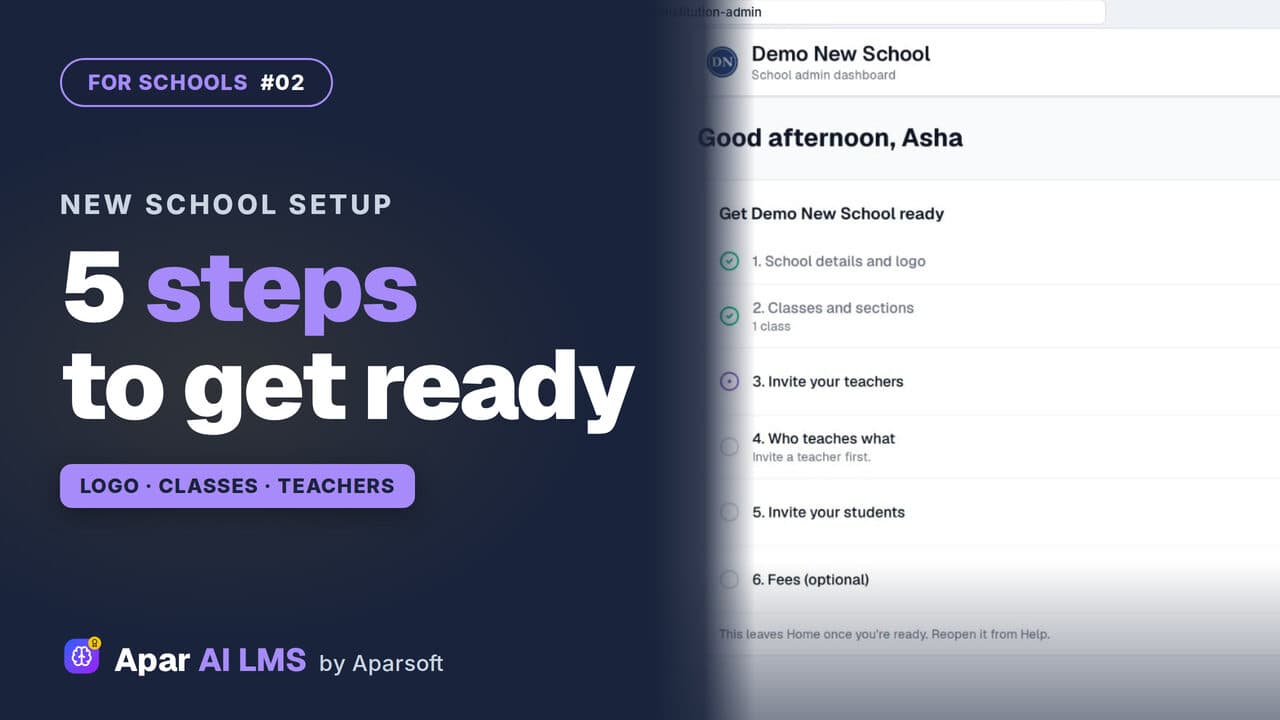
A new school signs in to a checklist: school details and logo, classes, teachers, who teaches what, and students. Each step opens its own form.
Watch from 0:14Invite the teachers
Teachers are invited by email, one at a time or many at once with a CSV file, and the list shows what each one teaches.
Watch from 0:27Fill the gaps in who teaches what
One grid shows every class and subject. Subjects still without a teacher are marked in amber, so the office knows what is left.
Watch from 0:37Start each day from Home
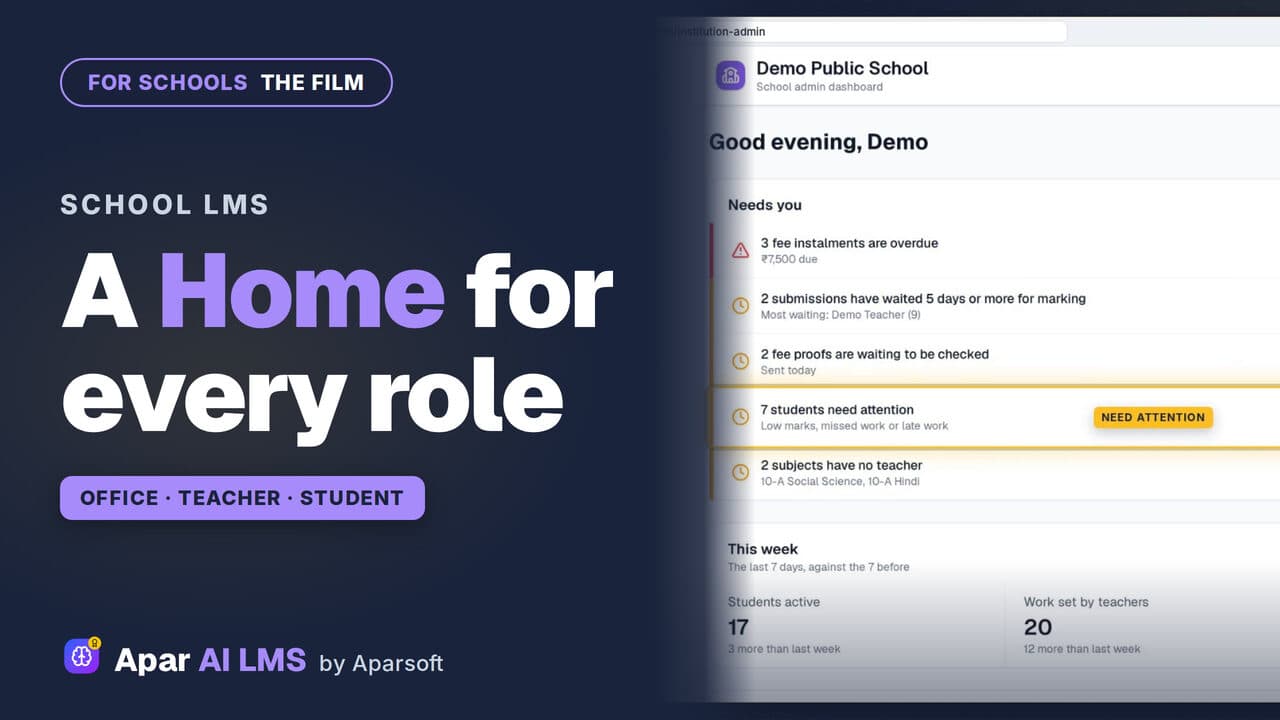
Every morning the office opens Home: overdue fees, fee proofs to check and students who need attention, most urgent first. A teacher's Home works the same way, with answers to mark, students who need help and how each class is doing.
Watch from 0:49Teach from full chapters
Each chapter arrives with concept maps, lesson plans, notes and questions built from the NCERT chapter, and goes to a class with Share with classes.
Watch from 1:12Test from the chapter's own questions
Online tests are made in four steps from the chapter's questions, and MCQs are marked automatically.
Watch from 1:34Help students when they are stuck
The student's Home puts the work due soonest under Next up. On a hard part of the notes, AI Explain goes through it again in simple steps.
Watch from 1:45Mark with AI, decide yourself
For a written answer the AI suggests a mark and a remark, and the teacher checks it and decides.
Watch from 2:04Find who needs help
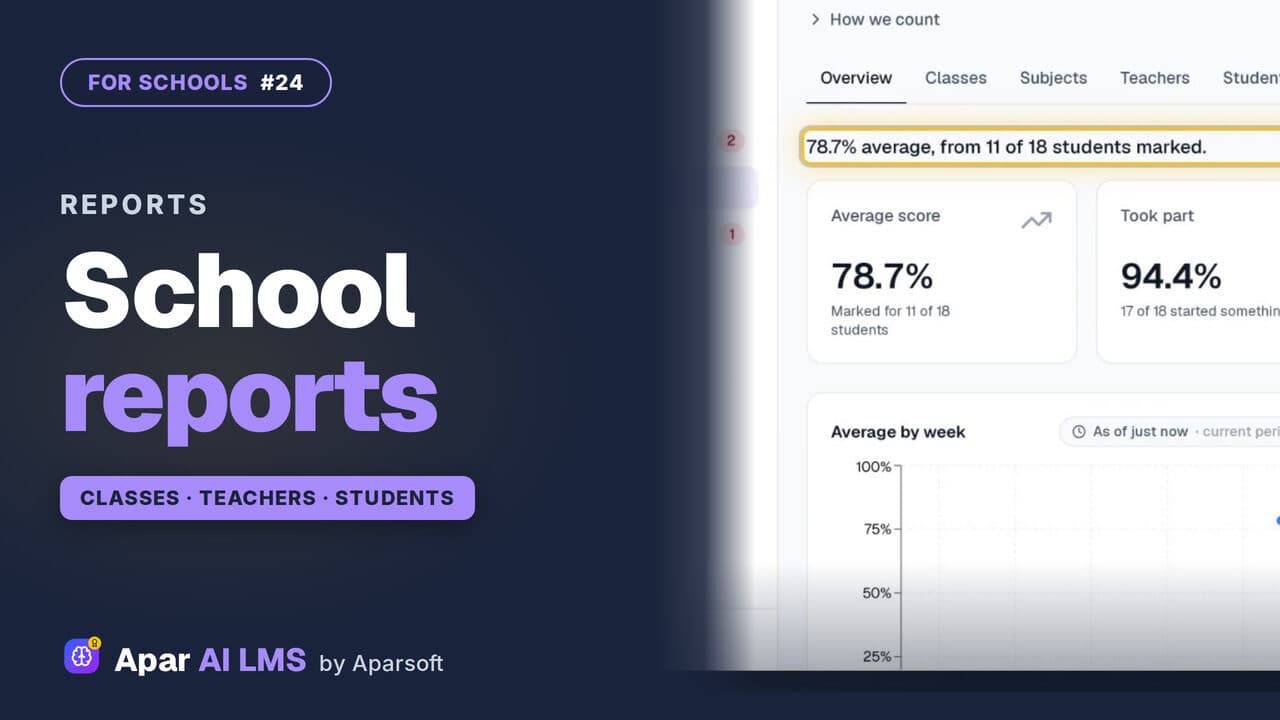
Reports open with the school's average. Press Not started to list the students who need help, and why each one is flagged.
Watch from 2:20Close the loop on fees
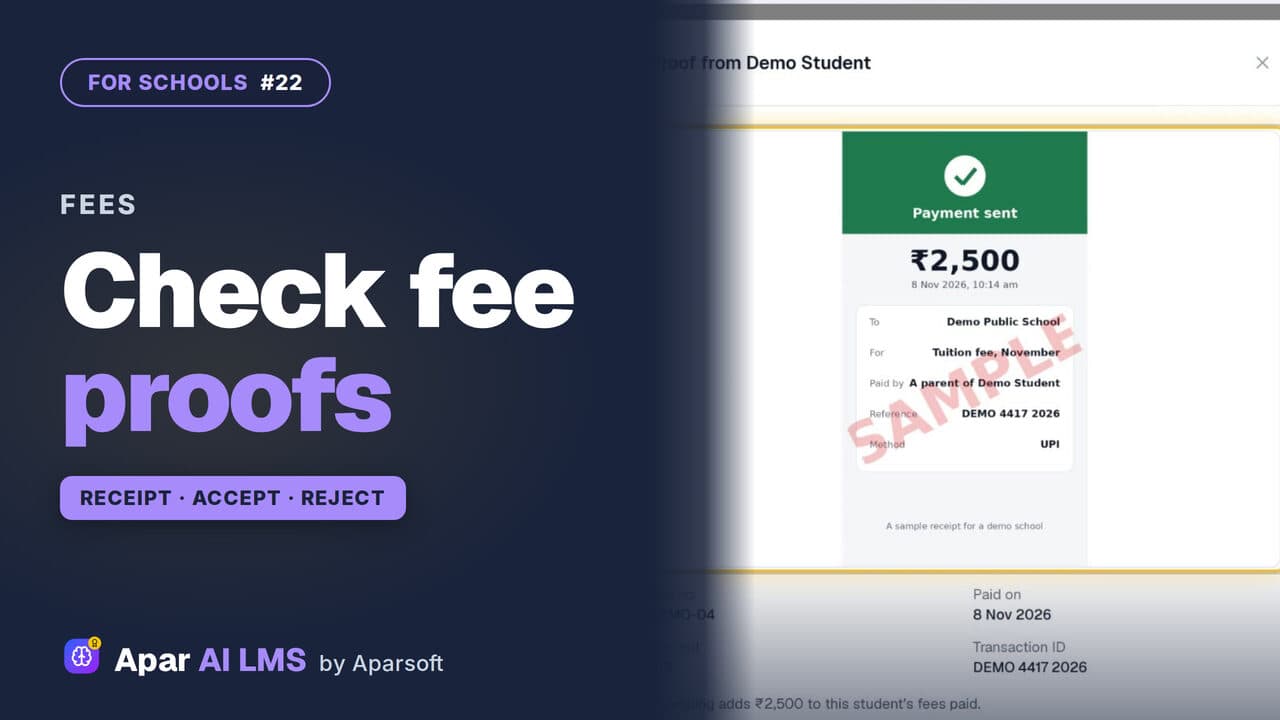
Students see what is still to pay and how to pay. Proofs of payment wait on the office's Fees page to be checked.
Watch from 2:31
Good to know
Each step has its own guide
The setup checklist, inviting teachers, who teaches what, online tests, marking, reports and fees each have a detailed video guide in this library.
Nothing to install
Apar AI LMS runs in the browser for every role, so the school does not install anything on its computers.
A demo school, real replies
Everything on screen is the demo school. AI Explain and the suggested mark are real replies made while filming; the payment details on the student's Fees page are samples.
Questions
- How does a new school start on Apar AI LMS?
- From the setup checklist on Home: school details and logo, classes, teachers, who teaches what, and students, each with its own form.
- Can parents pay fees through the student's account?
- The student's Fees page shows what is still to pay and how to pay, and the office checks the payment proofs on its own Fees page.
What the film saysThe narration, scene by scene.
A school's year, with AI built in. This is a school's year in Apar AI LMS, with AI built in. Set up the school. Teach every chapter, with AI help for students. And keep track of it all.
A new school's checklist. A new school signs in to one checklist: school details and logo, classes, teachers, who teaches what, and students. Each step opens its own form.
Invite your teachers. Invite teachers by email, one at a time, or many at once with a CSV file. The list shows what each one teaches.
Who teaches what. Who teaches what puts every class and subject on one grid. 9 of 11 subjects have a teacher. The two in amber still need one.
The office's Home. Every morning, the office opens Home. Needs you lists what is waiting, most urgent first: fees overdue, fee proofs to check, students who need attention.
The teacher's Home. A teacher's Home works the same way: answers waiting for marking, students who need help, and each class, with how it is doing.
Every chapter arrives full. For teachers, every chapter arrives full. Concept maps, lesson plans, notes and questions, built from the NCERT chapter itself, and checked for accuracy.
Share it with the class. Share it with a class in a few clicks. Press Share with classes, tick 10-A, and press Share.
An online test. Online tests come from the chapter's own questions, and MCQs are marked automatically. Press New online test: four steps make one.
The student's Home. The student's Home says what to do next. Next up is the work due soonest. To do lists the rest, and when each is due.
AI Explain. Stuck on a hard part of the notes? AI Explain goes through it again, in simple steps.
The AI suggests, the teacher decides. Answers to mark wait on the teacher's Home. Press Mark now, and open an answer. For a written answer, the AI suggests a mark and a remark. The teacher checks it, and decides.
Reports, and who needs help. Reports start with the answer: the school's average. Press Not started, and it lists the students who need help, and why each one is flagged.
Fees, for the student. On Fees, the student sees what is still to pay, and how to pay.
Proofs, for the office. Proofs of payment wait on the office's Fees page, to be checked.
Book a free demo. Apar AI LMS. Three dashboards, one school, ready on day one. Book a free demo for your school, at aparailms.com.
Watch next
 Length2:41Tour
Apar AI LMS Overview: One Home for Each Role
The whole product in under three minutes: the office's Home, a full chapter, a test paper, AI help for students and marking.
 Length2:55#02 · School office
New School Setup Checklist in Apar AI LMS
A new school's first sign-in opens on one checklist. Add the logo and a class, invite a teacher and a student, and watch the list move on by itself.
 Length1:44#24 · School office
School Reports: Classes, Teachers, Students
Reports opens on the school's average, then the students who need help, each class, teacher and student, and the chapters taught.
 Length2:29#22 · School office
Check Fee Payment Proofs and Record Cash
Families send a payment with its receipt; the office accepts it, or rejects it with a reason they can read. Cash at the office is recorded too.
Try it on your own school
Start the 2-month free trial. No payment.
- No payment
- No commitment
- Onboarding included