Who teaches what: give every class and subject a teacher, on one grid
One grid per grade shows which subjects have a teacher. Fill the gaps, change a teacher, and the class shows on that teacher's Home.
Every screen in the films is the real product, shown on a demo school made for them.
A subject with no teacher is a subject where nobody sets work and nobody marks it. Who teaches what puts the whole school's teaching on one screen, so the principal or the office can find the gaps quickly and fill them without opening each class in turn.
The film fills a gap for 10-A Social Science, changes the teacher of 10-B Mathematics, explains what Not taught here means, and opens the teacher's Home to show the new class there.
Step by step
Open Who teaches what
On the school admin dashboard, press Classes, then the Who teaches what tab. This one page lists every class, every subject, and the teacher for each.
Watch from 0:00Read the count and the grids
The line at the top counts how many subjects have a teacher. Below, each grade has its own grid: a row for each class and a column for each subject. A subject with no teacher shows in amber.
Watch from 0:19Show only the gaps and fill them
Tick the box that shows only the subjects with no teacher, so you are not searching through full grids. Pick a teacher for each one. It saves as soon as you pick, and the count at the top goes up by one.
Watch from 0:36Change a teacher
Untick the box to see every class again. To change a teacher, pick another name for that class and subject. The page asks first, and reminds you that the old teacher's work stays in Reports. Press Change teacher to go ahead.
Watch from 0:56Know what Not taught here means
Not taught here marks a subject that the class does not study. It is not a gap, so it is left out of the count.
Watch from 1:18Check the teacher's Home
Open the teacher's dashboard. The class and subject you just gave them, here 10-A Social Science, is now among their classes, ready for them to set work.
Watch from 1:28
Good to know
Saves at once, asks before a change
Picking a teacher for an empty subject saves straight away. Replacing a teacher asks you to confirm first, because the class moves to someone else.
The old teacher's record stays
When you change a teacher, their earlier work for that class stays in Reports. The film on handing over a subject shows what happens to answers still waiting to be marked.
Filmed on a demo school
Both changes were real, on a demo school with demo teachers, and put back after filming.
Questions
- How do I find the classes that have no subject teacher?
- Under Classes, Who teaches what, tick the box that shows only the subjects with no teacher. Each one also shows in amber on its grade's grid.
- What happens to the old teacher's work when I change a teacher?
- It stays in Reports. The page asks you to confirm the change before it is made.
- Does the teacher see the new class straight away?
- Yes. In the film, the class shows among the teacher's classes on their Home as soon as it is given to them.
What the film saysThe narration, scene by scene.
Every class, every subject. This is the school admin dashboard. Who teaches what shows every class and subject, and its teacher.
Classes, Who teaches what. On the left, press Classes. Then press the Who teaches what tab.
How many have a teacher. At the top: nine of eleven subjects have a teacher.
One grid per grade. Each grade has its own grid. A row for each class, and a column for each subject.
Only the gaps. The two in amber have no teacher. Tick Only the 2 subjects with no teacher.
Pick a teacher. For 10-A Social Science, pick Demo Teacher Two. It saves at once: now 10 of 11.
A change asks first. Untick it to see every class. To change a teacher, pick another. Here, 10-B Mathematics: Demo Teacher.
Their work stays. It asks first. The old teacher's work stays in Reports. Press Change teacher.
Not taught here. Not taught here means the class does not study that subject. So it is not counted as a gap.
The teacher's Home. On Demo Teacher Two's teacher dashboard, 10-A Social Science is now one of their classes.
Coming up. Next: Invite students and manage them.
Watch next
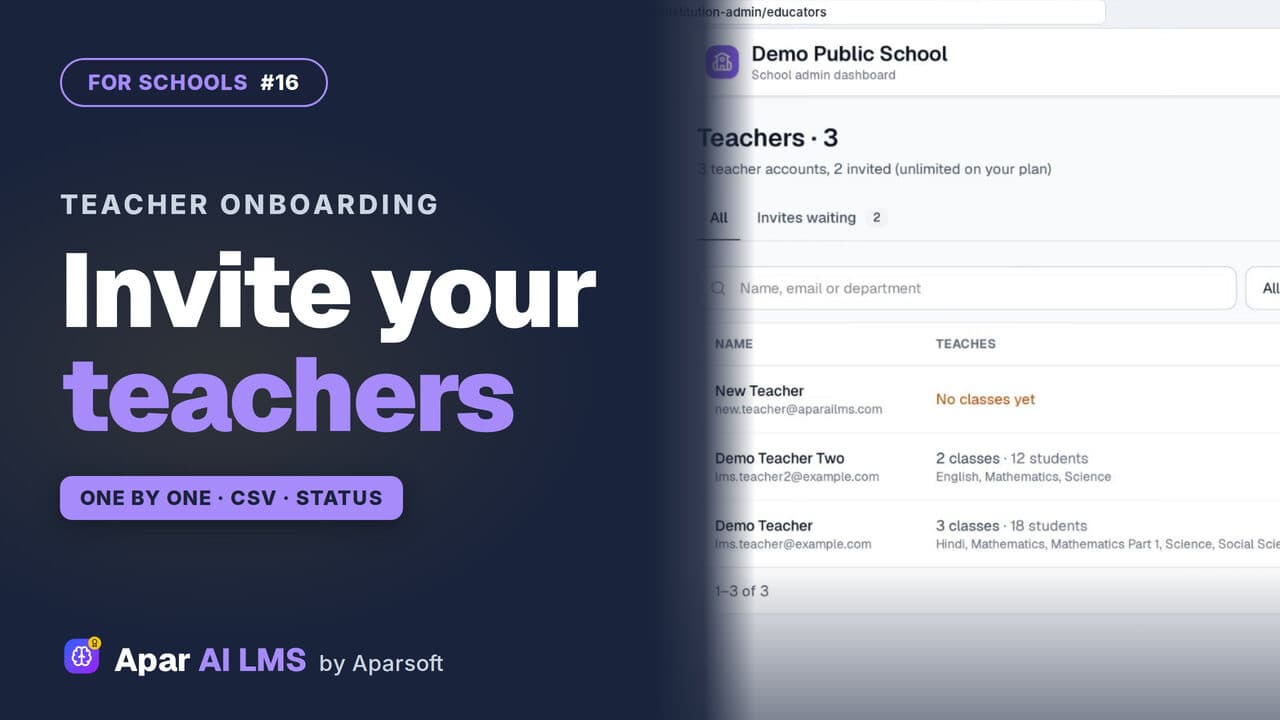 Length3:00#16 · School office
Invite Teachers to Your School LMS by CSV
Invite teachers one at a time or by CSV, follow the invites until they join, and change a teacher's status when they go on leave.
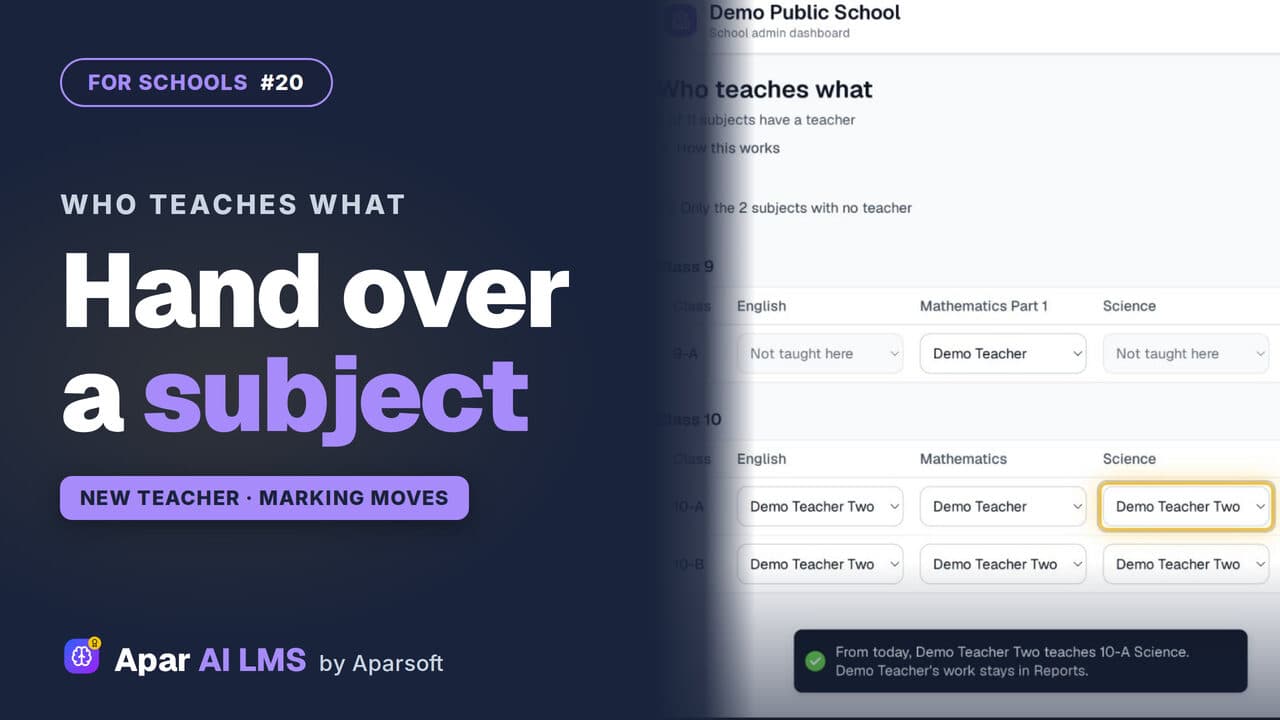 Length2:00#20 · School office
Teacher Change: Hand Over a Subject Mid-Year
Change a subject's teacher in one pick. The class and its waiting answers move to the new teacher; the old teacher's marks stay on record.
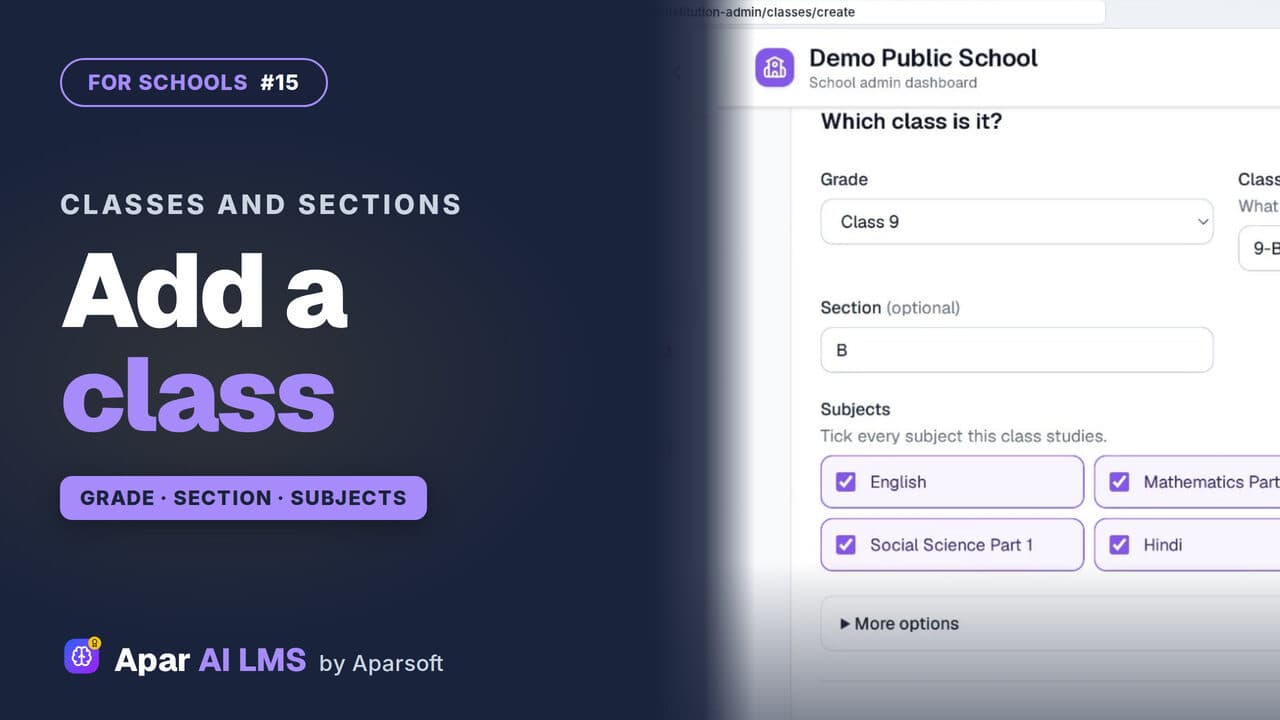 Length2:03#15 · School office
Add Classes and Sections to Your School LMS
Add a class with its grade, name, section and subjects. The teachers can wait; the new class gets its own page at once.
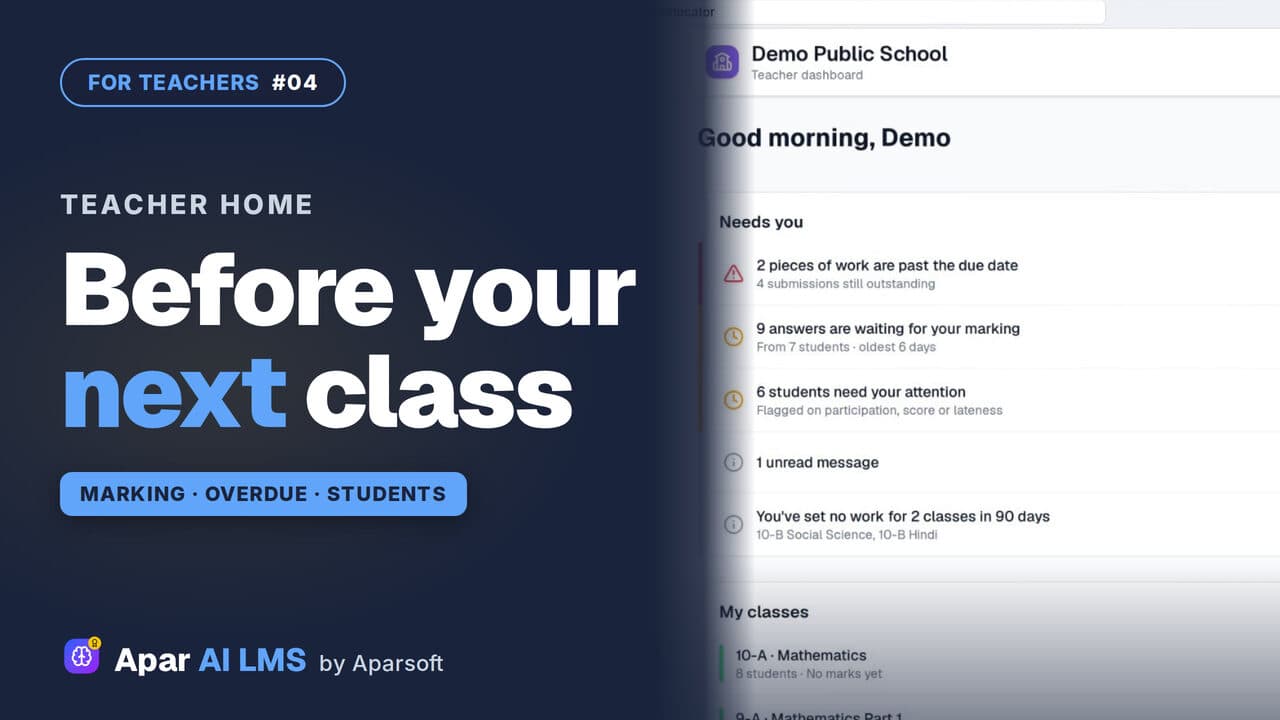 Length2:35#04 · Teachers
Teacher Dashboard: Home, Menu and Set Work
Teacher Home answers one question: what needs you before your next class? Then Set work, and where everything lives in the menu.
Try it on your own school
Start the 2-month free trial. No payment.
- No payment
- No commitment
- Onboarding included