The school admin dashboard: how School Home shows what needs you today
School Home answers one question for the office: what needs you today? Only what is waiting, most urgent first, each row with its own button.
Every screen in the films is the real product, shown on a demo school made for them.
A principal or school office does not have time to dig through menus to find out what is wrong. School Home is built to answer one question as soon as you sign in: what needs you today?
This film reads the demo school's Home on an ordinary working day, row by row, and shows where each row leads. Nothing is changed, so what you see is exactly what an office would open in the morning.
Step by step
Start with Needs you
The top of Home is Needs you. It lists only what is waiting for the office, with the most urgent row first. When nothing is waiting, there is nothing to read.
Watch from 0:00Overdue fees, and who owes them
A row says how many fee instalments are overdue and how much is due. Press See who to open the list behind it, then Home to come back.
Watch from 0:17Marking that has waited too long
The next row counts work that has waited five days or more to be marked, and names the teacher with the most of it, so you know whom to ask.
Watch from 0:34Proofs, students and empty subjects
Further rows cover fee proofs waiting to be checked, students who need attention, and subjects that still have no teacher, by name. Every row has its own button that opens the work.
Watch from 0:44Compare this week with last
This week sets the last seven days against the seven before: how many students were active, how much work teachers set, and the fees collected.
Watch from 0:59Find the class furthest behind
Your classes are listed with the one furthest behind at the top. Each line shows how much of the set work is done, the class average, and what is left to mark.
Watch from 1:10Check this month's fees
Fees this month shows what has been collected so far and how many payments are overdue.
Watch from 1:10Read notices and find your way
The bell at the top shows new notices. The menu on the left has eight places: Home, Teachers, Students, Classes, Fees, Reports, Messages and School.
Watch from 1:32
Good to know
Only what is waiting
Needs you is not a report. A row appears only when something needs the office, so an empty section is good news.
Every row is a shortcut
You never have to remember where a problem lives. The row's own button takes you to the list or page that fixes it.
The numbers are the demo school's
The film reads a demo school on the day it was captured. Your school's Home shows your own fees, classes and teachers.
Questions
- Can the principal see which teacher has the most marking pending?
- Yes. The marking row on School Home counts work waiting five days or more and names the teacher with the most.
- Does School Home show overdue fees?
- Yes, if the school uses fees. A row shows how many instalments are overdue and how much is due, and See who lists the students.
- How are classes ordered on School Home?
- The class furthest behind on its set work comes first, so the one that needs a word from you is at the top.
What the film saysThe narration, scene by scene.
One question. This is School Home. It answers one question: what needs you today?
Needs you. Needs you lists only what is waiting, with the most urgent first.
Fees overdue. Three fee instalments are overdue, and it says how much is due. Press See who.
Behind the row. Here is the list behind that row. Press Home to go back.
Work waiting for marking. Next, work that has waited five days or more for marking. It names the teacher with the most.
Each row, its button. Fee proofs wait here to be checked. Some students need attention. Two subjects have no teacher, and it names them. Each row has its own button.
This week. This week compares the last seven days with the seven before: students active, work set by teachers, and fees collected.
Your classes. Then your classes, with the one furthest behind first. Each line says how much set work is done, the average, and what is left to mark.
Fees this month. Fees this month shows what has been collected, and how many are overdue.
The bell. The bell at the top shows new notices. Press it to read them.
The menu. On the left are eight places: Home, Teachers, Students, Classes, Fees, Reports, Messages, and School.
Coming up. Next: Teacher Home, what needs you before your next class.
Watch next
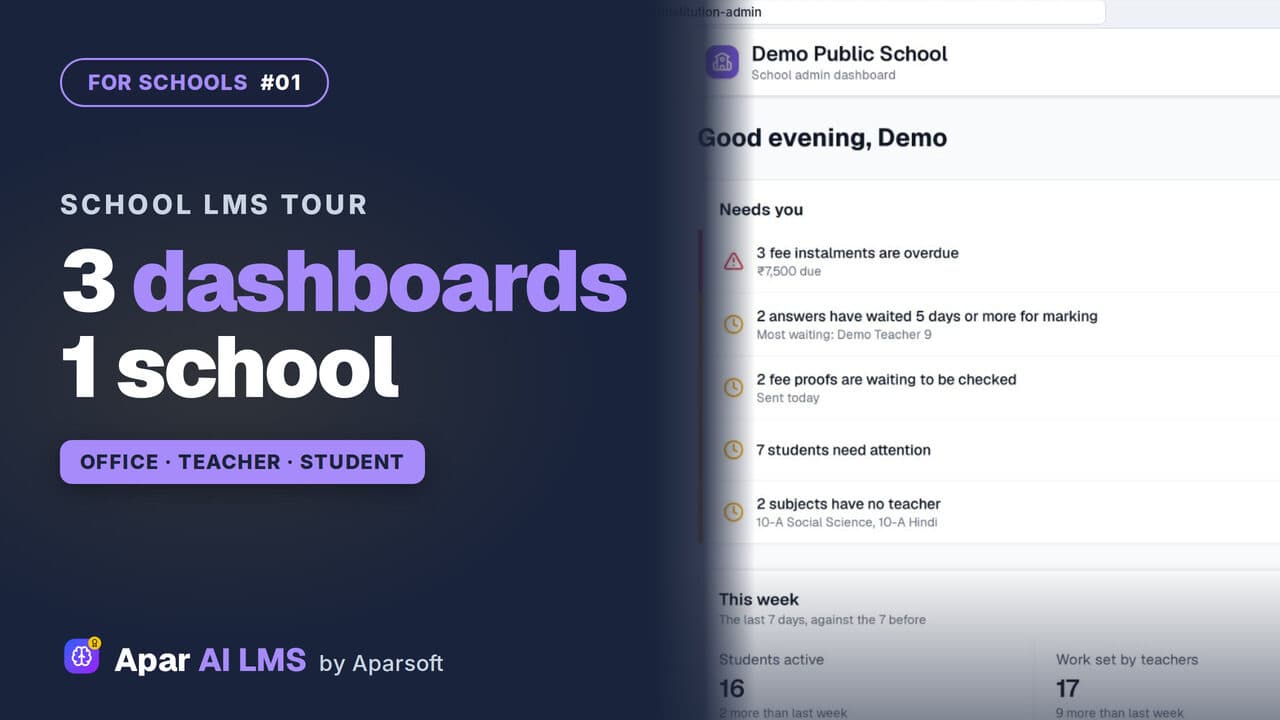 Length3:44#01 · School office
School LMS Tour: Office, Teacher and Student
One school, three roles. Follow a chapter from the teacher who shares it to the student who studies it, then the marking and the reports.
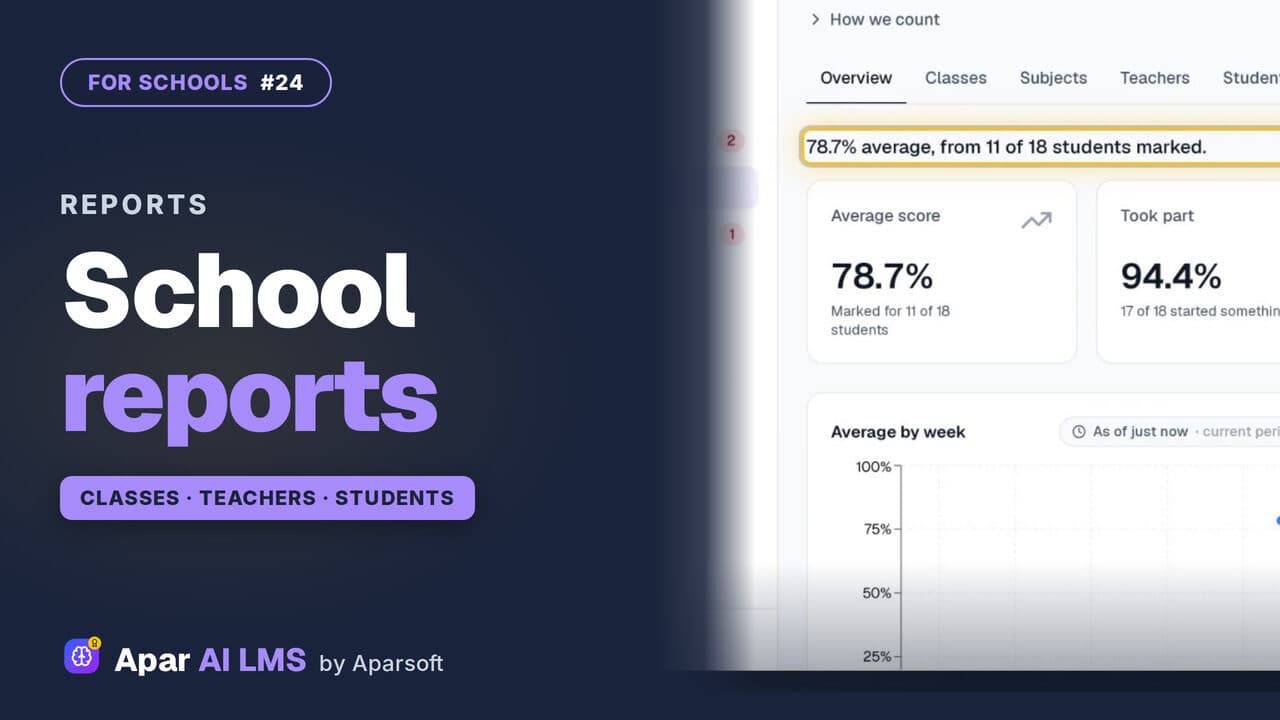 Length1:44#24 · School office
School Reports: Classes, Teachers, Students
Reports opens on the school's average, then the students who need help, each class, teacher and student, and the chapters taught.
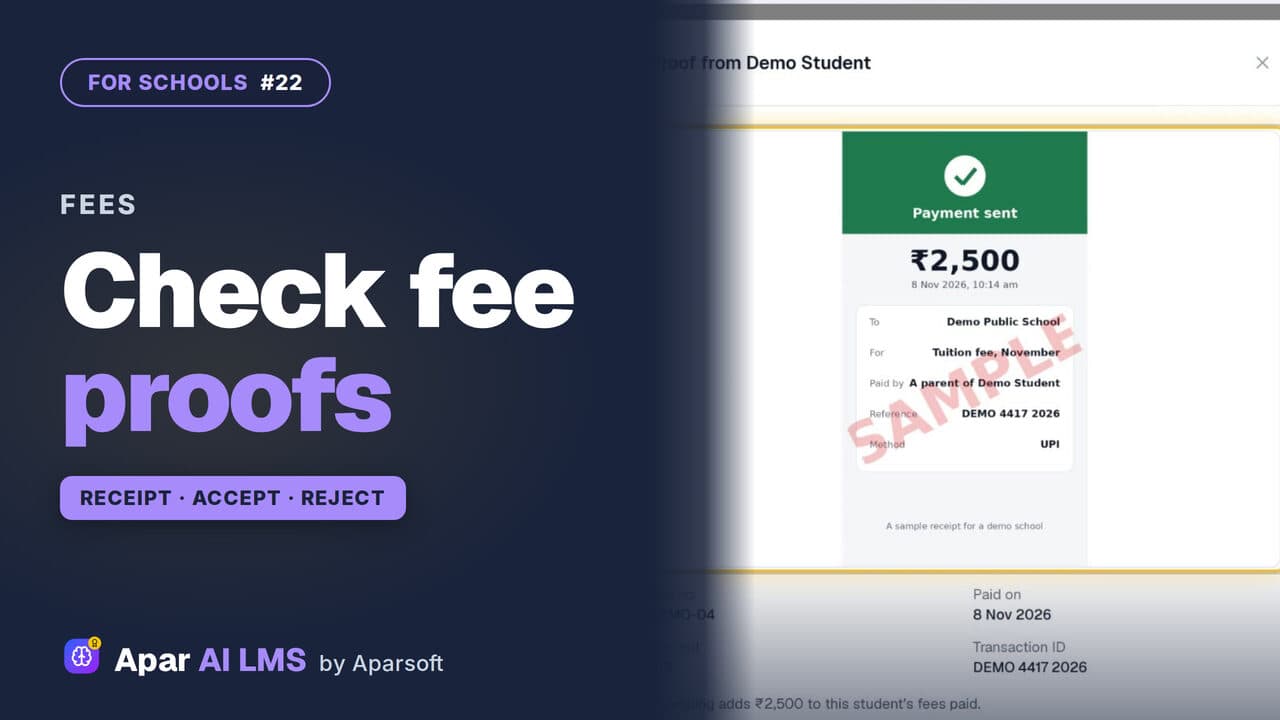 Length2:29#22 · School office
Check Fee Payment Proofs and Record Cash
Families send a payment with its receipt; the office accepts it, or rejects it with a reason they can read. Cash at the office is recorded too.
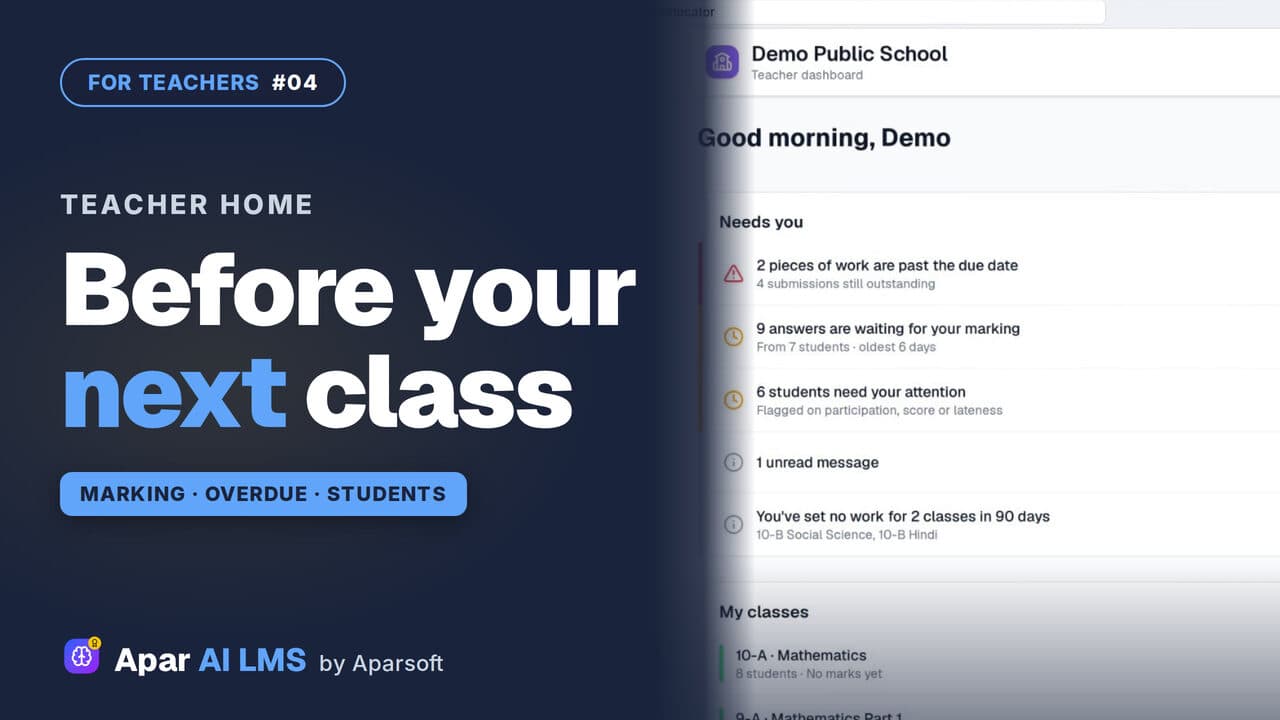 Length2:35#04 · Teachers
Teacher Dashboard: Home, Menu and Set Work
Teacher Home answers one question: what needs you before your next class? Then Set work, and where everything lives in the menu.
Try it on your own school
Start the 2-month free trial. No payment.
- No payment
- No commitment
- Onboarding included