Read your school's reports: classes, teachers, students and the chapters taught
Reports opens on the school's average, then the students who need help, each class, teacher and student, and the chapters taught.
Every screen in the films is the real product, shown on a demo school made for them.
A principal should not have to collect registers from every class teacher to know how the school is doing. Reports puts the answer first, the school's average and how many students it is from, then lets you go down to a class, a teacher or a single student, and see how far each subject has got through its chapters.
The film reads the reports of a demo school whose marks come from real work submitted and marked there. Nothing is changed on camera.
Step by step
Start with the answer
Press Reports in the left menu. The top shows the school's average and how many students it is worked out from.
Watch from 0:00See how the numbers are counted
Press How we count for the rules: every test counts the same, and work that is not marked yet is never counted as a zero.
Watch from 0:00Find the students who need help
Press Not started. It opens the students who need help, each with the reason they are flagged.
Watch from 0:30Read each class
The Classes tab shows each class's average, how far apart its students are, and what is still waiting to be marked.
Watch from 0:40Read each teacher
The Teachers tab lists the teachers furthest behind first, with the answers each one still has to mark.
Watch from 0:40Read each student
The Students tab lists students the same way, furthest behind first. Press a name to open that student's report.
Watch from 0:40Open one student's report
A student's report says why they are flagged, and sets each mark against that student's own average, never against the class.
Watch from 1:09See the chapters taught
Chapters taught shows, for each subject, the chapters where work has been shared, and the first chapter with a gap.
Watch from 1:19
Good to know
Unmarked work is never a zero
A test still waiting for the teacher does not pull a student's average down. It shows on the Classes tab as waiting to be marked.
Each student against themselves
A student's report compares each mark with their own average, so you see whether that student is slipping, not where they rank in the class.
The whole school in one place
These reports are the office's, across every class, teacher and student. Teachers have their own reports for the classes they teach.
Questions
- How does the school LMS work out a student's average?
- Every test counts the same, and work not marked yet is never counted as a zero. How we count, on Reports, sets this out.
- Can the principal see which teachers have marking pending?
- Yes. The Teachers tab lists each teacher, furthest behind first, with the answers they still have to mark.
- How do I check how much of the syllabus has been covered?
- Chapters taught shows, for each subject, the chapters with work shared and the first gap.
What the film saysThe narration, scene by scene.
Reports. This is the school admin dashboard. Here is how to read your school's reports.
The answer first. On the left, press Reports. The answer comes first: the school's average, and how many students it is from.
How we count. Press How we count. Every test counts the same, and work not marked yet is never a zero.
The students behind a number. Press Not started. It opens the students who need help, and why each one is flagged.
Classes. The Classes tab: each class's average, how far apart its students are, and what is still waiting to be marked.
Teachers. Teachers, furthest behind first, with the answers each one has to mark.
Students. Students, furthest behind first. Press Ananya.
One student's report. Her report says why she is flagged, and compares each mark with her own average, never with the class.
Chapters taught. Chapters taught shows, for each subject, the chapters with work shared, and the first gap.
Coming up. Next: Messages and school notices.
Watch next
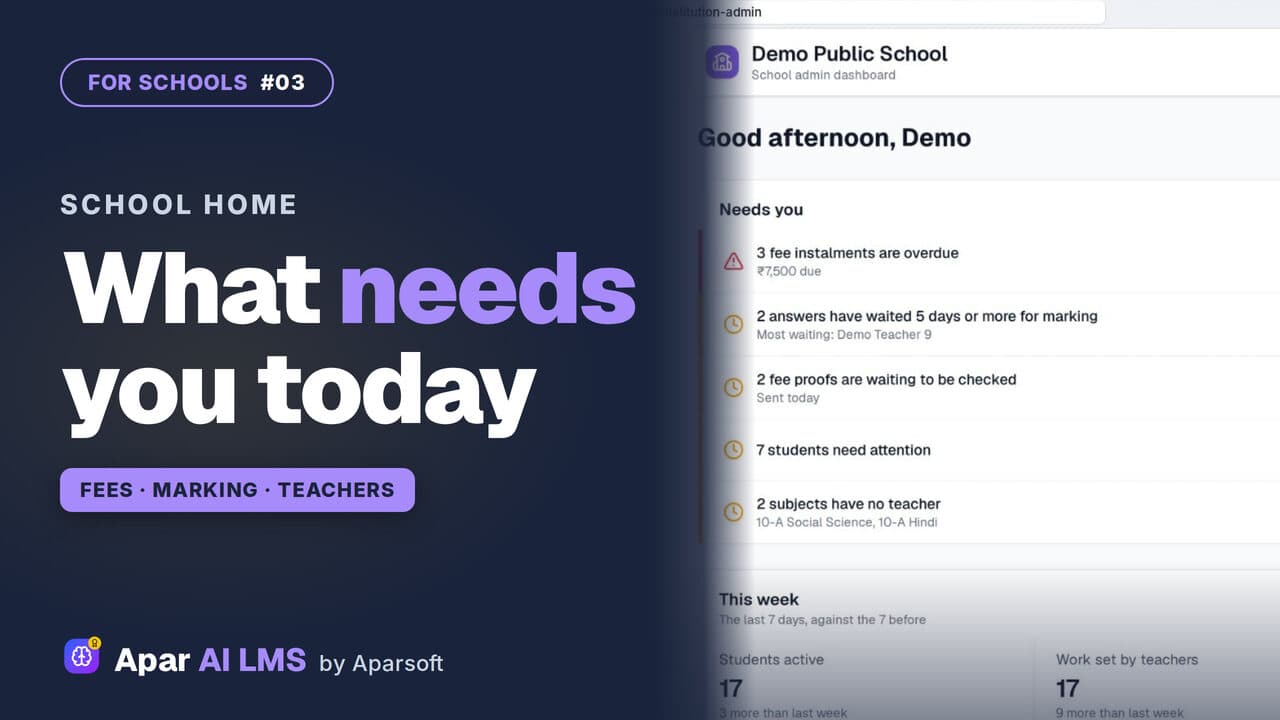 Length2:05#03 · School office
School Admin Dashboard: What Needs You Today
School Home answers one question for the office: what needs you today? Only what is waiting, most urgent first, each row with its own button.
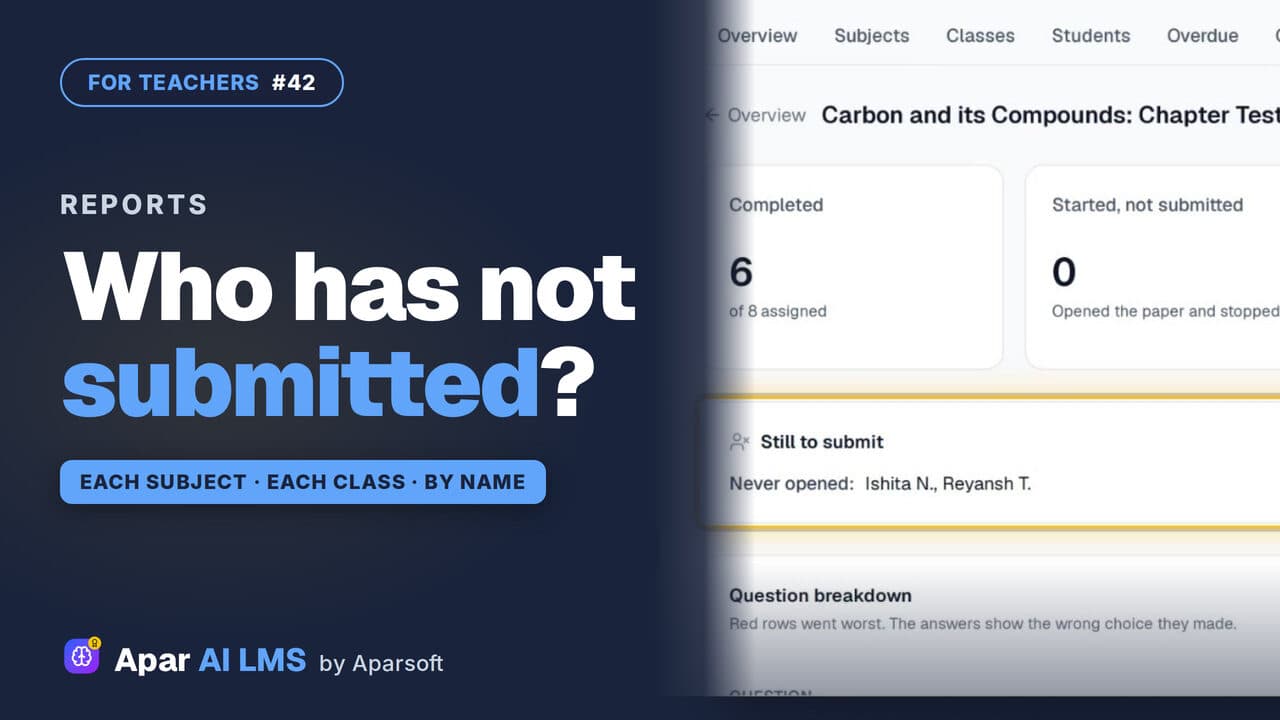 Length1:22#42 · Teachers
Teacher Reports: Who Has Not Submitted
Reports scores each subject and class apart, names the students still to submit, and shows how the class did on every question.
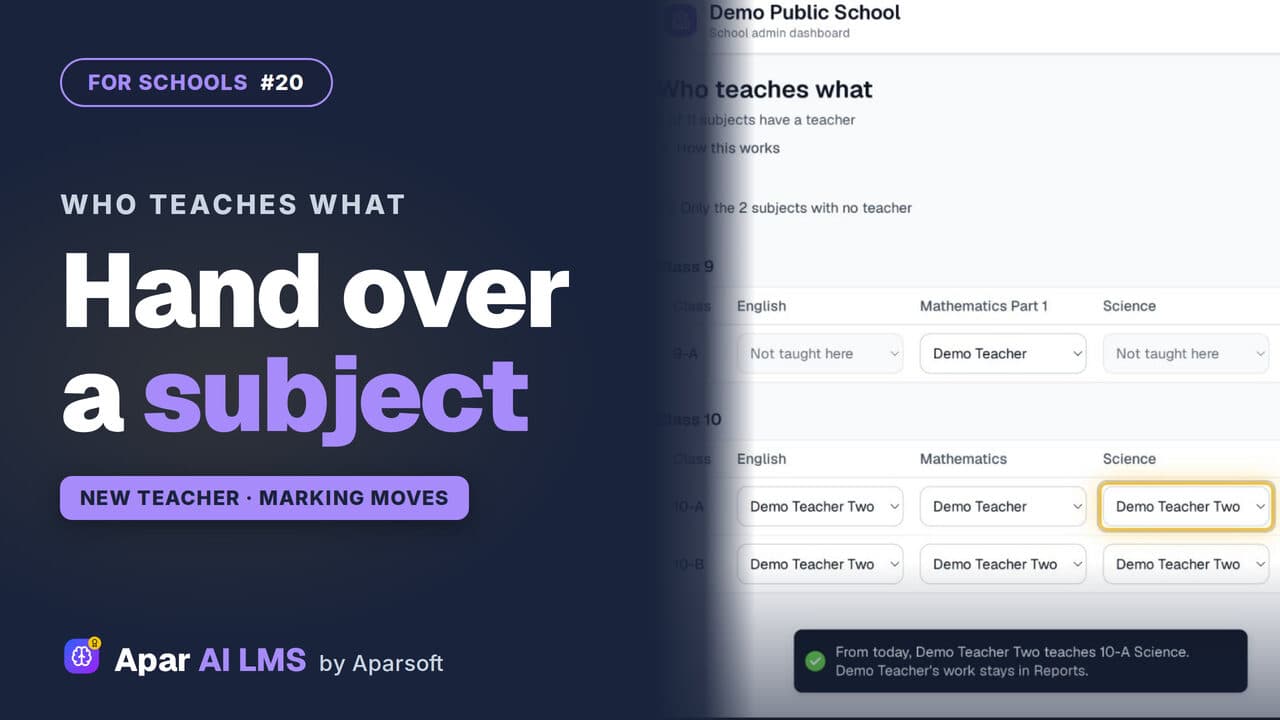 Length2:00#20 · School office
Teacher Change: Hand Over a Subject Mid-Year
Change a subject's teacher in one pick. The class and its waiting answers move to the new teacher; the old teacher's marks stay on record.
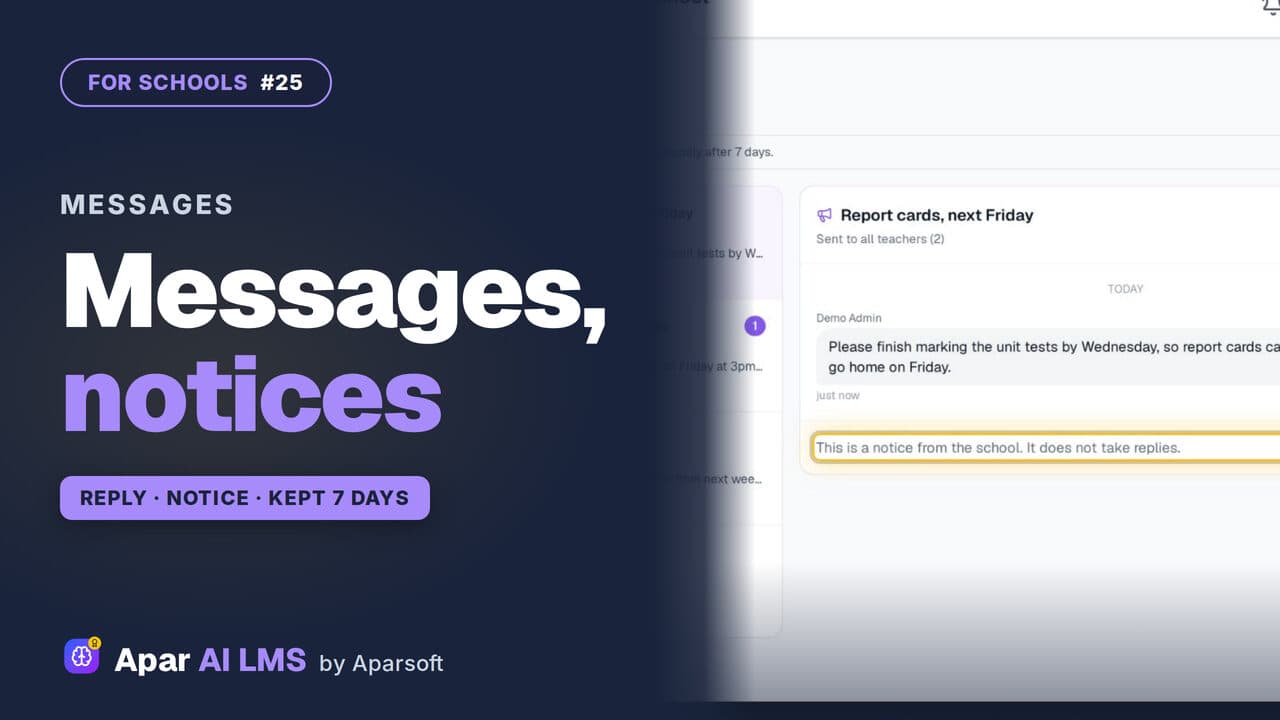 Length2:05#25 · School office
Send a School Notice to Teachers or Students
Reply to teachers, delete a mistaken message for both sides, and send one-way notices to teachers, students or the whole school.
Try it on your own school
Start the 2-month free trial. No payment.
- No payment
- No commitment
- Onboarding included