See the classes you teach, your students, and each student's progress
Your classes and subjects, your students class by class, and each student's page with tests done, a parent's contact and progress.
Every screen in the films is the real product, shown on a demo school made for them.
A teacher with several sections, or one who takes over a class mid-year, needs to know quickly who is in each class and who is falling behind. Classes and Students on the teacher dashboard answer both, without asking the office for a list.
The film lists a teacher's classes, narrows the student list to one class, opens 10-A and then one student, Ananya: her tests, her details and her progress.
Step by step
See the classes you teach
On the teacher dashboard, press Classes in the left menu. It lists each class you teach, and the subjects you teach that class, so you see every section and subject you have at once.
Watch from 0:00See your students, one class at a time
Press Students for everyone in all your classes together. Pick a class to see only its students, which is handier when you are about to teach that section.
Watch from 0:20Open a class
Press Classes again, then a class, here 10-A. Its page shows the class's subjects and how full it is, with its students listed below.
Watch from 0:30Open a student's page
Press a student's name, here Ananya, to open their page. It shows the tests given to them and how many they have done, then their details and a parent's contact.
Watch from 0:47Check their progress
Press Progress to see how the student is doing: the work that is late, the work due soon, and their average.
Watch from 1:07
Good to know
Only your own classes
Classes and Students show the classes you teach. The school office decides who teaches what, so if a class is missing from your list, ask the office to add you under Who teaches what.
A parent's contact on the student's page
The student's page holds a parent's contact, so a teacher can reach the family about late work without first asking the office for their details.
Nothing changed on camera
The film only reads pages. The classes and students belong to a demo school made for these videos, with demo email addresses.
Questions
- Where can a teacher see a student's progress?
- Open the student from Classes or Students, then press Progress. It shows what is late, what is due soon, and the student's average.
- Can a teacher see the students of just one section?
- Yes. Under Students, pick a class, and the list shows only its students.
- Can a teacher see how many tests a student has done?
- Yes. The student's page shows the tests given to them and how many they have done.
What the film saysThe narration, scene by scene.
Classes and students. This is the teacher dashboard. Here is how to see your classes and your students.
Your classes. On the left, press Classes. It lists the classes you teach, and the subjects you teach each one.
Your students. Press Students. It lists everyone in your classes. Pick a class to see only its students.
A class. Press Classes again, then a class, like 10-A.
The class's page. Its page shows the class's subjects, and how full it is. Below are its students.
A student's page. Press a student's name, like Ananya, to open their page.
Their details. It shows the tests given to them, and how many they have done. Below are their details, and a parent's contact.
Their progress. To see how they are doing, press Progress. It shows what is late, what is due soon, and their average.
Coming up. Next: Lesson plans.
Watch next
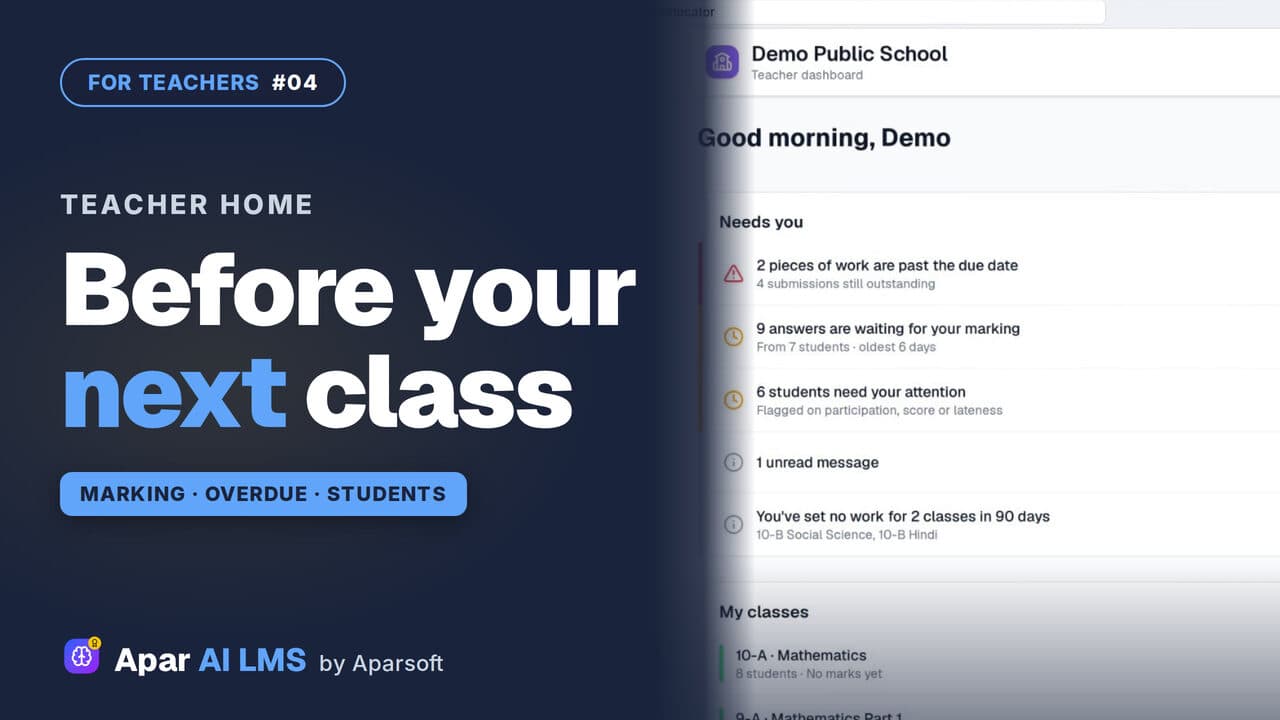 Length2:35#04 · Teachers
Teacher Dashboard: Home, Menu and Set Work
Teacher Home answers one question: what needs you before your next class? Then Set work, and where everything lives in the menu.
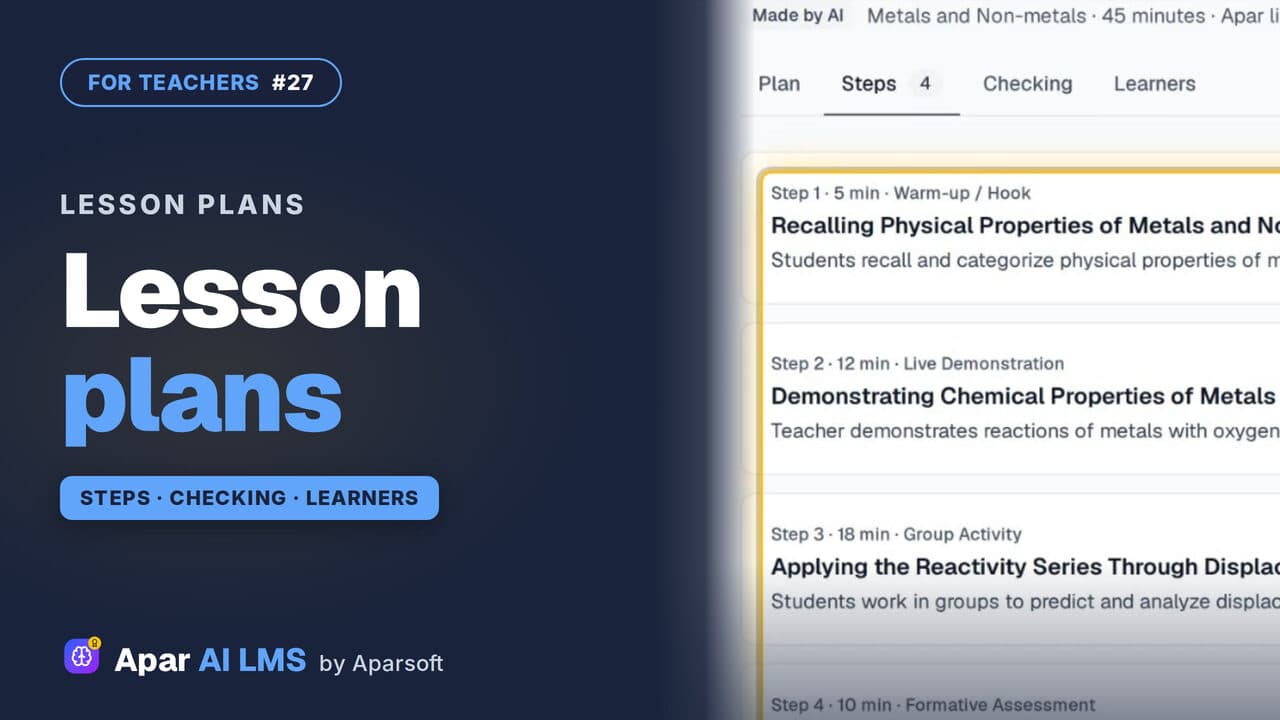 Length1:48#27 · Teachers
Lesson Plans for a Chapter, Ready to Teach
Each chapter has lesson plans that teach it different ways. Read one: aims, what you need, timed steps, checks, homework and help for every learner.
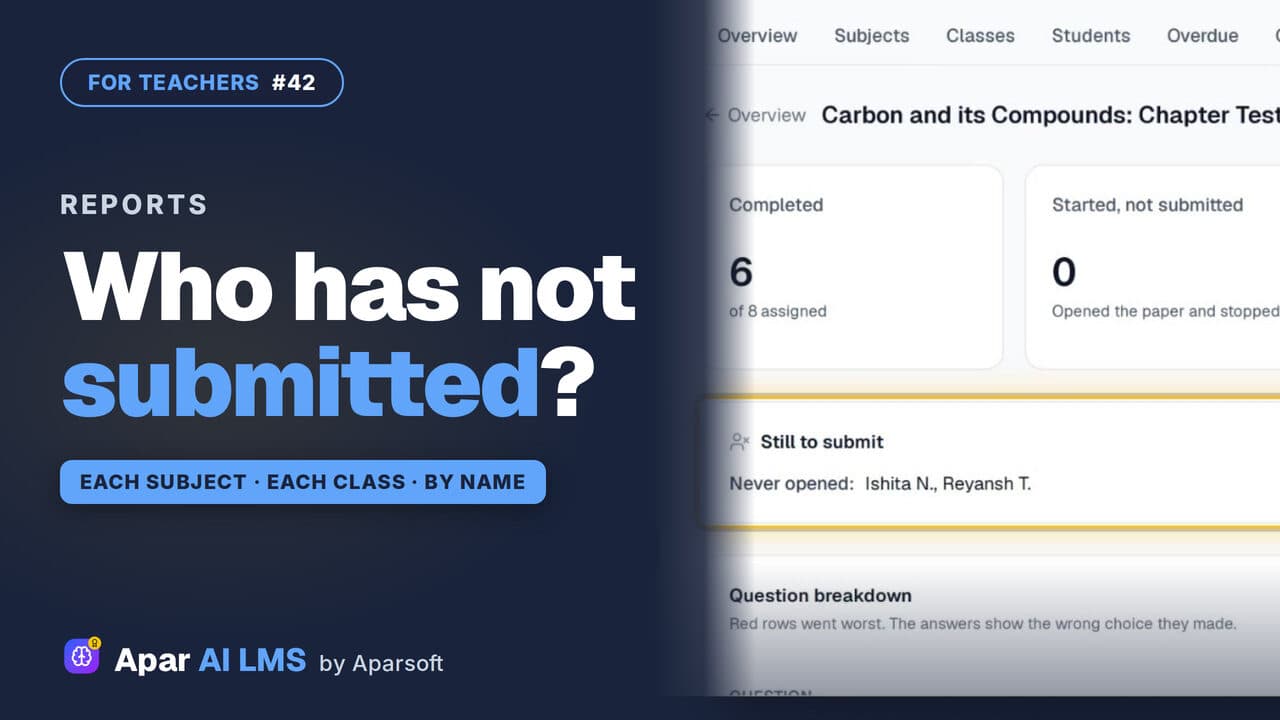 Length1:22#42 · Teachers
Teacher Reports: Who Has Not Submitted
Reports scores each subject and class apart, names the students still to submit, and shows how the class did on every question.
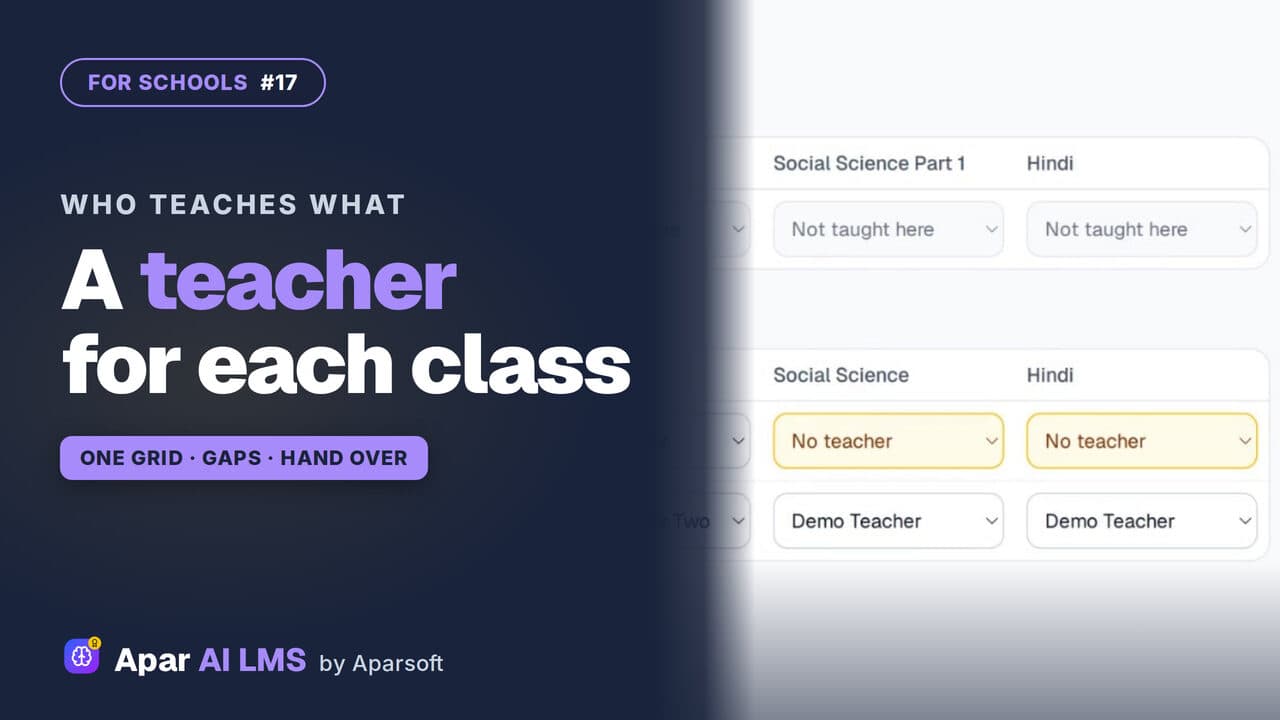 Length1:52#17 · School office
Assign Teachers to Classes and Subjects
One grid per grade shows which subjects have a teacher. Fill the gaps, change a teacher, and the class shows on that teacher's Home.
Try it on your own school
Start the 2-month free trial. No payment.
- No payment
- No commitment
- Onboarding included