See who has submitted graded work, who has not started, and reopen an attempt
For each graded assignment: who has submitted, who has not started, the average and range, each question, and Reopen with a reason.
Every screen in the films is the real product, shown on a demo school made for them.
Before a due date, a teacher wants to know who still has not done the work. Graded work answers that for every graded assignment, and shows how the class did, so you know whether to chase students or go over a question again.
The film opens a graded topic for a demo class, reads who is behind, reopens one student's attempt with a reason, and looks at the class question by question.
Step by step
Open Graded work
On the teacher dashboard, press Classes, then Graded work. Each graded assignment is listed with its class, its due date, and how many have submitted it.
Watch from 0:10Read the top line
At the top: who has submitted, who has not started, the class average, and the lowest and highest marks.
Watch from 0:28See who is furthest behind
Below, every student is listed furthest behind first: those who have not started come first, then those with the lowest marks.
Watch from 0:28Reopen an attempt, with a reason
To give a student another attempt, press Reopen on their row, write why, and press Reopen again to confirm. They can then try again, and their old result stays on record with your reason.
Watch from 0:46See by question
Press See by question to see how the class did on each question, so a question most of the class got wrong stands out.
Watch from 1:03
Good to know
Reopening keeps the record
The first result is not erased. It stays on record with the reason you gave, so it is always clear why a student had a second try.
Not started comes first
Students who have not started head the list, above low marks, because they are the ones to remind before the due date.
Filmed on a demo school
The students are demo students, and the topic is the library's own Physical Properties of Metals and Non-metals. The reopened attempt was put back after filming.
Questions
- How can a teacher see who has not submitted homework?
- Under Classes, Graded work, open the assignment. The top shows who has submitted and who has not started, and those who have not started head the list.
- Can I give a student a second attempt at graded work?
- Yes. Press Reopen on their row and give a reason. Their old result stays on record with your reason.
- Can I see which question the class found hardest?
- Yes. See by question shows how the class did on each question.
What the film saysThe narration, scene by scene.
Graded work. This is the teacher dashboard. Here is how to see who has done a piece of graded work, and give a student another attempt.
Classes, Graded work. On the left, press Classes, then Graded work.
Each assignment. Each graded assignment shows its class, when it is due, and how many have submitted it.
Open one. Press one to open it.
Who has done it. At the top: who has submitted it, who has not started, the class average, and the lowest and highest marks.
Furthest behind first. Below, every student, furthest behind first: those who have not started, then the lowest marks.
Another attempt. To give a student another attempt, press Reopen on their row. Say why, and press Reopen.
Reopened. Their old result stays on record with your reason, and they can try again.
By question. Press See by question, to see how the class did on each question.
Coming up. Next: Exam templates: your school's paper pattern.
Watch next
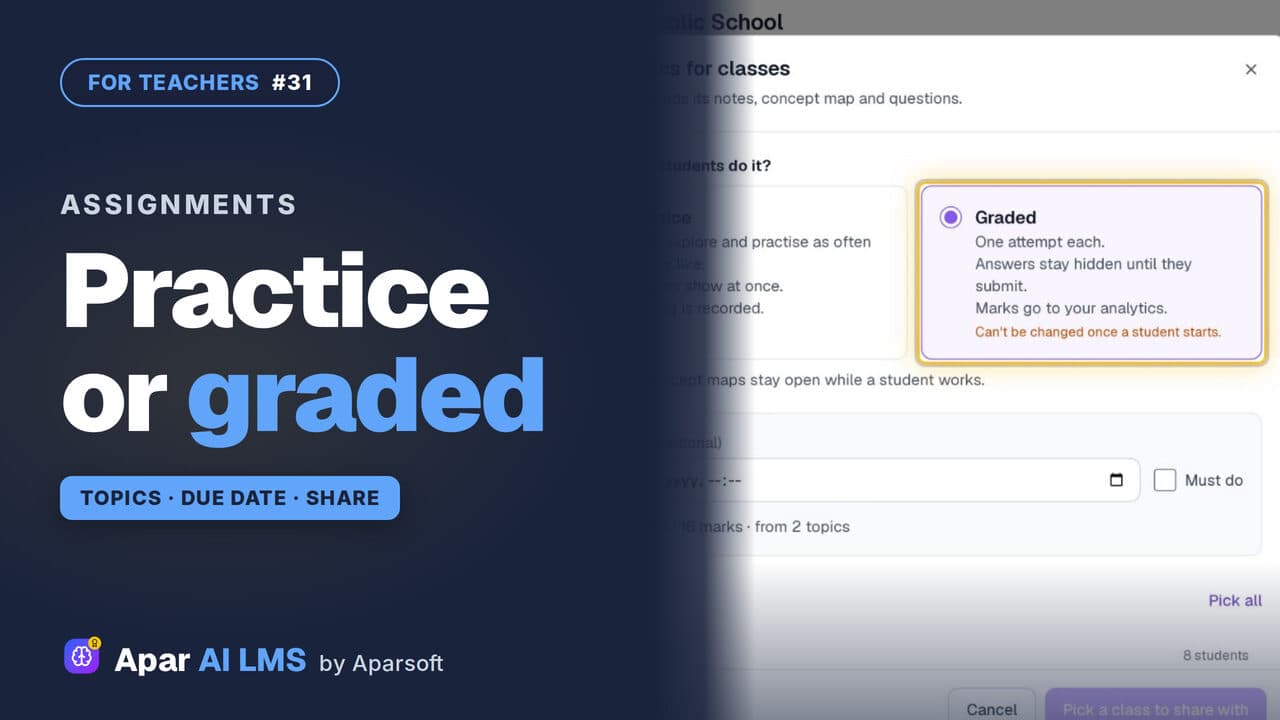 Length1:44#31 · Teachers
Set Chapter Topics as Practice or Graded Work
Tick a chapter's topics and set them as practice or graded. Graded means one attempt, answers hidden until submitted, and marks in your analytics.
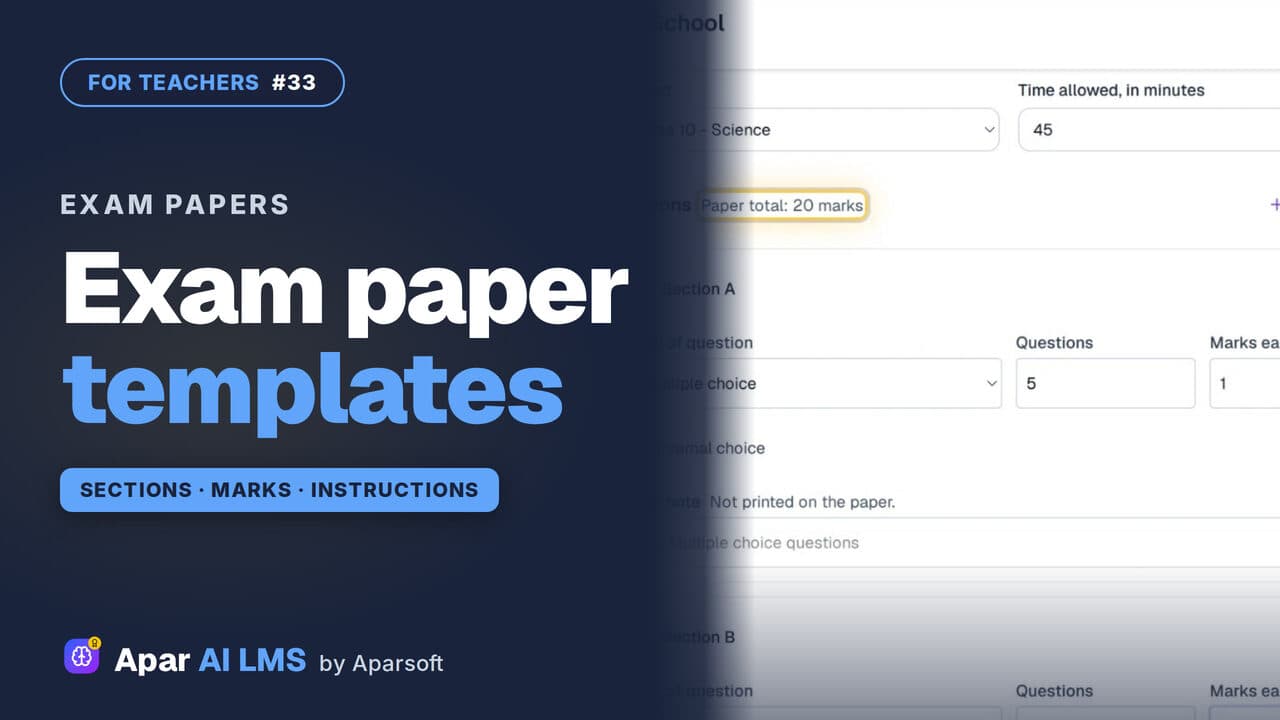 Length1:32#33 · Teachers
Exam Paper Templates: Your School's Pattern
Save your paper pattern once: sections, marks, time and instructions. It is there to pick every time you make a new exam paper.
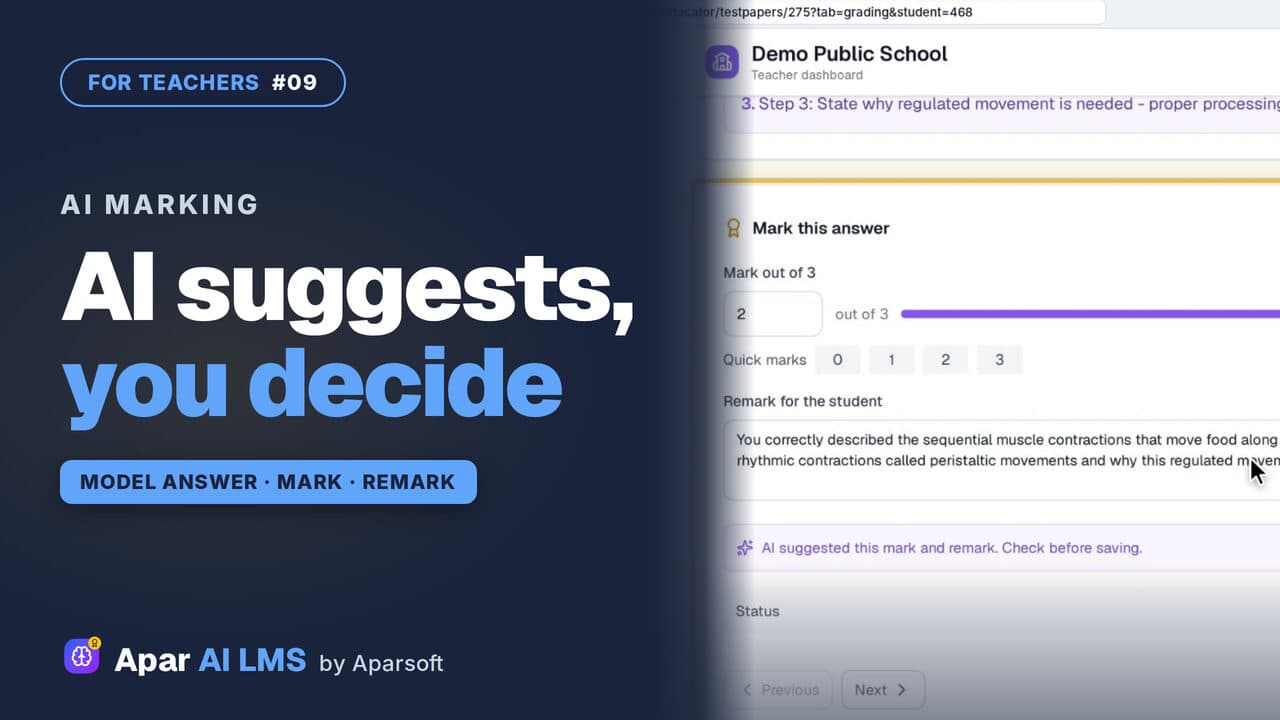 Length2:08#09 · Teachers
AI-Assisted Marking: The Teacher Decides
Open the answers waiting for you, read each beside the model answer, get the AI's suggestion, and decide. The student sees your mark and remark.
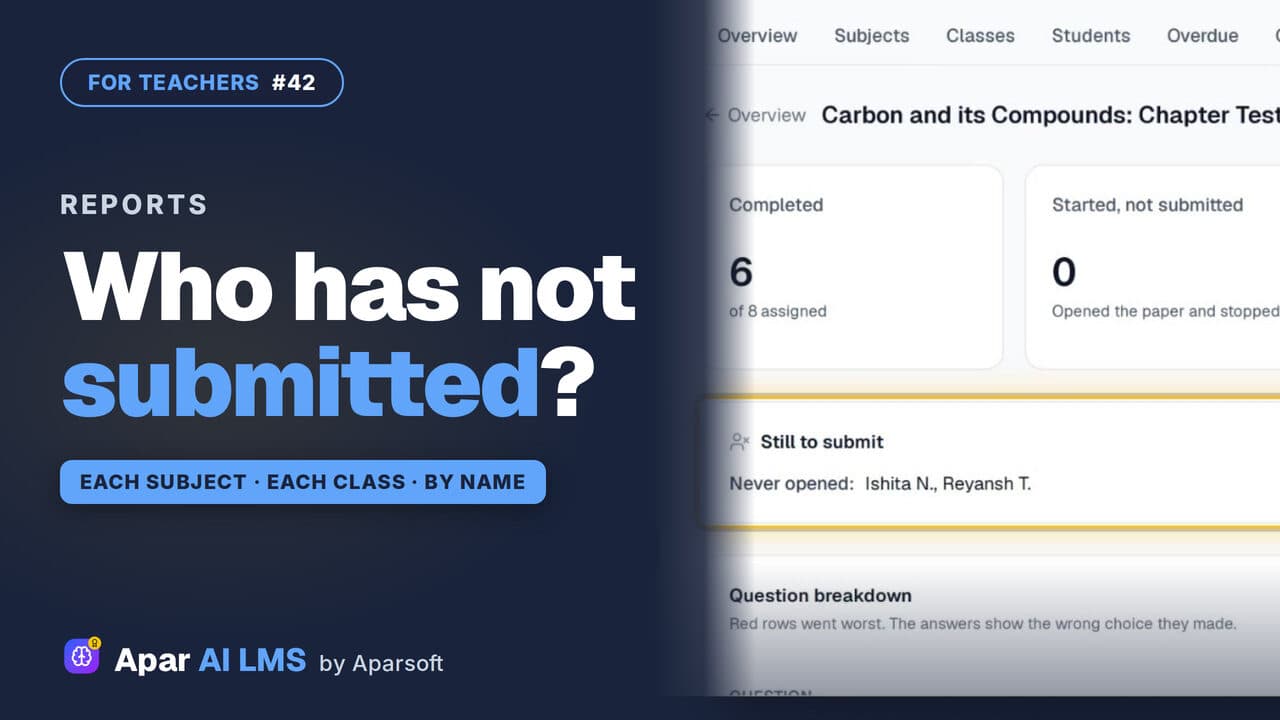 Length1:22#42 · Teachers
Teacher Reports: Who Has Not Submitted
Reports scores each subject and class apart, names the students still to submit, and shows how the class did on every question.
Try it on your own school
Start the 2-month free trial. No payment.
- No payment
- No commitment
- Onboarding included