Marking written answers with AI: the AI suggests a mark, the teacher decides
Open the answers waiting for you, read each beside the model answer, get the AI's suggestion, and decide. The student sees your mark and remark.
Every screen in the films is the real product, shown on a demo school made for them.
Written answers take the longest to mark, and they are where a teacher's judgement matters most. In Apar AI LMS the AI does the first read: it compares each answer with the model answer and suggests a mark and a remark. The teacher reads it, changes anything they disagree with, and saves. Nothing reaches the student until the teacher does.
The film follows one submission from the teacher's Home to the student's result, so you can see both ends.
Step by step
Start from Home
Teacher Home says when submissions are waiting for your marking. Press Mark now.
Watch from 0:00Open the oldest first
Marking lists the waiting submissions with the oldest at the top. Press a student's name and their paper opens at the answer to mark.
Watch from 0:11Read it beside the model answer
The question, the student's answer and the model answer sit together, so you can check one against the other.
Watch from 0:28Ask the AI for a suggestion
Press Get AI marks and confirm. The AI reads each answer beside the model answer and suggests a mark and a short remark.
Watch from 0:39Decide, then save
If you disagree, change the mark or the remark. Then press Save mark. The mark you save is the one that counts.
Watch from 0:53Move through the paper
After saving, the next answer opens. Check the suggestion and save again until the paper is done.
Watch from 1:03Watch the count come down
Back on Home, one fewer paper is waiting, both on Home and on the menu's badge.
Watch from 1:21What the student sees
On the student's side, the test under To do now has See result. The written question shows the mark and the teacher's remark.
Watch from 1:21
Good to know
Who marks what
MCQs are marked automatically. For written answers, the AI suggests and the teacher decides.
Suggestions can vary
The AI reads the answer each time it is asked, so treat its mark as a first opinion. Your saved mark is final.
Real marks in the film
The marks and remarks shown are the live model's, on a demo student's written answers, and one submission was really marked.
Questions
- Does the AI give the final mark?
- No. The AI suggests a mark and a remark. The teacher can change both, and only the mark the teacher saves reaches the student.
- What does the AI compare the answer with?
- The model answer for that question, which the teacher also sees beside the student's answer.
- Are MCQs marked by the teacher?
- No. MCQs are marked automatically as soon as the student submits.
What the film saysThe narration, scene by scene.
Submissions are waiting. This is the teacher dashboard. Home says submissions are waiting for your marking. Let us mark them.
Marking. Press Mark now. Marking lists them, with the oldest first.
One student's paper. Press the first name. The student's paper opens, at the answer to mark.
Beside the model answer. Here is the question. Here is the student's answer. And here is the model answer, to check it against.
Get AI marks. Press Get AI marks. The AI reads each answer beside the model answer. Press OK. It suggests a mark and a remark.
You decide. You decide. Change the mark or the remark if you do not agree. Then press Save mark.
The next answer. It is saved, and the next answer opens. Check what the AI suggests, and press Save mark.
One less to mark. Press Home. One paper fewer is waiting now, here and in the menu.
The student dashboard. Now the student dashboard. Press To do. Then press See result on the test. The result is in.
The mark and the remark. Press the written question. Here is the student's mark, and the teacher's remark.
Who marks what. MCQs are marked automatically. For written answers, the AI suggests, and the teacher decides.
Coming up. Next: AI Viva. Set it, and read how it went.
Watch next
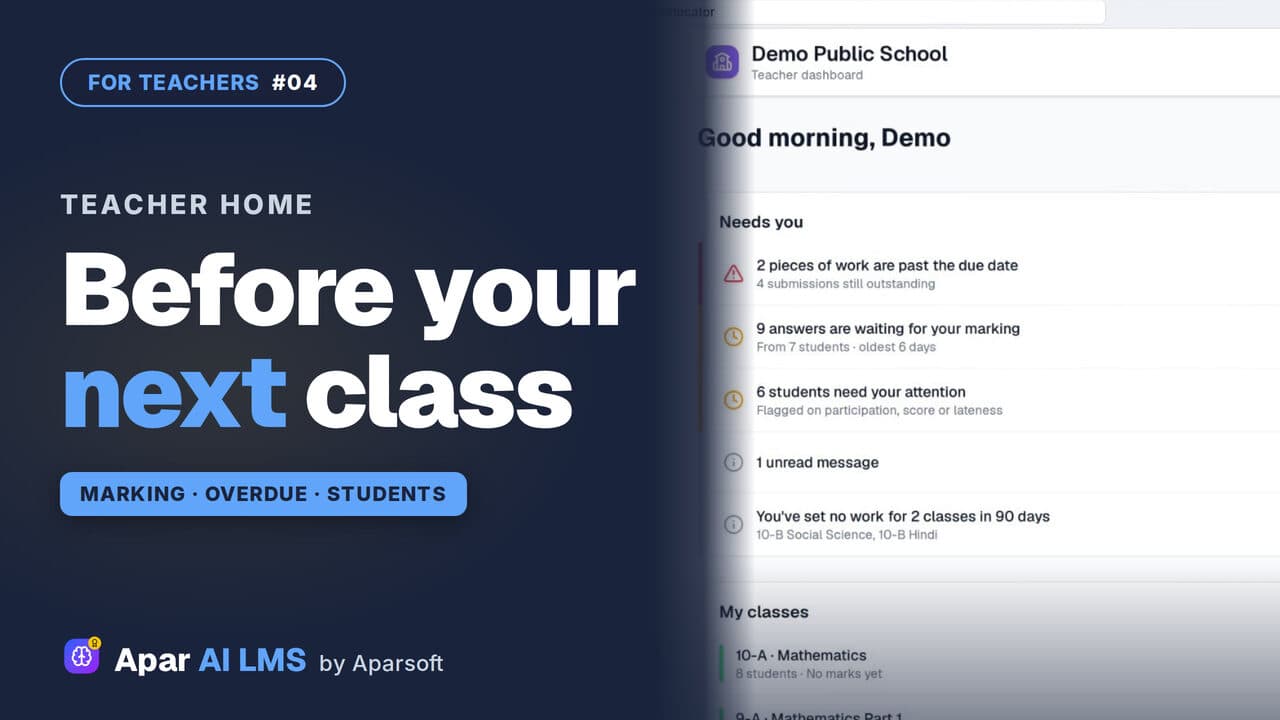 Length2:35#04 · Teachers
Teacher Dashboard: Home, Menu and Set Work
Teacher Home answers one question: what needs you before your next class? Then Set work, and where everything lives in the menu.
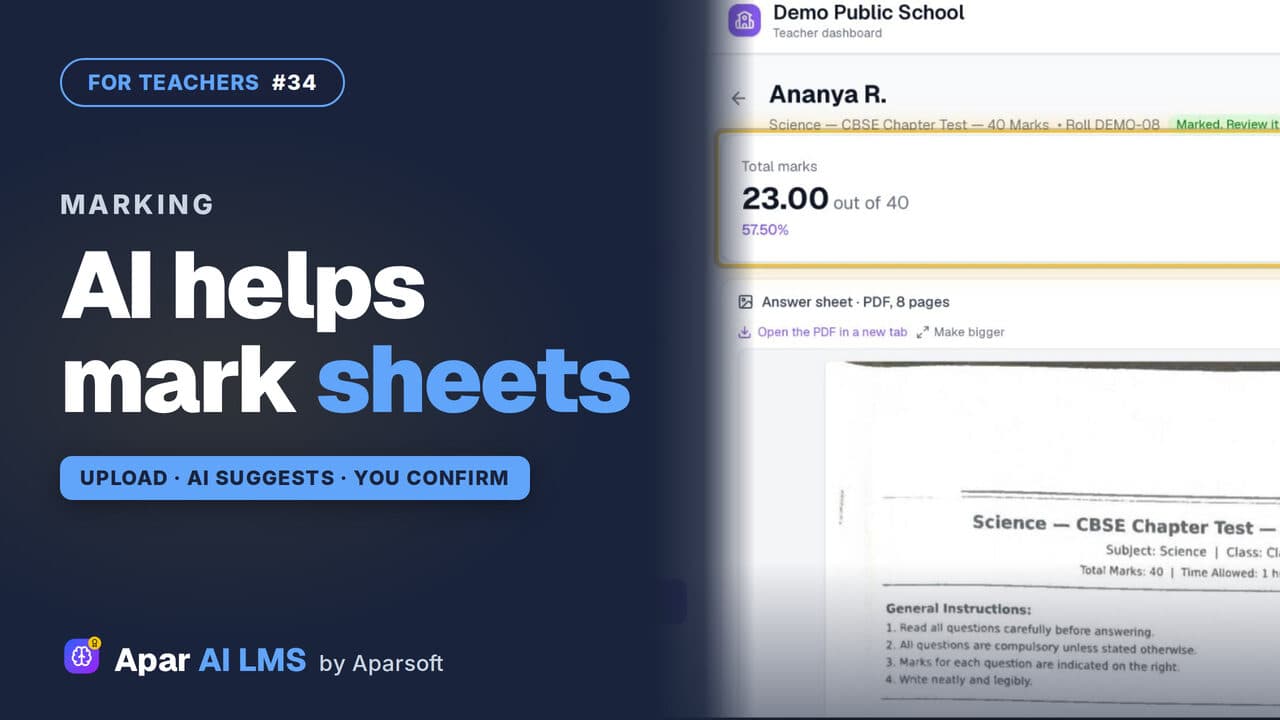 Length1:34#34 · Teachers
Check Answer Sheets with AI (Beta)
Upload a scanned sheet; the AI reads it and suggests a mark for each answer with its reason. You change any mark and confirm.
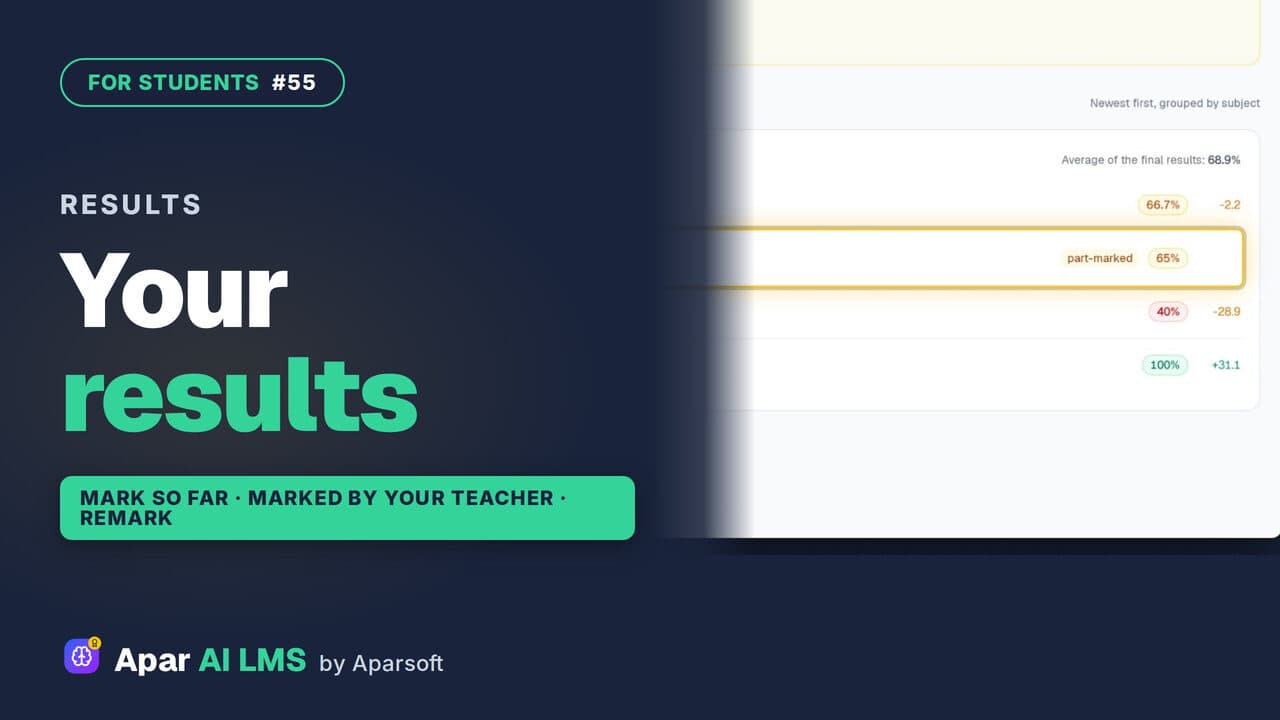 Length2:04#55 · Students
See Your Test Results and Teacher's Marks
Every result in one list, with work still with your teacher clearly shown. Follow a part-marked test until the teacher's marks make it final.
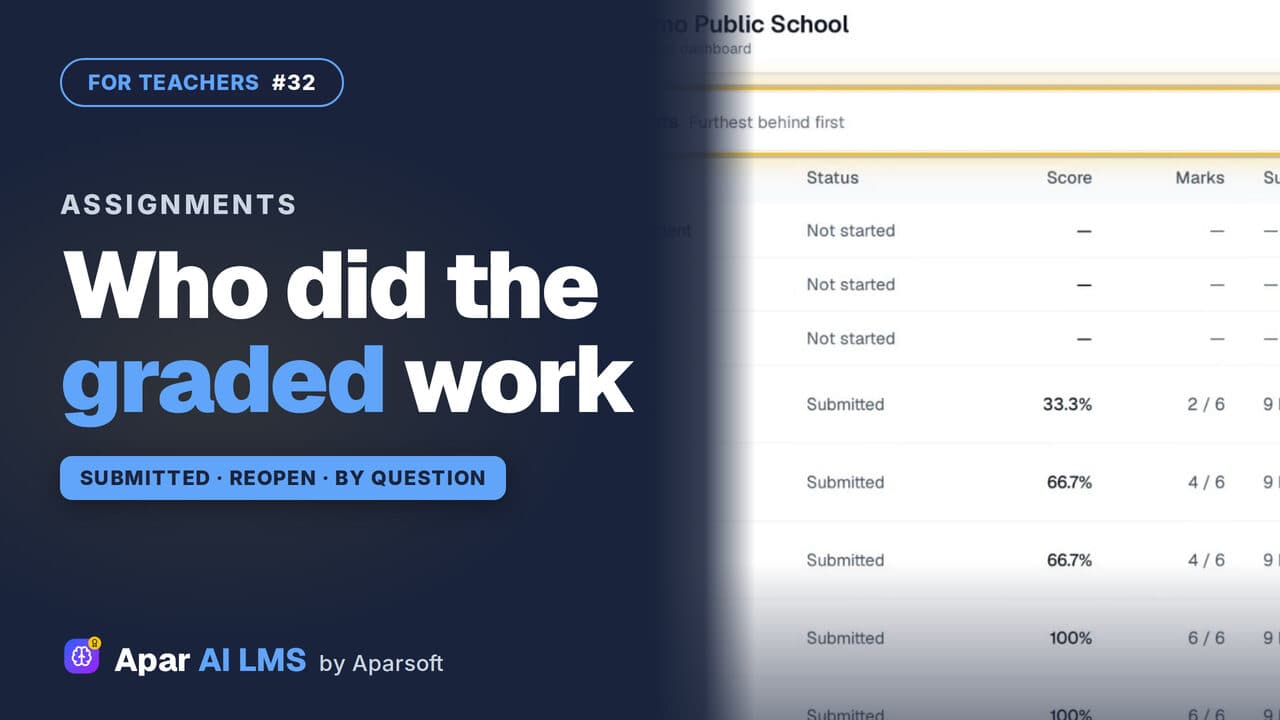 Length1:25#32 · Teachers
Track Graded Work: Who Has Submitted
For each graded assignment: who has submitted, who has not started, the average and range, each question, and Reopen with a reason.
Try it on your own school
Start the 2-month free trial. No payment.
- No payment
- No commitment
- Onboarding included