Check written answer sheets with AI (beta): the AI suggests marks, you confirm them
Upload a scanned sheet; the AI reads it and suggests a mark for each answer with its reason. You change any mark and confirm.
Every screen in the films is the real product, shown on a demo school made for them.
Marking a pile of handwritten tests takes a teacher's evenings. With answer-sheet checking, currently in beta, you upload a student's scanned sheet, the AI reads every page and suggests a mark for each answer against the exam paper, and you go through its suggestions. You change any mark you disagree with, and you confirm the marks yourself.
The film uploads a real handwritten Class 10 Science sheet, answered by hand by the Aparsoft team with some answers wrong on purpose, and goes from upload to confirmed marks.
Step by step
Open Answer sheets
On the teacher dashboard, press Marking, then Answer sheets, to start.
Watch from 0:00Upload the scan
Press Upload answer sheets and add the scan of one student's sheet: one PDF, or up to ten photos of the pages.
Watch from 0:15Pick the paper, the class and the student
Pick the exam paper the sheet answers, then the class, then the student whose sheet it is. Scroll down and press Upload and mark.
Watch from 0:15Let the AI read and suggest marks
The AI reads every page, then suggests a mark for each answer against the paper. In the film, an eight-page sheet takes a few minutes. When it is done, the total is at the top.
Watch from 0:36Check each question and the reason
Each question shows the student's answer, the expected answer, and the AI's reason for its mark with how sure it is. The reasons are what to read most closely.
Watch from 0:52Change a mark you disagree with
Press Change marks, type your mark and press Save. The card then shows your mark in place of the AI's.
Watch from 1:02Confirm the marks
When everything looks right, press Confirm the marks, and confirm. The marks are the ones you have checked.
Watch from 1:02
Good to know
Currently in beta
Answer-sheet checking is a beta feature. The AI suggests a mark and a reason; the teacher reads, changes and confirms every mark.
What to upload
One student's sheet at a time, as one PDF or up to ten photos, matched to one of your exam papers, a class and the student.
Real handwriting in the film
The sheet is a real handwritten Class 10 Science test, answered by the Aparsoft team with some answers wrong on purpose. The marks shown are the AI's own suggestions on the day of filming, on a demo school.
Questions
- Can AI check handwritten answer sheets?
- In beta, yes. The AI reads a scanned sheet and suggests a mark for each answer, with its reason. The teacher checks the suggestions, changes any mark and confirms.
- Who decides the final marks?
- The teacher. Change marks lets you replace any mark the AI suggested, and you press Confirm the marks when they look right.
- What can I upload for answer-sheet checking?
- One PDF, or up to ten photos of one student's sheet.
What the film saysThe narration, scene by scene.
Answer sheets. This is the teacher dashboard. Here is how AI checks a written answer sheet, and you confirm the marks.
Marking, Answer sheets. On the left, press Marking, then Answer sheets.
Upload the scan. Press Upload answer sheets, and add the scan: one PDF, or up to ten photos.
The paper, the student. Pick the exam paper it answers. Then pick the class, and the student whose sheet it is.
Upload and mark. Then scroll down, and press Upload and mark.
The AI reads, then marks. The AI reads every page, then marks each answer against the paper. A sheet of eight pages takes a few minutes.
The total. When it is done, the total is at the top, out of forty.
Each question. Below, each question shows the student's answer, the expected answer, and the AI's reason, with how sure it is.
Change a mark. If you disagree, press Change marks, type your mark, and press Save. The card then shows your mark.
Confirm the marks. When it all looks right, press Confirm the marks, and confirm.
Coming up. Next: AI Viva: meet the virtual teachers.
Watch next
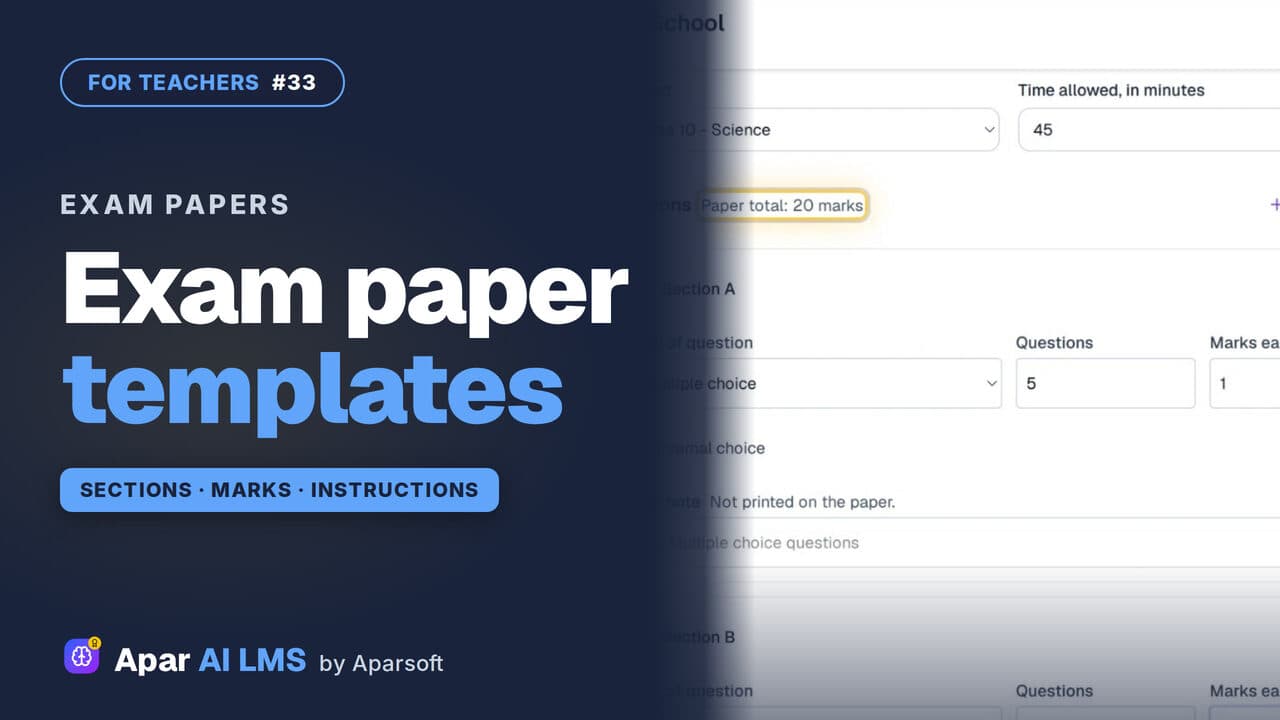 Length1:32#33 · Teachers
Exam Paper Templates: Your School's Pattern
Save your paper pattern once: sections, marks, time and instructions. It is there to pick every time you make a new exam paper.
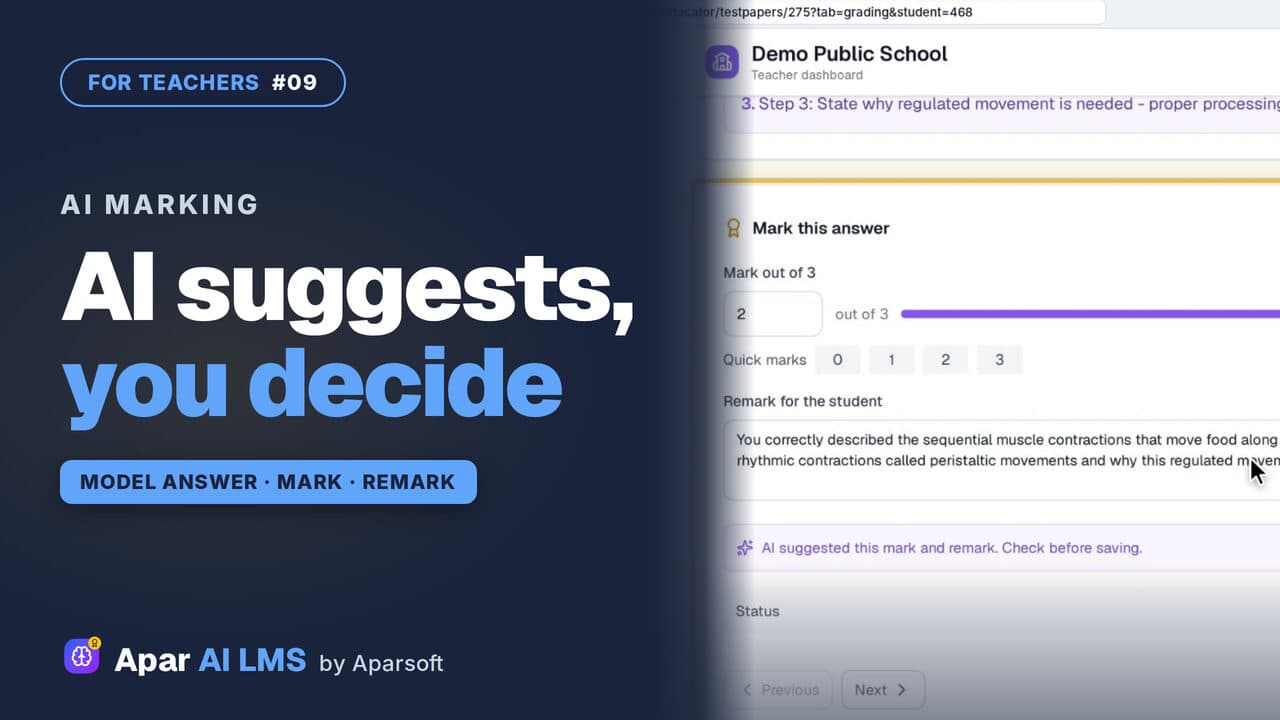 Length2:08#09 · Teachers
AI-Assisted Marking: The Teacher Decides
Open the answers waiting for you, read each beside the model answer, get the AI's suggestion, and decide. The student sees your mark and remark.
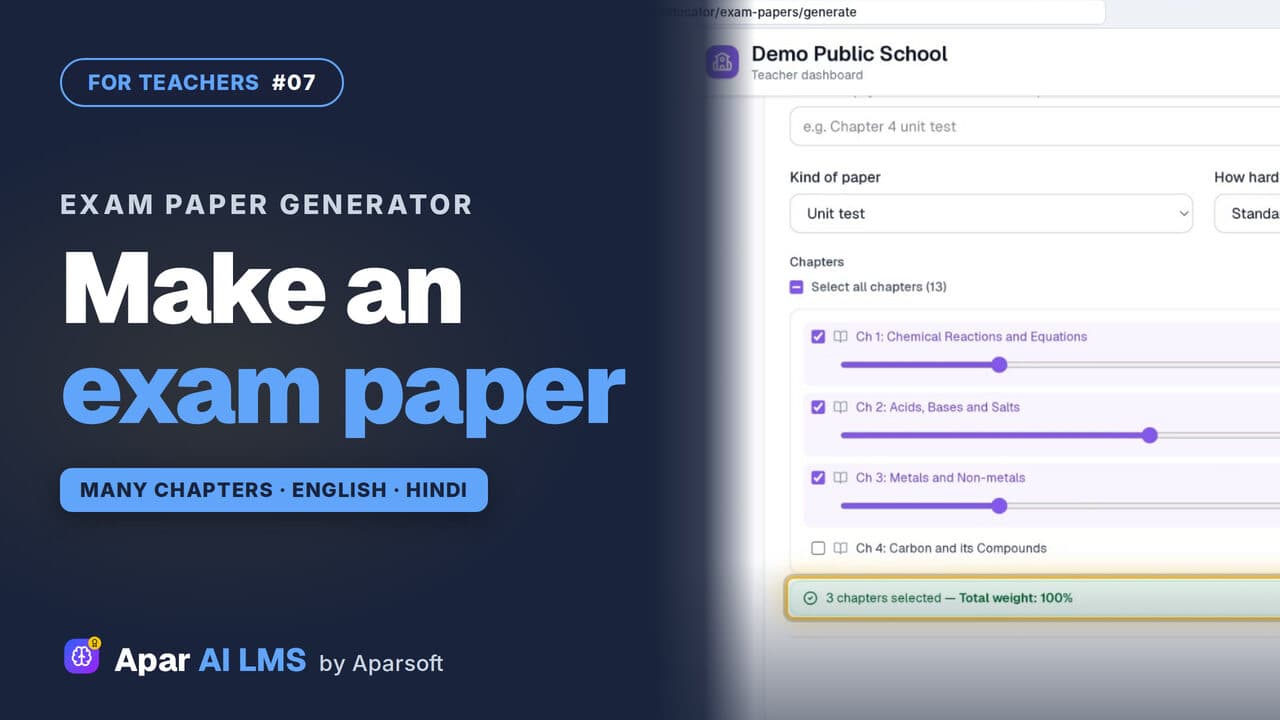 Length4:45#07 · Teachers
Exam Paper Generator: Chapters and Weightage
Pick a template, tick the chapters, set each chapter's weightage, and the paper is ready with its answer key, then English and Hindi papers too.
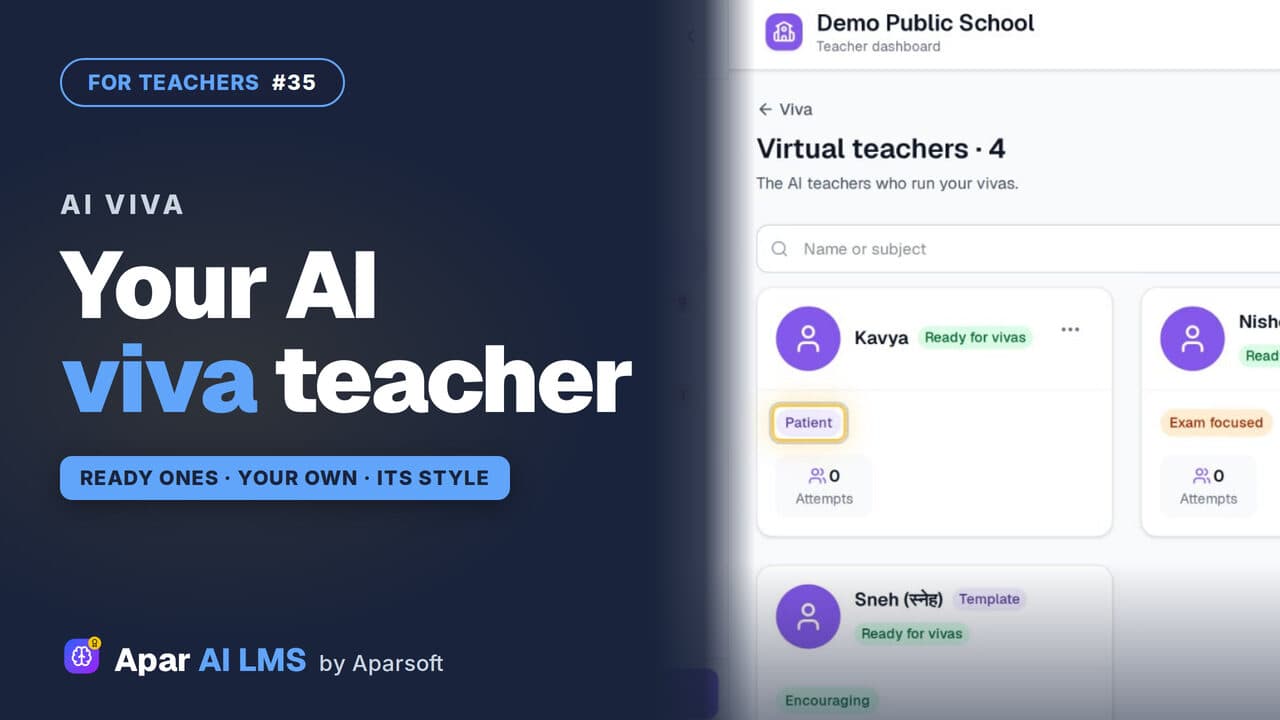 Length1:22#35 · Teachers
AI Viva: Make Your Own Virtual Teacher (Beta)
Meet the ready virtual teachers that run an AI viva, then make one of your own with a name, a teaching style and a way of talking.
Try it on your own school
Start the 2-month free trial. No payment.
- No payment
- No commitment
- Onboarding included