AI viva (beta): meet the virtual teachers and make your own for your class
Meet the ready virtual teachers that run an AI viva, then make one of your own with a name, a teaching style and a way of talking.
Every screen in the films is the real product, shown on a demo school made for them.
In an AI viva, a student answers spoken questions out loud instead of writing them down. The questions are put by a virtual teacher: the AI, given a name and a way of teaching. Apar AI LMS comes with a few ready ones, and you can make your own so the viva talks to your students the way you would. The AI viva is currently in beta.
This film shows where the virtual teachers are kept under Tests, makes a new one called Kavya in the Storyteller style, gives it a starting text for how it talks, and then switches its style to Patient.
Step by step
Open Tests, then Viva
In the menu on the left, press Tests, then Viva. This is where vivas live. The page sums the viva up in one line: spoken questions, asked and marked by AI.
Watch from 0:10See the ready virtual teachers
Press AI teachers. The ready ones come first, each with its own way of teaching, such as exam focused, Socratic or encouraging. They are marked Template: you can use them, but you cannot change or delete them.
Watch from 0:10Start a new virtual teacher
Press New virtual teacher. Give it a name (the film uses Kavya) and pick how it teaches. The film picks Storyteller, which explains through stories and real-life examples. The list also has styles such as Patient, Challenging, Direct and Exam focused.
Watch from 0:29Decide how it talks
Press Write one for me. The box fills with a starting text based on the style you picked. Read it and change anything that does not sound like you, because the AI follows this text in every viva this teacher runs.
Watch from 0:41Make the teacher
Press Make the teacher. Kavya now sits in the list next to the ready teachers.
Watch from 0:41Change a teacher you made
Open the menu on your teacher's card and press Edit. The film changes the style to Patient and presses Save changes. Only the teachers you made have this menu; the ready ones stay as they are.
Watch from 0:56
Good to know
Currently in beta
The AI viva is a beta feature. This film only makes and edits a virtual teacher: no viva is set and no student answers anything in it.
Write one for me is a draft
The starting text comes from the style you picked. Treat it as a first draft and edit it into your own words; the box is optional.
What was real in the film
Everything was filmed on a demo school with its demo teacher. Kavya was made for the film and deleted after it. The ready teachers are the ones the product comes with.
Questions
- What is a virtual teacher in an AI viva?
- It is the AI that runs the viva and asks the student spoken questions. Each one has a name, a teaching style, and a text that sets how it talks.
- Can I change the ready-made viva teachers?
- No. The ready ones are templates. Make your own with New virtual teacher, and change it whenever you like from its menu with Edit.
- Do I have to write how the virtual teacher talks?
- No. It is optional. Write one for me gives you a starting text from the style you chose, and you can change it.
What the film saysThe narration, scene by scene.
Virtual teachers. This is the teacher dashboard. Here is how to meet the virtual teachers who take an AI viva, and make your own.
Viva. On the left, press Tests, then Viva. In the viva, the AI asks a student spoken questions, and marks the answers.
The ready teachers. Press AI teachers. The ready ones are here, each with its own way of teaching.
Your own teacher. To make your own, press New virtual teacher. Give it a name, and pick how it teaches: Storyteller uses stories and real examples.
How it talks. Press Write one for me, for a start you can change. The AI follows it in every viva.
Make the teacher. Press Make the teacher. Kavya is ready, beside the others.
Change it. To change a teacher you made, open its menu, and press Edit. Pick Patient, and press Save changes.
Coming up. Next: Gamified case studies.
Watch next
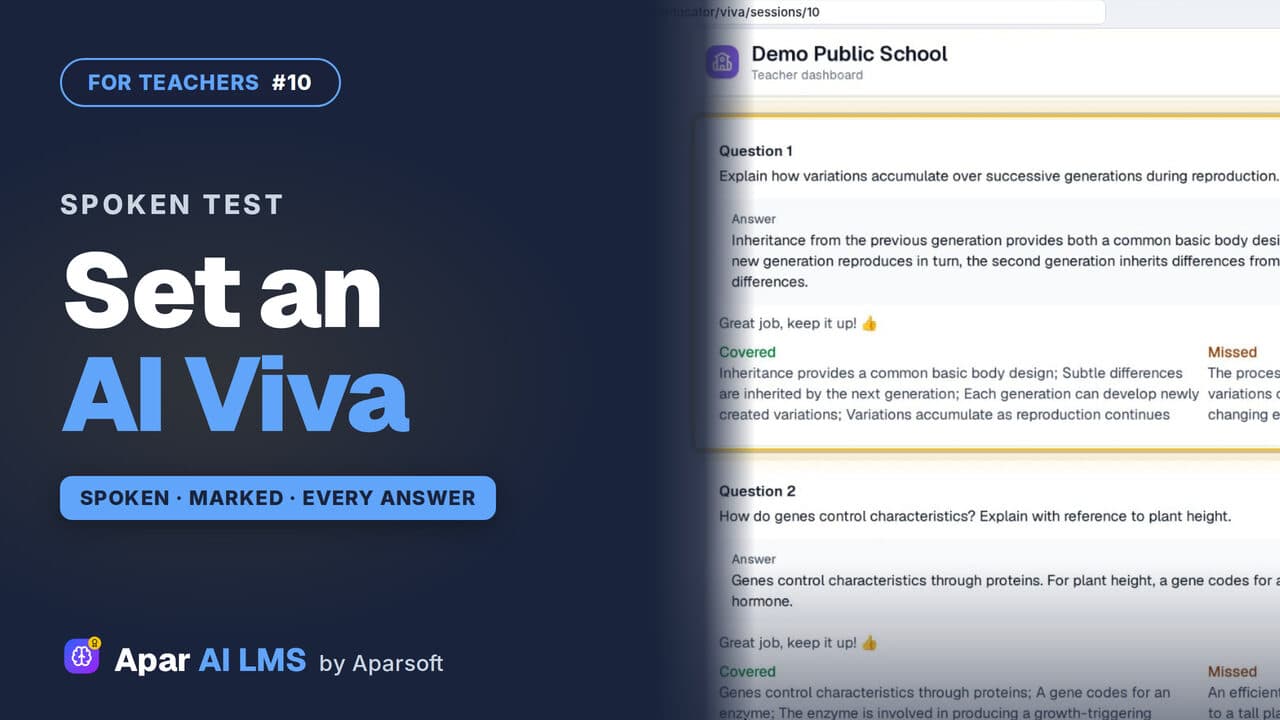 Length2:44#10 · Teachers
AI Viva for Teachers: Set and Review (Beta)
Set a viva in four steps. Each student answers a virtual teacher on their own, and you read every answer, its mark and what it missed.
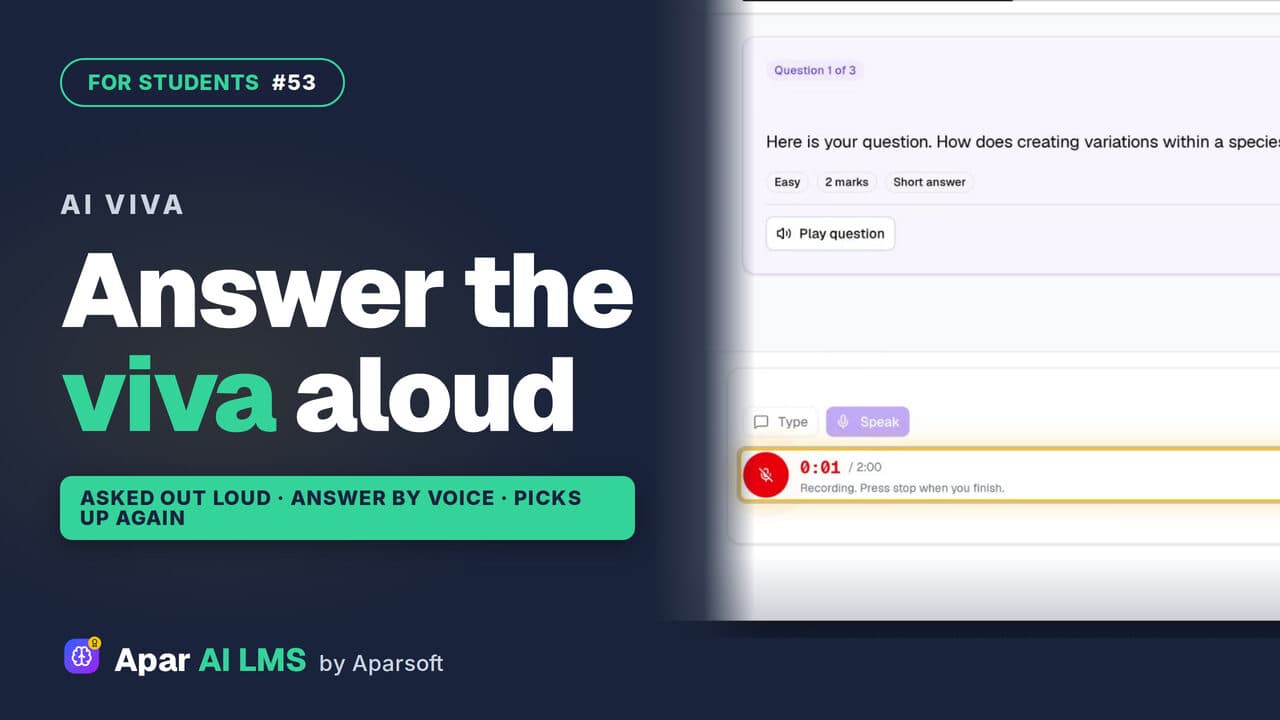 Length1:51#53 · Students
AI Viva for Students: Answer Out Loud (Beta)
A virtual teacher asks each question out loud and you answer by speaking. If the page drops, it picks up where you stopped, then shows your result.
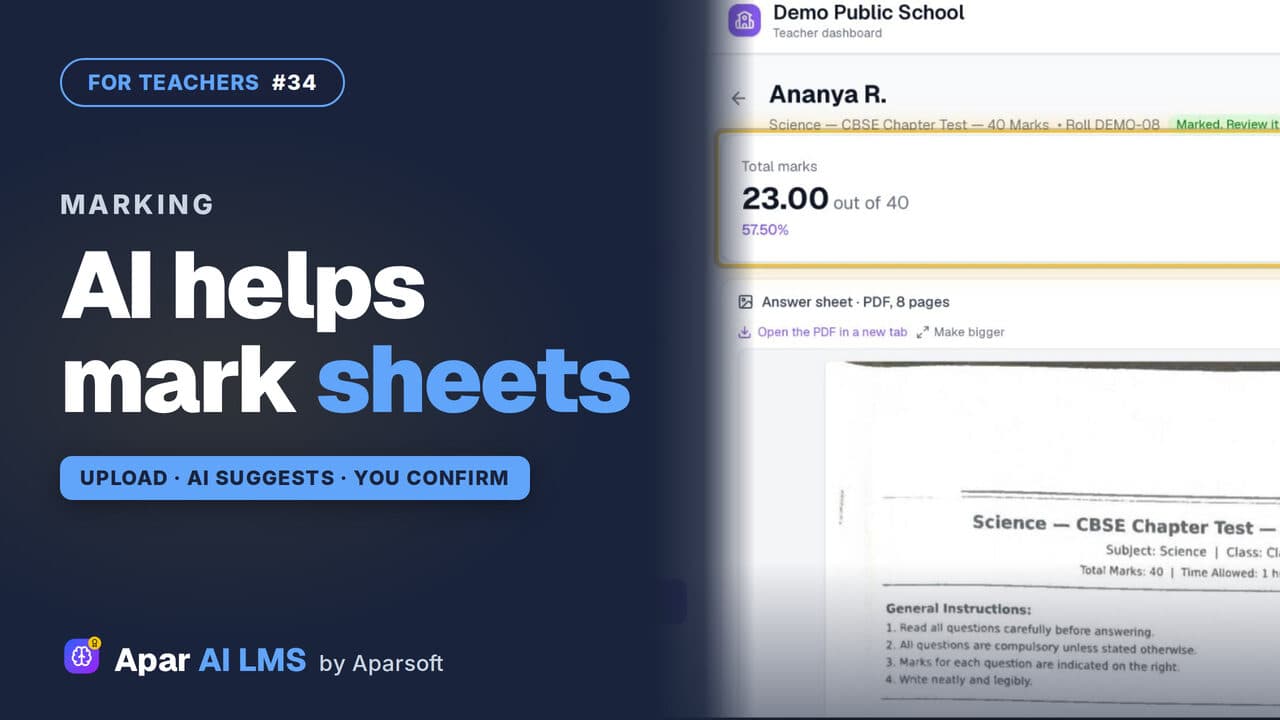 Length1:34#34 · Teachers
Check Answer Sheets with AI (Beta)
Upload a scanned sheet; the AI reads it and suggests a mark for each answer with its reason. You change any mark and confirm.
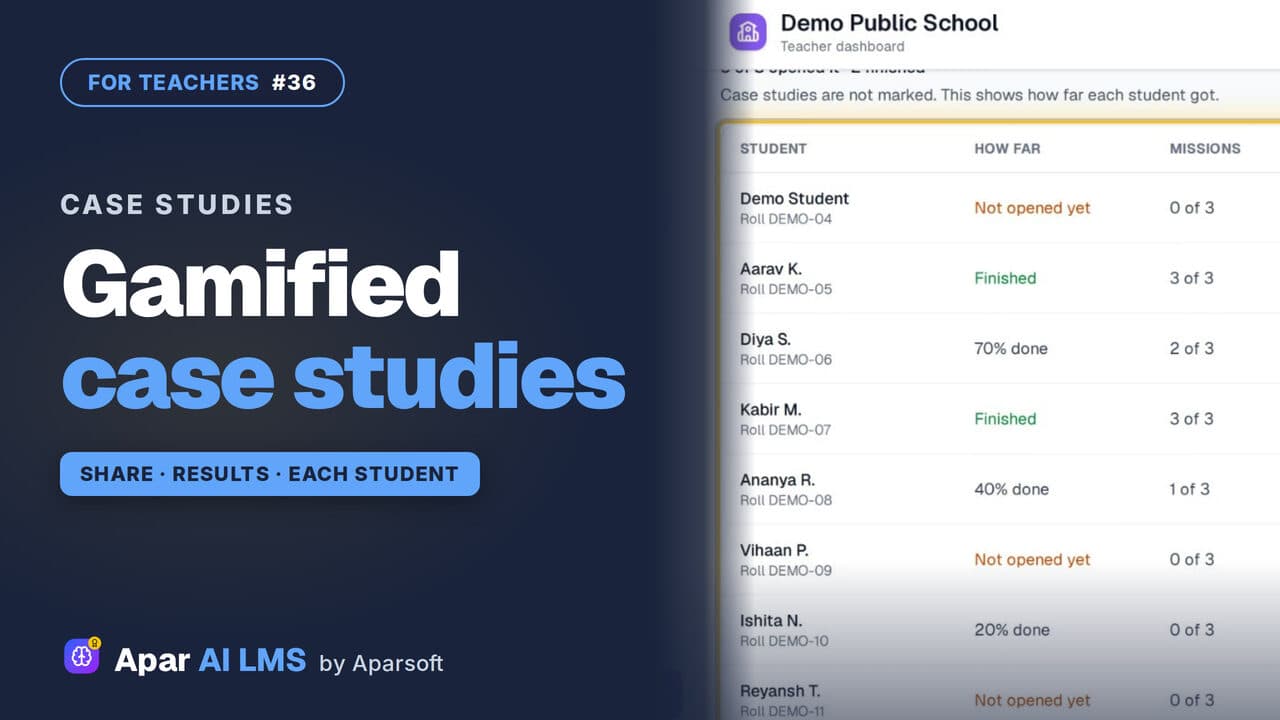 Length1:22#36 · Teachers
Gamified Case Studies: Share, See Results
Each case study gives students a role and missions. Preview one, share it with your class, and see how far every student got.
Try it on your own school
Start the 2-month free trial. No payment.
- No payment
- No commitment
- Onboarding included