Send fee reminders to parents by email: read them first, retry, and automate
Send overdue, due-soon or advance fee reminders by email, read each one first, retry a failed address, and set a weekly campaign.
Every screen in the films is the real product, shown on a demo school made for them.
Reminding families one phone call at a time takes the office away from everything else. A fee reminder is an email from your school with the fee, the amount, the due date and how to pay, including your UPI QR code. You read it before it goes, and a campaign can send reminders every week without anyone having to remember.
The film sends advance notices, then overdue reminders with one failed address, corrects that address and tries again, and ends by setting up a reminder campaign for every Monday.
Step by step
Open Reminders
Press Fees, then the Reminders tab. You can remind parents about overdue fees or fees due soon, or send an advance notice about a week before the due date.
Watch from 0:00Read the email before you send
Press Send advance notices. Each student is listed with the amount, the due date and the parent's email. Open any student to read the exact email their parents will get: the fee, the amount, the due date and how to pay.
Watch from 0:31Send
Press Send at the top. The emails go out, and the list fills in as each one is sent.
Watch from 0:31What the parent receives
The email comes from your school's name and carries your UPI QR code, so the parent has the way to pay in the same email.
Watch from 1:03Send overdue reminders, and spot a failure
Press Remind overdue, then Send. If a parent's address has a typing mistake, that email fails, and its row says why.
Watch from 1:13Fix the address and try again
Press Students, open the student and press Edit student. Correct the parent's email and press Save changes. Return to Reminders, press the three dots on the failed row, then Try again. This time it is sent.
Watch from 1:13Set reminders to go by themselves
On the Automatic tab, press Create campaign. Name it, pick which fees it is about (the film picks Overdue), how often and the day, here Weekly and Monday, and press Create campaign. It shows when it will run next.
Watch from 1:55
Good to know
Email for now
Reminders go by email. WhatsApp is shown in the campaign form as coming soon.
Keep parents' emails correct
A reminder goes to the parent's email on the student's record. When a send fails, the reason tells you what to fix on the student's page before you try that one again.
Filmed on a demo school
The emails were really sent by the product, to a test mail server on the film machine, never to a real inbox. One address was mistyped on purpose to show a failure.
Questions
- Can fee reminders be sent automatically?
- Yes. Under Fees, Reminders, on the Automatic tab, create a campaign: pick the kind of fee, how often and the day. The film's campaign runs every Monday at nine.
- Can I see the reminder email before it goes to parents?
- Yes. Open any student in the list to read the email their parents will get, before you press Send.
- Can fee reminders go on WhatsApp?
- Not yet. Reminders go by email, and WhatsApp is marked as coming soon.
What the film saysThe narration, scene by scene.
Fee reminders. This is the school admin dashboard. Here is how to remind parents about their fees, by email.
Reminders. On the left, press Fees. Then press the Reminders tab.
Ways to send. Remind parents about overdue fees, about fees due soon, or send an advance notice, about a week before the due date.
Who gets it. Press Send advance notices. Each student is listed with the amount, the due date, and the parent's email.
The email. Open a student, to read the email their parents will get: the fee, the amount, the due date, and how to pay.
Send. At the top, press Send. The emails go out, and the list fills in.
What the parent gets. This is the email a parent gets. It comes from your school's name, with your UPI QR code in it.
Overdue fees. Back on Reminders, press Remind overdue, then Send. One parent's address has a typing mistake, so that email failed. It says why.
The student's page. On the left, press Students, then Arjun. Press Edit student.
Correct the address. Correct the parent's email. Then, at the top, press Save changes.
Try again. Back on Reminders, press the three dots on that row, then Try again. This time it is sent.
Send them by themselves. To send reminders by themselves, press the Automatic tab, then Create campaign. Name it, and pick Overdue. Pick Weekly, and Monday.
The campaign. Reminders go by email. WhatsApp is coming soon. Press Create campaign. It runs every Monday at nine, and shows when it runs next.
Coming up. Next: Reports for the school.
Watch next
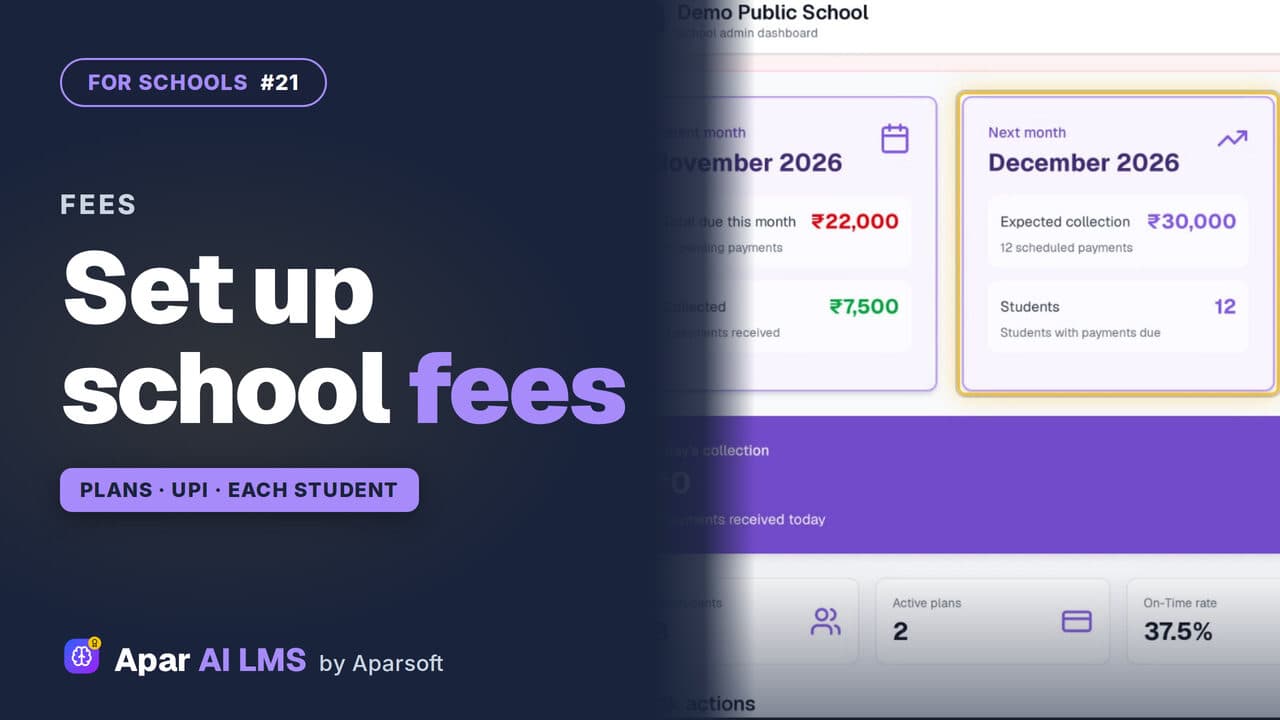 Length2:51#21 · School office
Set Up School Fees: Plans, UPI and Bank
Tell parents how to pay, keep fee plans by class, see each student's fee and what is overdue, and create a month's fees for a class.
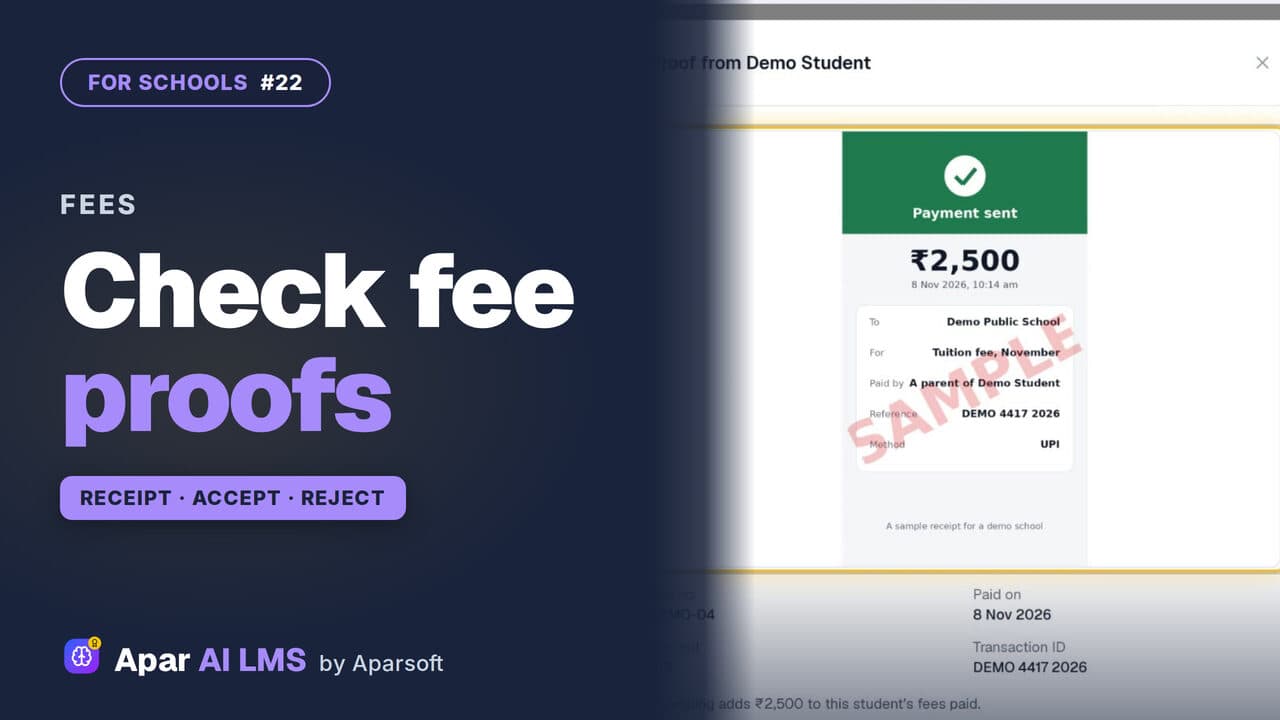 Length2:29#22 · School office
Check Fee Payment Proofs and Record Cash
Families send a payment with its receipt; the office accepts it, or rejects it with a reason they can read. Cash at the office is recorded too.
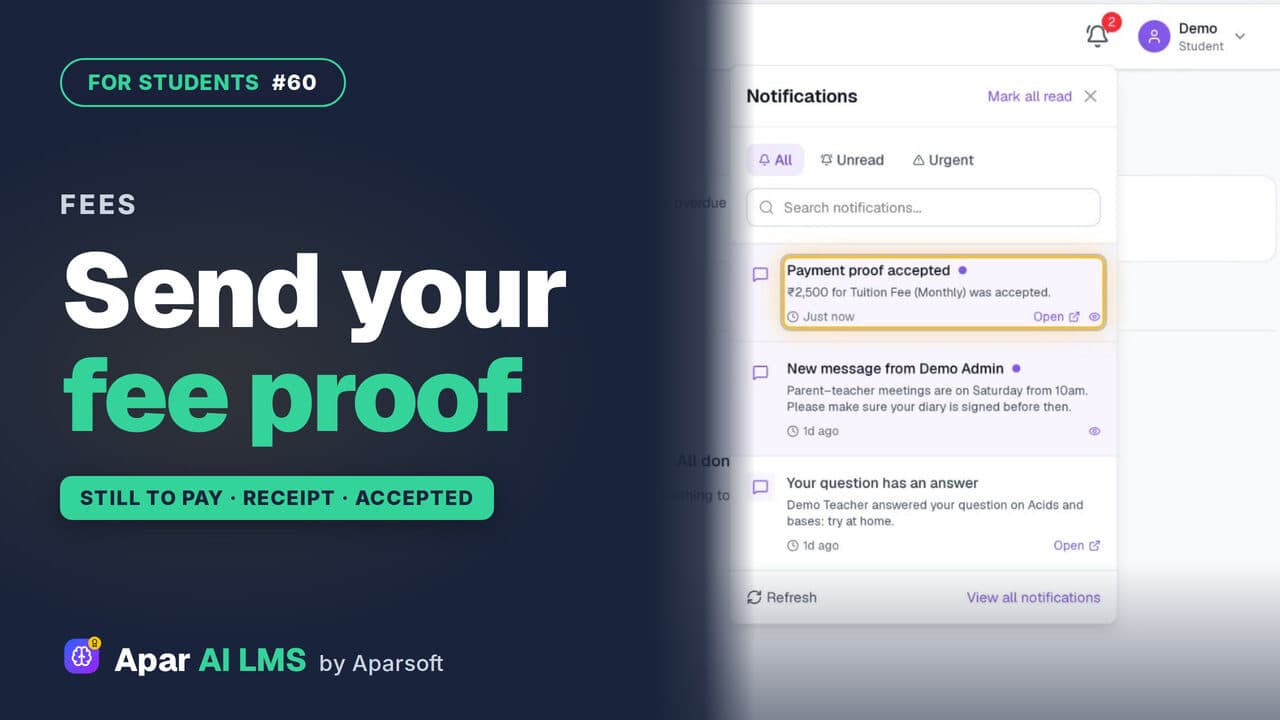 Length1:43#60 · Students
School Fees: See What Is Due, Send a Proof
See what is still to pay, pay the school by QR code or bank transfer, then record the payment with a photo of the receipt for the school to check.
Try it on your own school
Start the 2-month free trial. No payment.
- No payment
- No commitment
- Onboarding included