Message a student and read school notices from your teacher dashboard
One inbox for your students, colleagues and the school office: write to one student, read school notices, and delete a message sent by mistake.
Every screen in the films is the real product, shown on a demo school made for them.
Messaging a student from your own phone mixes school with private life, and nobody at school can see what was said. Messages in Apar AI LMS keeps it inside the school: you can write to a student you teach, a colleague or the school admin, and read the notices the school sends, all in one list.
The film opens a teacher's Messages, reads a notice from the school, sends one message to a student, shows it arriving on the student's side, and then deletes it.
Step by step
Open Messages
Press Messages on the left. Unread conversations sit at the top, then the rest, newest first. Messages are deleted automatically after 7 days, or sooner if your school chooses a shorter time.
Watch from 0:00Read a school notice
A notice from the school carries its own sign. Press it to read it. A notice is one-way: you cannot reply to it.
Watch from 0:00Start a new message
Press New message. The list holds your colleagues, the school admin and the students you teach.
Watch from 0:30Pick the student
Each student is shown with their class, which helps when two students share a name. Type part of the name and pick the student.
Watch from 0:30Write and send
Write your message and press Send. It opens as a conversation at the top of your list.
Watch from 0:30What the student sees
On the student's dashboard, under Messages, your message waits as unread until they open it and read it.
Watch from 0:56Delete a message sent by mistake
Press the bin beside your message, then Delete. It is removed for both of you: the conversation stays on the student's side, but your message is no longer in it.
Watch from 1:07
Good to know
Messages are kept for 7 days
By default a message is deleted automatically after 7 days, and the school can set a shorter time. Keep anything important somewhere else.
Notices take no replies
A school notice is for reading. To answer the school, start a new message to the school admin.
What was on screen
A demo school with its demo teacher and demo student. The messages were made for the demo and reset after filming.
Questions
- Can a teacher message a student in Apar AI LMS?
- Yes. Press New message in Messages, type the student's name, pick them, write and press Send. Each student is shown with their class.
- Can I delete a message I sent to a student?
- Yes. Press the bin beside it, then Delete. It is gone for both of you.
- How long are messages kept?
- Seven days by default, then they are deleted automatically. The school office can shorten that, but never lengthen it.
What the film saysThe narration, scene by scene.
Messages. This is the teacher dashboard. Here is how to message your students, and read school notices.
Your conversations. On the left, press Messages. Unread conversations come first, then the newest. Messages are deleted after 7 days.
A school notice. A notice from the school has this sign. Press it to read it. A notice does not take replies.
New message. Press New message. The list shows your colleagues, the school admin, and the students you teach.
Pick the student. Each student shows their class. Type a name, and pick the student.
Write and send. Write your message, and press Send. It opens as a conversation, at the top of your list.
The student reads it. On the student dashboard, press Messages. Your message is there, unread. The student presses it, and reads your message.
Delete your message. Sent it by mistake? Press the bin beside it, then Delete. It is gone, for both of you.
Gone for the student too. On the student's page, the conversation is still there, but your message is gone.
Coming up. Next: To do: tests, assignments, vivas and class resources.
Watch next
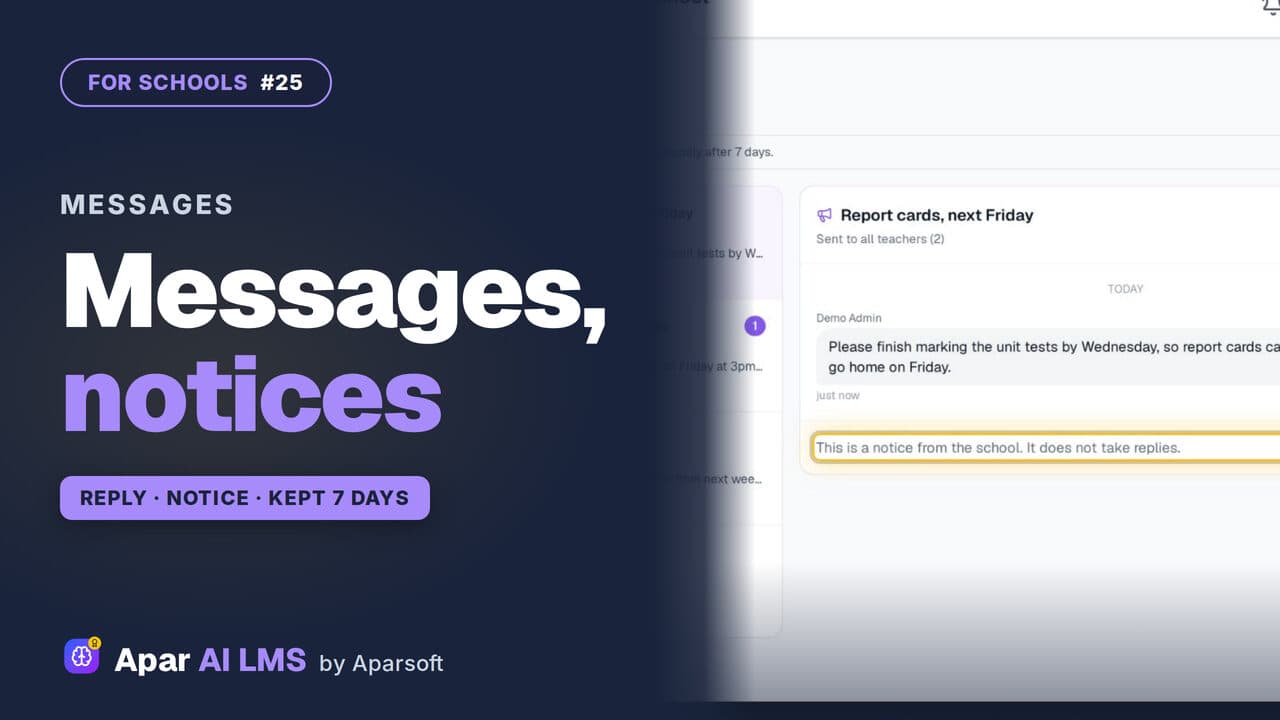 Length2:05#25 · School office
Send a School Notice to Teachers or Students
Reply to teachers, delete a mistaken message for both sides, and send one-way notices to teachers, students or the whole school.
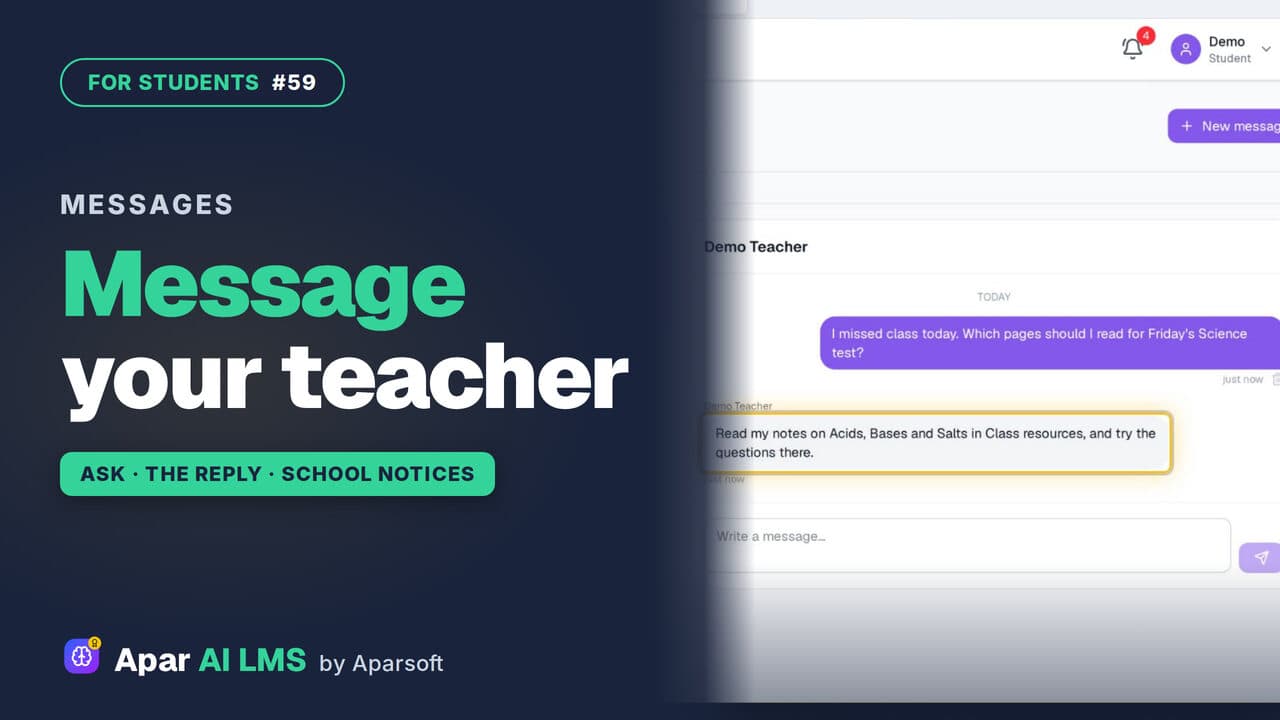 Length1:38#59 · Students
Message Your Teacher and Read School Notices
Ask a teacher who teaches you a question in Messages, read the school's notices, and find the reply under your question.
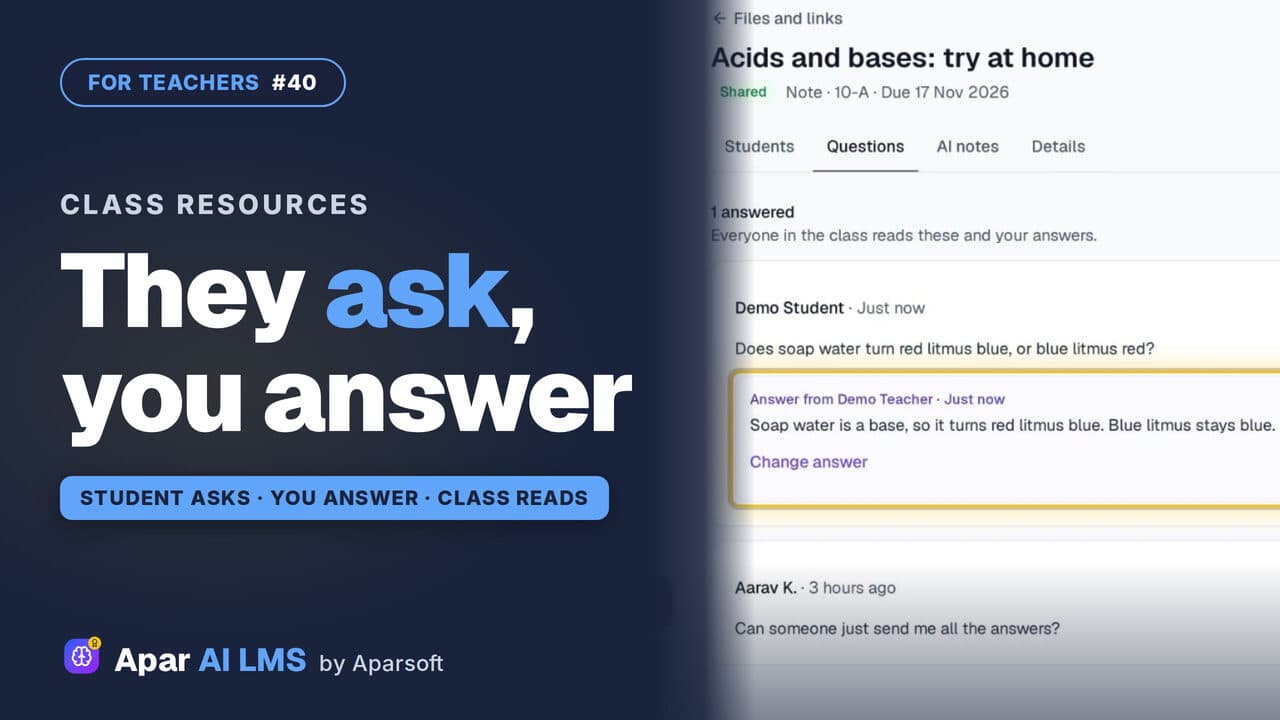 Length1:15#40 · Teachers
Answer Student Questions on Shared Notes
Students ask under the notes you share. Your Home tells you a question is waiting, and your answer is there for the whole class.
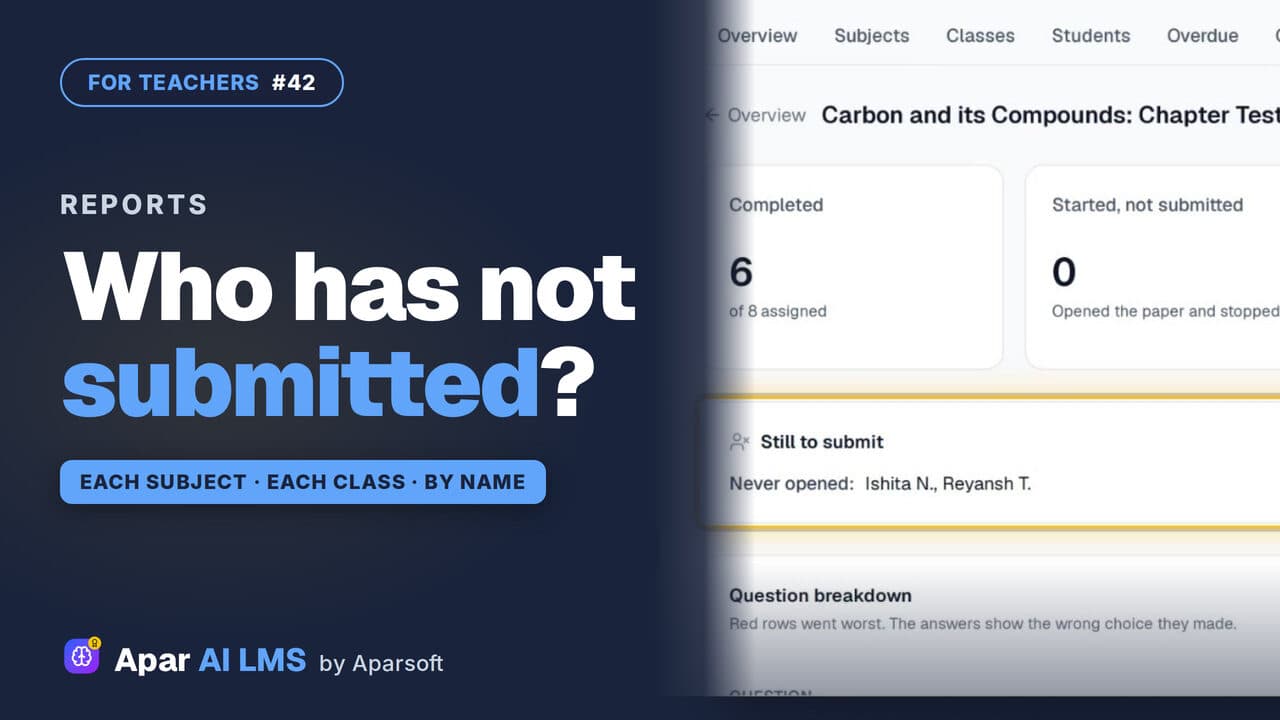 Length1:22#42 · Teachers
Teacher Reports: Who Has Not Submitted
Reports scores each subject and class apart, names the students still to submit, and shows how the class did on every question.
Try it on your own school
Start the 2-month free trial. No payment.
- No payment
- No commitment
- Onboarding included