Your To do list: every test, assignment, viva and class resource in one place
To do holds all the work your teachers set, in four tabs: tests, assignments, vivas and class resources, with what is late clearly marked.
Every screen in the films is the real product, shown on a demo school made for them.
Students lose marks for work they did not know was set. To do in Apar AI LMS puts everything your teachers set in one place, split into four tabs: Tests, Assignments, Viva and Class resources. It shows what is still to do, what is late and what is done, so you, or a parent sitting next to you, can see the week at a glance.
The film opens each tab in turn, and one item from each: a test's page, an assignment's rules, a viva's page and a note a teacher shared.
Step by step
Open To do
Press To do on the left. Your work is split into four tabs: Tests, Assignments, Viva and Class resources.
Watch from 0:00Check your tests
Tests counts what is still to do, what is overdue and what is done. A late test says how long ago it was due, so it is hard to miss.
Watch from 0:20Open a test
Press a test. Its page shows the time allowed, the marks and the rules before anything else, so you know what you are starting.
Watch from 0:20See your assignments
Go back and press Assignments. Each one is graded work on a topic, and you get a single attempt at it.
Watch from 0:36Read the rules first
Press Open the assignment. The rules come before you start, so read them before you press anything else.
Watch from 0:36Find your viva
Press To do, then Viva. A viva your teacher set waits here. Press it to see your virtual teacher, how many questions there are and how much time you have.
Watch from 0:51Open a class resource
Press To do, then Class resources: the notes, files and links your teachers shared with you. Press one to open it.
Watch from 1:07Mark it as done
When you have finished with it, mark it as done. Your teacher can see that you have.
Watch from 1:07
Good to know
Assignments appear once they are set
The Assignments tab shows up once a teacher has set graded work for you.
One attempt at graded work
Each assignment can be attempted once, which is why its rules come first. Read them before you start.
What was on screen
A demo school with its demo teacher and demo student. The work and dates were made for the demo.
Questions
- Where do students find their tests and homework?
- Under To do, in four tabs: Tests, Assignments, Viva and Class resources. Everything your teachers set for you is there.
- How do I know if a test is overdue?
- The Tests tab counts what is overdue, and a late test says when it was due.
- Does my teacher know when I have read a shared note?
- Yes, once you mark it as done. Your teacher sees it.
What the film saysThe narration, scene by scene.
To do. This is the student dashboard. Here is To do: your tests, assignments, vivas and class resources.
Four tabs. On the left, press To do. Your work is in four tabs: Tests, Assignments, Viva, and Class resources.
Tests. Tests counts what is to do, what is overdue, and what is done. A late test says when it was due.
A test's page. Press a test to open it. Its time, marks and rules come first.
Assignments. Go back, and press Assignments. Each one is graded topic work, with one attempt.
Its rules first. Press Open the assignment. It gives the rules before you start.
Viva. Press To do, then Viva. A viva your teacher set waits here, ready to start.
Its page. Press it. You see your virtual teacher, how many questions, and the time you have.
Class resources. Press To do, then Class resources: what your teachers shared with you.
Open one. Press one to open it. Finished with it? Mark it as done, and your teacher sees it.
Coming up. Next: Subjects and chapters: find what your teacher shared.
Watch next
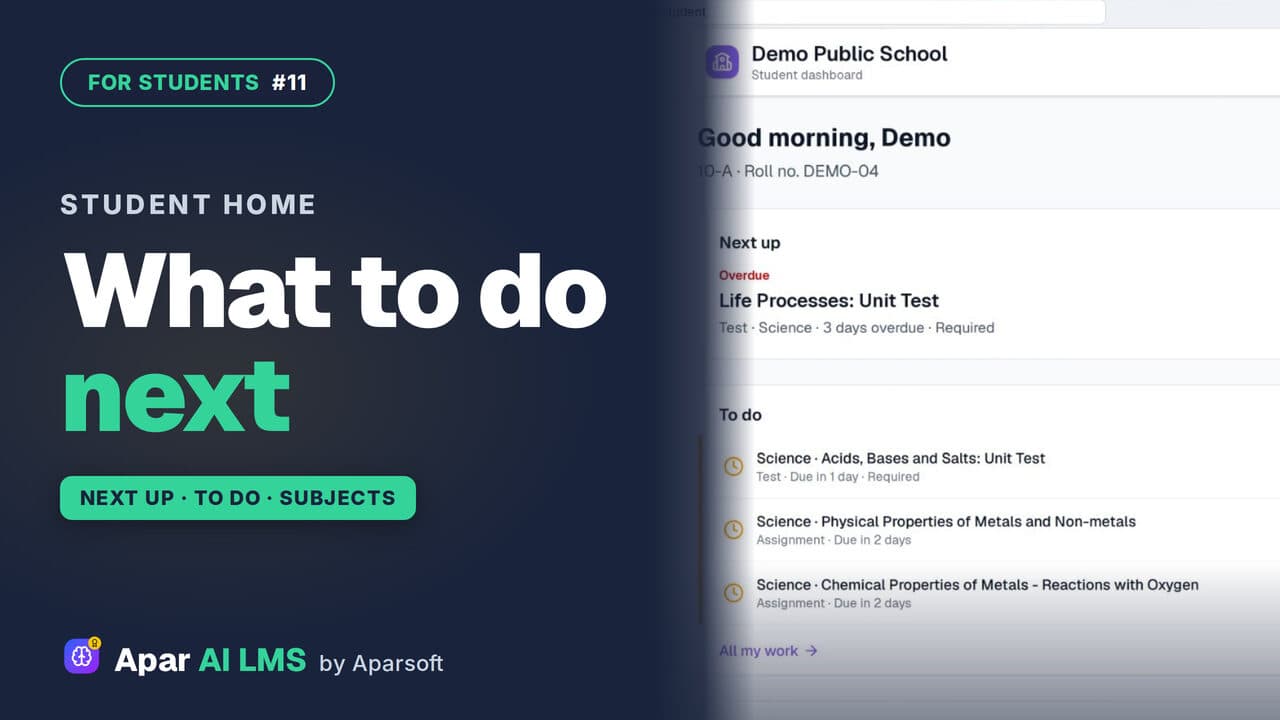 Length1:36#11 · Students
Student Dashboard: What to Do Next
Next up names the one thing to do now, To do lists the rest with due dates, and My subjects shows how each subject is going.
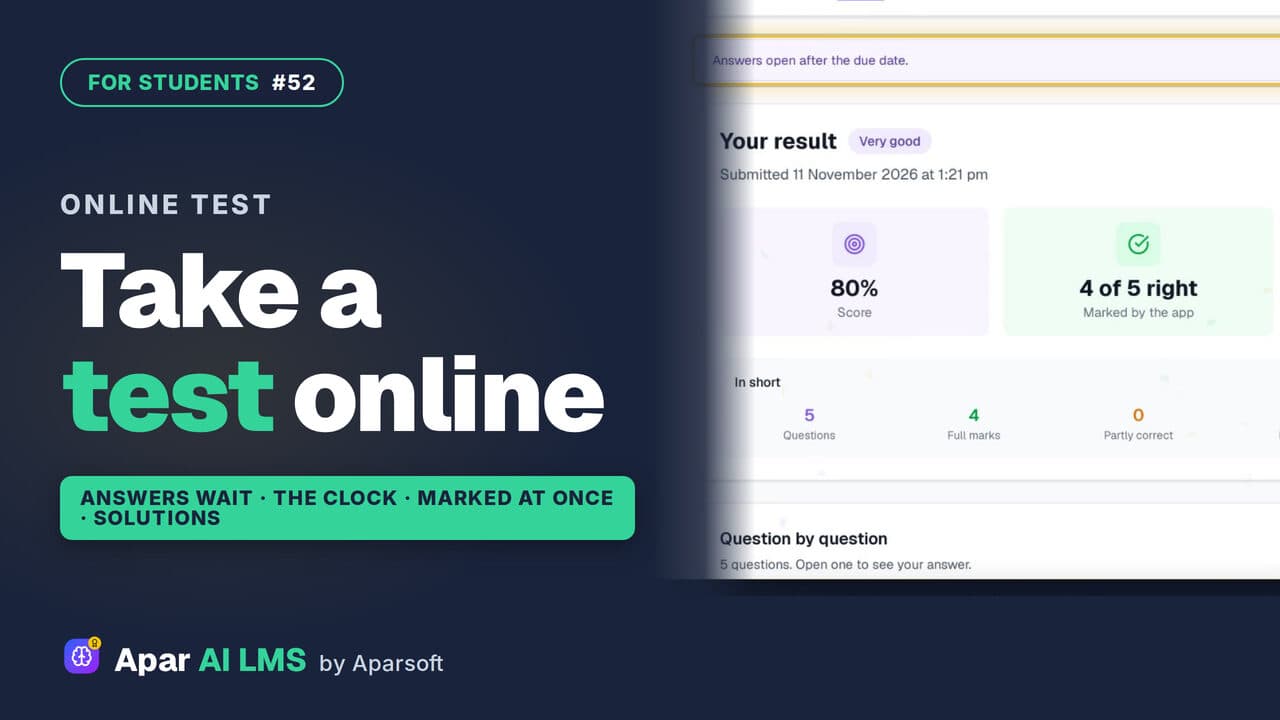 Length1:44#52 · Students
How to Take an Online Test as a Student
From To do to the solutions: read the rules, answer against the clock, get marked as soon as you submit, and see the right answers after the due date.
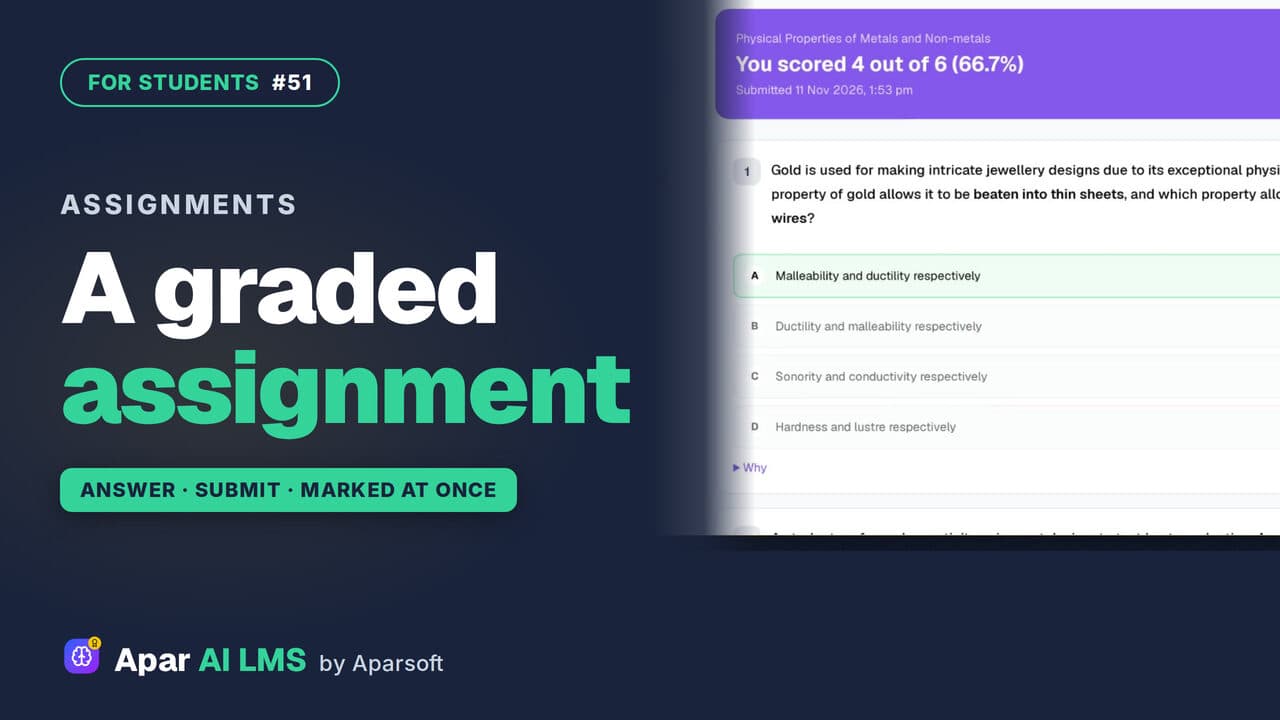 Length1:33#51 · Students
Graded Assignment: Answer, Submit, See Marks
Graded work your teacher set: one attempt, answers saved as you go, marked as soon as you submit, with the reason for every wrong answer.
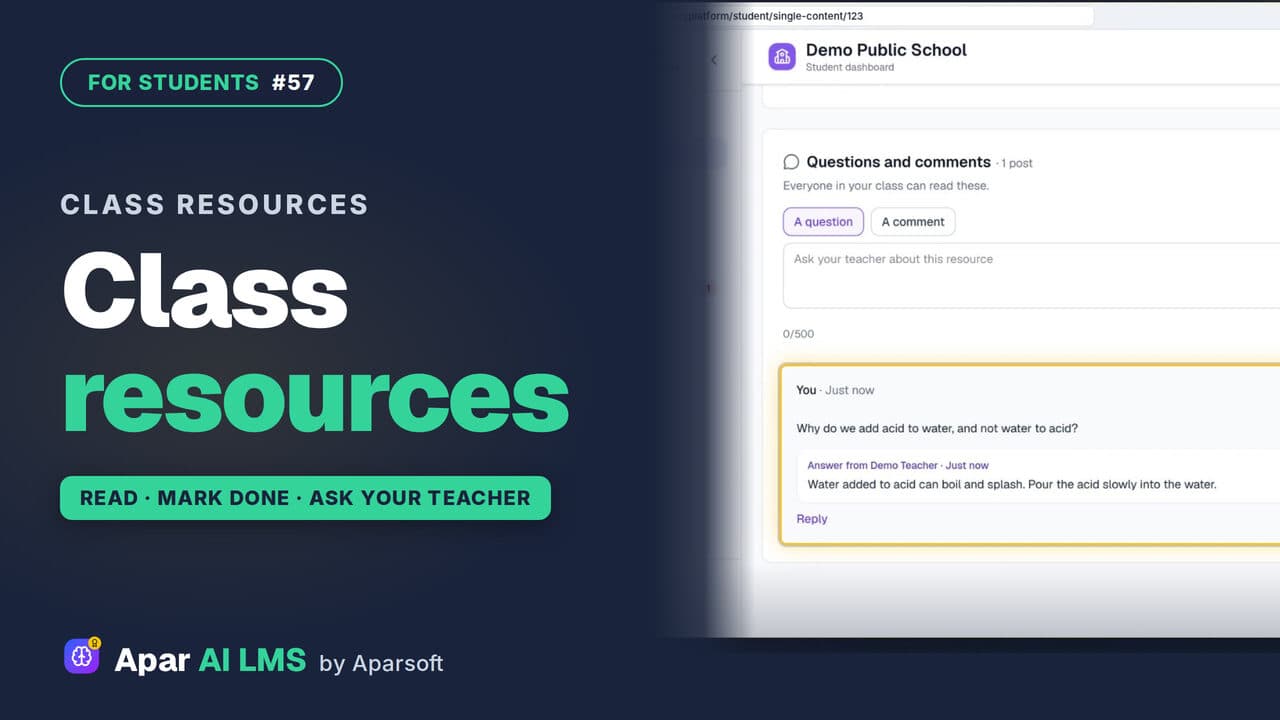 Length1:30#57 · Students
Class Resources: Open Notes, Ask Your Teacher
Your teachers' shared files, with study notes and questions to try, a Mark as done button, and a box to ask your teacher a question.
Try it on your own school
Start the 2-month free trial. No payment.
- No payment
- No commitment
- Onboarding included