Answer your students' questions under the notes you share, where the whole class can read
Students ask under the notes you share. Your Home tells you a question is waiting, and your answer is there for the whole class.
Every screen in the films is the real product, shown on a demo school made for them.
When a student is stuck on something you shared, the question usually reaches you in the corridor or on your phone, and the rest of the class never hears the answer. In Apar AI LMS, students ask right under the note, your Home tells you a question is waiting, and your answer sits under the question for the whole class to read.
The film follows one question from a student in 10-A to the teacher's answer, and shows how to hide a classmate's comment that does not help the class, and how to bring it back.
Step by step
A student asks under your note
The student opens your note in Class resources, types a question in the box under it and presses Post.
Watch from 0:00Your Home tells you
On your Home, a row says a student question is waiting. Press Answer now to go straight to it.
Watch from 0:19Waiting questions come first
The note's Questions tab opens with the unanswered questions at the top, so a new one is never buried under older comments.
Watch from 0:19Answer for the whole class
Write your answer and press Send answer. It appears under the question, and every student in the class can read it.
Watch from 0:19Hide a comment that does not help
If a comment is off the point, open its menu and press Hide from class. The class no longer sees it; the student who wrote it still does.
Watch from 0:41Show it again
Changed your mind? Press Show to class and the comment is back for everyone.
Watch from 0:41The student reads your answer
On the student's page, your answer now sits right under their question.
Watch from 0:55
Good to know
Who sees what
Your answer is for the whole class, so students with the same doubt find it too. A hidden comment is still seen by the student who wrote it.
Hiding is not deleting
A hidden comment is kept, and Show to class brings it back whenever you want.
What was on screen
A demo school with its demo teacher and students. The classmate's comment was written for the film; the student's question was typed on camera.
Questions
- How do students ask a teacher about notes the teacher shared?
- They open the note in Class resources, write a question in the box under it and press Post. The teacher's Home then shows a question is waiting.
- Can a teacher hide a student's comment from the class?
- Yes. Hide it from its menu; the class stops seeing it, while the student who wrote it still does. Show to class brings it back.
What the film saysThe narration, scene by scene.
Questions from your class. This is the teacher dashboard. Here is how your students ask about what you share, and how you answer.
A student asks. A student opens your note in Class resources. Under it, they ask a question, and press Post.
Your Home says so. On your Home, a row says a question is waiting. Press Answer now.
Waiting questions first. The note's Questions tab opens, with waiting questions first.
Answer it. Write your answer, and press Send answer. The whole class can read it.
Hide a comment. A comment that does not help the class? Hide it. The student who wrote it still sees it.
Show it again. To bring it back, press Show to class.
The student reads it. The student sees your answer under their question.
Coming up. Next: The visual encyclopedia.
Watch next
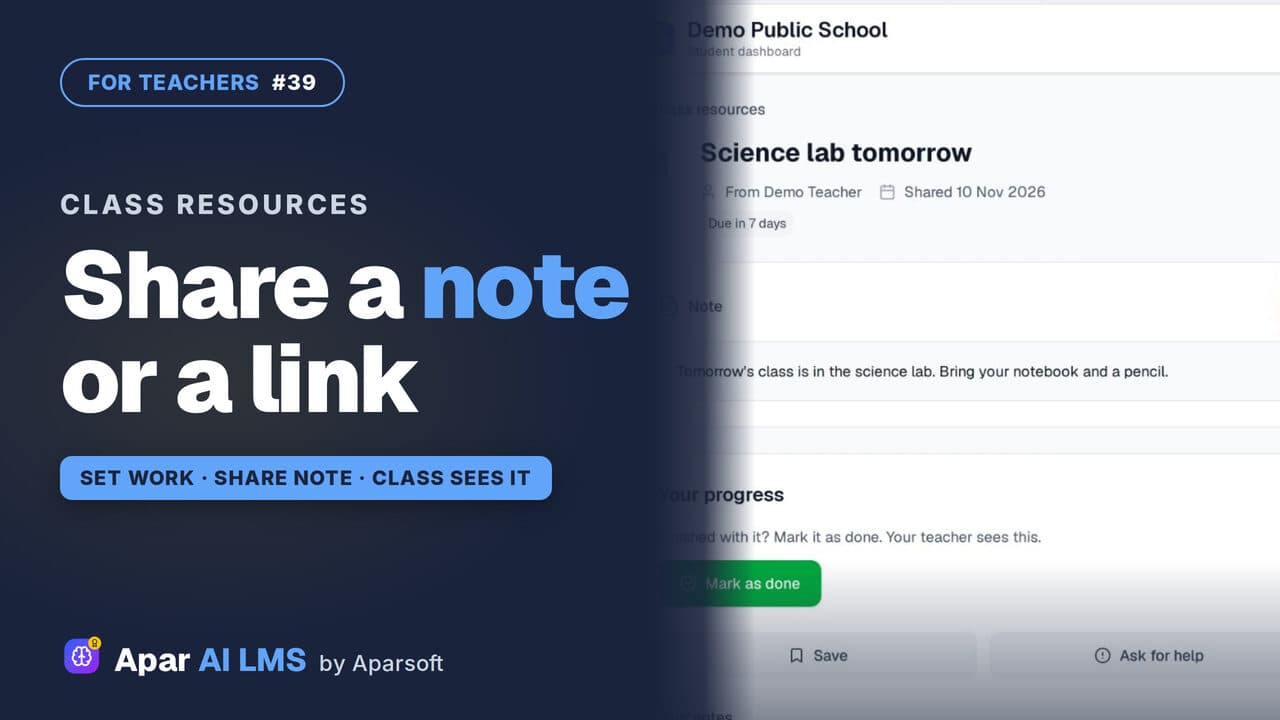 Length1:16#39 · Teachers
Share a Note, File or Link With Your Class
Send one note, PDF, image or link to a class without making a whole assignment, and see how many students viewed and completed it.
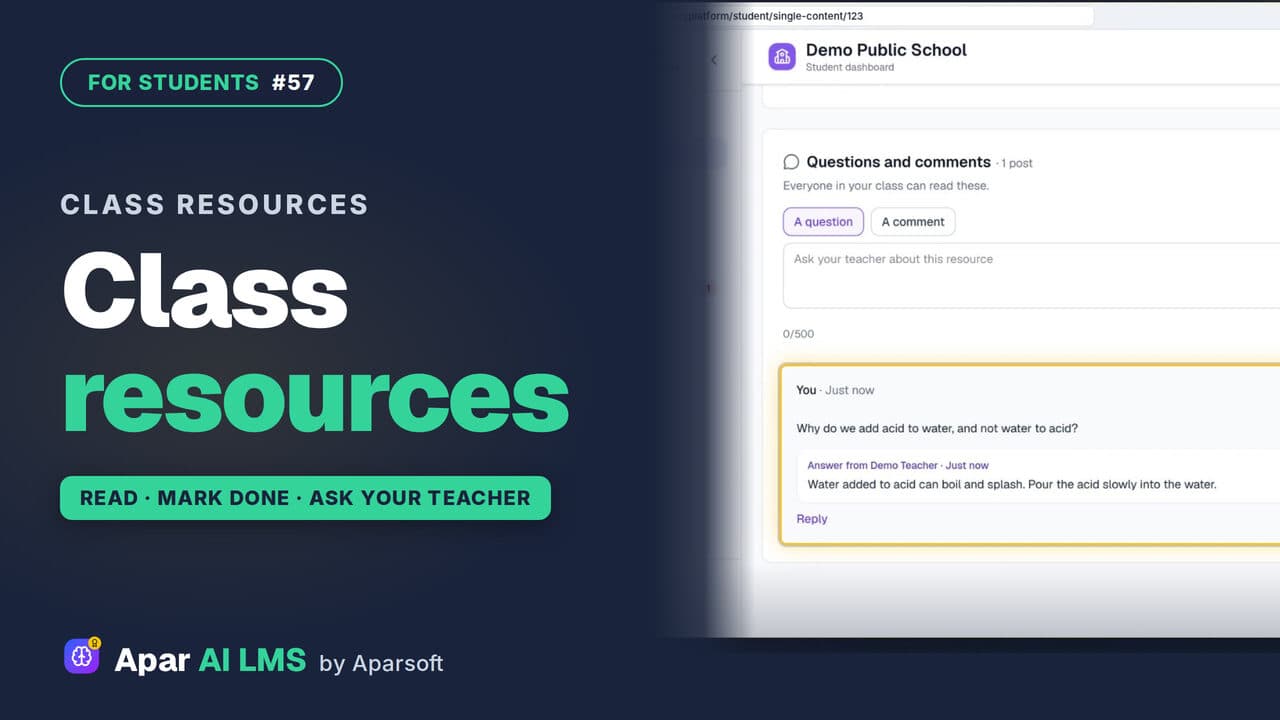 Length1:30#57 · Students
Class Resources: Open Notes, Ask Your Teacher
Your teachers' shared files, with study notes and questions to try, a Mark as done button, and a box to ask your teacher a question.
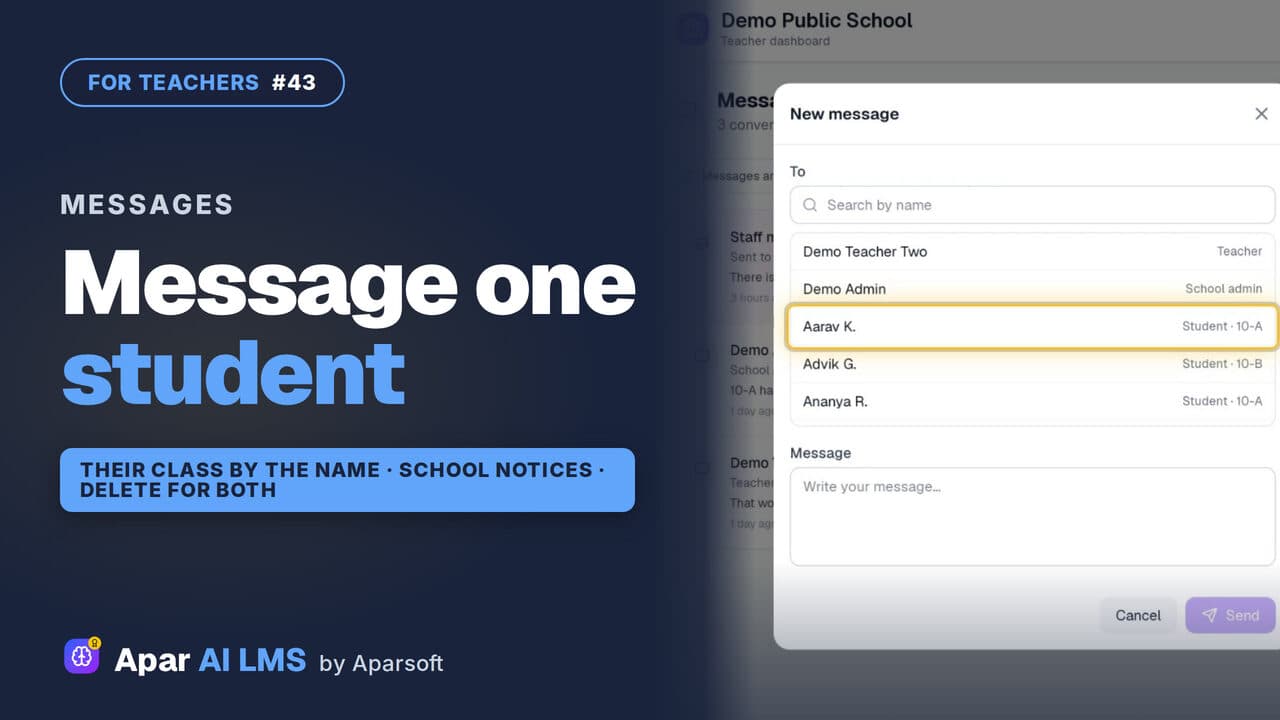 Length1:40#43 · Teachers
Message a Student and Read School Notices
One inbox for your students, colleagues and the school office: write to one student, read school notices, and delete a message sent by mistake.
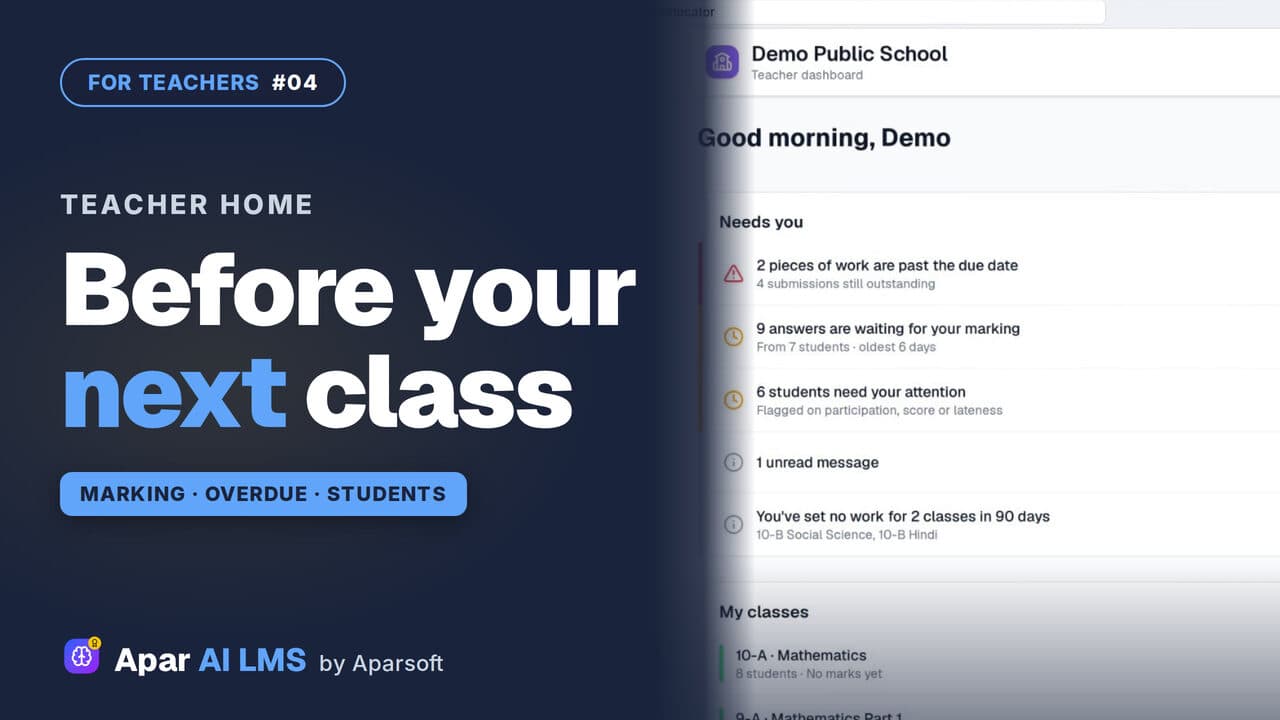 Length2:35#04 · Teachers
Teacher Dashboard: Home, Menu and Set Work
Teacher Home answers one question: what needs you before your next class? Then Set work, and where everything lives in the menu.
Try it on your own school
Start the 2-month free trial. No payment.
- No payment
- No commitment
- Onboarding included