AI Explain for students: understand a hard idea in simple steps
Stuck on a note? Press Explain with AI for the same idea in simple steps. Under an MCQ, it explains why the answer is right.
Every screen in the films is the real product, shown on a demo school made for them.
When a student is stuck at home there is often nobody to ask. AI Explain goes over the same idea again, in simple words and in steps, right beside the note the student is reading, and ends with what to remember.
The film uses Light: Reflection and Refraction from Class 10 Science. It explains the laws of reflection from the revision notes, then shows AI Explain under an MCQ, where it explains why one option is right and the others are wrong.
Step by step
Pick a shared chapter
The chapters your teachers shared are listed. Press the one you are studying.
Watch from 0:19Open the full note
Press Revision notes, find the part you are stuck on and press View full content.
Watch from 0:19Press Explain with AI
The explanation opens on the right, step by step and in simple words, so the note stays in view while you read. It goes over the same idea the note covers in a different way, which is often what it takes for it to make sense.
Watch from 0:37Read it to the end
Scroll through the explanation. It ends with what to remember, then close it with the cross.
Watch from 0:49Use it on questions too
Go back to the chapter and press MCQs. Under a question, Explain with AI explains the right answer and why the other options are wrong.
Watch from 1:13
Good to know
It works on what your teacher shared
AI Explain sits on the notes and questions of chapters shared with your class.
Ends with what to remember
Each explanation closes with the points to remember, a short summary you can revise from before a test.
Real answers in the film
Both explanations on screen are the live model's, recorded while filming and checked against the chapter.
Questions
- Can AI Explain tell me why an MCQ answer is right?
- Yes. Under a question, it explains the answer and why the other options are wrong.
- Does the explanation hide the note?
- No. It opens on the right, beside the note, and closes with the cross.
- Which chapters can I use AI Explain on?
- The chapters your teachers have shared with your class. Open Subjects, then a subject, and they are listed there with their revision notes and MCQs.
What the film saysThe narration, scene by scene.
A hard idea. Stuck on a hard idea? AI Explain goes over it again, in simple steps. Let us try it.
Your subjects. This is the student dashboard. Press Subjects, then Science.
The chapters. Here are the chapters your teachers shared. Press Light: Reflection and Refraction.
Revision notes. Press Revision notes. Find Laws of Reflection, and press View full content.
Explain with AI. Not clear yet? Press Explain with AI. The explanation opens on the right, step by step, in simple words.
Read it to the end. Scroll down, and read it to the end. It closes with what to remember.
Close it. When you are done, press the cross to close it.
Questions too. Questions have it too. Go back to the chapter, and press MCQs.
Why the answer is right. Under a question, press Explain with AI. It explains the answer, and why the other options are wrong.
Coming up. Next: your school's details, logo and colours.
Watch next
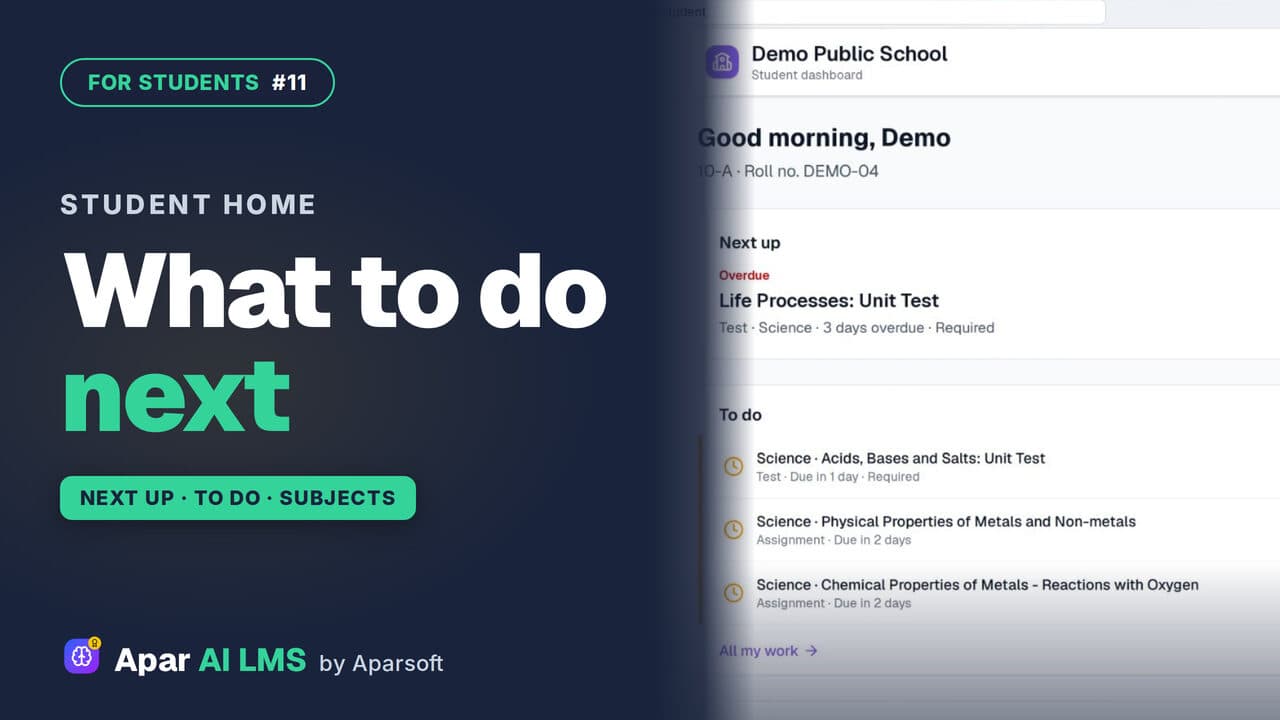 Length1:36#11 · Students
Student Dashboard: What to Do Next
Next up names the one thing to do now, To do lists the rest with due dates, and My subjects shows how each subject is going.
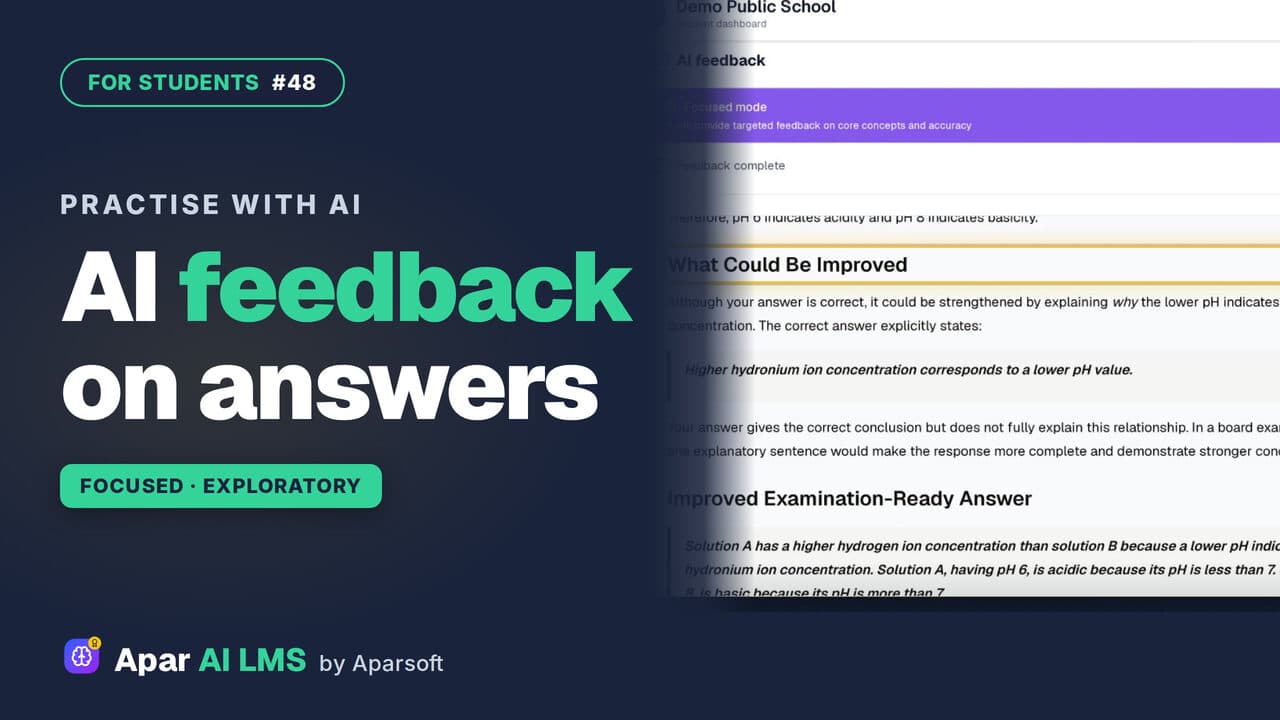 Length1:24#48 · Students
Answer Writing Practice With AI Feedback
Write an answer in your own words and get AI feedback in seconds: what you got right, what to improve, and ideas to take it further.
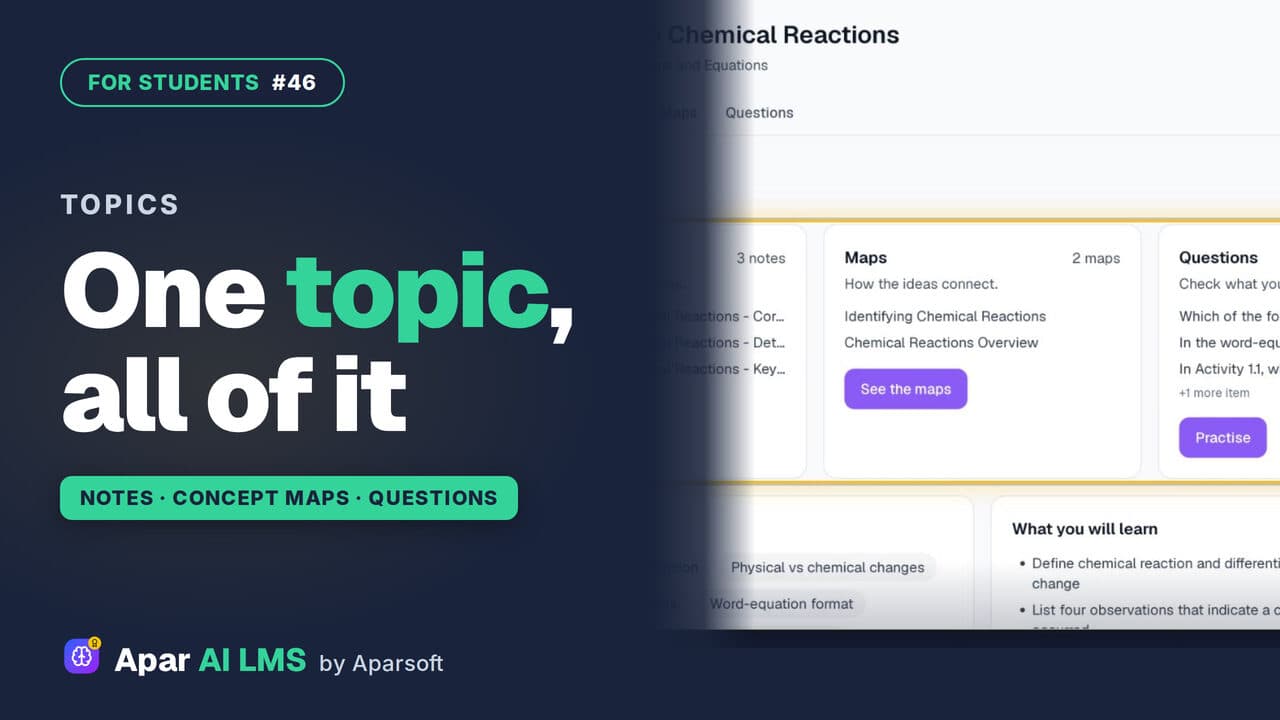 Length1:13#46 · Students
Topic Notes, Concept Maps and Practice
One topic at a time: short notes, concept maps of how the ideas connect, and practice questions that show at once if you got it right.
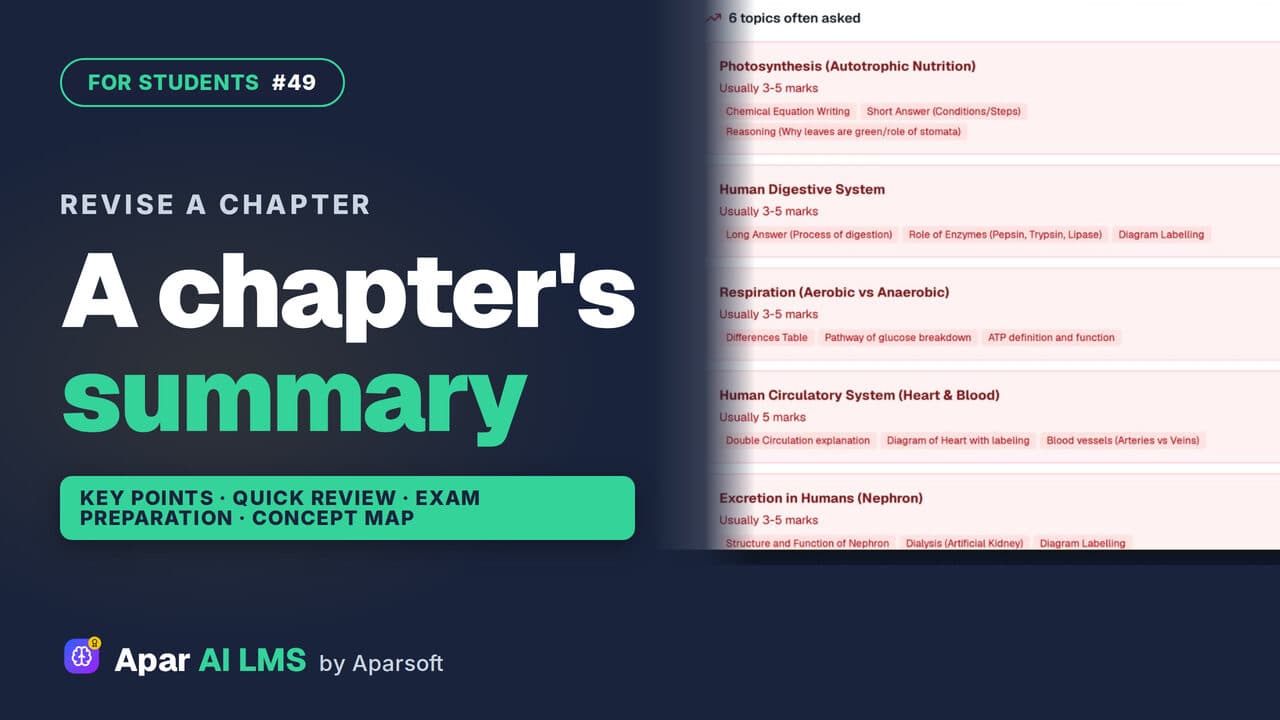 Length1:25#49 · Students
Chapter Summary and Concept Map for Revision
Revise a chapter kind by kind: key points, a quick review, exam preparation, the main concepts, and a concept map of how its ideas connect.
Try it on your own school
Start the 2-month free trial. No payment.
- No payment
- No commitment
- Onboarding included