The student dashboard: how Home tells a student what to do next
Next up names the one thing to do now, To do lists the rest with due dates, and My subjects shows how each subject is going.
Every screen in the films is the real product, shown on a demo school made for them.
Students lose time working out what to do first. On Apar AI LMS a student's Home answers that every day: one thing to do now at the top, the rest in order of when it is due, and how each subject is going.
This short film walks through a demo student's Home, from Next up down to the menu, and shows where to find all work in one list and where the fees are. It is useful for students, and for parents and teachers who want to know what a student sees.
Step by step
Look at Next up
At the top of Home, Next up names the one thing to do now. Its button opens it straight away.
Watch from 0:00See all your work together
Press All my work for tests, assignments, viva and class resources in one place, split into what is to do, what is overdue and what is done.
Watch from 0:19See how each subject is going
Further down Home, My subjects shows each subject and how you are doing in it.
Watch from 0:42Keep your streak
At the top of Home is your streak: the number of days you have come to study. It is a small push to open the app every day.
Watch from 0:42Learn the menu
The menu has six places: Home, To do, Subjects, Progress, Saved and Messages.
Watch from 1:09Find your fees
Fees are in the account menu: press your name, then Fees, to see what is still to pay.
Watch from 1:09
Good to know
Only shared work appears
A student sees the chapters and work their teachers have shared with their class.
Overdue is kept separate
All my work splits overdue work from the rest, so nothing late gets buried.
A demo student's Home
The film reads the demo school's student on an ordinary day and changes nothing. The fee figures are the demo school's samples.
Questions
- Where does a student see what is due?
- On Home, under Next up and To do, and in All my work, which also separates overdue work.
- Can students see their fees?
- Yes, if the school uses fees: press your name, then Fees.
- Where are tests, assignments and vivas listed?
- All of them sit together under All my work, with class resources too, split into what is to do, what is overdue and what is done. To do in the menu leads to the same work.
What the film saysThe narration, scene by scene.
What to do next. This is the student dashboard. Every day, Home tells you what to do next.
Next up. At the top, Next up names the one thing to do now. Press its button, and it opens.
To do. Press Home. Below Next up, To do lists your other work, and when each one is due.
All my work. Press All my work. Here are your tests, assignments, viva, and class resources. This list shows what is to do, what is overdue, and what is done.
My subjects. Press Home. Further down, My subjects shows each subject, and how you are doing in it.
Your streak. At the top, your streak counts the days you came to study.
The menu. On the left is your menu: Home, To do, Subjects, Progress, Saved, and Messages.
Fees. Fees are in your account menu. Press your name, then Fees. It shows what is still to pay.
Coming up. Next: AI Explain, to understand a hard idea.
Watch next
 Length1:39#44 · Students
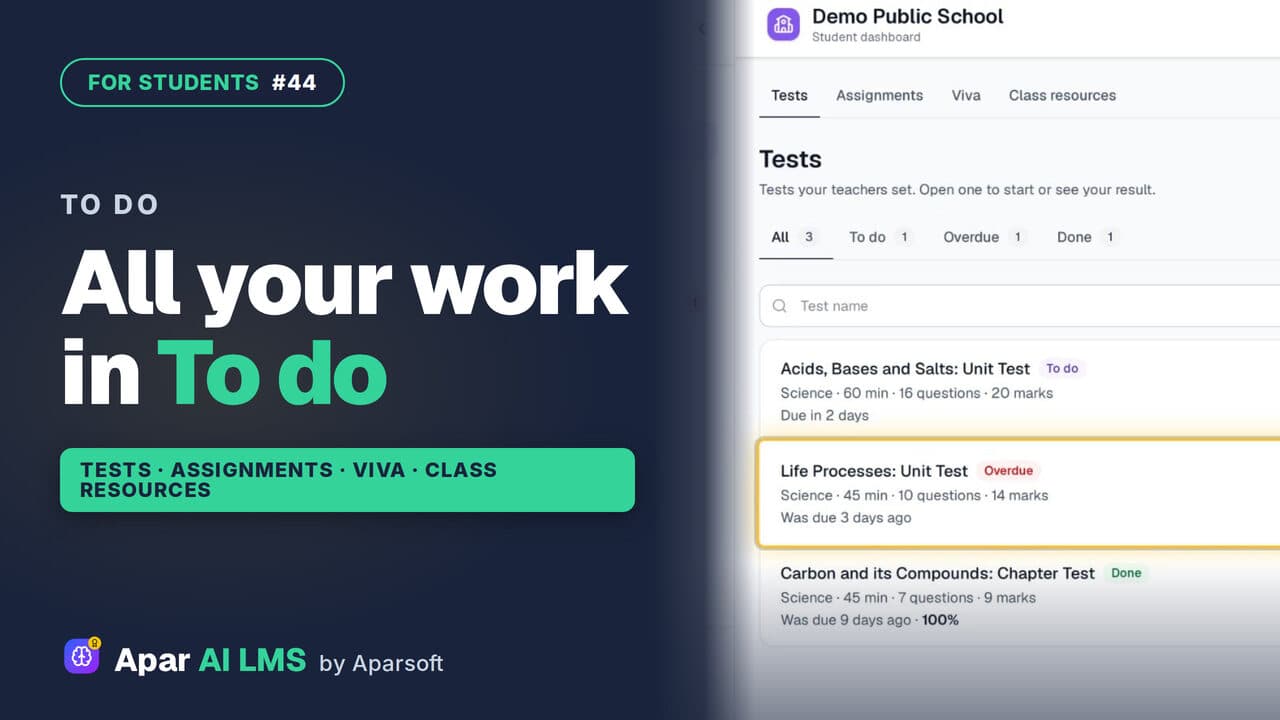
Student To Do: Tests, Assignments, Vivas
To do holds all the work your teachers set, in four tabs: tests, assignments, vivas and class resources, with what is late clearly marked.
 Length1:40#12 · Students
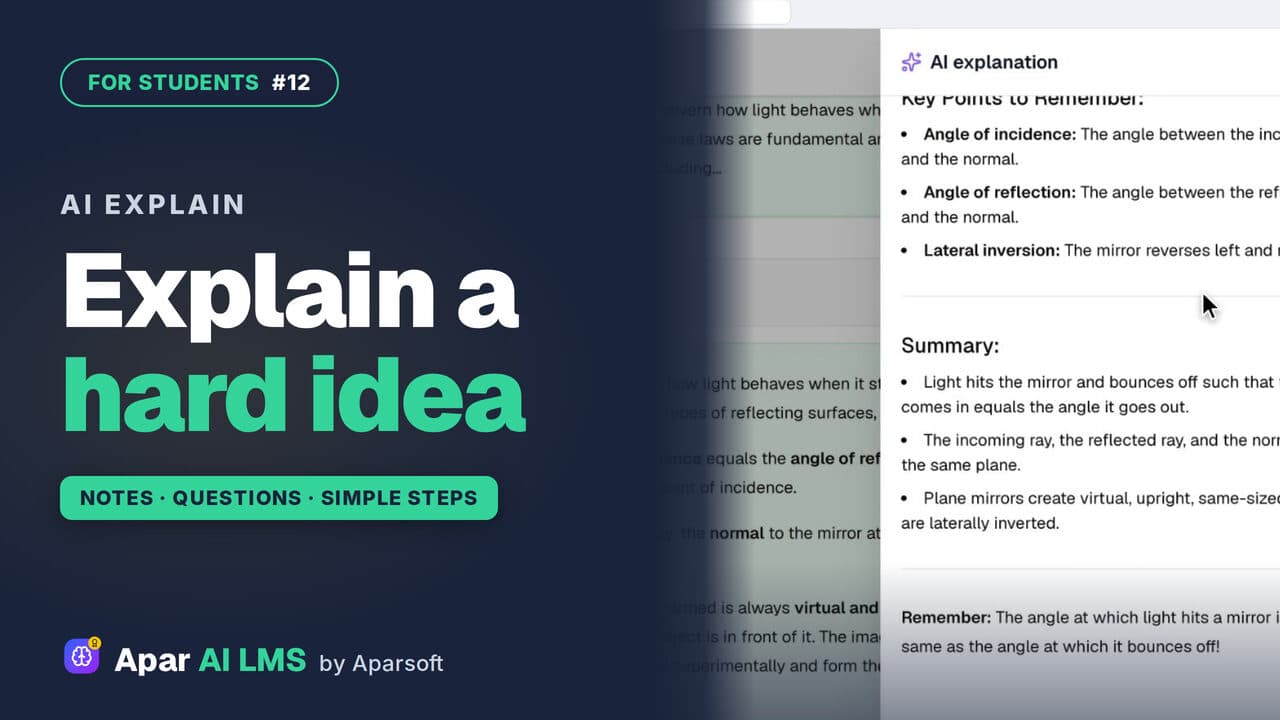
AI Explain: Help with Hard Ideas for Students
Stuck on a note? Press Explain with AI for the same idea in simple steps. Under an MCQ, it explains why the answer is right.
 Length1:15#54 · Students
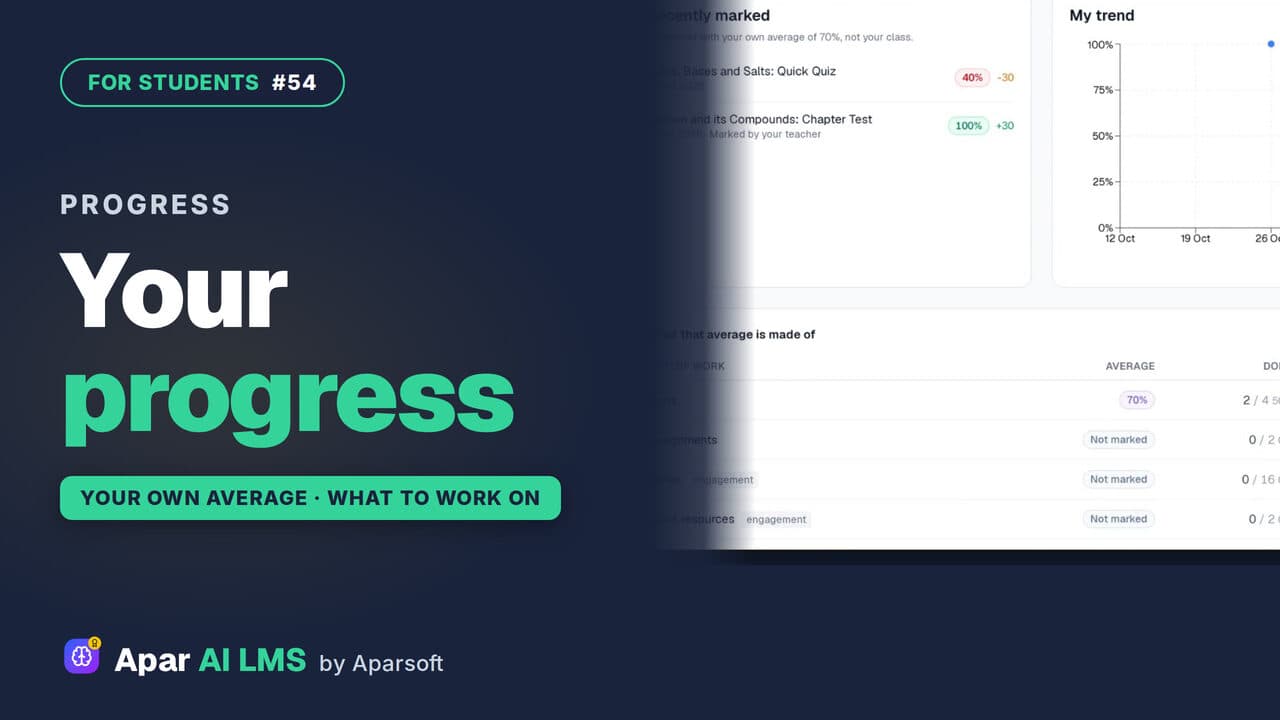
Student Progress: Average and Weak Areas
Where you stand and what to do next: each result against your own average, never your class, and where you lose marks.
 Length1:43#60 · Students
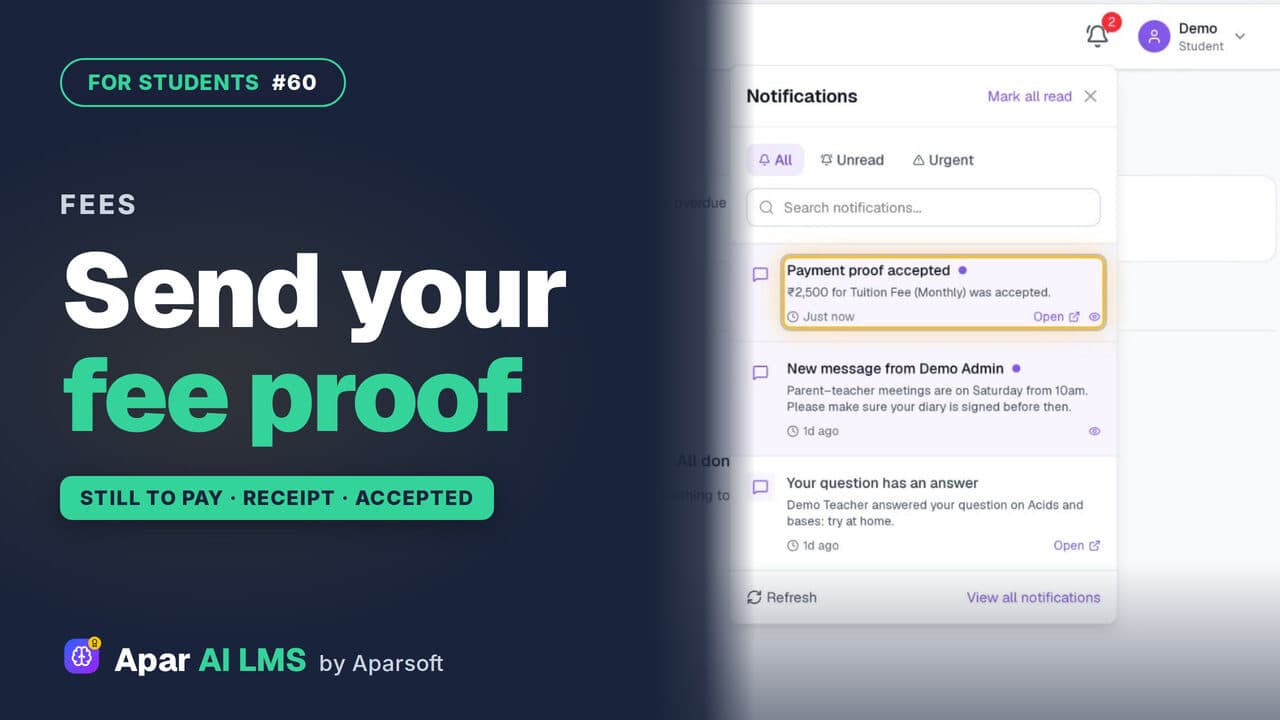
School Fees: See What Is Due, Send a Proof
See what is still to pay, pay the school by QR code or bank transfer, then record the payment with a photo of the receipt for the school to check.
Try it on your own school
Start the 2-month free trial. No payment.
- No payment
- No commitment
- Onboarding included