AI Viva (beta): set a spoken viva for your class and read how it went
Set a viva in four steps. Each student answers a virtual teacher on their own, and you read every answer, its mark and what it missed.
Every screen in the films is the real product, shown on a demo school made for them.
A viva tells a teacher what a student really understands, but there is never time to hear every student one by one. AI Viva, currently in beta, lets each student answer a virtual teacher on their own, out loud, while the teacher reads the results afterwards.
The film sets a viva on Heredity for 10-A in four steps, explains why speaking alone helps students, and then opens one student's session question by question.
Step by step
Step one: the virtual teacher
Pick the virtual teacher who will ask the questions, then press Continue.
Watch from 0:16Step two: class and chapter
Choose the class, the subject and the chapter the viva covers.
Watch from 0:28Step three: the settings
Give it a title and pick Adaptive, so the questions get easier or harder as the student answers. Set the number of questions, the time limit, the tries allowed and the pass mark. A spoken viva means the student answers out loud.
Watch from 0:39Step four: when
Choose when it opens and when it is due, check the summary and press Publish. Students take it on their own dashboards once it opens.
Watch from 1:04See who has done it
The viva's card on your dashboard shows who has taken it and the average.
Watch from 1:47Open a student's session
Press All sessions to see each attempt's score, grade and how many answers were right, then press Open.
Watch from 1:59Read every answer
Each question is listed with the student's answer, its mark, and what the answer covered and what it missed. A wrong answer earns nothing; a partly right one earns part of the marks.
Watch from 2:11
Good to know
Currently in beta
AI Viva is a beta feature. Read the sessions as you would any first check, and use your own judgement on a student's understanding.
Why speaking alone helps
No classmates are listening, so there is no fear of a wrong answer in front of the class. Students can think out loud and get used to explaining what they know.
A real session in the film
The session shown was asked and marked by the live model on a demo student's answers. The answers were typed in for the film, not spoken.
Questions
- Do students speak their answers in AI Viva?
- With a spoken viva, yes: the virtual teacher asks and the student answers out loud on their own dashboard.
- Can the questions adapt to the student?
- Yes. With Adaptive, the AI asks easier or harder questions depending on how the student answers.
- What does the teacher see after a viva?
- Who took it and the average, then each session's score and grade, and every answer with its mark and what it covered or missed.
What the film saysThe narration, scene by scene.
An AI Viva. This is the teacher dashboard. Let us set a viva for a class, and read how it went.
Set work. Press Set work, then Viva. There are four steps.
Step one. Step one: pick the virtual teacher, who asks the questions. Pick Vivek. Press Continue.
Step two. Step two: the class, 10-A. The subject, Science. The chapter: Heredity. Press Continue.
Step three. Step three: give it a title. Pick Adaptive: the AI asks easier or harder questions, as the student answers. 3 to 4 questions. Below are the time limit, the tries allowed, and the pass mark. Spoken viva means the student answers out loud. Press Continue.
Step four. Step four: when it opens, and when it is due. Check the summary, and press Publish.
Published. It is published. When it opens, students take it on their own dashboards.
For students. This is a new way for students to practise. Each student speaks alone with the virtual teacher. No classmates are listening, so there is no peer pressure, and no fear of a wrong answer in front of the class. They can think out loud, and grow confident in speaking about what they have learned.
How it went. Later, a student has taken it. On the teacher dashboard, the viva's card shows who has done it, and the average.
All sessions. Press All sessions. Here is the student's attempt: the score, the grade, and how many were right. Press Open.
Every answer. Each question is here, with the student's answer and its mark. It says what the answer covered, and what it missed. A wrong answer earns nothing, and a partly right one earns part of the marks.
Coming up. Next: student Home, and what to do next.
Watch next
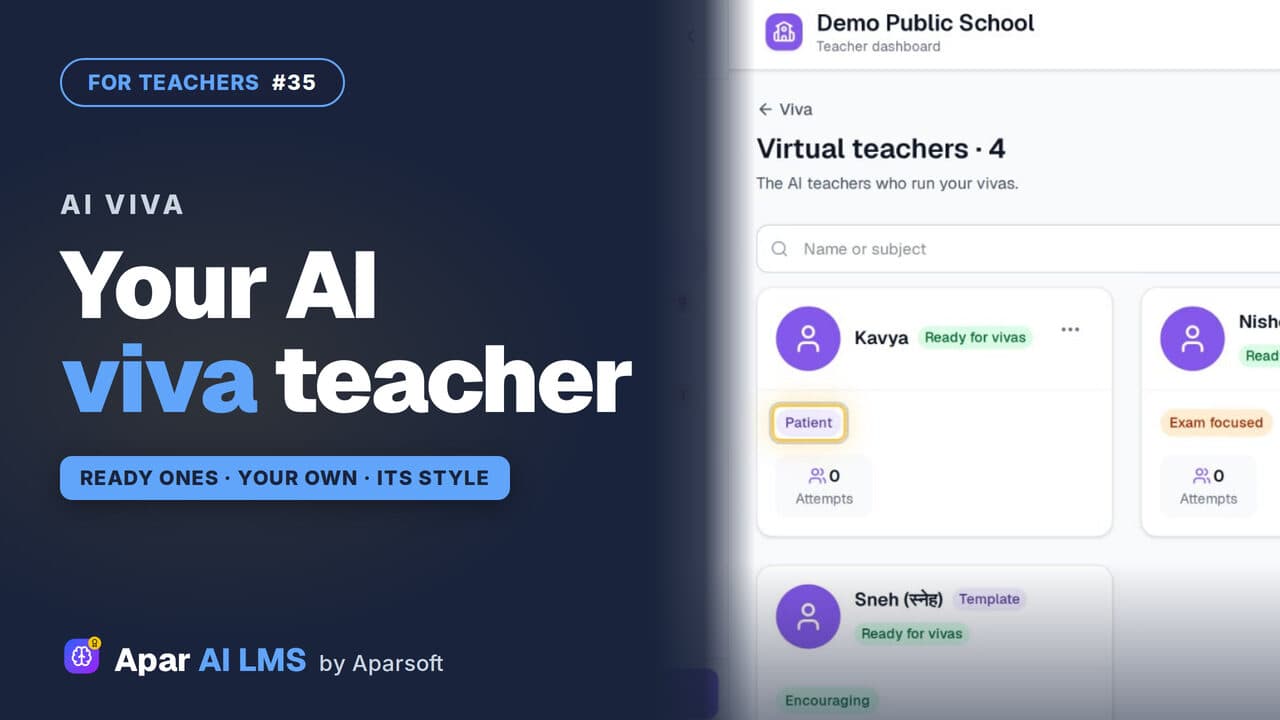 Length1:22#35 · Teachers
AI Viva: Make Your Own Virtual Teacher (Beta)
Meet the ready virtual teachers that run an AI viva, then make one of your own with a name, a teaching style and a way of talking.
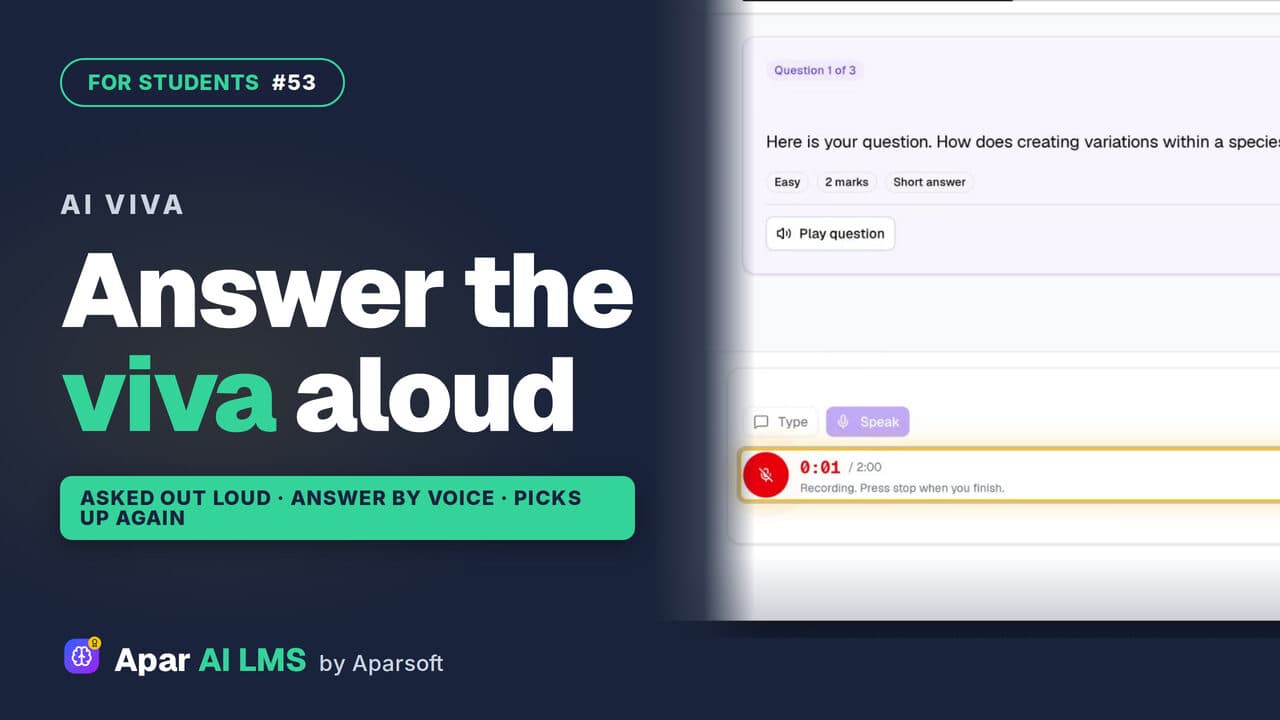 Length1:51#53 · Students
AI Viva for Students: Answer Out Loud (Beta)
A virtual teacher asks each question out loud and you answer by speaking. If the page drops, it picks up where you stopped, then shows your result.
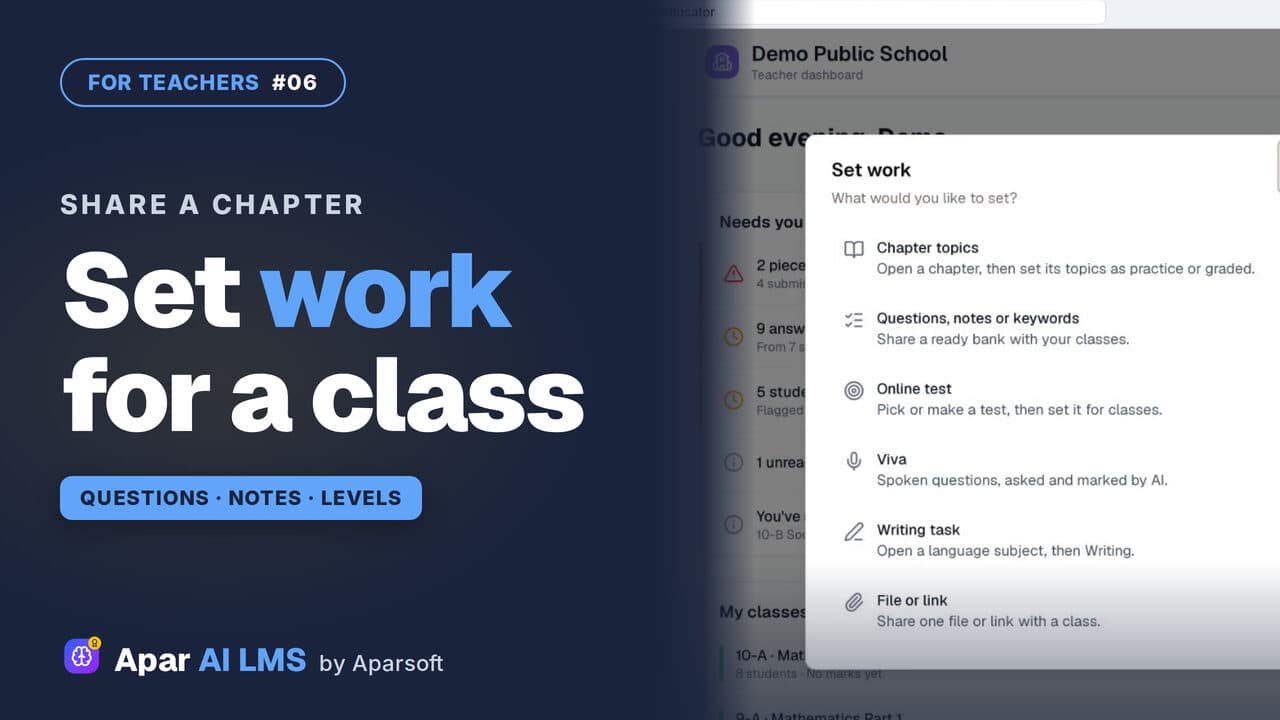 Length2:59#06 · Teachers
Share Questions and Notes with Your Class
Press Set work, share a chapter's questions without the hard ones, then its notes, and see exactly what the class can open.
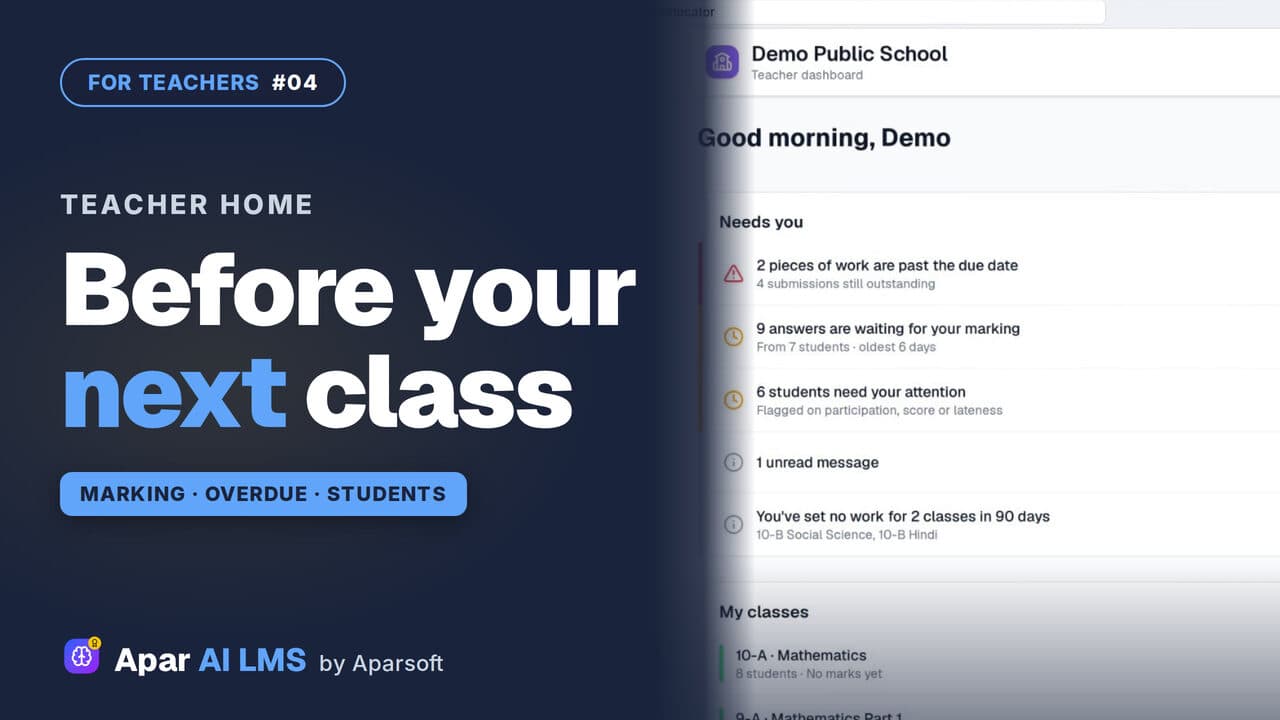 Length2:35#04 · Teachers
Teacher Dashboard: Home, Menu and Set Work
Teacher Home answers one question: what needs you before your next class? Then Set work, and where everything lives in the menu.
Try it on your own school
Start the 2-month free trial. No payment.
- No payment
- No commitment
- Onboarding included