Open what your teachers share in Class resources, and ask a question under it
Your teachers' shared files, with study notes and questions to try, a Mark as done button, and a box to ask your teacher a question.
Every screen in the films is the real product, shown on a demo school made for them.
When a teacher shares notes with the class, you need somewhere to read them, check yourself, and ask about the part that is not clear. Class resources in Apar AI LMS does all three on one page: the file, study notes and questions under it, and a question box your teacher answers for the whole class to read.
The film opens a teacher's PDF notes on Acids, Bases and Salts, tries a question, marks the notes as done, asks a question, and follows the teacher's answer.
Step by step
Open Class resources
Press To do, then Class resources. Each card says who shared it and whether you have opened it yet.
Watch from 0:00Read the file
Press a card. The file opens right on the page, so you can read it without downloading anything.
Watch from 0:18Try the questions
Below the file are study notes and questions to try. Think of your answer first, then press Show answer to check yourself.
Watch from 0:18Ask your teacher
Stuck on something? Write your question in the box and press Post. It goes up straight away.
Watch from 0:39The teacher answers
On the teacher's dashboard, the question is waiting. The teacher presses Answer now, writes an answer and presses Send answer.
Watch from 0:49Read the answer
Back on your page, the answer sits under your question, where the whole class can read it.
Watch from 0:49
Good to know
The whole class reads the answers
Answers here are for the class, so anyone with the same doubt finds it answered too. Write your question as you would ask it in class.
Where the study notes come from
In the film, the file is the teacher's own PDF. Its study notes and questions were written by AI from it and approved by the teacher before sharing.
What was on screen
A demo school with its demo student and teacher. The question and the answer were typed on camera.
Questions
- Where do I find the notes my teacher shared?
- Press To do, then Class resources. Each card shows who shared it and whether you have opened it.
- How do I ask my teacher a question about shared notes?
- Open the notes, write your question in the box under them and press Post. The teacher's answer shows under your question.
What the film saysThe narration, scene by scene.
Class resources. This is the student dashboard. What your teachers share with your class waits under To do.
The cards. Press To do, then Class resources. Each card says who shared it, and if you have opened it.
The file. Press a card. The file opens right here.
Notes and questions. Below it are study notes, and questions to try. Press Show answer to check yourself.
Mark as done. Finished? Press Mark as done. Your teacher sees it.
Ask your teacher. Stuck? Ask your teacher. Write your question, and press Post. It goes up straight away.
The teacher. Now the teacher dashboard. The question is waiting. Press Answer now.
The answer. The teacher writes an answer, and presses Send answer. It shows under the question.
The answer, for the class. Back on the student's page, the answer sits under the question, for the whole class to read.
Coming up. Next: The encyclopedia: a flipbook to read.
Watch next
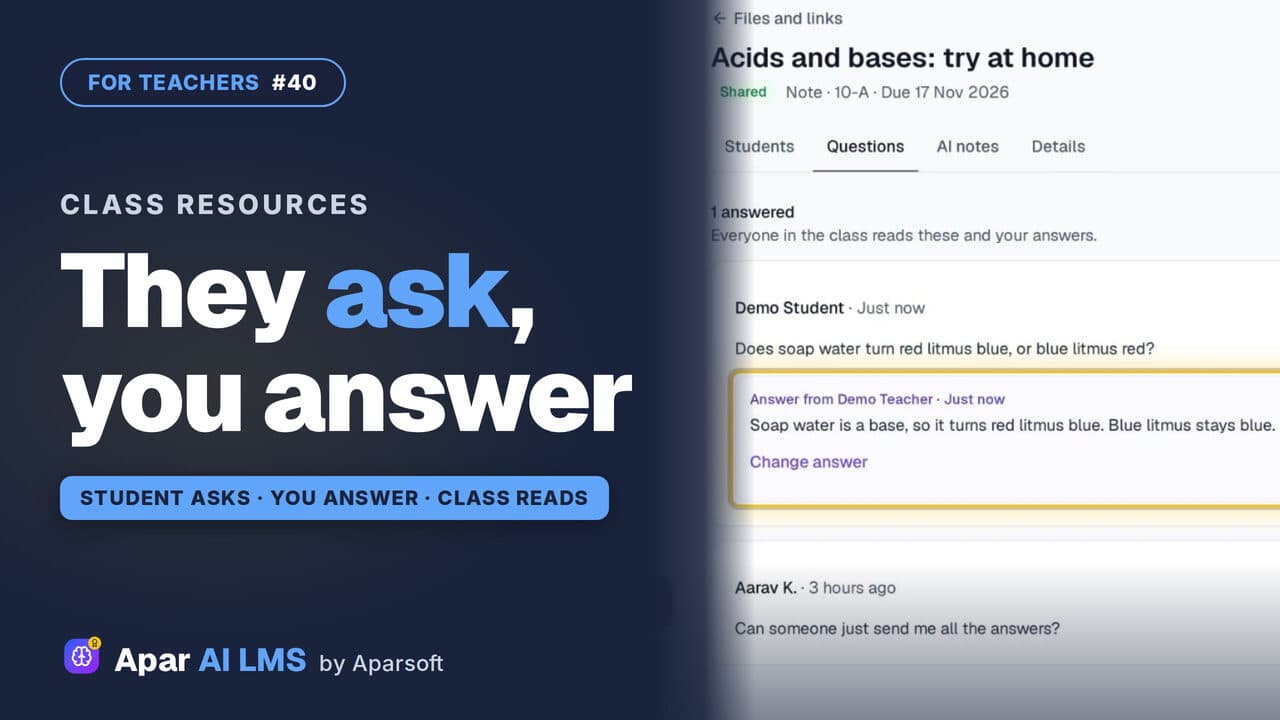 Length1:15#40 · Teachers
Answer Student Questions on Shared Notes
Students ask under the notes you share. Your Home tells you a question is waiting, and your answer is there for the whole class.
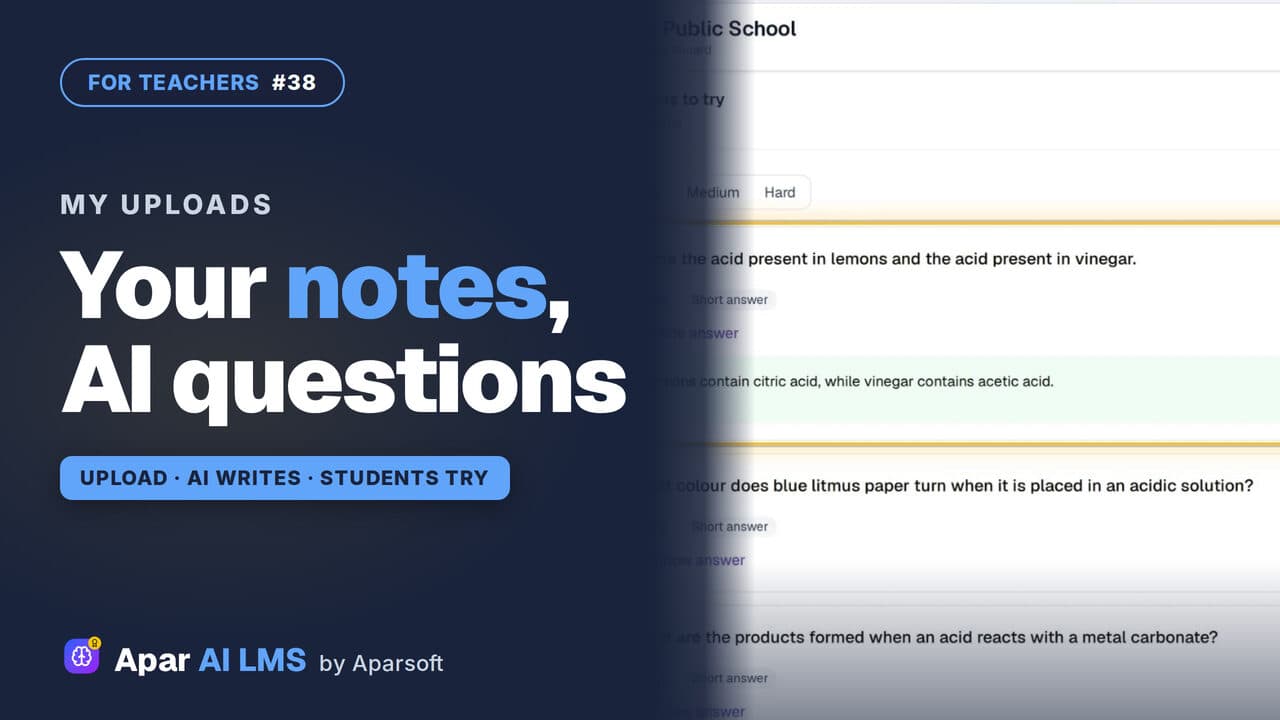 Length1:42#38 · Teachers
AI Questions From Your Own PDF Notes
Upload a PDF of your own notes. AI writes questions with answers; you check and approve them, then share the file and the questions with your class.
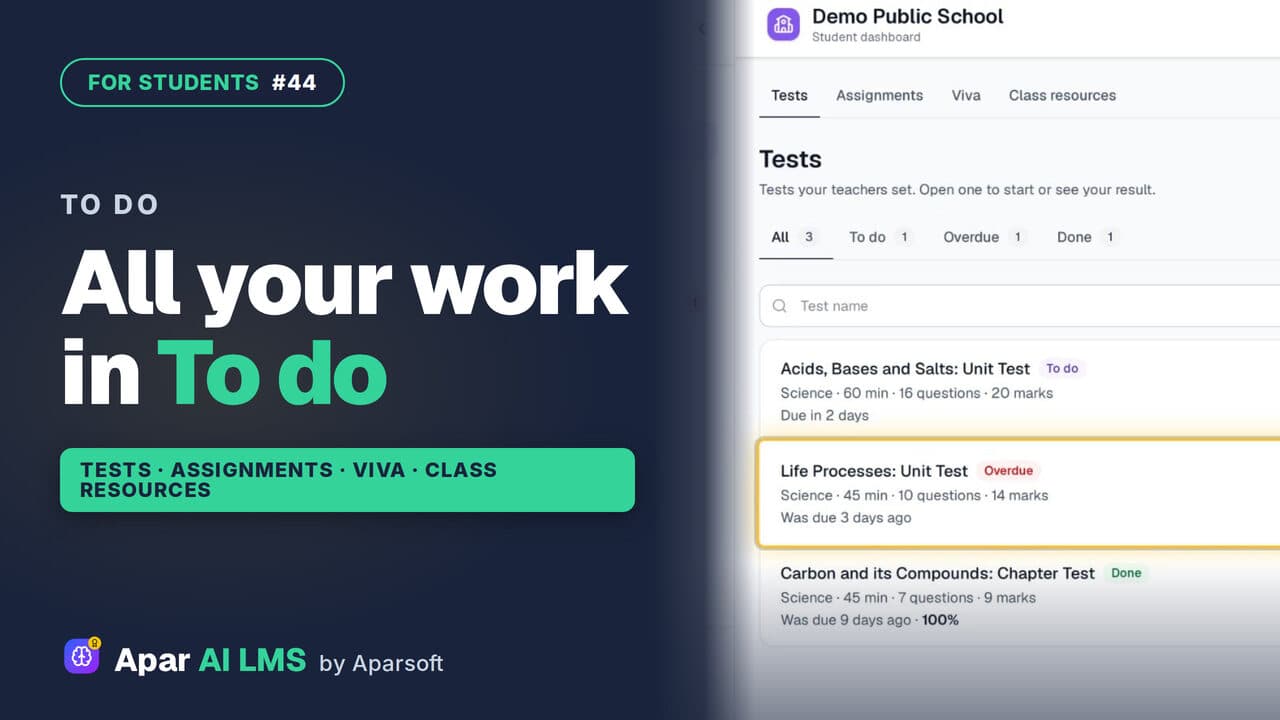 Length1:39#44 · Students
Student To Do: Tests, Assignments, Vivas
To do holds all the work your teachers set, in four tabs: tests, assignments, vivas and class resources, with what is late clearly marked.
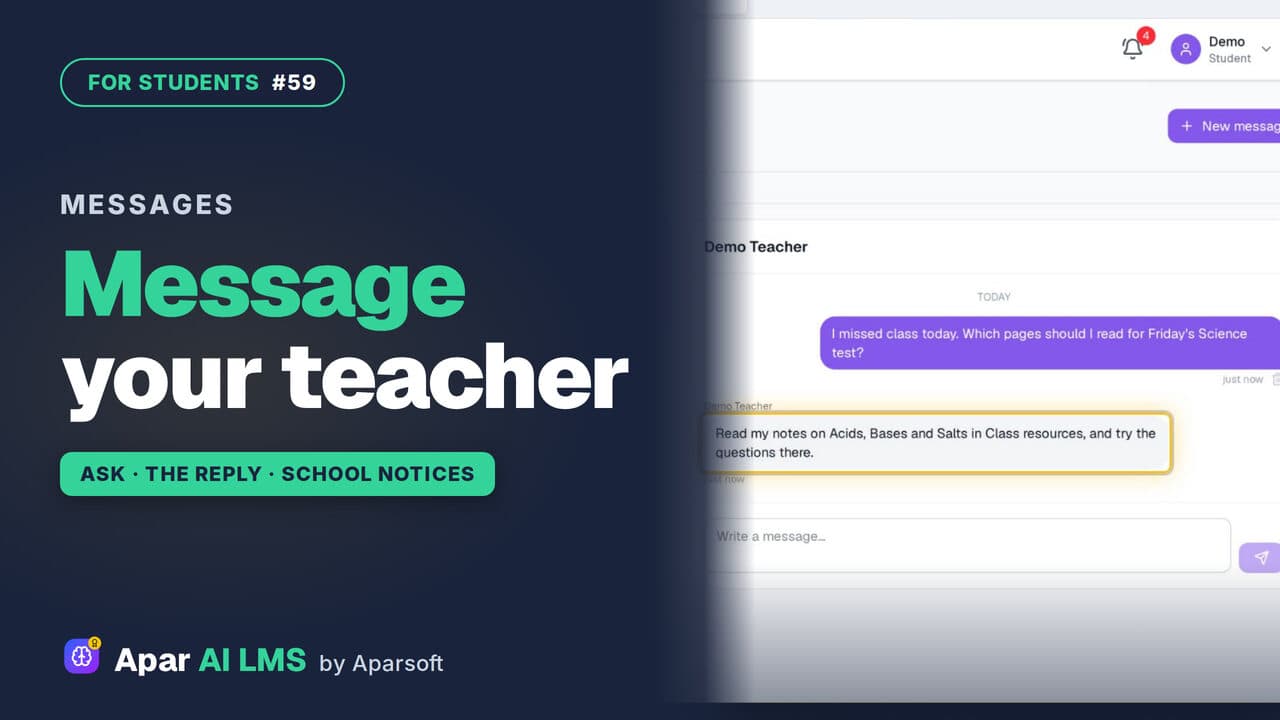 Length1:38#59 · Students
Message Your Teacher and Read School Notices
Ask a teacher who teaches you a question in Messages, read the school's notices, and find the reply under your question.
Try it on your own school
Start the 2-month free trial. No payment.
- No payment
- No commitment
- Onboarding included