How to share one note, PDF, image or link with your class
Send one note, PDF, image or link to a class without making a whole assignment, and see how many students viewed and completed it.
Every screen in the films is the real product, shown on a demo school made for them.
Not everything you send a class needs to be an assignment. Sometimes it is a reminder about tomorrow's lab, a page to read, or a link to the NCERT chapter. In Apar AI LMS, File or link sends one such item to a class, and its card then tells you how many students have viewed it and how many have completed it.
The film writes a short note with a link, shares it with Class 10-A, and then opens the student's side to show where it lands.
Step by step
Open File or link
From the teacher dashboard, press Set work, then File or link. It opens Class resources, with four kinds of share: a link, a note, a PDF or an image.
Watch from 0:00Write the note
Press Share note. Give it a short title the class will recognise, then write the note itself. The film's note is about a science lab the next day.
Watch from 0:20Add a link if you have one
Paste a link under the note if you want students to open a page, then press Next. The film links to NCERT's own page for the chapter.
Watch from 0:20Pick the class and due date
Tick your class. A due date a week ahead is filled in; change it if you need it sooner or later.
Watch from 0:32Check and share
Read the summary of what is going to which class, and press Share content.
Watch from 0:32Watch its card
The note's card shows how many students have viewed it and how many have completed it, so you can tell whether it reached the class without asking.
Watch from 0:32Where students find it
Students open it under Class resources: your note, with the link one press away.
Watch from 0:52
Good to know
Four kinds, one way
A link, a note, a PDF and an image are all shared the same way: write or add it, pick the class and due date, check, and share.
Not graded work
A shared note has no marks. When you want work that is marked, set graded work instead.
What was on screen
A demo school, its demo teacher and a demo student. The link is NCERT's own page for Class 10 Science, chapter 2.
Questions
- How do I share a link with my class?
- Press Set work, then File or link. Share a note with the link under it, or share the link on its own, then pick the class and press Share content.
- Can I see how many students opened what I shared?
- Yes. The card of each share shows how many students have viewed it and how many have completed it.
What the film saysThe narration, scene by scene.
A note, a file or a link. This is the teacher dashboard. Here is how to share a note, a file or a link with your class.
Set work, File or link. Press Set work, then File or link.
Four ways to share. You can share a link, a note, a PDF or an image. Here, a note.
Write the note. Press Share note. Give it a title, and write your note.
A link too. Add a link if you have one, and press Next.
The class, the due date. Tick your class. The due date is a week away, and you can change it.
Share it. Check the summary, and press Share content.
Its card. Its card shows how many students have viewed it, and how many have completed it.
The student's page. Your students find it in Class resources: your note, and the link, one press away.
Coming up. Next: Questions from your class.
Watch next
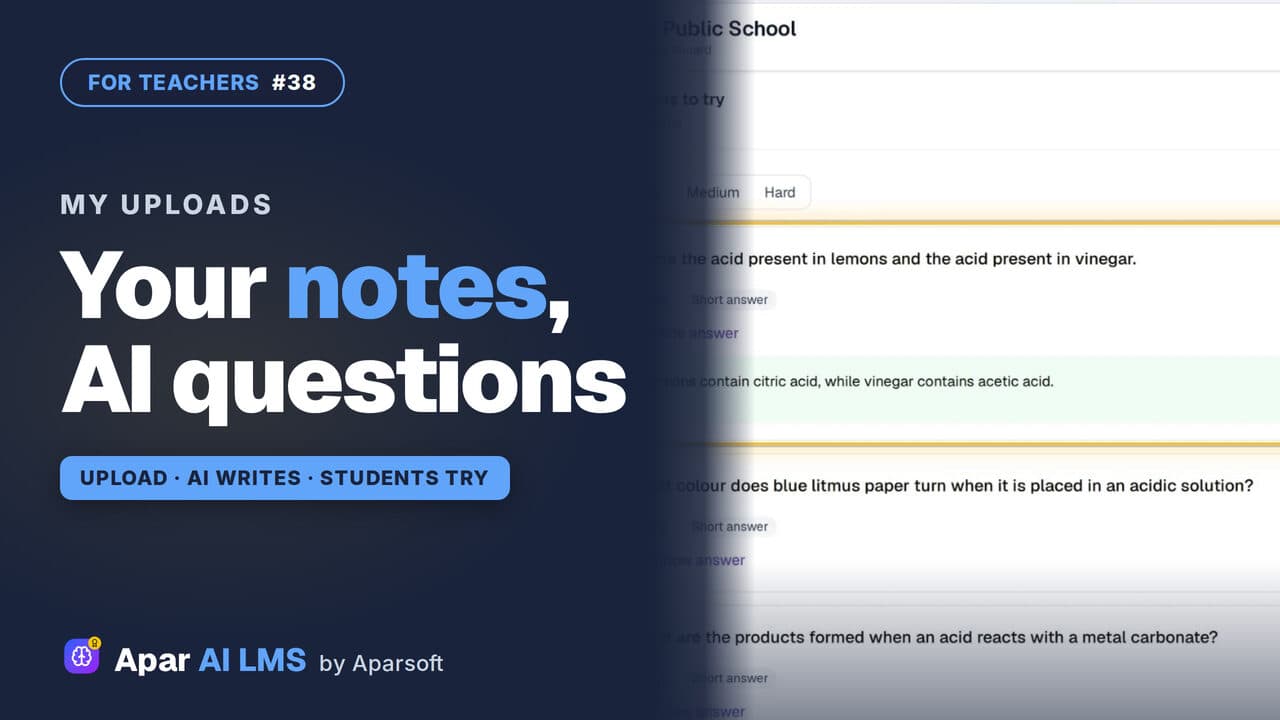 Length1:42#38 · Teachers
AI Questions From Your Own PDF Notes
Upload a PDF of your own notes. AI writes questions with answers; you check and approve them, then share the file and the questions with your class.
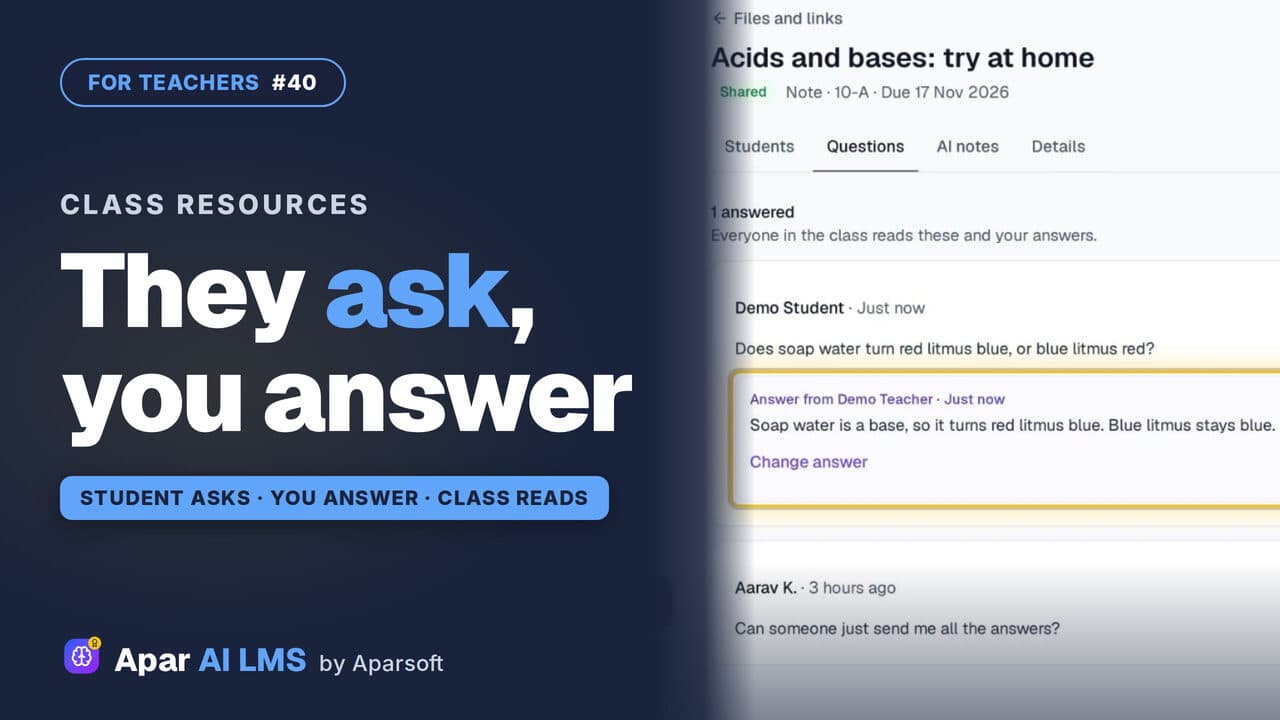 Length1:15#40 · Teachers
Answer Student Questions on Shared Notes
Students ask under the notes you share. Your Home tells you a question is waiting, and your answer is there for the whole class.
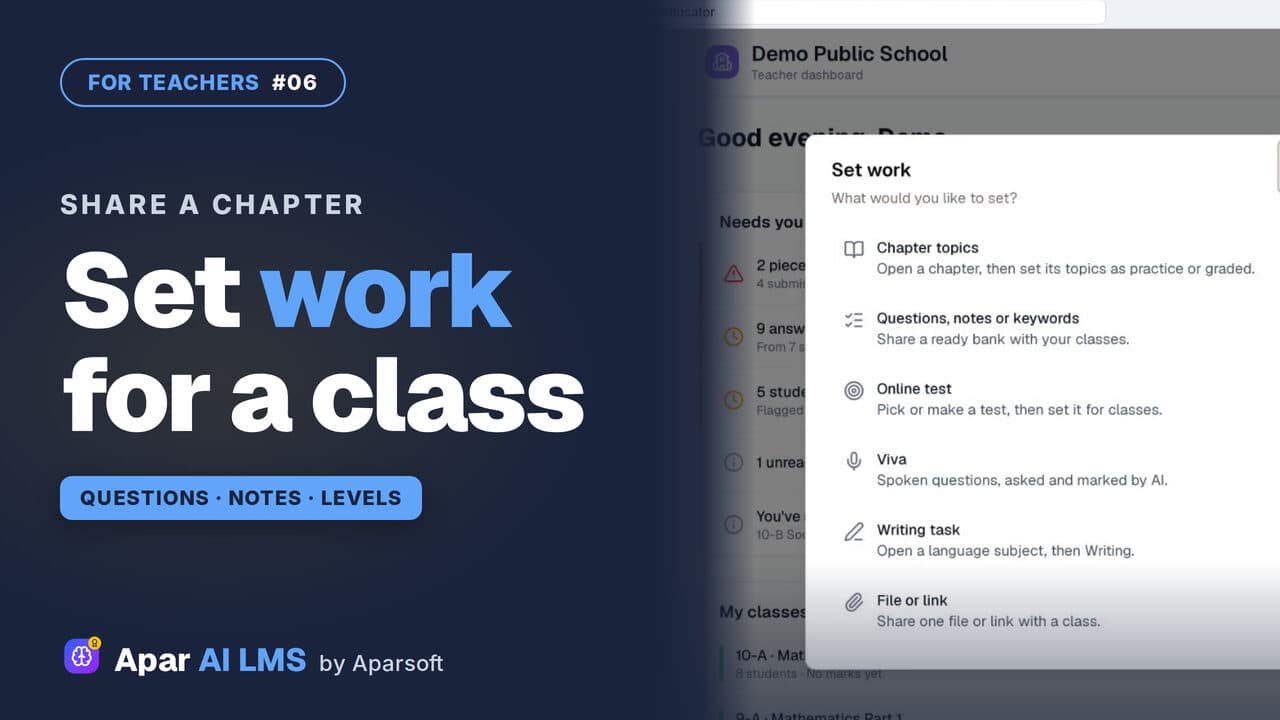 Length2:59#06 · Teachers
Share Questions and Notes with Your Class
Press Set work, share a chapter's questions without the hard ones, then its notes, and see exactly what the class can open.
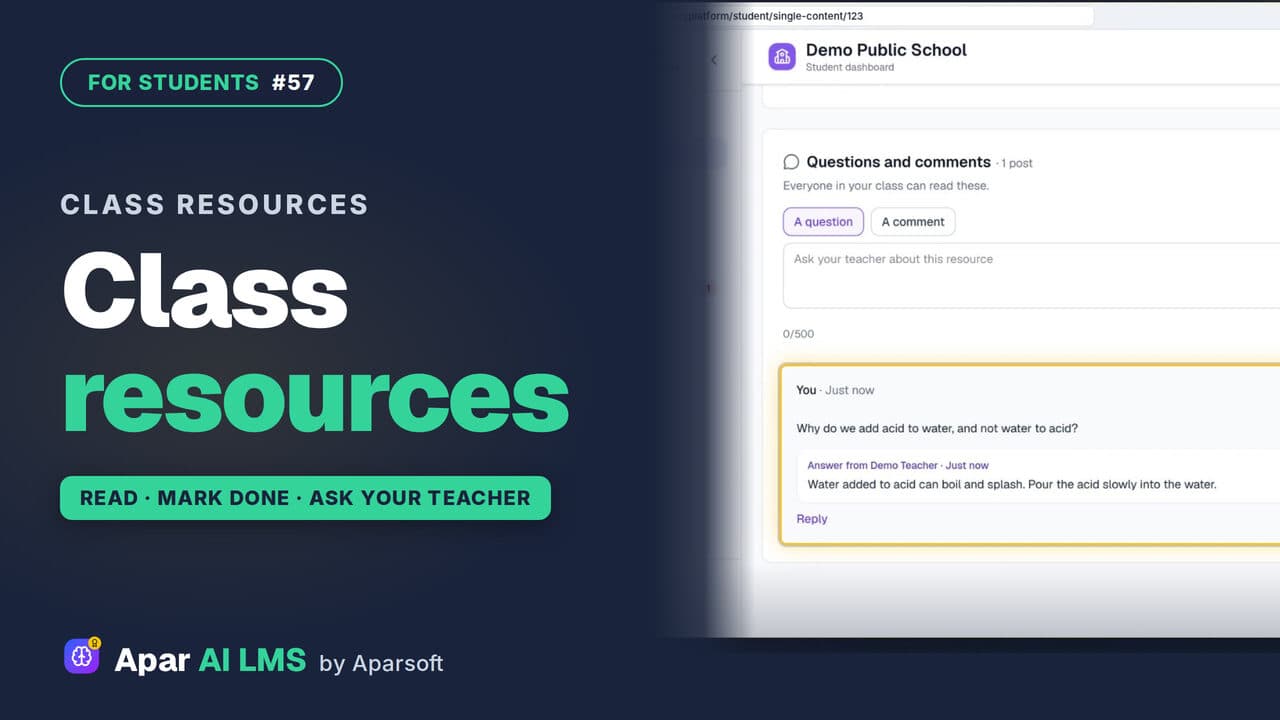 Length1:30#57 · Students
Class Resources: Open Notes, Ask Your Teacher
Your teachers' shared files, with study notes and questions to try, a Mark as done button, and a box to ask your teacher a question.
Try it on your own school
Start the 2-month free trial. No payment.
- No payment
- No commitment
- Onboarding included