Save your school's exam paper pattern as a template, and make papers from it
Save your paper pattern once: sections, marks, time and instructions. It is there to pick every time you make a new exam paper.
Every screen in the films is the real product, shown on a demo school made for them.
If your school sets every unit test to the same pattern, with the same sections, the same marks and the same instructions at the top, you should not have to rebuild it for each paper. Save the pattern once as a template, and each new exam paper can start from it.
The film looks at the ready templates, builds a new one for Class 10 Science, adds a short answer section and the instructions, saves it, and then finds it when starting a new exam paper.
Step by step
Open Templates
On the teacher dashboard, press Tests, then Exam papers, then Templates. Ready templates are already there, each with its marks, sections and time.
Watch from 0:11Start a new template
Press New template. Give it a name, then pick the grade, the subject and the time allowed.
Watch from 0:24Understand sections
A template is built from sections. Each section is one kind of question, with how many questions it has and the marks for each.
Watch from 0:24Add a section
Press Add a section, pick the kind, here Short answer, and set how many questions and the marks for each. The paper total adds up as you go, so you can match your school's total.
Watch from 0:40Add the instructions
Type the instructions, one on each line. These are printed at the top of every paper made from the template.
Watch from 0:51Save the template
Press Save template, and it is listed with your templates from then on.
Watch from 0:51Use it for a new paper
Press Exam papers, then New exam paper, and pick the subject. Your template is offered for you to choose, along with the ready ones.
Watch from 1:05
Good to know
Your own template
A template you save is yours. It is listed with the ready templates whenever you make a new exam paper.
The total as you build
The paper total updates with each section, so you can see it matches your school's pattern before you save.
Filmed on a demo school
The template was made by a demo teacher for Class 10 Science on a demo school, and deleted after filming.
Questions
- Can I make question papers in my school's own pattern?
- Yes. Save the pattern as a template, with its sections, marks, time and instructions, then pick it when you make a new exam paper.
- Where do the instructions on the paper come from?
- From the template. Type them one to a line, and they print at the top of the paper.
- Are there ready exam paper templates?
- Yes. Under Tests, Exam papers, Templates, ready templates are already there, each with its marks, sections and time.
What the film saysThe narration, scene by scene.
Your paper pattern. This is the teacher dashboard. Here is how to save your school's paper pattern as a template, and make papers from it.
Templates. On the left, press Tests, then Exam papers, then Templates.
Ready templates. Ready templates are here already, each with its marks, sections and time.
A new template. Press New template. Give it a name, then pick the grade, the subject, and the time allowed.
Sections. Each section is one kind of question: how many, and the marks for each.
Add a section. Press Add a section, pick Short answer, and set how many, and the marks each. The paper total adds up as you go.
Instructions. Add the instructions, one to a line. They print at the top of the paper.
Save it. Press Save template. It is with your templates now.
Use it. To make a paper, press Exam papers, then New exam paper, and pick the subject. Your template is there to choose, with the ready ones.
Coming up. Next: Check answer sheets with AI.
Watch next
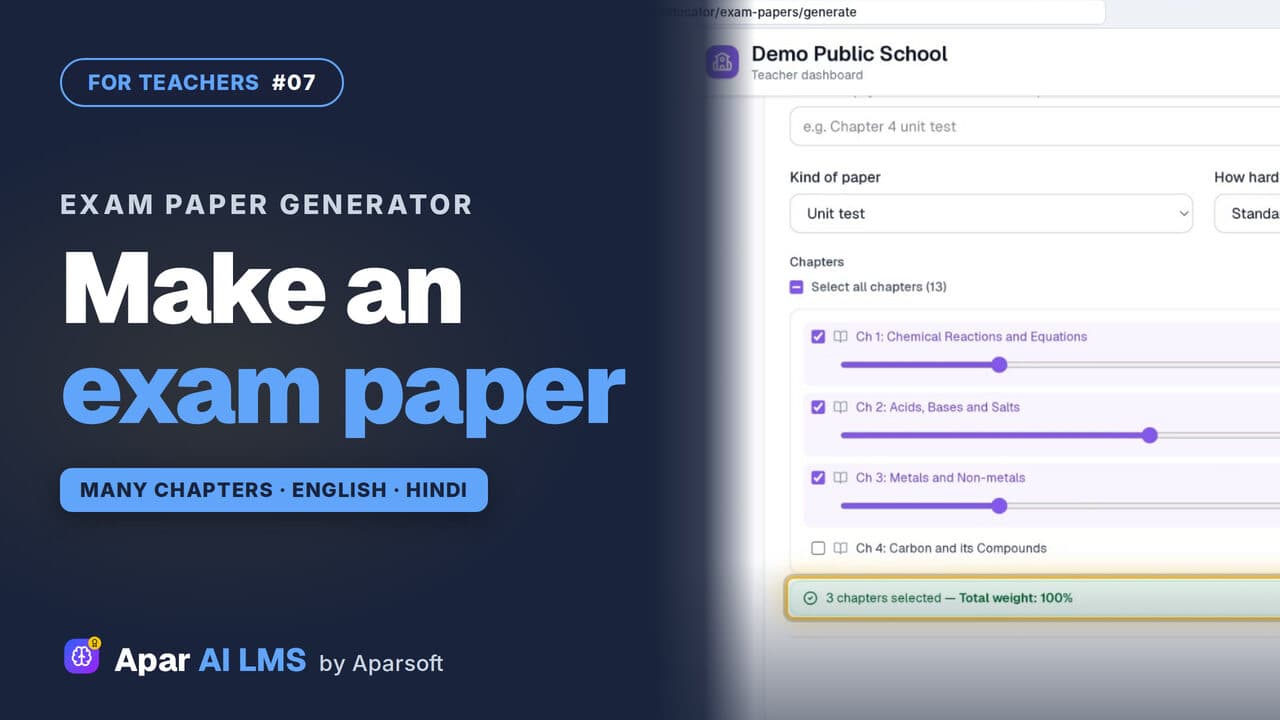 Length4:45#07 · Teachers
Exam Paper Generator: Chapters and Weightage
Pick a template, tick the chapters, set each chapter's weightage, and the paper is ready with its answer key, then English and Hindi papers too.
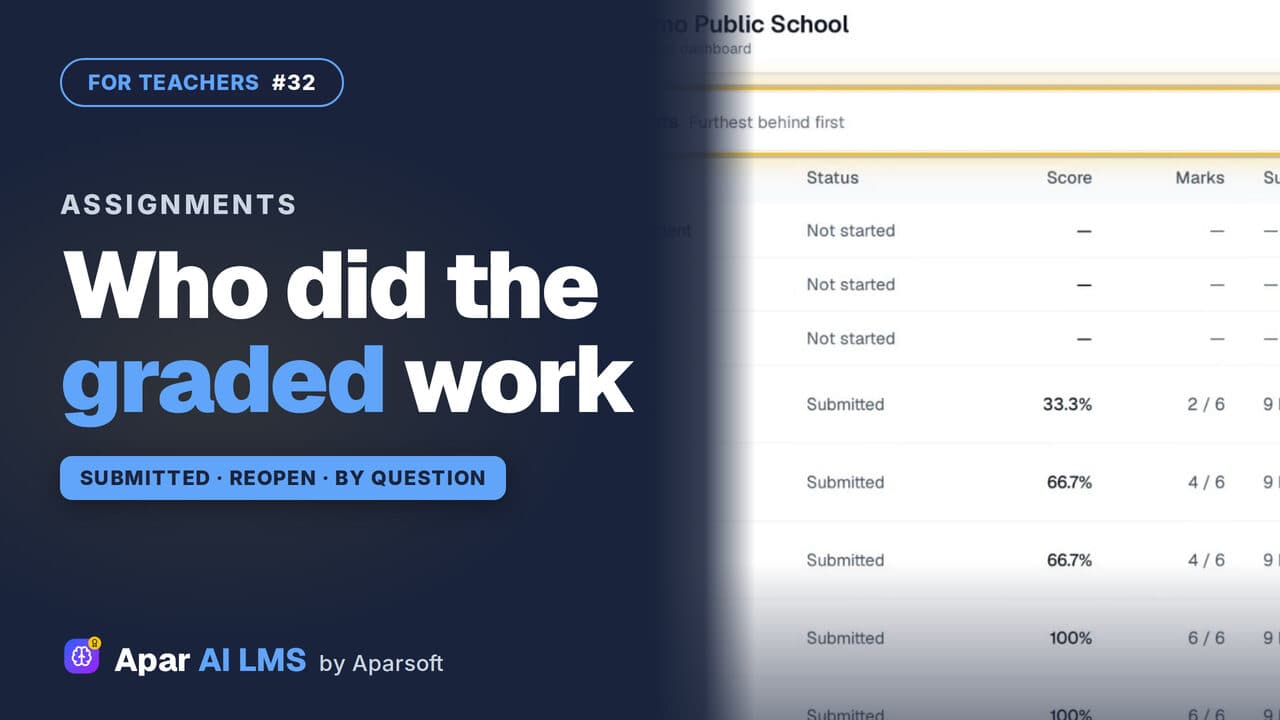 Length1:25#32 · Teachers
Track Graded Work: Who Has Submitted
For each graded assignment: who has submitted, who has not started, the average and range, each question, and Reopen with a reason.
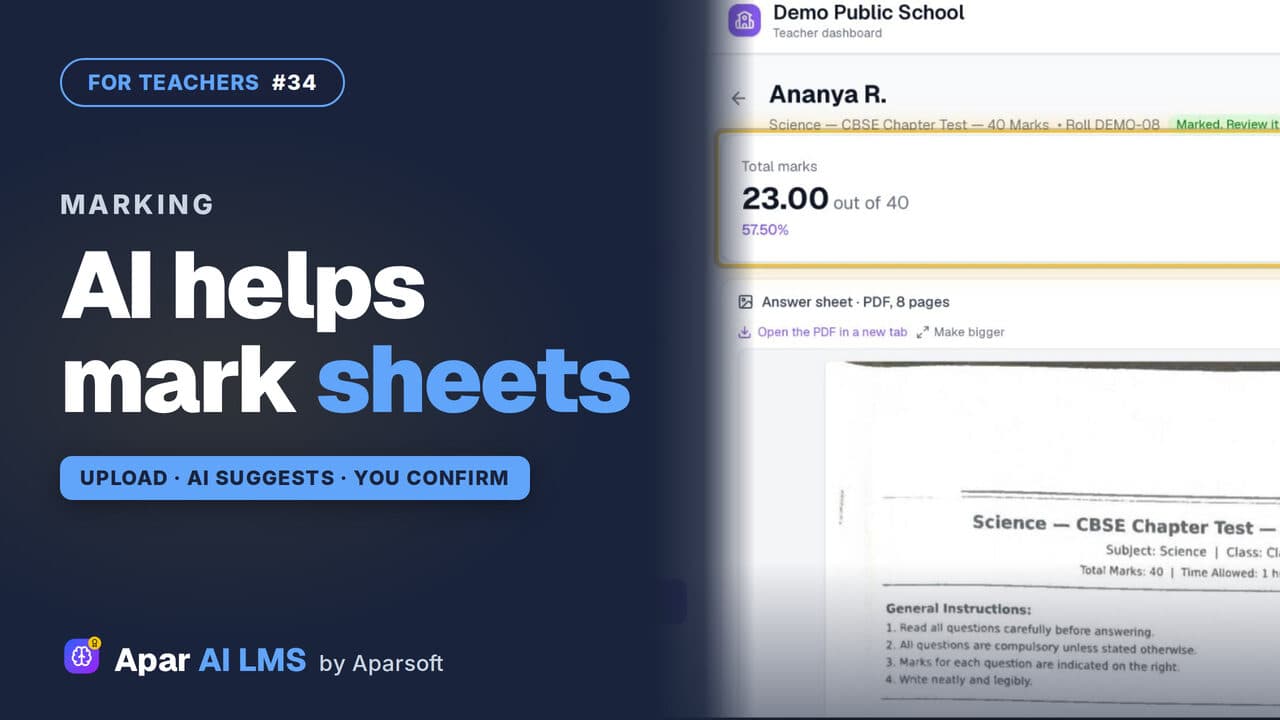 Length1:34#34 · Teachers
Check Answer Sheets with AI (Beta)
Upload a scanned sheet; the AI reads it and suggests a mark for each answer with its reason. You change any mark and confirm.
Try it on your own school
Start the 2-month free trial. No payment.
- No payment
- No commitment
- Onboarding included