How to make an online test in four steps and set it for a class
Four steps make a chapter test. Choose when students see the answers, set it for a class, and it appears on their To do list.
Every screen in the films is the real product, shown on a demo school made for them.
A quick chapter test should not take a period to prepare. In Apar AI LMS an online test takes four steps: the basics, the chapter, the questions and a final check. You can pick every question yourself, or let a mixed test be picked for you and adjust it.
The film makes a Class 10 Science test on Life Processes, decides when students may see the answers, sets it for 10-A, and then opens the student's dashboard to show it waiting with its due date.
Step by step
Step one: the basics
Pick the class and subject, type the test's name, choose the kind of test, such as Chapter test, then set how long it runs and the pass mark.
Watch from 0:19Step two: the chapter and how to pick
Press the chapter. Then pick the questions yourself, or choose A 20-mark mixed test and MCQs, short and long answers are picked for you.
Watch from 0:39Step three: review the questions
The picked questions are listed, with the short and long answers at the end. Remove any you do not want, or add others from the list.
Watch from 1:01Step four: check and make it
Check the summary and press Make the test. The test gets its own page, which says it is not set for any class yet.
Watch from 1:17Decide when students see answers
From the test's three-dot menu, press Edit and find Show answers to students. Choose After the due date, so the app keeps the answers hidden until the test is due, and press Save changes.
Watch from 1:33Set it for a class
Press Set for classes and tick the class. It opens five minutes later and is due a week later by default; you can change both. Press Set the test.
Watch from 1:53See it on the student's side
Once it opens, the student finds it under To do, where tests come first, with its due date.
Watch from 2:17
Good to know
MCQs are marked automatically
Students get MCQ marks as soon as they submit. Written answers go to the teacher's marking list, where the AI suggests and the teacher decides.
Answers stay hidden while it is open
With After the due date, the app does not show the test's answers while the test is still open.
One test, many classes
Set for classes lets you tick more than one class. The page then says how many classes it is set for.
Questions
- Can the questions be picked for me?
- Yes. In step two, a mixed test of MCQs, short and long answers can be picked for you, and you can still remove or add questions in step three.
- When can students see the answers to an online test?
- You choose under Show answers to students. With After the due date, the app does not show them while the test is open.
- Can I change when the test opens and when it is due?
- Yes. When you set it for a class, both the opening time and the due date can be changed.
What the film saysThe narration, scene by scene.
An online test. This is the teacher dashboard. Let us make an online test, and set it for a class.
Online tests. Press Tests. Here are your online tests. Press New online test.
Step one. There are four steps. Step one. Pick Class 10, then Science. Type the test's name. Pick the kind of test: Chapter test. Then the time it runs, and the pass mark. Press Continue.
Step two. Step two. Press the chapter: Life Processes. Then, how to pick the questions. You can pick them yourself. Or press A 20-mark mixed test. MCQs, short and long answers, are picked for you. Press Continue.
Step three. Step three. Here are the questions it picked. The short and long answers are at the end. You can remove one, or add another from the list. Press Continue.
Step four. Step four. Check it all, then press Make the test.
The test's own page. The test has its own page. It says the test is not set yet.
When students see answers. First, one choice. Press these three dots, then Edit. Find Show answers to students. Pick After the due date. While the test is open, the app will not show its answers. Press Save changes.
Set for classes. Go back to the test, and press Set for classes. Tick 10-A. It opens in five minutes, and it is due a week later. You can change both. Press Set the test.
Set for one class. Now the page says it is set for 1 class.
The student dashboard. Five minutes later, on the student dashboard, press To do. Tests come first. The test is here, with its due date.
Coming up. Next: marking. The AI suggests, you decide.
Watch next
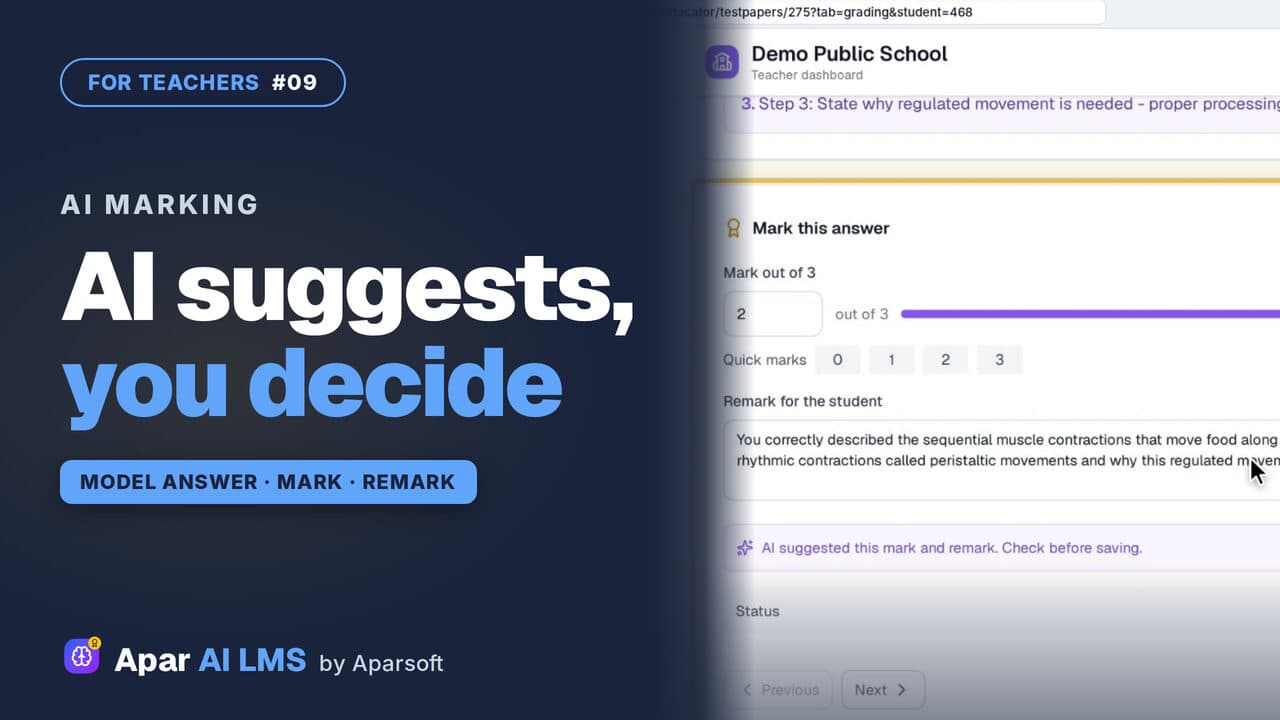 Length2:08#09 · Teachers
AI-Assisted Marking: The Teacher Decides
Open the answers waiting for you, read each beside the model answer, get the AI's suggestion, and decide. The student sees your mark and remark.
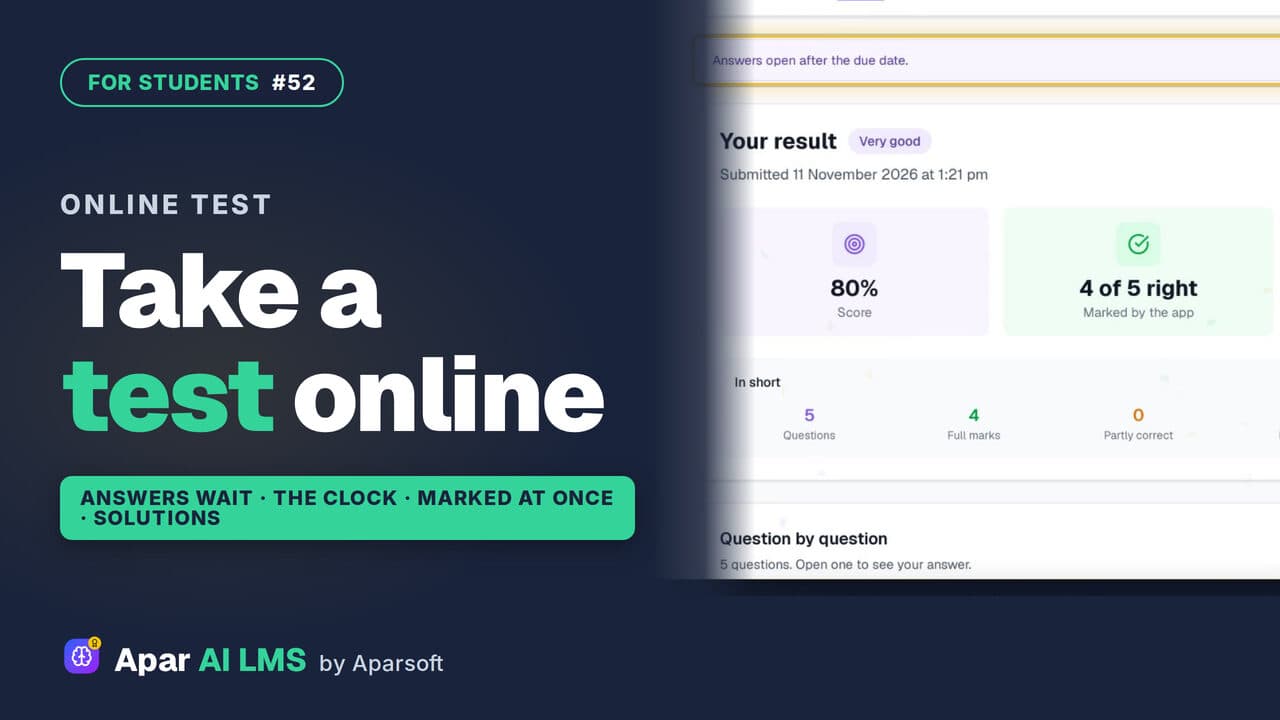 Length1:44#52 · Students
How to Take an Online Test as a Student
From To do to the solutions: read the rules, answer against the clock, get marked as soon as you submit, and see the right answers after the due date.
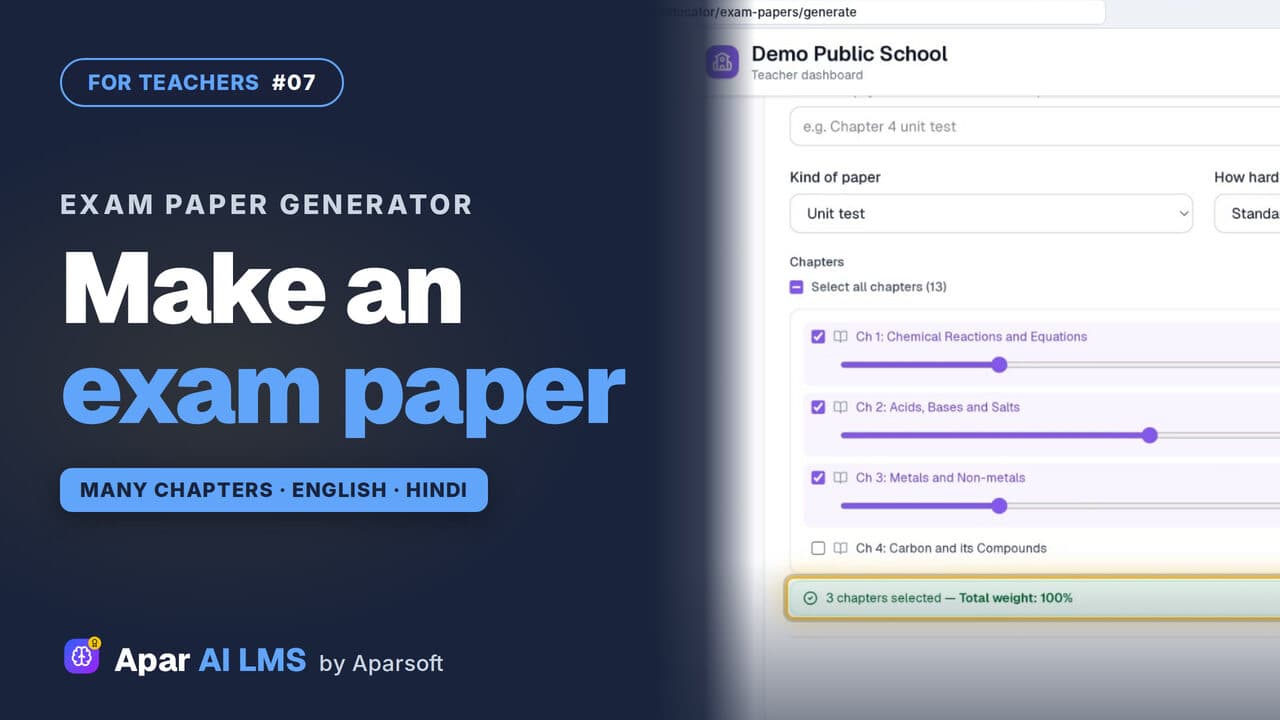 Length4:45#07 · Teachers
Exam Paper Generator: Chapters and Weightage
Pick a template, tick the chapters, set each chapter's weightage, and the paper is ready with its answer key, then English and Hindi papers too.
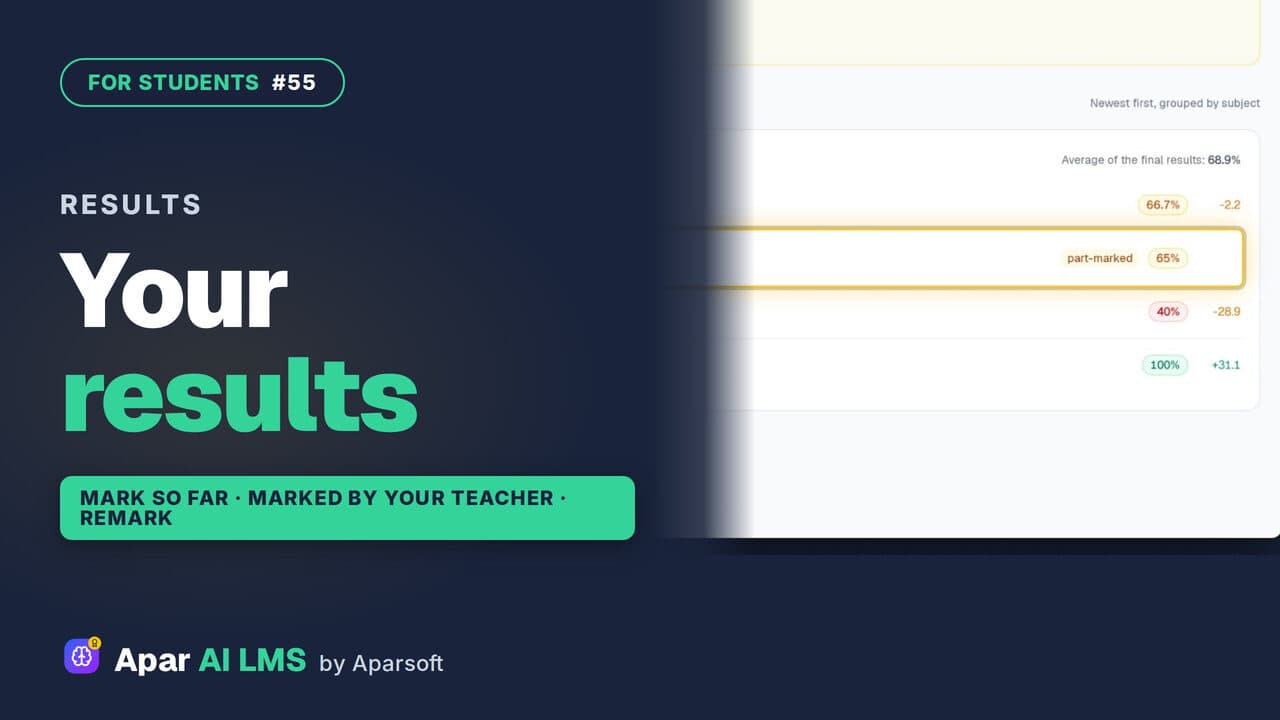 Length2:04#55 · Students
See Your Test Results and Teacher's Marks
Every result in one list, with work still with your teacher clearly shown. Follow a part-marked test until the teacher's marks make it final.
Try it on your own school
Start the 2-month free trial. No payment.
- No payment
- No commitment
- Onboarding included