See every test and assignment result, and what is still being marked by your teacher
Every result in one list, with work still with your teacher clearly shown. Follow a part-marked test until the teacher's marks make it final.
Every screen in the films is the real product, shown on a demo school made for them.
After a test you want to know two things: what did I get, and what is still being checked? Results in Apar AI LMS shows both. Choice questions are marked as soon as you submit; written answers stay with your teacher until they are marked, and the page says so instead of showing a zero.
The film reads a student's Results, opens a test that is part-marked, switches to the teacher marking the written answers, and comes back to the final result with the teacher's remarks.
Step by step
Open Results
Press Progress, then Results: every test and assignment that has come back. The top shows how many results are back, how many are waiting to be marked, and your own average.
Watch from 0:00Check what is still with your teacher
Still with your teacher lists anything you submitted that is not marked yet. It is not a zero; it simply has not been marked.
Watch from 0:00Read your results
Below, results come newest first, grouped by subject, with tests and assignments together. Each is compared with your own average, not with your class.
Watch from 0:28Open a part-marked test
If a test's written answers are not marked yet, it is labelled part-marked. Press it to see your mark so far. That mark is not final yet, and it can only go up.
Watch from 0:44Go question by question
Each question shows your answer and the right answer; press Why for the reason. Written answers wait with your teacher until they are marked.
Watch from 0:44The teacher marks the written answers
On the teacher's dashboard, the test waits under Marking. The teacher reads each written answer, gives a mark, writes a remark and presses Save mark, then moves on to the next.
Watch from 1:13The result is final
Back on your Results, the test is final. Each written answer shows its mark and your teacher's remark.
Watch from 1:37
Good to know
Who marks what
Choice questions are marked automatically when you submit. Written answers are marked by your teacher, who also writes a remark.
Not a zero
Work you submitted that your teacher has not marked yet is listed as waiting, never as a zero.
What was on screen
A demo school with its demo student and teacher. The results are demo data; the teacher marked the written answers by hand on camera.
Questions
- Why does my test say part-marked?
- Its choice questions are marked, but your written answers are still with your teacher. The mark so far can only go up.
- Does a test with no mark yet count as zero?
- No. It is listed under Still with your teacher, and it is not a zero.
- Where do I see my teacher's remarks?
- Once the test is final, open it in Results. Each written answer shows its mark and the teacher's remark.
What the film saysThe narration, scene by scene.
Results. This is the student dashboard. On the left, press Progress, then Results: every test and assignment that has come back.
Back, and being marked. At the top: how many results are back, how many are waiting to be marked, and your own average.
Still with your teacher. Still with your teacher lists work you submitted that has no mark yet. It is not a zero.
Your results. Below, your results come newest first, grouped by subject, tests and assignments together.
Your own average. Each result is compared with your own average, not with your class.
Part-marked. A test whose written answers are still being marked says part-marked. Press it.
Your mark so far. Here is your mark so far. It is not final yet, and it can only go up.
Each question. Each question shows your answer, and the right answer. Press Why to see the reason.
Written answers. A written answer stays with your teacher until it is marked.
The teacher marks it. Now the teacher dashboard. Press Marking. The student's test is waiting. Press it.
A mark and a remark. Read the answer. Give a mark, write a remark, and press Save mark.
The next answer. The next answer opens. Give it a mark, and press Save mark.
Marked. Back on the student dashboard, the result is final. Each written answer shows its mark, and your teacher's remark.
Coming up. Next: Saved: keep it, come back to it.
Watch next
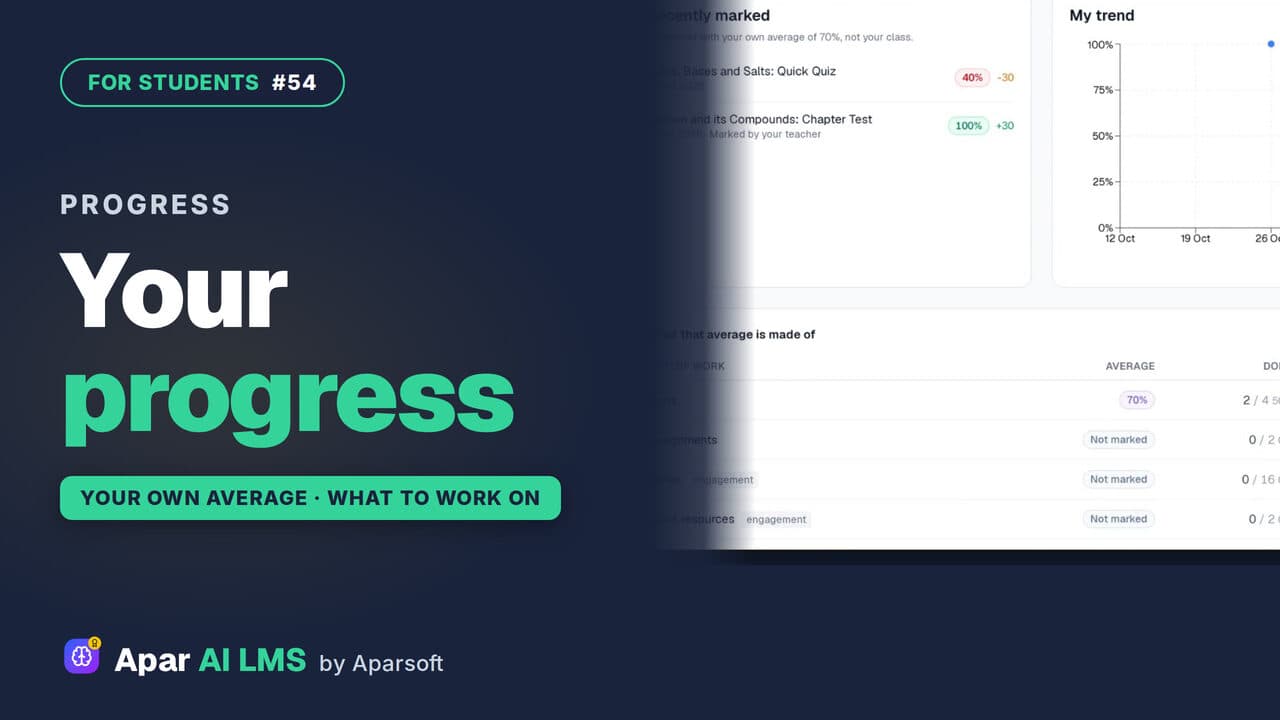 Length1:15#54 · Students
Student Progress: Average and Weak Areas
Where you stand and what to do next: each result against your own average, never your class, and where you lose marks.
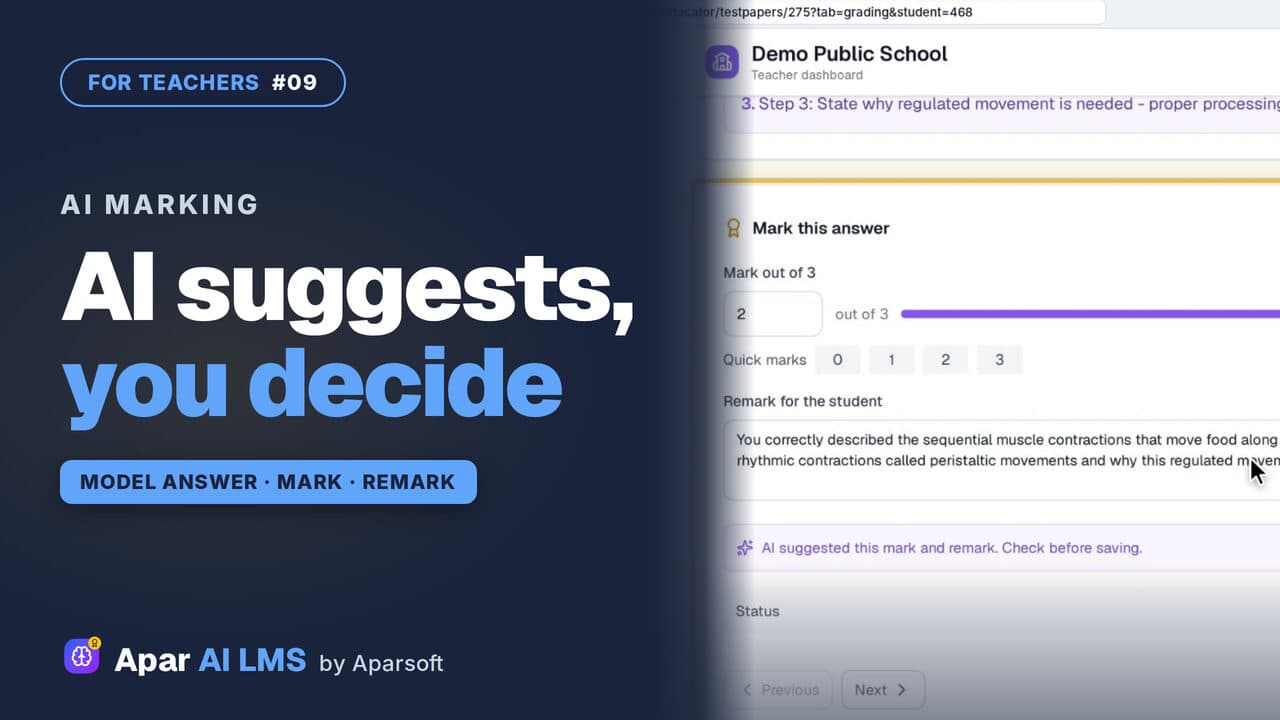 Length2:08#09 · Teachers
AI-Assisted Marking: The Teacher Decides
Open the answers waiting for you, read each beside the model answer, get the AI's suggestion, and decide. The student sees your mark and remark.
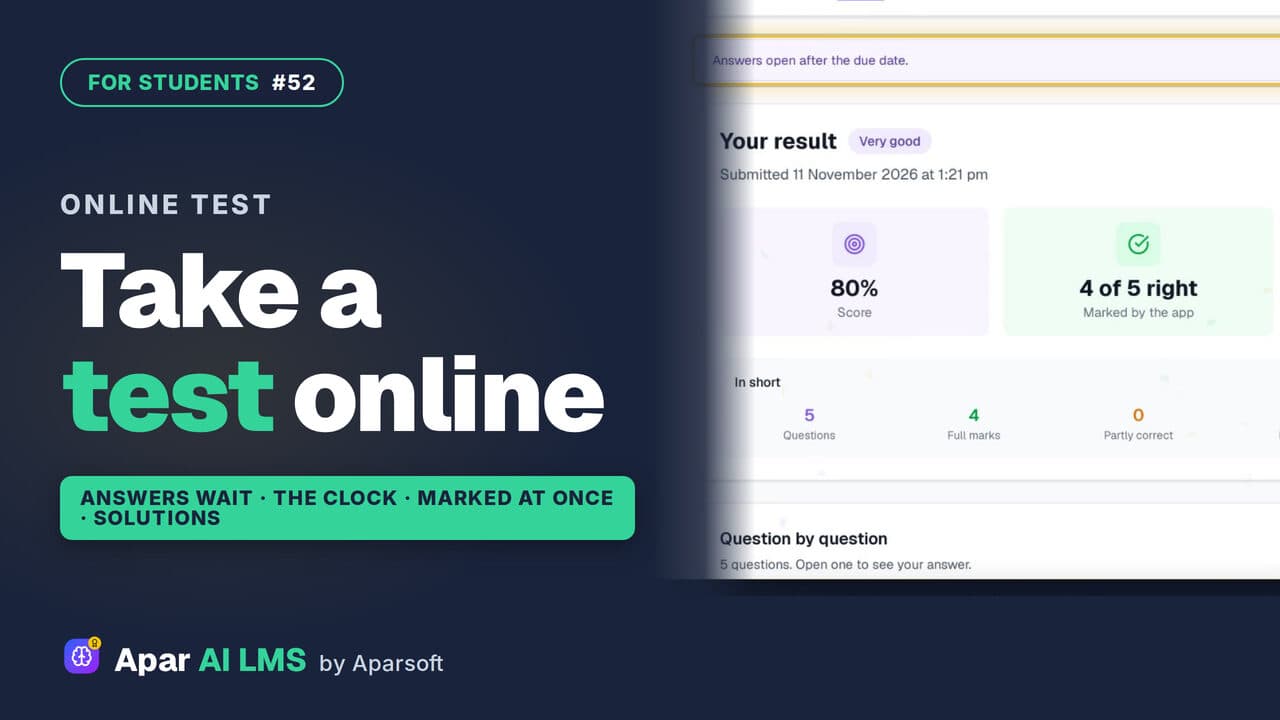 Length1:44#52 · Students
How to Take an Online Test as a Student
From To do to the solutions: read the rules, answer against the clock, get marked as soon as you submit, and see the right answers after the due date.
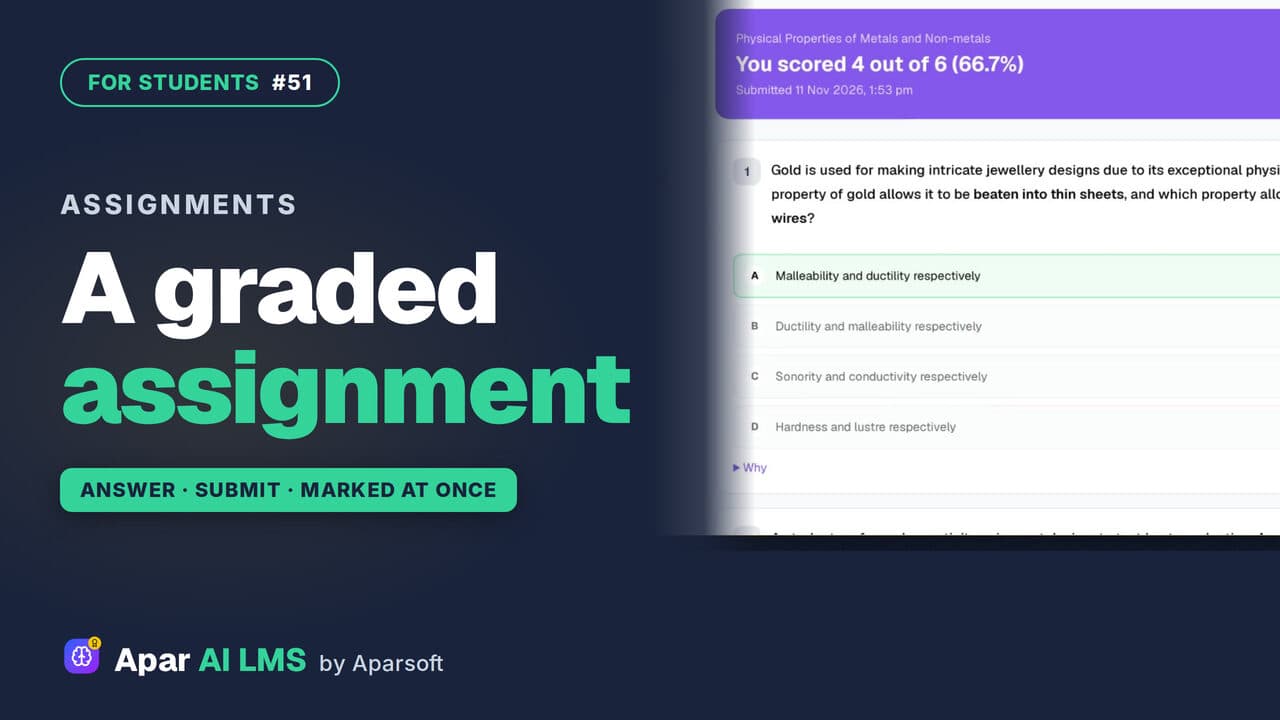 Length1:33#51 · Students
Graded Assignment: Answer, Submit, See Marks
Graded work your teacher set: one attempt, answers saved as you go, marked as soon as you submit, with the reason for every wrong answer.
Try it on your own school
Start the 2-month free trial. No payment.
- No payment
- No commitment
- Onboarding included