Save notes, topics and tests to come back to, and find them all on one Saved page
One Save button on notes, a single note, a topic or a test, and one Saved page that keeps them all, sorted by kind.
Every screen in the films is the real product, shown on a demo school made for them.
While you study, you keep finding things you want to come back to: a page of notes before the test, a topic you did not quite follow, a test to try again. Saved in Apar AI LMS keeps them all in one place, sorted by kind, so revision starts from your own list instead of a hunt through every chapter.
The film saves a chapter's revision notes, a single note, a topic and a test, then opens the Saved page, reads a note there and takes a test off the list.
Step by step
Open a chapter
Press Subjects, then the subject (the film uses Science), and open a chapter.
Watch from 0:00Save the whole set of notes
Press Revision notes, then Save at the top. The button changes to Saved: the whole set of notes is kept.
Watch from 0:15Save just one note
To keep only one note, press the bookmark beside that note instead.
Watch from 0:15Save a topic
Go back to the chapter, press Topic by topic, open a topic and press Save.
Watch from 0:30Save a test
Press To do, open a test and press Save. A test you have done can be kept to try again.
Watch from 0:30Open Saved
Press Saved on the left. Everything you saved is there, sorted by kind: notes, topics, tests and banks.
Watch from 0:47Read a saved note
Press Notes, then a note, and read it right there without going back to the chapter.
Watch from 0:57
Good to know
One button everywhere
Notes, topics and tests all use the same Save button, which turns to Saved once pressed. A single note has a small bookmark instead.
The bin only clears your list
The bin takes an item off Saved. Use it to keep the list short as you finish revising.
What was on screen
A demo school and its demo student. The notes, topic and test are demo data, saved on camera.
Questions
- How do I bookmark notes to revise later?
- Open the notes and press Save at the top to keep the whole set, or the bookmark beside a single note to keep just that one.
- Where do I find what I saved?
- Press Saved on the left. Your notes, topics, tests and banks are there, each in its own tab.
What the film saysThe narration, scene by scene.
Saved. This is the student dashboard. Save what you want to come back to, and find it all in one place.
A chapter. Press Subjects, then Science, and open a chapter.
Save the notes. Press Revision notes. At the top, press Save. It now says Saved: the whole set of notes is kept.
One note. To keep just one note, press the bookmark beside it.
A topic. A topic saves the same way. Go back to the chapter, press Topic by topic, open a topic, and press Save.
A test. So does a test. Press To do, open a test, and press Save.
Saved, by kind. On the left, press Saved. Everything you saved is here, by kind: notes, topics, tests and banks.
Read a note. Press Notes. Press a note, and read it right here.
Take one off. Press Tests. To take one off, press the bin, and it comes off the list.
Coming up. Next: Class resources: open it, ask a question.
Watch next
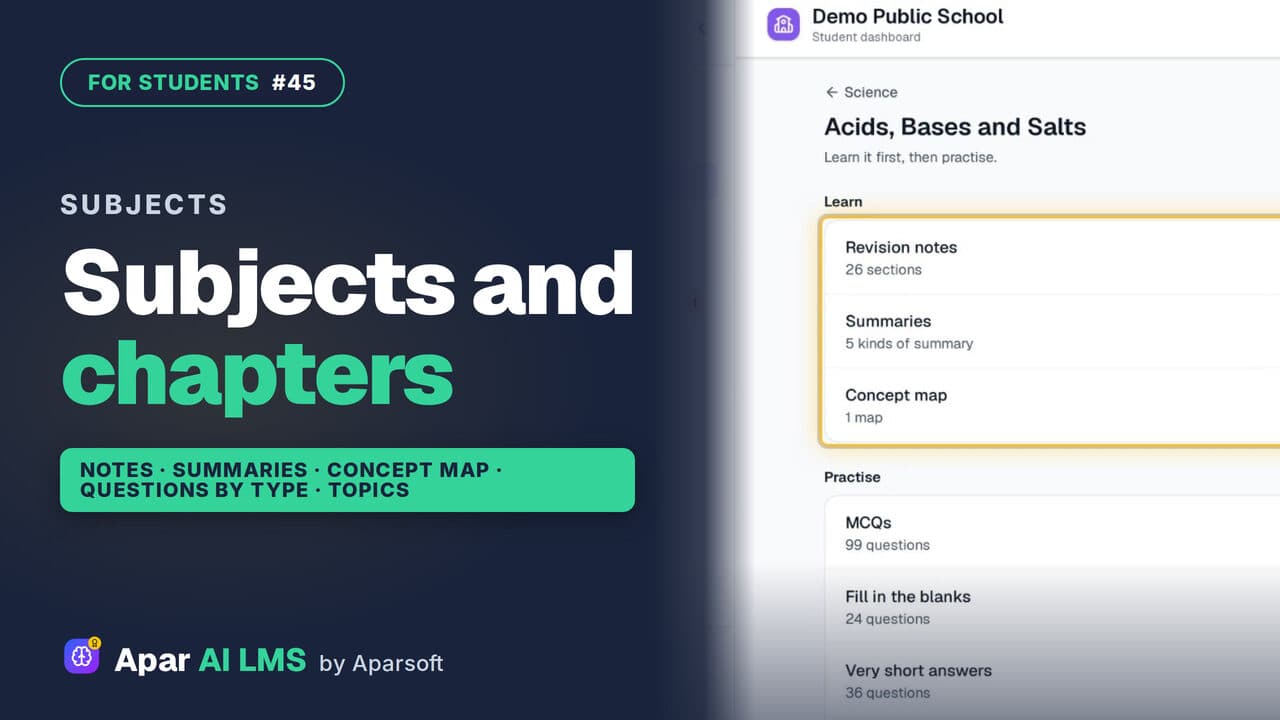 Length1:30#45 · Students
Find Chapter Notes and Practice by Subject
Subjects shows what your teachers shared in each chapter: notes, summaries and concept maps to learn, questions to practise, and smaller topics.
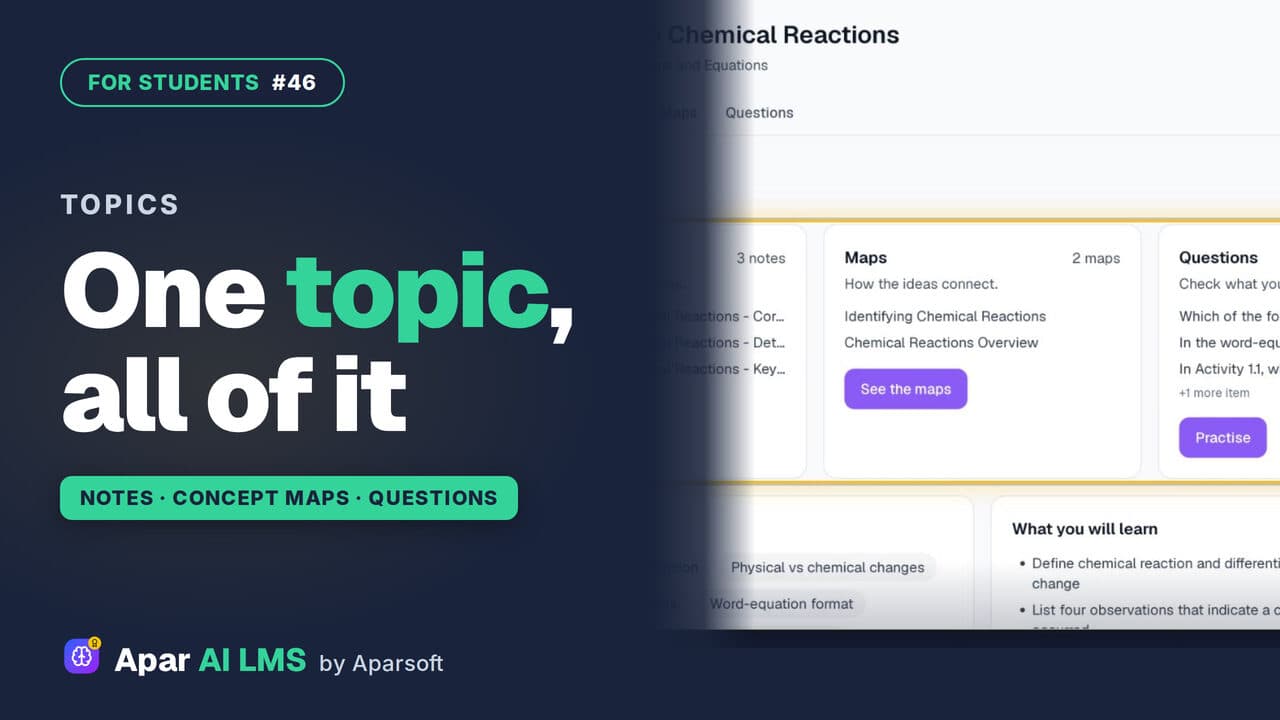 Length1:13#46 · Students
Topic Notes, Concept Maps and Practice
One topic at a time: short notes, concept maps of how the ideas connect, and practice questions that show at once if you got it right.
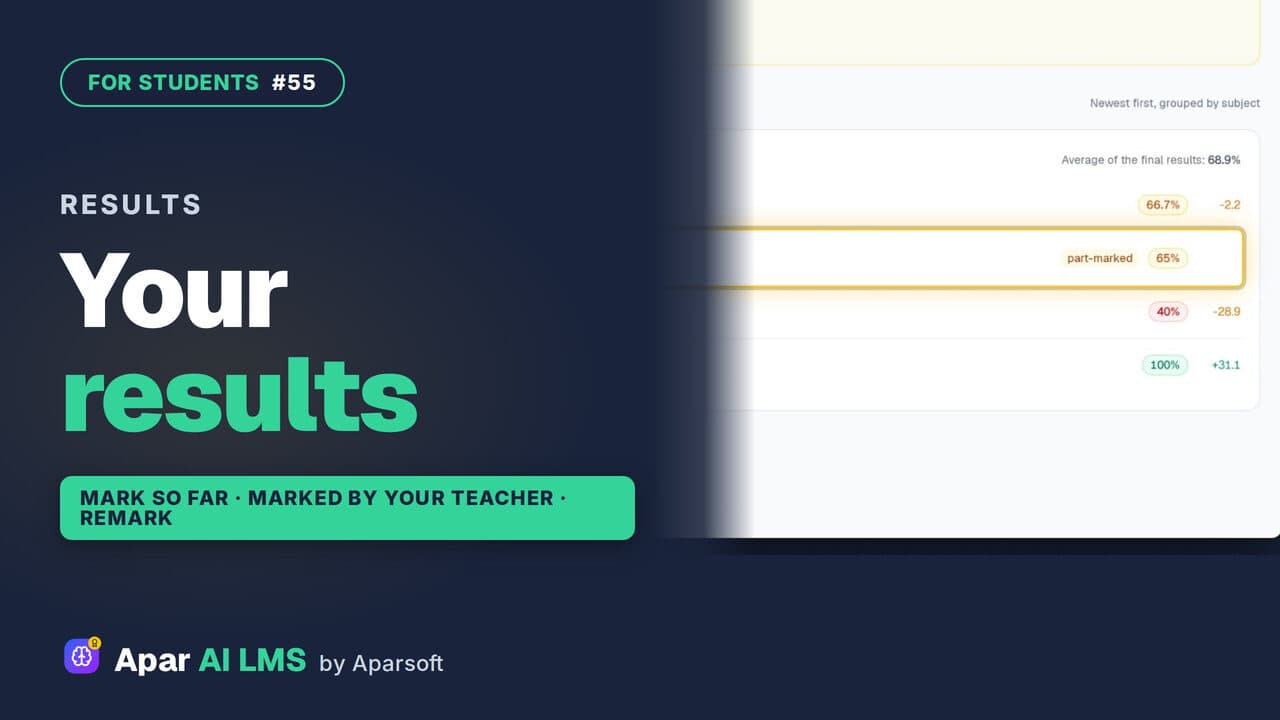 Length2:04#55 · Students
See Your Test Results and Teacher's Marks
Every result in one list, with work still with your teacher clearly shown. Follow a part-marked test until the teacher's marks make it final.
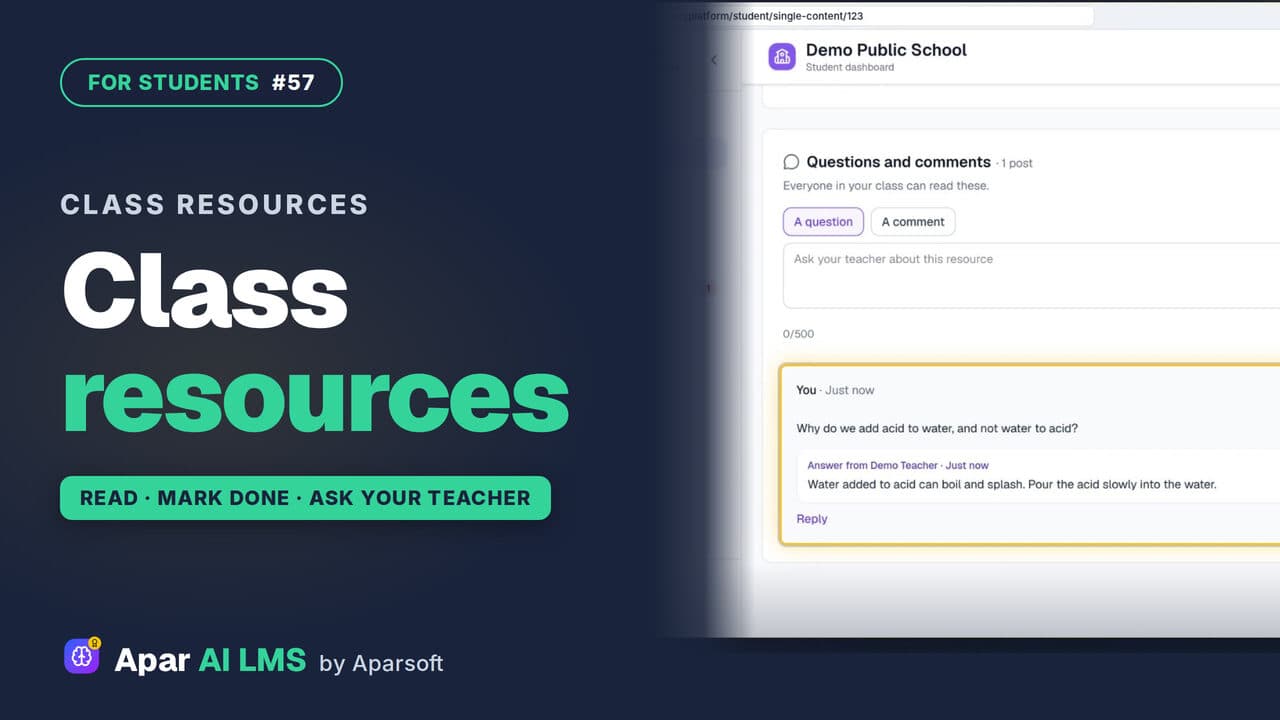 Length1:30#57 · Students
Class Resources: Open Notes, Ask Your Teacher
Your teachers' shared files, with study notes and questions to try, a Mark as done button, and a box to ask your teacher a question.
Try it on your own school
Start the 2-month free trial. No payment.
- No payment
- No commitment
- Onboarding included