Set a chapter's topics for your class as practice or as graded work, with a due date
Tick a chapter's topics and set them as practice or graded. Graded means one attempt, answers hidden until submitted, and marks in your analytics.
Every screen in the films is the real product, shown on a demo school made for them.
Setting homework topic by topic is quick here, because each topic in a chapter already comes with its notes, concept maps and questions. You tick the topics and decide one thing: is this practice, or does it count?
The film opens Class 10 Science, Control and Coordination, ticks two topics, explains the difference between practice and graded, and sets them as graded work for a class with a due date.
Step by step
Open the chapter's topics
Press Class 10 Science, then Control and Coordination. Under Practise and test, press Assignments. The chapter's topics are listed, each with its notes, concept maps and questions.
Watch from 0:21Tick the topics
Tick the topics you want, such as Neurons and Reflex actions, and press Set for classes.
Watch from 0:21Practice: as often as they like
Choose Practice when students should practise freely. They can try as many times as they like, the answers show straight away, and nothing is recorded.
Watch from 0:41Graded: one attempt that counts
Choose Graded when it should count. Each student gets one attempt, the answers stay hidden until they submit, and the marks go to your analytics. You cannot switch it once a student has started, so decide before you set it.
Watch from 0:53Add a due date and Must do
Notes and concept maps stay open while students work. Set a due date, and tick Must do when the whole class has to do it.
Watch from 0:53Set it for your class
Tick your class and press Set as graded. Each topic you set now shows the class it is set for, and that it is graded.
Watch from 1:16
Good to know
Which one to choose
Practice suits revision and self-study, because nothing is recorded. Graded suits work you want in your marks, because each student has one attempt.
What happens next
Graded work shows up under Classes, Graded work, where you see who has submitted it and how the class did. The next film covers that page.
Filmed on a demo school
The chapter is the library's own Control and Coordination for Class 10 Science. The topics set on camera were removed after filming.
Questions
- What is the difference between practice and graded work?
- Practice: as many tries as students like, answers shown at once, nothing recorded. Graded: one attempt each, answers hidden until the student submits, and the marks recorded in your analytics.
- Can students read the notes while doing graded work?
- Yes. Notes and concept maps stay open during a graded attempt.
- Can I change graded work to practice later?
- Not once a student has started it, so choose before you set it.
What the film saysThe narration, scene by scene.
Chapter topics. This is the teacher dashboard. Here is how to set a chapter's topics for your class, as practice or as graded work.
Set work. Press Set work, then Chapter topics.
The chapter. Press Class 10 Science, then Control and Coordination.
The chapter's topics. Under Practise and test, press Assignments. Each topic comes with its notes, concept maps and questions.
Pick the topics. Tick the topics you want, like Neurons, and Reflex actions. Then press Set for classes.
Practice. Choose how students do it. Practice: they practise as often as they like, and the answers show at once. Nothing is recorded.
Graded. Graded: one attempt each, and the answers stay hidden until they submit. Marks go to your analytics, and it can't be changed once a student starts.
A due date. Notes and concept maps stay open while they work. Set a due date, and tick Must do if every student has to do it.
Set it for your class. Tick your class, and press Set as graded.
Set as graded. Each topic you set now shows your class, and that it is graded.
Coming up. Next: Graded work: see who has done it.
Watch next
 Length1:44#30 · Teachers
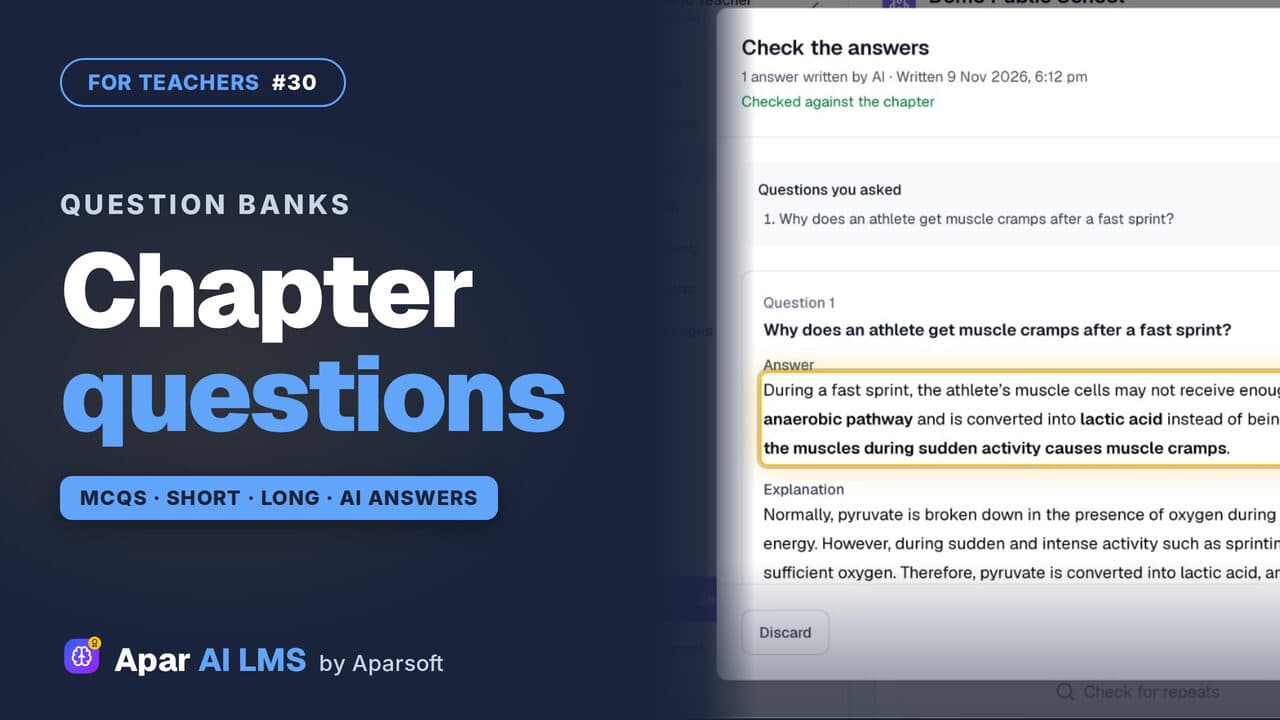
Question Bank: MCQs, Short and Long Answers
A chapter's MCQs, short and long questions with their answers. Add your own: AI drafts the answer from the chapter, and you check it.
 Length1:25#32 · Teachers
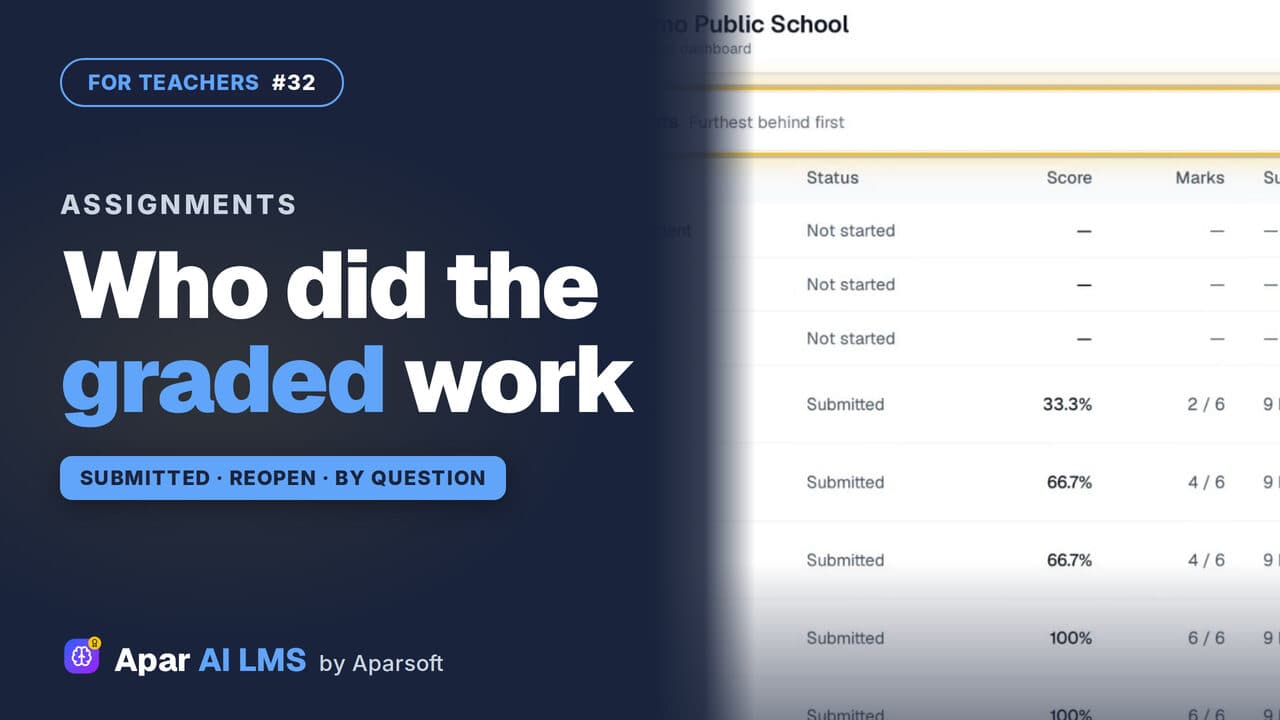
Track Graded Work: Who Has Submitted
For each graded assignment: who has submitted, who has not started, the average and range, each question, and Reopen with a reason.
 Length2:59#06 · Teachers
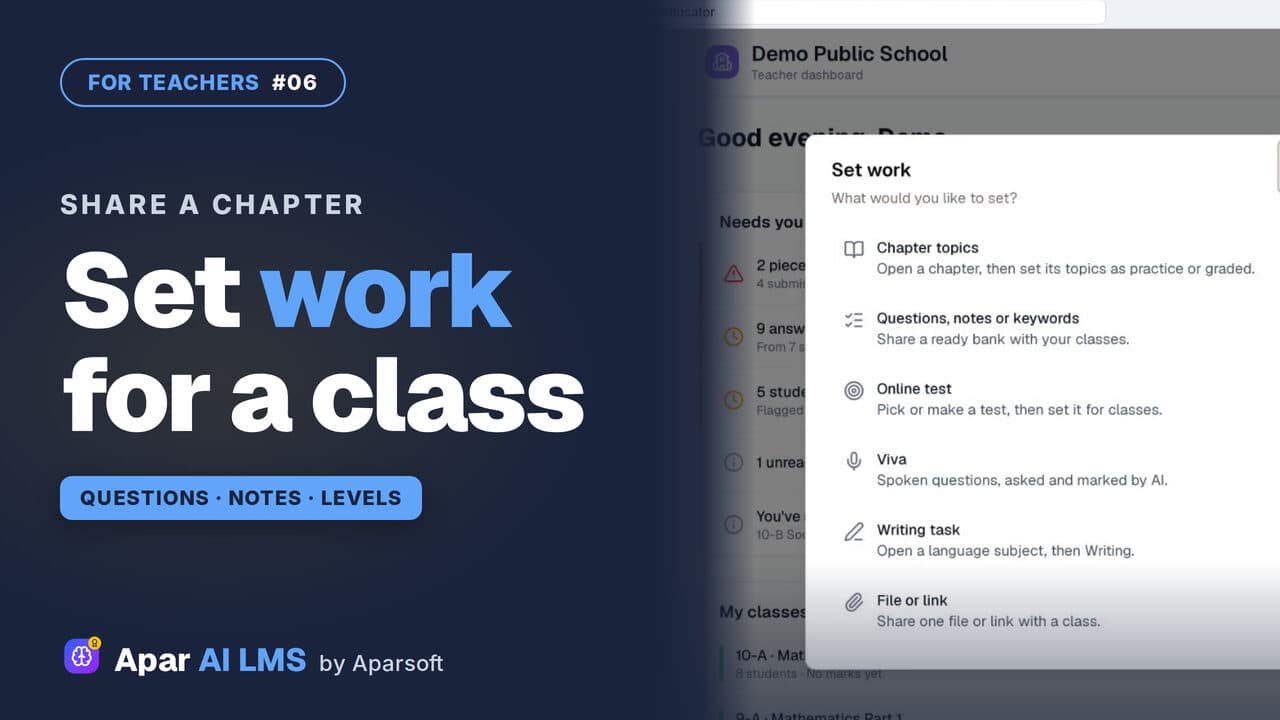
Share Questions and Notes with Your Class
Press Set work, share a chapter's questions without the hard ones, then its notes, and see exactly what the class can open.
 Length1:33#51 · Students
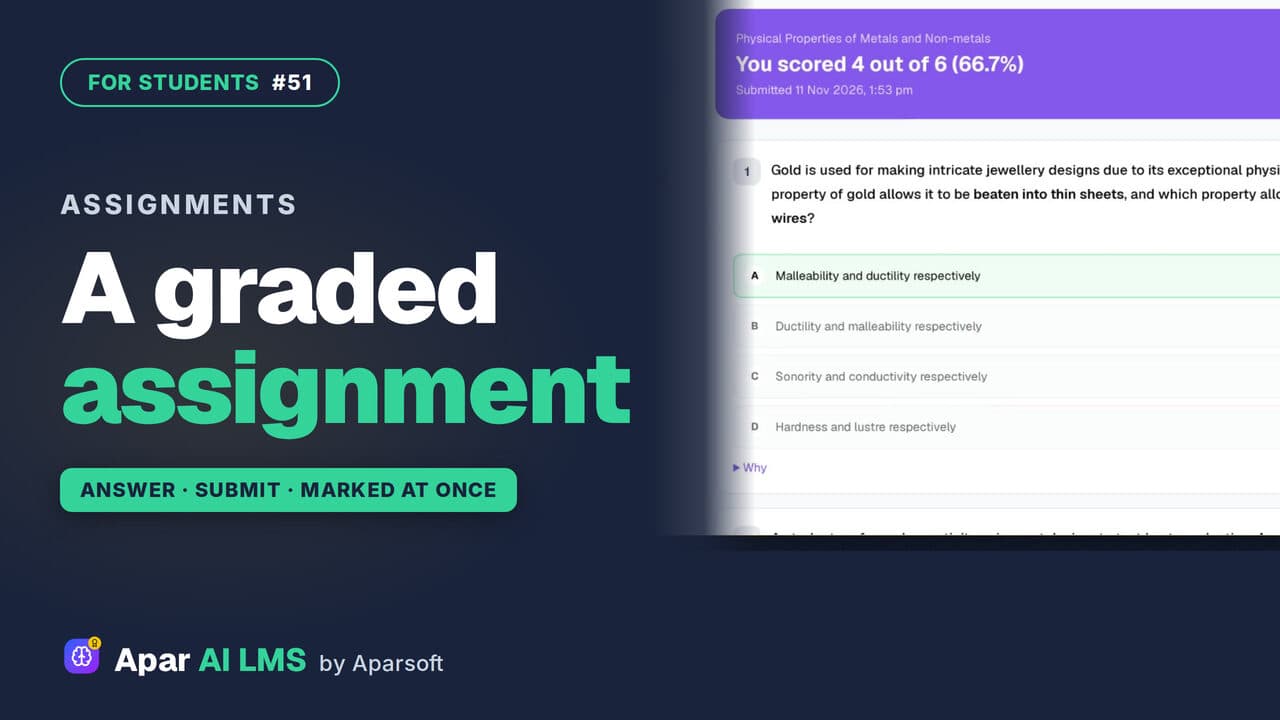
Graded Assignment: Answer, Submit, See Marks
Graded work your teacher set: one attempt, answers saved as you go, marked as soon as you submit, with the reason for every wrong answer.
Try it on your own school
Start the 2-month free trial. No payment.
- No payment
- No commitment
- Onboarding included