Set work: share a chapter's questions and notes with your class
Press Set work, share a chapter's questions without the hard ones, then its notes, and see exactly what the class can open.
Every screen in the films is the real product, shown on a demo school made for them.
Your class starts a new chapter next week and you want them to have its notes and practice questions now. In Apar AI LMS that is a share from Set work, and you decide which questions go: you can hold back the hard ones until the class is ready.
The film shares Chemical Reactions and Equations from Class 10 Science with 10-A, first the questions without the hard level, then the notes, and then opens the student's dashboard to show what arrived.
Step by step
Know the choices
You can set a chapter's topics as practice or graded work, share questions, notes or keywords, set an online test or a viva, a writing task, or one file or link. For this job, press Questions, notes or keywords.
Watch from 0:21Pick the question bank
Choose Question banks. It opens on your class's subject, and every chapter has its own bank. Press Share on the chapter you want.
Watch from 0:49Choose which questions go
Tick the class, then press Choose which questions. Untick Hard if the class is not ready for them. You can also keep or leave out the textbook's questions and the questions written by AI.
Watch from 1:12Share, or take it back
Press Share, and the chapter's card changes to say 10-A can see it. If you change your mind, Hide from the class takes it back.
Watch from 1:34Share the notes the same way
Switch to Notes banks and press Share on the same chapter. The class you picked is still ticked, so it is one more press.
Watch from 1:47Check what the student sees
On the student's dashboard, under Subjects, the chapter now shows its revision notes and MCQs. The MCQs page says easy and medium only, just as the teacher chose.
Watch from 2:00See everything a class can open
Back on the teacher's side, Classes, then Shared with classes, lists everything 10-A can open, down to its assignments.
Watch from 2:32
Good to know
Levels are your call
Leaving out a level does not delete those questions. Share them later, when the class is ready, from the same bank.
A share is easy to undo
Hide from the class takes back a share at once, so trying something out is safe.
Real shares on a demo school
Both shares in the film are real, and the student's page really says "Easy and medium only". The school was put back afterwards.
Questions
- Can I share questions without the hard ones?
- Yes. After ticking the class, press Choose which questions and untick Hard.
- How do I stop sharing something with a class?
- Press Hide from the class on the shared card. Classes, then Shared with classes, shows everything a class can open.
- Can I leave out questions written by AI?
- Yes. The same step lets you keep or leave out the textbook's questions and the questions written by AI.
What the film saysThe narration, scene by scene.
Share a chapter. Your class starts a new chapter next week. Let us share its questions and notes with them.
Set work. This is the teacher dashboard. On Home, press Set work. It asks what you would like to set.
What you can set. You can set a chapter's topics, as practice or graded. You can share questions, notes or keywords. You can set an online test, or a viva. A writing task. Or one file or link.
Question, notes and keyword banks. Press Questions, notes or keywords. Here are your question, notes and keyword banks.
Pick the bank. Pick Question banks. It already shows your class's subject, Class 10 Science. Every chapter has its own bank, from the first to the last.
Share the questions. Here is Chemical Reactions and Equations. Press Share.
Choose which questions. Tick the class, 10-A. Press Choose which questions. You can leave out a level. This class is not ready for hard questions, so untick Hard. You can also keep or leave out questions from the textbook, and questions written by AI.
Shared. Press Share. The card now says the class can see it. Changed your mind? Press Hide from the class.
Now the notes. Now the notes. Pick Notes banks. Press Share on the same chapter. 10-A is still ticked. Press Share.
The student dashboard. Now the student dashboard. Press Subjects, then Science. The chapter now shows its questions and notes.
Its notes and questions. Press the chapter. Here are its revision notes. Below them, its MCQs.
Easy and medium only. Press MCQs. It says easy and medium only, just as the teacher chose.
Shared with classes. Back on the teacher dashboard, press Classes, then Shared with classes. It lists everything 10-A can open, down to its assignments.
Coming up. Next: exam papers, from many chapters.
Watch next
 Length2:03#05 · Teachers
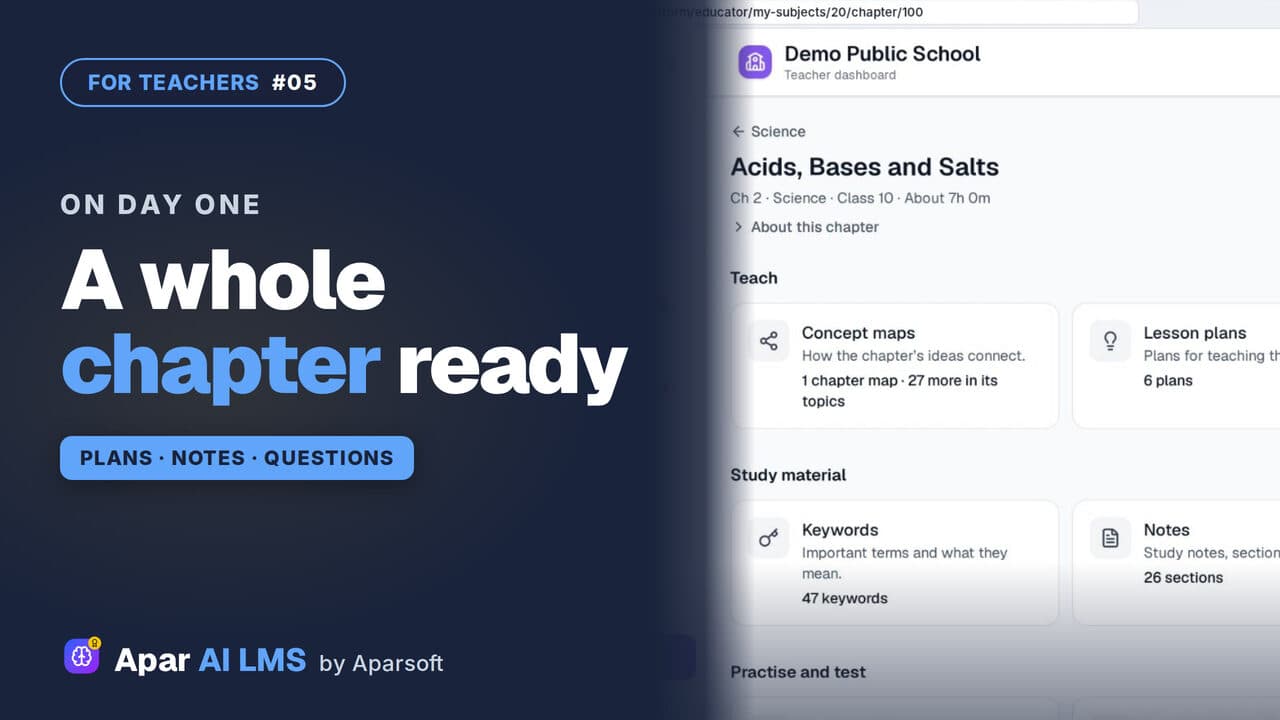
NCERT Chapter Ready to Teach on Day One
Open one chapter and see everything that is ready for you: maps, plans and summaries to teach, notes to study, and questions to practise and test.
 Length1:44#31 · Teachers
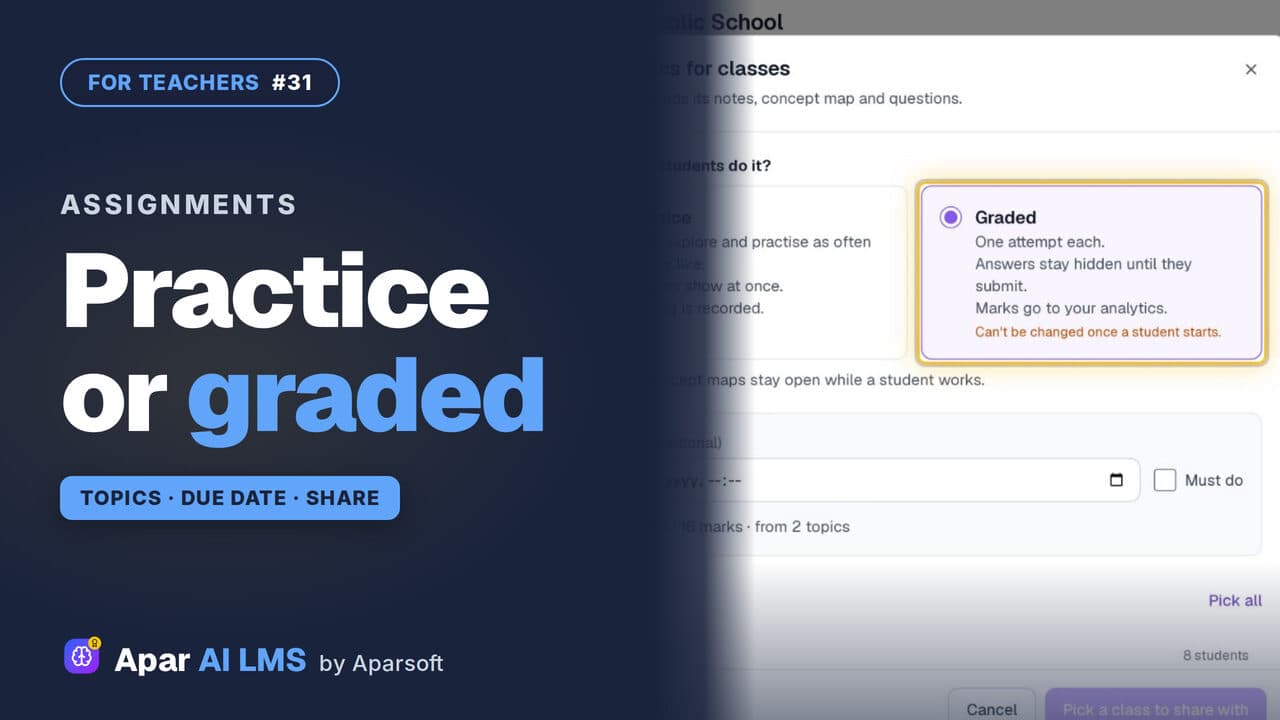
Set Chapter Topics as Practice or Graded Work
Tick a chapter's topics and set them as practice or graded. Graded means one attempt, answers hidden until submitted, and marks in your analytics.
 Length1:16#39 · Teachers
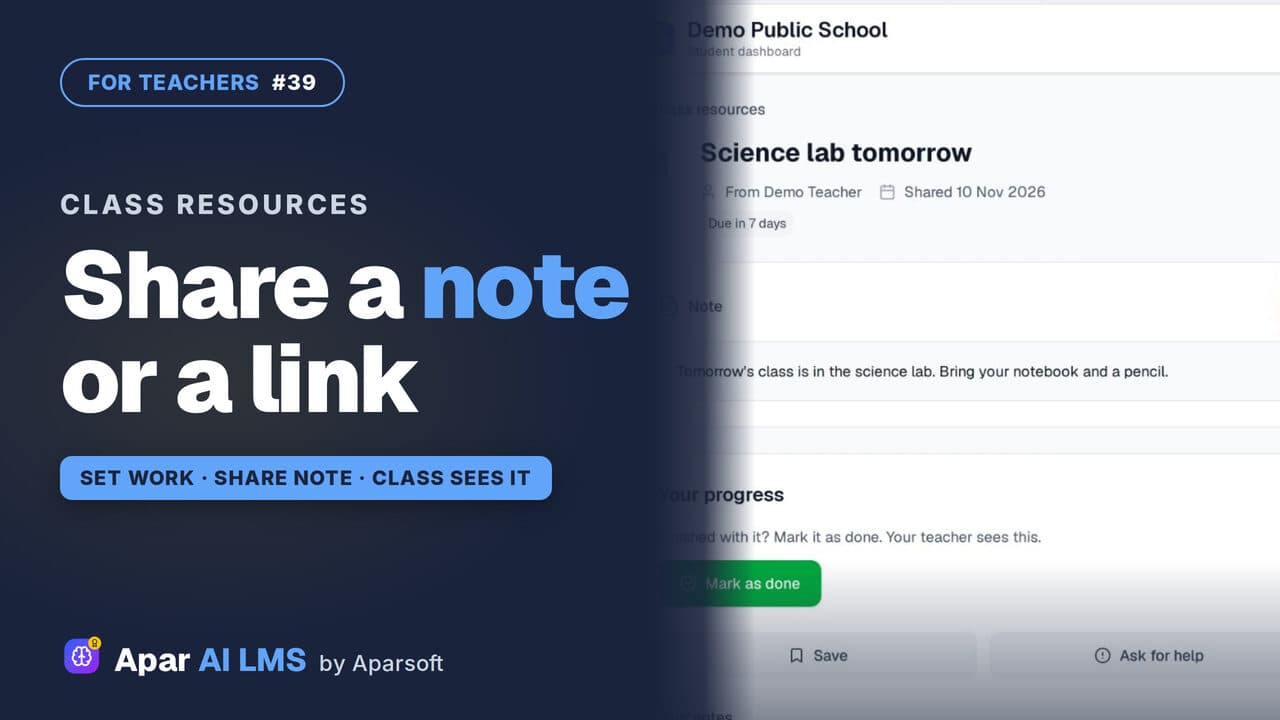
Share a Note, File or Link With Your Class
Send one note, PDF, image or link to a class without making a whole assignment, and see how many students viewed and completed it.
 Length1:30#45 · Students
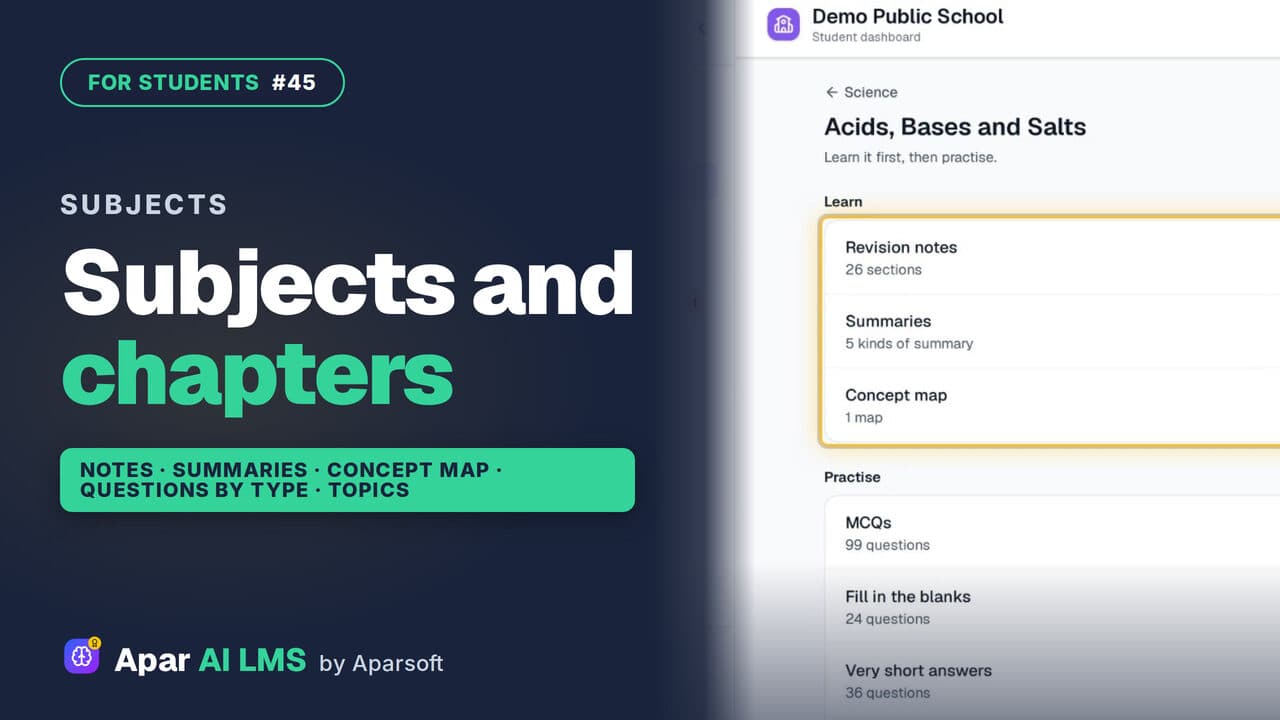
Find Chapter Notes and Practice by Subject
Subjects shows what your teachers shared in each chapter: notes, summaries and concept maps to learn, questions to practise, and smaller topics.
Try it on your own school
Start the 2-month free trial. No payment.
- No payment
- No commitment
- Onboarding included