See your progress: your average, your trend, and where you lose marks
Where you stand and what to do next: each result against your own average, never your class, and where you lose marks.
Every screen in the films is the real product, shown on a demo school made for them.
Most report cards tell you where you stand against the class. Progress in Apar AI LMS compares you only with yourself: each result against your own average, how your marks move over time, and the chapters and kinds of question where you lose marks. It also tells you what to do next. A parent sitting with you can read the same page.
The film reads Progress from top to bottom, then opens Science and its Where I lose marks.
Step by step
Open Progress
Press Progress on the left. The top of the page shows overdue work, work due soon, and your average.
Watch from 0:00Start with what to do next
What to do next lists overdue work first, then what is coming up, so you always know which to start.
Watch from 0:00Compare with yourself
Recently marked sets each result against your own average, not your class's. A result well below it stands out.
Watch from 0:23Watch your trend
My trend shows how your marks have moved over time, so you can see if things are getting better.
Watch from 0:23Open a subject
Press Subjects, then a subject, to see its average and how much of it you have finished.
Watch from 0:36Find where you lose marks
Press Where I lose marks. It shows what you are strong at and what to work on.
Watch from 0:36Read the breakdown
Further down, a breakdown shows where your marks went: by chapter, and by how hard each question was.
Watch from 0:50
Good to know
No ranks, no class marks
The page compares you with your own average. It shows no ranks and no classmates' marks.
Use it before a test
Where I lose marks names the chapter to work on. Go back to that chapter's notes and practice first.
What was on screen
A demo school and its demo student. One quiz the demo student did badly on is part of the demo data, so the page has something to work on.
Questions
- Does Progress compare me with my classmates?
- No. Each result is compared with your own average, never with your class.
- How do I find my weak chapters?
- Open Progress, Subjects, a subject, then Where I lose marks. The breakdown shows marks lost by chapter and by how hard the questions were.
What the film saysThe narration, scene by scene.
Progress. This is the student dashboard. On the left, press Progress: how you are doing, and what to do next.
At a glance. At the top: what is overdue, what is due soon, and your average.
What to do next. Below, What to do next puts overdue work first, then what is coming up.
Your own average. Recently marked compares each result with your own average, not with your class.
Your trend. My trend shows how your marks move over time.
A subject. Press Subjects, then a subject: its average, and how much is finished.
Where you lose marks. Press Where I lose marks: what you are strong at, and what to work on.
The breakdown. Below, the breakdown shows where marks were lost: by chapter, and by how hard the questions were.
Coming up. Next: Results: every test and assignment, marked.
Watch next
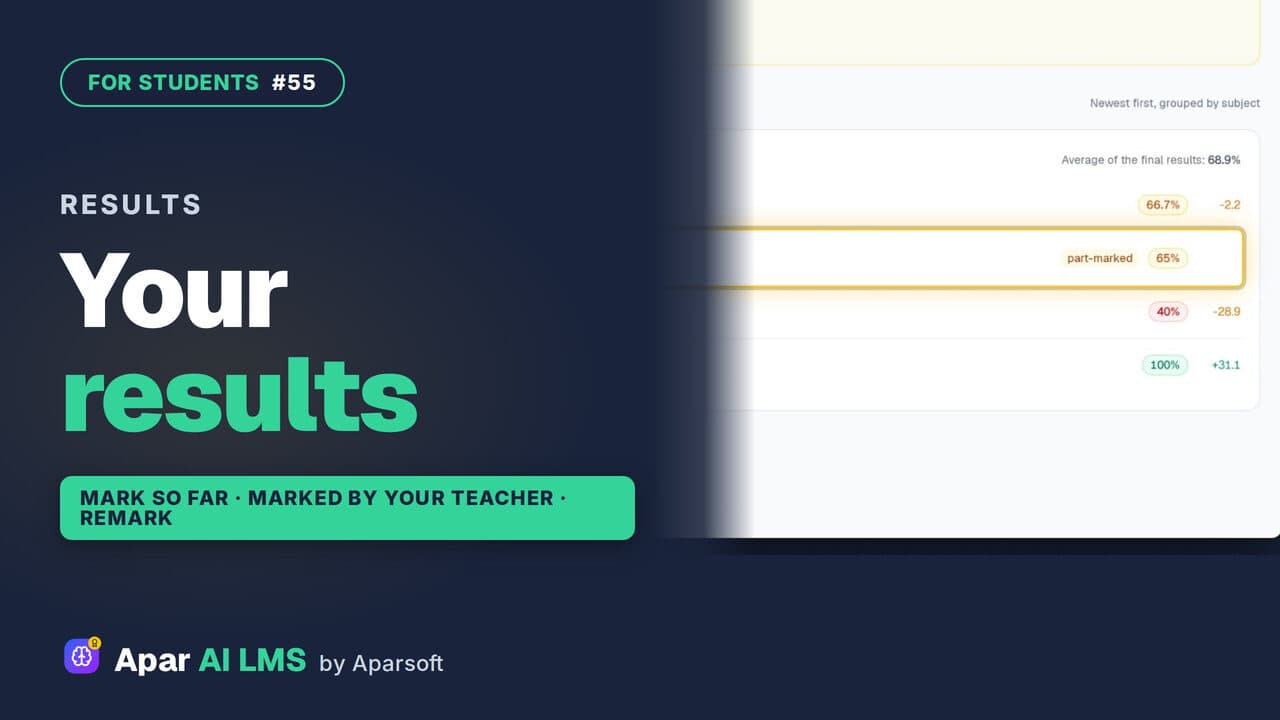 Length2:04#55 · Students
See Your Test Results and Teacher's Marks
Every result in one list, with work still with your teacher clearly shown. Follow a part-marked test until the teacher's marks make it final.
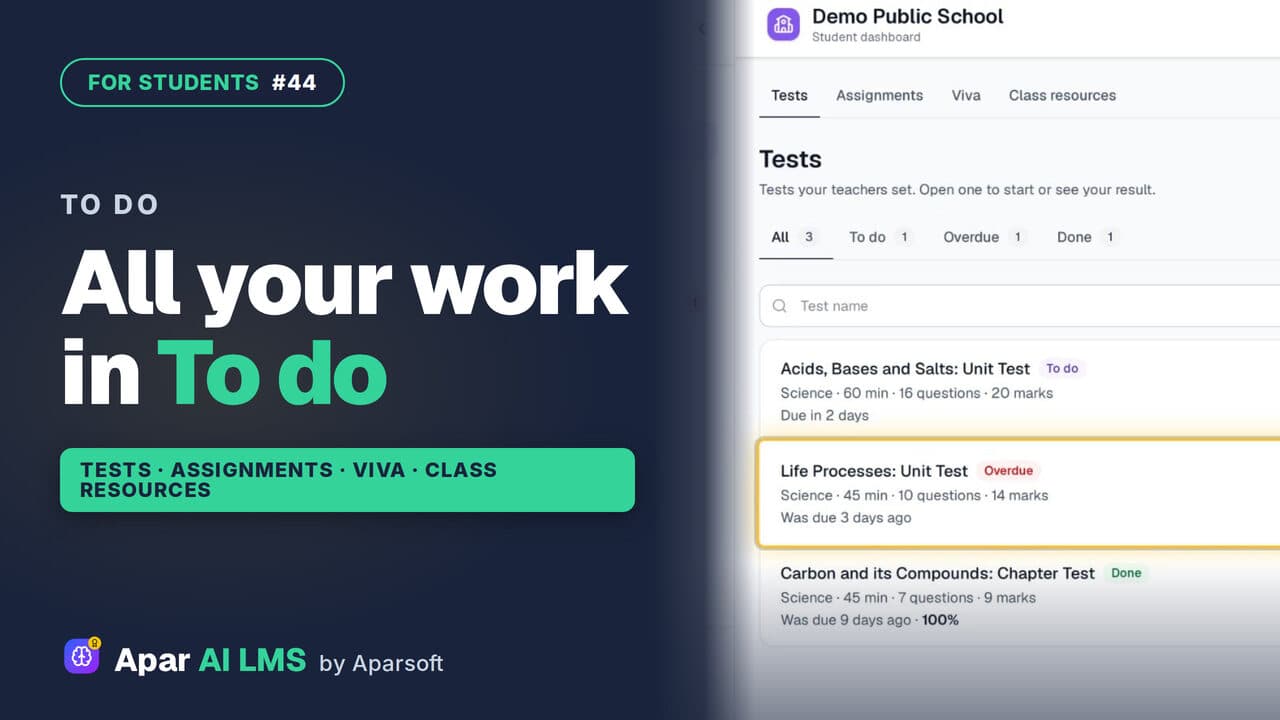 Length1:39#44 · Students
Student To Do: Tests, Assignments, Vivas
To do holds all the work your teachers set, in four tabs: tests, assignments, vivas and class resources, with what is late clearly marked.
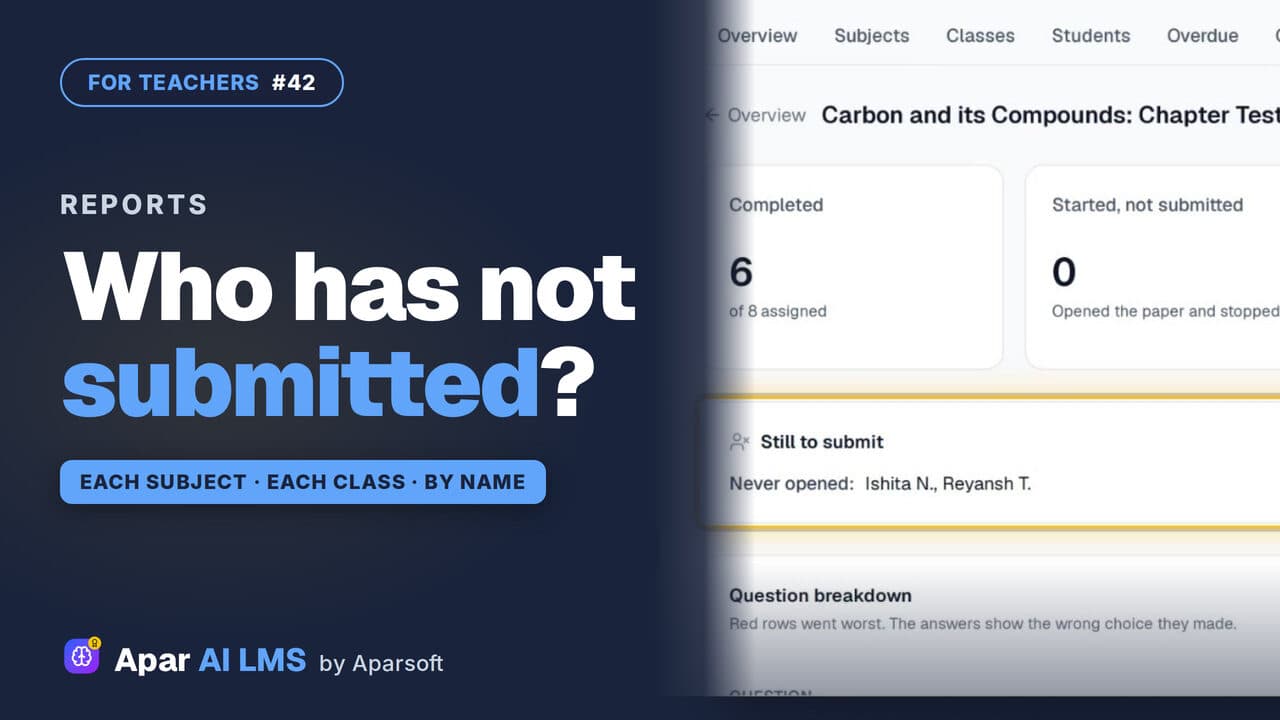 Length1:22#42 · Teachers
Teacher Reports: Who Has Not Submitted
Reports scores each subject and class apart, names the students still to submit, and shows how the class did on every question.
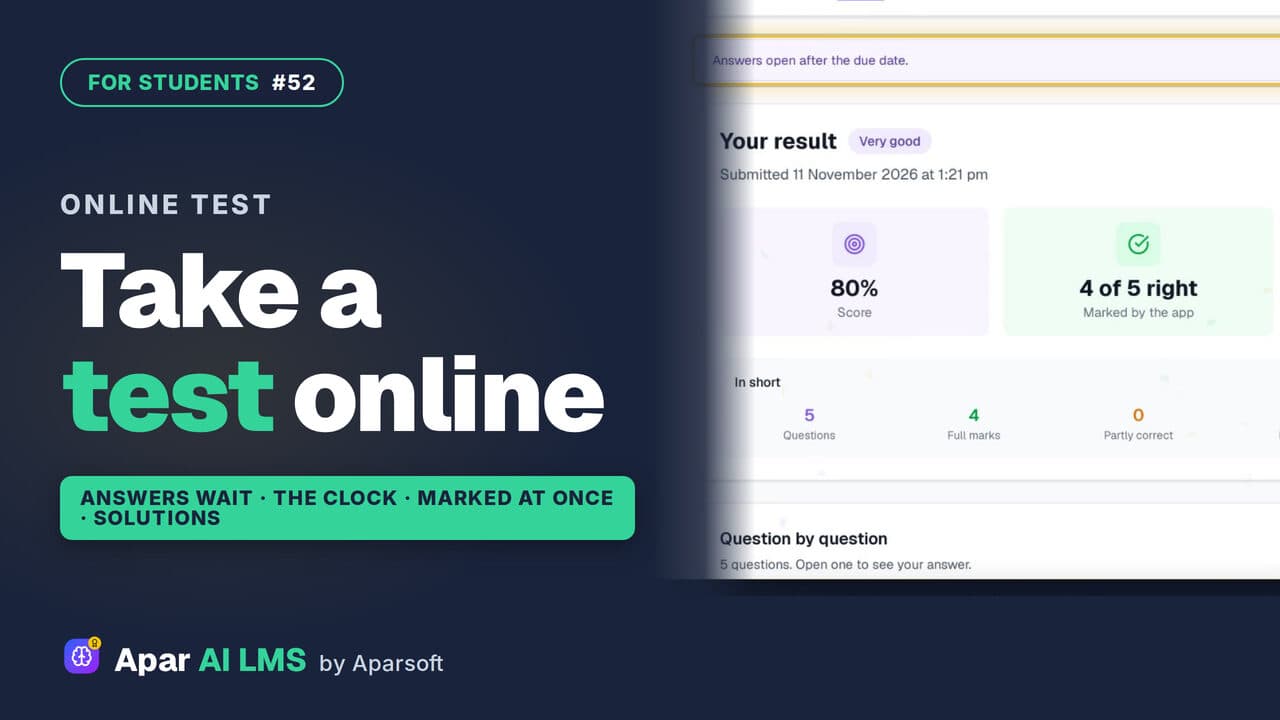 Length1:44#52 · Students
How to Take an Online Test as a Student
From To do to the solutions: read the rules, answer against the clock, get marked as soon as you submit, and see the right answers after the due date.
Try it on your own school
Start the 2-month free trial. No payment.
- No payment
- No commitment
- Onboarding included