Turn your own PDF notes into questions with AI, check them, and share with your class
Upload a PDF of your own notes. AI writes questions with answers; you check and approve them, then share the file and the questions with your class.
Every screen in the films is the real product, shown on a demo school made for them.
Many teachers already have good notes of their own: a handout, a worksheet, a page typed up for revision. In Apar AI LMS you can upload such notes as a PDF and ask the AI to write from them: a summary, questions with answers, or discussion points. Nothing reaches your students until you have read it and approved it.
The film uploads two pages of a teacher's notes on Acids, Bases and Salts for Class 10-A, has the AI write questions with answers, approves them, shares the file with the class, and then opens the student's side.
Step by step
Open My uploads
Press Library on the left, then My uploads. This is where your own files are kept, apart from the ready chapter library.
Watch from 0:14Upload the PDF
Press Upload PDF, add your file and give it a title your students will recognise. Tick your class, pick the subject, and press Upload content. The file then opens on its own page.
Watch from 0:14Choose what the AI writes
The file's page offers three things the AI can write from it: a summary, questions with answers, or discussion points. The film presses Write it next to Questions with answers.
Watch from 0:35Check the questions
In about a minute the questions appear, each with its answer. Above them is the text the AI read from your PDF, so you can check every question against your own words.
Watch from 0:48Approve and save
If they look right, scroll down and press Approve and save. The questions are now kept with your file.
Watch from 0:48Share with your class
Press Share with classes. Your class and the AI notes are already ticked, so press Share. The class gets your PDF and the approved questions together.
Watch from 1:08See what students get
Students open it from Class resources: your file, with questions to try, and each answer hidden until they press to see it.
Watch from 1:18
Good to know
You stay in charge
The AI only drafts. You read its questions beside the text it read, and only what you approve goes to the class.
Three kinds of help
The film makes questions with answers. A summary and discussion points are on the same page, made the same way.
What was real in the film
The PDF is two pages of notes written for the film, uploaded on a demo school. The questions are the AI's own, written while filming.
Questions
- Can AI make questions from my own PDF notes?
- Yes. Upload the PDF under Library, My uploads, then press Write it next to Questions with answers. The AI writes questions with answers from your file.
- Do students see the AI questions before I check them?
- No. In the film the questions reach the class only after the teacher presses Approve and save, and then shares the file.
- Where do students find the notes I upload?
- In Class resources, with the questions to try below the file.
What the film saysThe narration, scene by scene.
Your own PDF. This is the teacher dashboard. Here is how AI turns your own notes into questions for your class.
Library, My uploads. On the left, press Library, then My uploads.
Upload a PDF. Press Upload PDF. Scroll down, and add your file. Then give it a title.
The class, the subject. Tick your class. Then pick the subject. Scroll down, and press Upload content. Your file opens on its own page.
What AI can write. AI can write three things from it: a summary, questions with answers, or discussion points.
Write it. Next to Questions with answers, press Write it.
Check them. In a minute, the questions are ready, each with its answer. Above them is the text the AI read from your file.
Approve and save. If they look right, scroll down, and press Approve and save. They stay with your file.
Share with your class. Then press Share with classes. Your class and your AI notes are already ticked. Press Share.
The student's page. Your students find it in Class resources, with questions to try, and each answer a press away.
Coming up. Next: Share one file or link.
Watch next
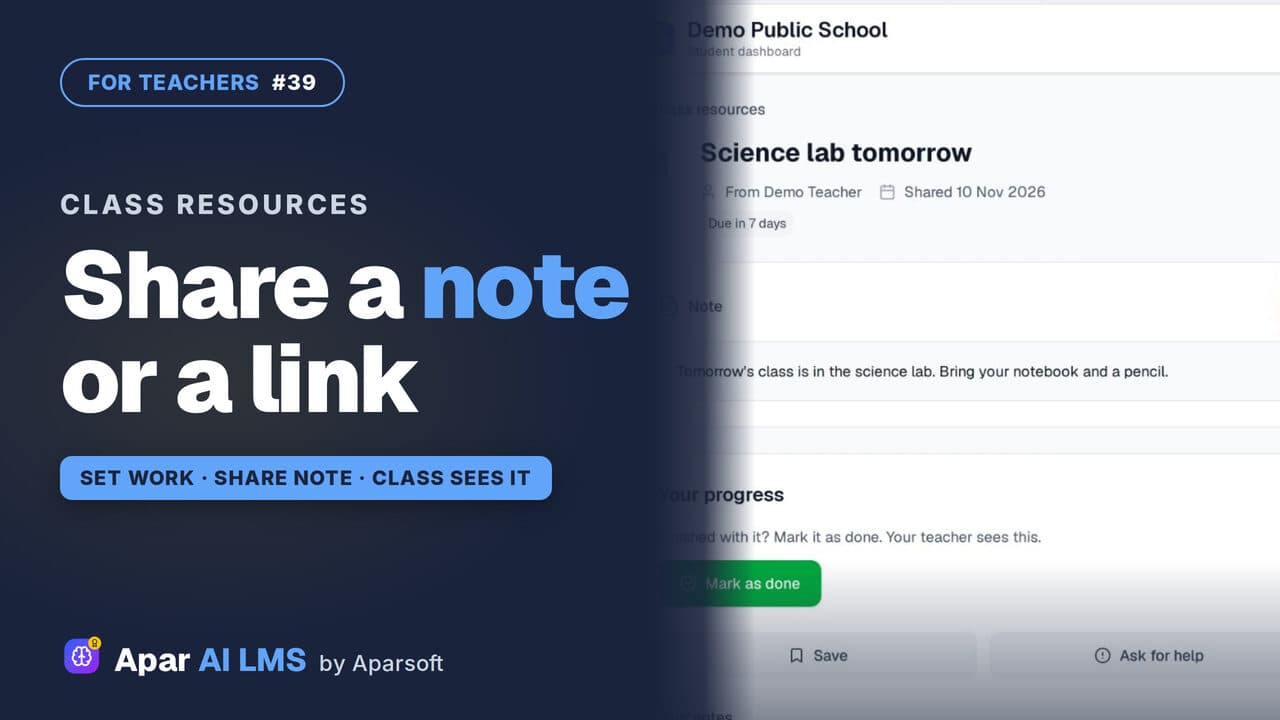 Length1:16#39 · Teachers
Share a Note, File or Link With Your Class
Send one note, PDF, image or link to a class without making a whole assignment, and see how many students viewed and completed it.
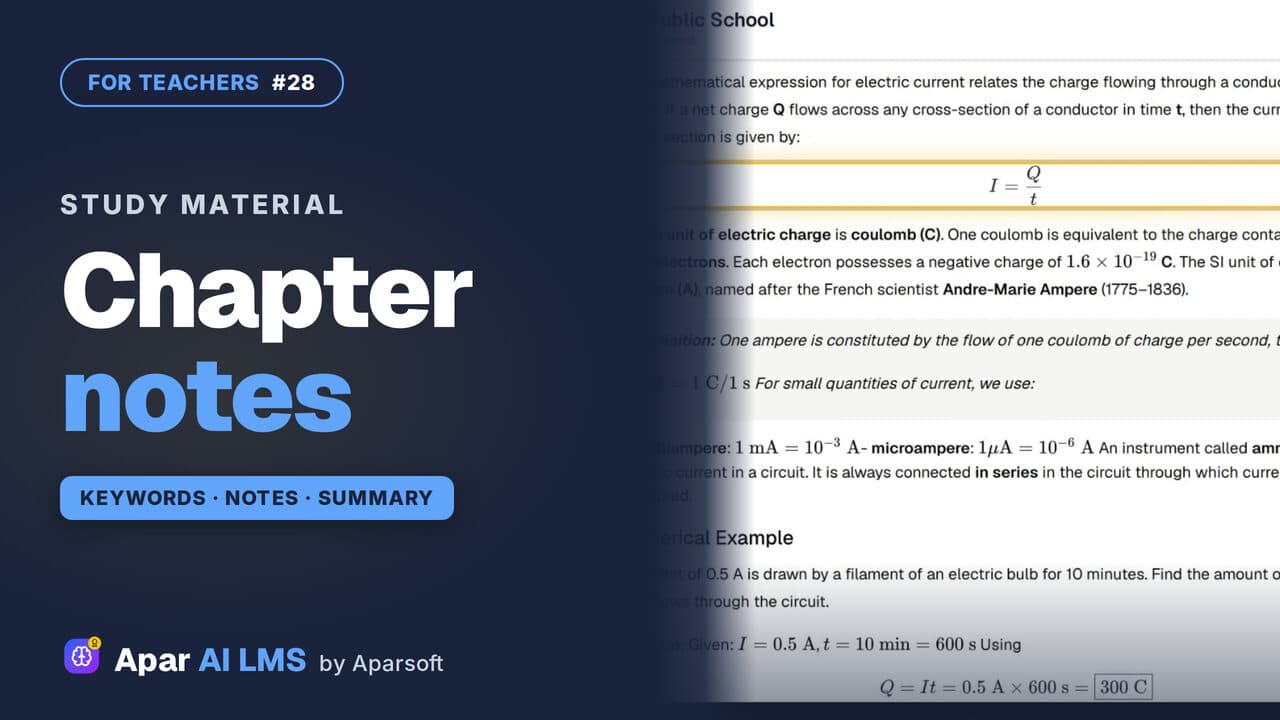 Length1:31#28 · Teachers
Chapter Notes, Keywords and Summary
Keywords one kind at a time, notes with their equations, and a summary with key points, formulas, a quick review and exam preparation.
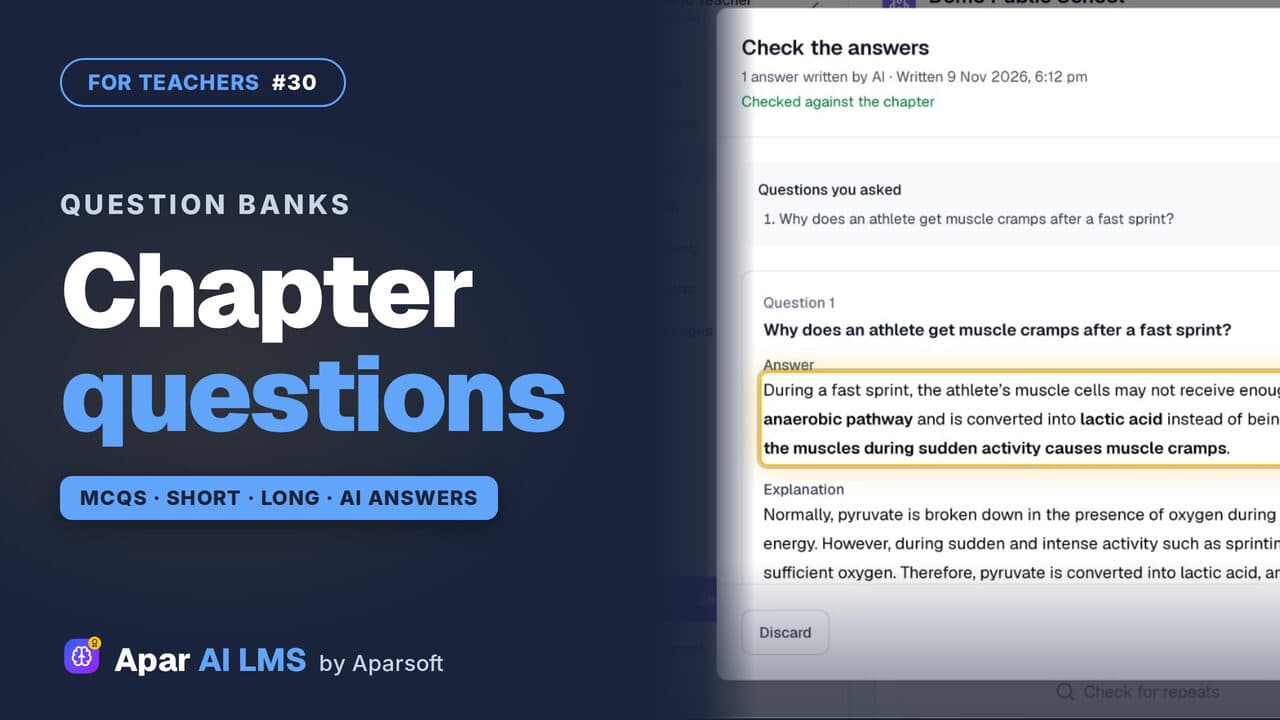 Length1:44#30 · Teachers
Question Bank: MCQs, Short and Long Answers
A chapter's MCQs, short and long questions with their answers. Add your own: AI drafts the answer from the chapter, and you check it.
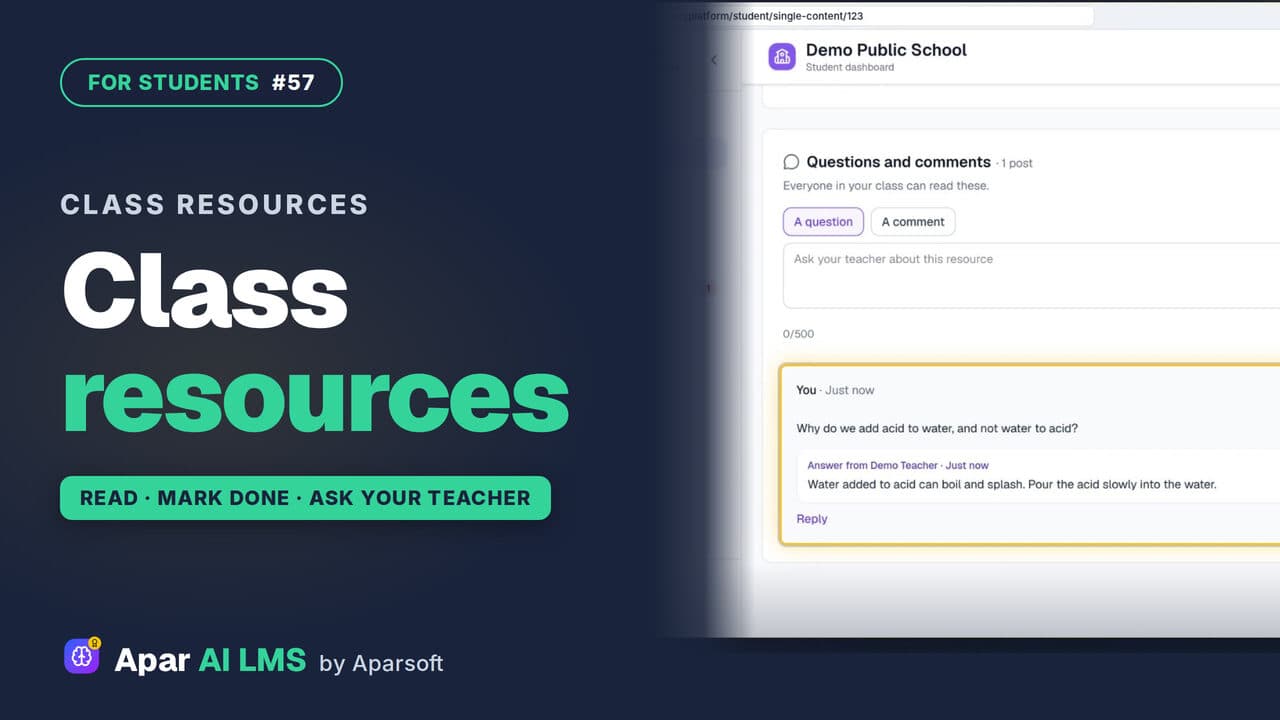 Length1:30#57 · Students
Class Resources: Open Notes, Ask Your Teacher
Your teachers' shared files, with study notes and questions to try, a Mark as done button, and a box to ask your teacher a question.
Try it on your own school
Start the 2-month free trial. No payment.
- No payment
- No commitment
- Onboarding included