When a teacher changes mid-year, hand the subject and its marking to the new teacher
Change a subject's teacher in one pick. The class and its waiting answers move to the new teacher; the old teacher's marks stay on record.
Every screen in the films is the real product, shown on a demo school made for them.
Teachers leave, go on long leave or swap classes during the year. What worries the office is what gets lost in between: answers students have submitted that nobody has marked yet, and the record of who taught what. Here one change under Who teaches what moves the class and its waiting marking to the new teacher, and keeps the old record.
The film hands 10-A Science from Demo Teacher to Demo Teacher Two, then looks at both teachers' Homes and at the Teachers tab in Reports.
Step by step
See whose marking is waiting
The office's Home shows the answers waiting for marking, and the teacher most of them are waiting for. It is worth a look before you move a class.
Watch from 0:00Pick the new teacher
Press Classes, then the Who teaches what tab. Find the class and subject, here 10-A Science, and pick the new teacher for it.
Watch from 0:20Confirm the change
The page asks first, and tells you the old teacher's work stays in Reports. Press Change teacher. From today, the new teacher teaches that subject to that class.
Watch from 0:20Check the old teacher's Home
On the old teacher's dashboard, far fewer answers wait for them now, because the ones from 10-A Science have moved with the class.
Watch from 0:57Check the new teacher's Home
On the new teacher's dashboard, 10-A Science is among their classes, and its waiting answers are there. Press Mark now to open them, oldest first, ready to mark.
Watch from 0:57Read the record in Reports
Back on the school admin dashboard, press Reports, then the Teachers tab. The old teacher's marks stay on the record, and the To mark column shows who has the waiting answers now.
Watch from 1:27
Good to know
Nothing is left with the old teacher
Answers still waiting for marking move with the class, so students are not left waiting on a teacher who no longer teaches them.
Leave is not a handover
Setting a teacher On leave under Teachers only changes their status; their classes stay with them. To move a class, change its teacher under Who teaches what, as here.
Filmed on a demo school
The change was real, on a demo school with demo teachers; the answers waiting were demo students' practice tests. Who teaches what was put back after filming.
Questions
- What happens to unmarked answers when a teacher leaves?
- When you change the subject's teacher under Who teaches what, the answers waiting for marking move to the new teacher, oldest first on their marking list.
- Is the old teacher's work deleted when the teacher changes?
- No. Their marks stay on the record in Reports, on the Teachers tab.
- When does the new teacher take over?
- From the moment you confirm the change. In the film, the class and its waiting answers are on the new teacher's Home right away.
What the film saysThe narration, scene by scene.
When a teacher changes. This is the school admin dashboard. Here is how to hand a subject to a new teacher.
Answers waiting. On Home, answers wait for marking. Most wait for Demo Teacher: 9.
Who teaches what. On the left, press Classes. Then press the Who teaches what tab.
Pick the new teacher. Demo Teacher teaches Science in 10-A. For 10-A Science, pick Demo Teacher Two.
Their work stays. It asks first. Demo Teacher's work stays in Reports. Press Change teacher.
From today. From today, Demo Teacher Two teaches 10-A Science.
The old teacher's Home. On Demo Teacher's teacher dashboard, 1 answer is waiting now, not 9.
The new teacher's Home. On Demo Teacher Two's teacher dashboard, the 8 answers are waiting. And 10-A Science is one of their classes.
Marking follows. Press Mark now. Here they are, oldest first, ready for the new teacher.
The record stays. Back on the school admin dashboard, press Reports. Then press the Teachers tab.
Who taught it, who marks it. Demo Teacher's marks stay on the record. To mark shows who has the answers now.
Coming up. Next: Set up fees: plans and each student's fee.
Watch next
 Length1:52#17 · School office
Assign Teachers to Classes and Subjects
One grid per grade shows which subjects have a teacher. Fill the gaps, change a teacher, and the class shows on that teacher's Home.
 Length3:00#16 · School office
Invite Teachers to Your School LMS by CSV
Invite teachers one at a time or by CSV, follow the invites until they join, and change a teacher's status when they go on leave.
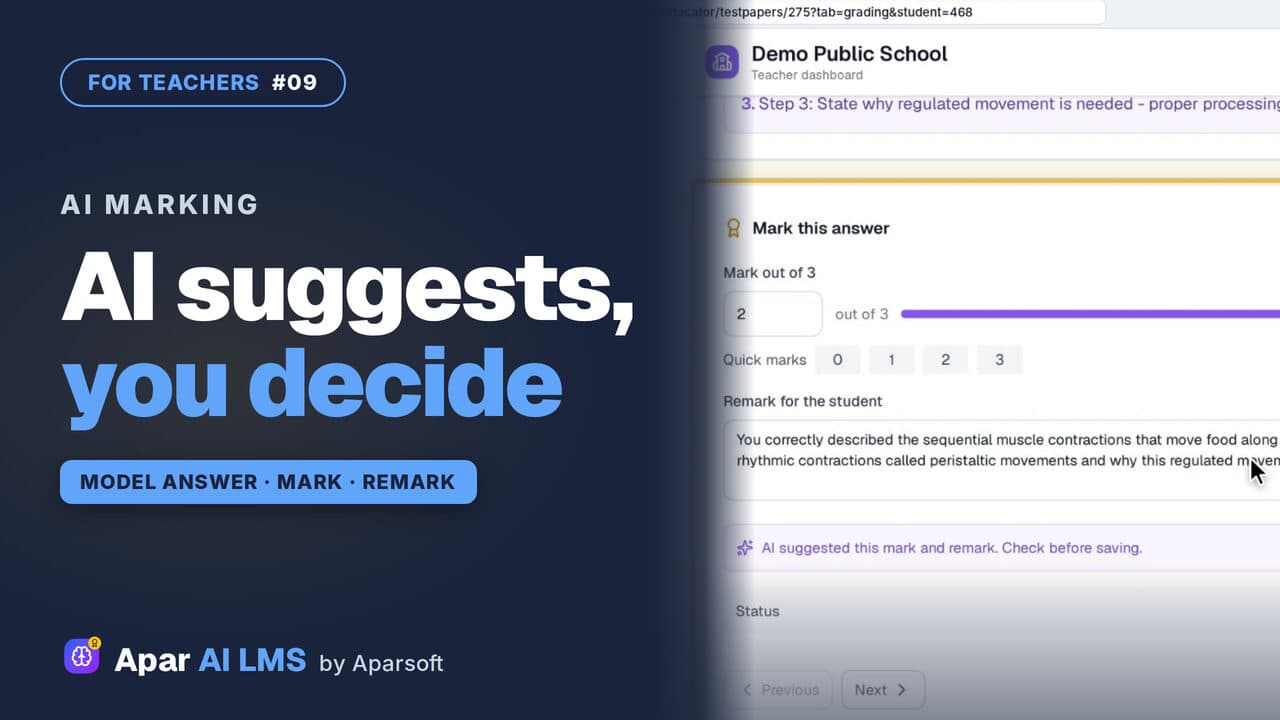 Length2:08#09 · Teachers
AI-Assisted Marking: The Teacher Decides
Open the answers waiting for you, read each beside the model answer, get the AI's suggestion, and decide. The student sees your mark and remark.
 Length1:44#24 · School office
School Reports: Classes, Teachers, Students
Reports opens on the school's average, then the students who need help, each class, teacher and student, and the chapters taught.
Try it on your own school
Start the 2-month free trial. No payment.
- No payment
- No commitment
- Onboarding included