The teacher dashboard: what needs you before your next class
Teacher Home answers one question: what needs you before your next class? Then Set work, and where everything lives in the menu.
Every screen in the films is the real product, shown on a demo school made for them.
A teacher opens the dashboard between periods, with a few minutes at most. Teacher Home puts the urgent things first: work past its due date, answers to mark, and students who need a word, before anything else.
This film reads a demo teacher's Home on a normal working day, opens Set work to show the kinds of work you can give a class, and goes through every place in the menu so you know where things are before you need them.
Step by step
Read Needs you first
At the top, Needs you lists only what is waiting for you. If nothing is waiting, the list is short.
Watch from 0:00Work past the due date
A row tells you how many pieces of work are past their due date and how many submissions are still missing.
Watch from 0:16Answers waiting for marking
The next row says how many students have answers waiting for your marking, and how old the oldest one is.
Watch from 0:26Students to help
Students who need your attention are flagged on participation, score or lateness, so you can speak to them before the next test.
Watch from 0:26Messages and quiet classes
Unread messages come next. Last, Home names any class you have not set work for in ninety days.
Watch from 0:45Check your classes
My classes shows each class and subject you teach, with its students, what is left to mark and the class average.
Watch from 0:45Open Set work
Press Set work to see the six choices: chapter topics, questions, notes or keywords, an online test, a viva, a writing task, or one file or link.
Watch from 1:04Learn the menu
The menu has seven places: Home, Classes, Library, Tests, Marking, Reports and Messages. Several have tabs: Classes holds Classes, Students, Graded work and Shared with classes; Library holds Subjects, the Encyclopedia and My uploads.
Watch from 1:23Know where tests, marking and reports are
Tests holds Online tests, Exam papers and Viva. Marking holds To mark and Answer sheets. Reports has Overview, Subjects, Classes, Students, Overdue, Chapters taught and Outcomes.
Watch from 2:10
Good to know
Home is a to-do list, not a report
Everything on Needs you is something you can act on now. Reports are one press away when you want the bigger picture.
One place to set any work
Whatever you want to give a class, it starts from Set work, so there is only one button to remember.
A real working day, read only
The film reads the demo teacher's Home and changes nothing.
Questions
- Where does a teacher find answers waiting to be marked?
- On Teacher Home, in Needs you, and under Marking, then To mark.
- What kinds of work can a teacher set?
- Chapter topics, questions, notes or keywords, an online test, a viva, a writing task, or one file or link, all from Set work.
- How does a teacher see which students need attention?
- Teacher Home flags them on participation, score or lateness, and Reports has a Students tab for more detail.
What the film saysThe narration, scene by scene.
One question. This is Teacher Home. It answers one question: what needs you before your next class?
Needs you. Needs you lists only what is waiting.
Past the due date. Two pieces of work are past the due date, and it says how many hand-ins are still missing.
Waiting for you. Then what is waiting for your marking: from how many students, and how old the oldest is.
Students to help. Students who need your attention are flagged on participation, score or lateness.
Messages and quiet classes. Unread messages come next. Last, any class you have set no work for in ninety days.
My classes. My classes shows each class and subject: its students, what is left to mark, and the average.
Set work. Press Set work. There are six choices. Chapter topics. Questions, notes or keywords. An online test. A viva. A writing task. Or a file or link.
The menu. On the left are seven places: Home, Classes, Library, Tests, Marking, Reports, and Messages.
Classes. Some have tabs. Press Classes. Its tabs are Classes, Students, Graded work, and Shared with classes.
Library. Press Library. Subjects, the Encyclopedia, and My uploads.
Tests. Press Tests. Online tests, Exam papers, and Viva.
Marking. Press Marking. To mark, and Answer sheets.
Reports. Press Reports. Overview, Subjects, Classes, Students, Overdue, Chapters taught, and Outcomes.
Coming up. Next: a whole chapter, ready on day one.
Watch next
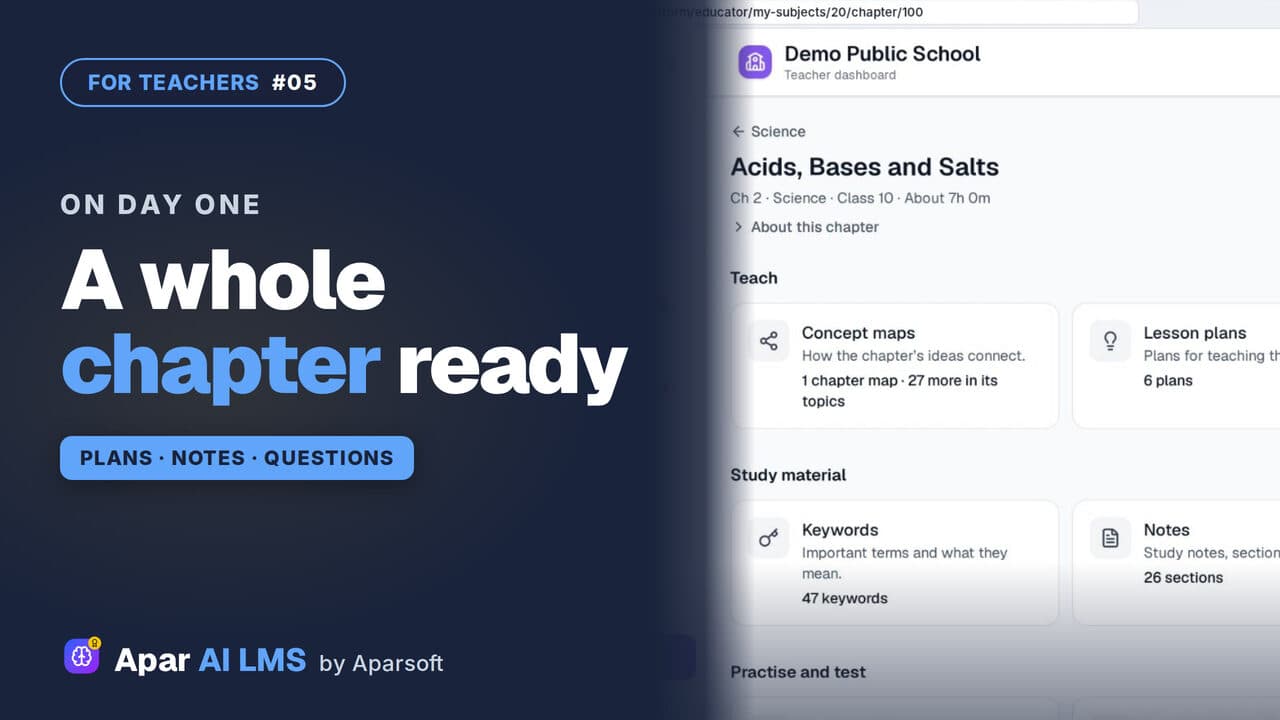 Length2:03#05 · Teachers
NCERT Chapter Ready to Teach on Day One
Open one chapter and see everything that is ready for you: maps, plans and summaries to teach, notes to study, and questions to practise and test.
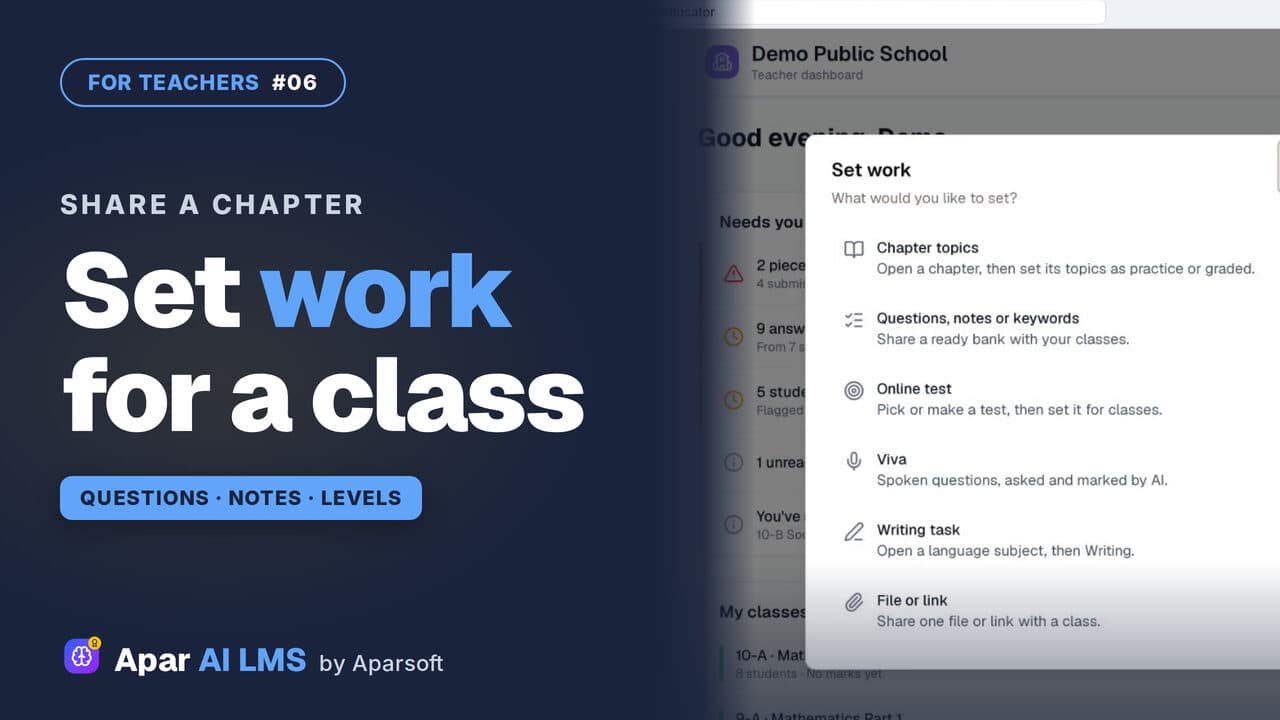 Length2:59#06 · Teachers
Share Questions and Notes with Your Class
Press Set work, share a chapter's questions without the hard ones, then its notes, and see exactly what the class can open.
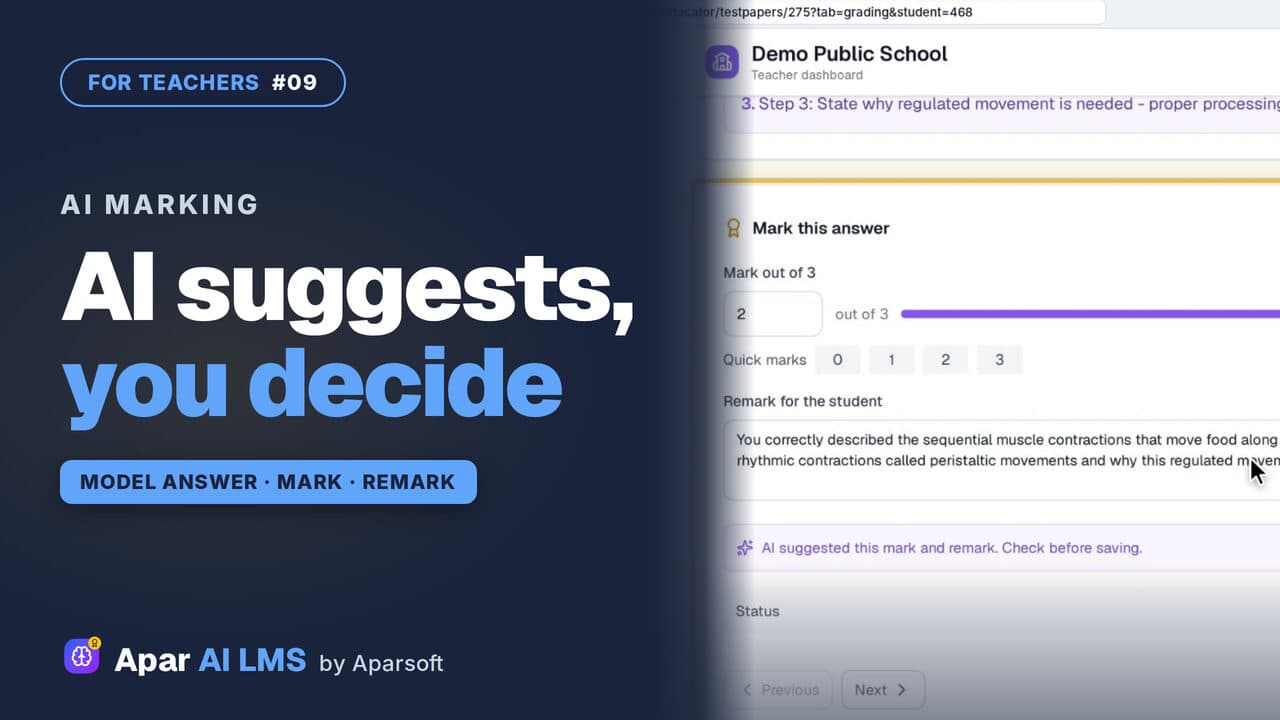 Length2:08#09 · Teachers
AI-Assisted Marking: The Teacher Decides
Open the answers waiting for you, read each beside the model answer, get the AI's suggestion, and decide. The student sees your mark and remark.
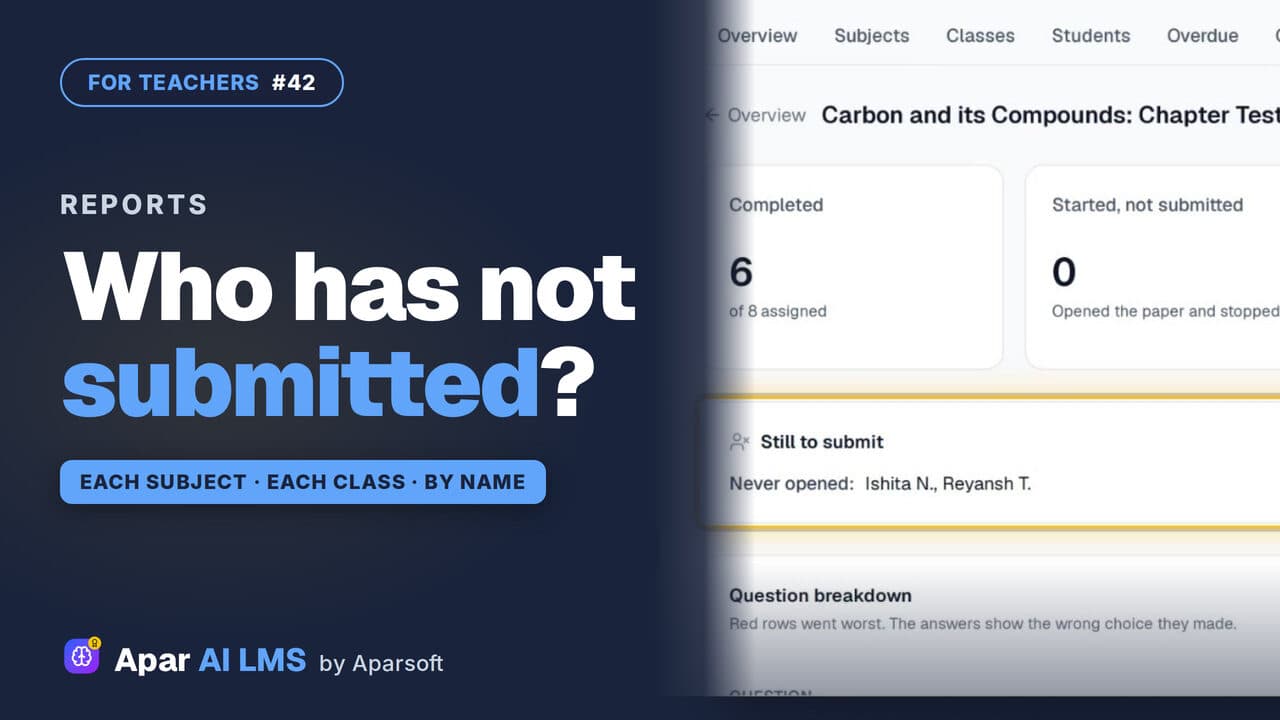 Length1:22#42 · Teachers
Teacher Reports: Who Has Not Submitted
Reports scores each subject and class apart, names the students still to submit, and shows how the class did on every question.
Try it on your own school
Start the 2-month free trial. No payment.
- No payment
- No commitment
- Onboarding included