Teacher reports: each subject and class on its own, and who has not submitted
Reports scores each subject and class apart, names the students still to submit, and shows how the class did on every question.
Every screen in the films is the real product, shown on a demo school made for them.
If you teach Science to 10-A and another subject to another class, one average across all of it tells you nothing. Reports in Apar AI LMS keeps each subject in each class on its own, and every count opens the names behind it: who has not submitted, which student is flagged and why, and which wrong choice the class kept picking.
The film goes from the counts at the top of Reports to Science in 10-A, one student's report, the overdue list, and a chapter test's question breakdown.
Step by step
See what waits on you
Press Reports. The top row counts what is waiting on you: answers to mark, students who need you, and overdue work.
Watch from 0:00Open one subject in one class
Below, there is a row for each subject in each class you teach. Press one; the film presses Science in 10-A.
Watch from 0:20Read that class's numbers
You see the class average for that subject alone, who took part, and what is still waiting to be marked. Other subjects do not blur the picture.
Watch from 0:20Open a student's report
Each student has a row. Press a name to open that student's own report and see why they are flagged.
Watch from 0:20Check overdue work
Overdue lists work past its due date, with how many students have not submitted each one.
Watch from 0:44See who still has to submit
Press a test. Still to submit names each student, so you can follow up with them one by one.
Watch from 0:44Go question by question
Further down, each question shows how many got it right and the wrong choice the others made. That tells you what to go over again in class.
Watch from 0:58
Good to know
Every count has names behind it
The numbers at the top and in each row open the students they count, so you never have to guess who is missing.
Each subject apart
A class's average in Reports is for one subject only. Science in 10-A is not mixed with any other subject or class.
What was on screen
A demo school with its demo teacher and students. The marks and dates were made for the demo.
Questions
- How can a teacher see which students have not submitted a test?
- Open Reports, then Overdue, and press the test. Still to submit lists each student by name.
- Can I see which questions my class got wrong?
- Yes. A test's report breaks it down question by question: how many got it right, and the wrong choice the others made.
What the film saysThe narration, scene by scene.
Reports. This is the teacher dashboard. Here is how Reports shows each subject on its own, and who has not submitted.
What waits on you. Press Reports. The top row counts what waits on you: answers to mark, students who need you, and overdue work.
One row for each subject. Below, one row for each subject in each class. Press Science, in 10-A.
One subject, one class. Its average, who took part, and what waits to be marked: for Science only.
Each student. Each student has a row. Press a name for that student's own report, and why they are flagged.
Overdue. Overdue lists work past its date, and how many have not submitted.
Who still has to submit. Press a test. Still to submit gives each student by name.
Question by question. Below, each question: how many got it right, and the wrong choice the others made.
Coming up. Next: Messages.
Watch next
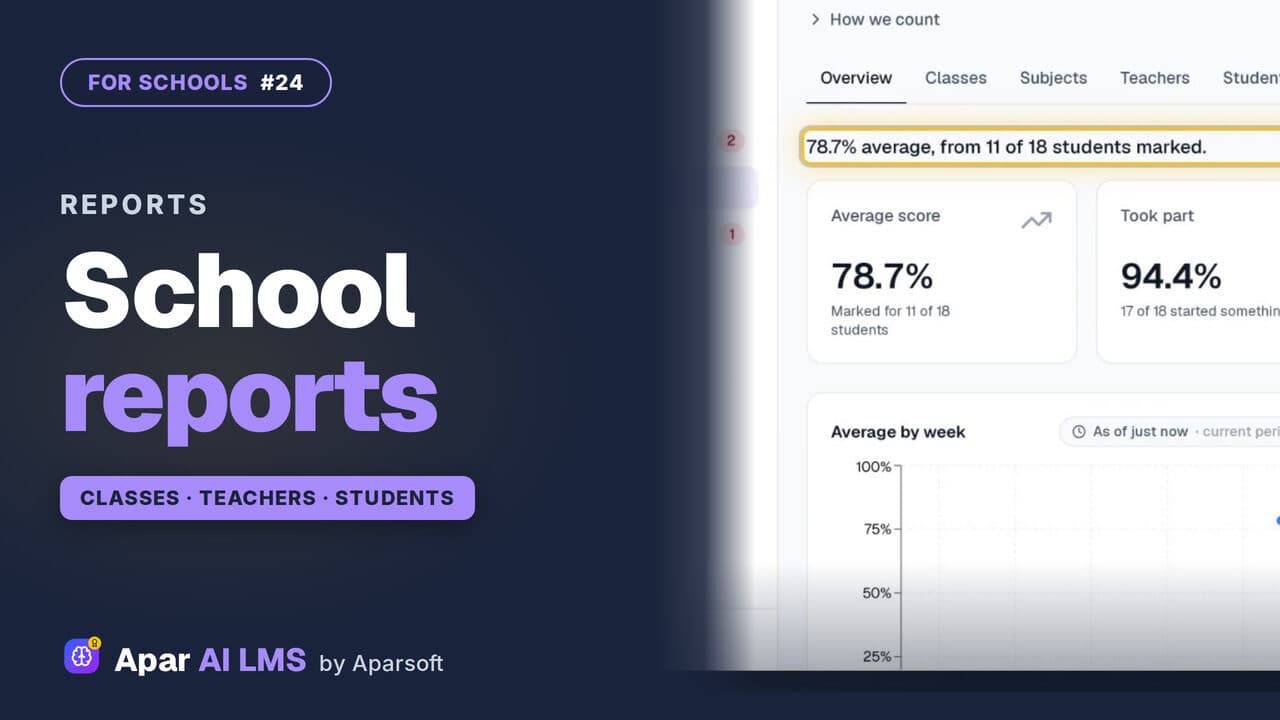 Length1:44#24 · School office
School Reports: Classes, Teachers, Students
Reports opens on the school's average, then the students who need help, each class, teacher and student, and the chapters taught.
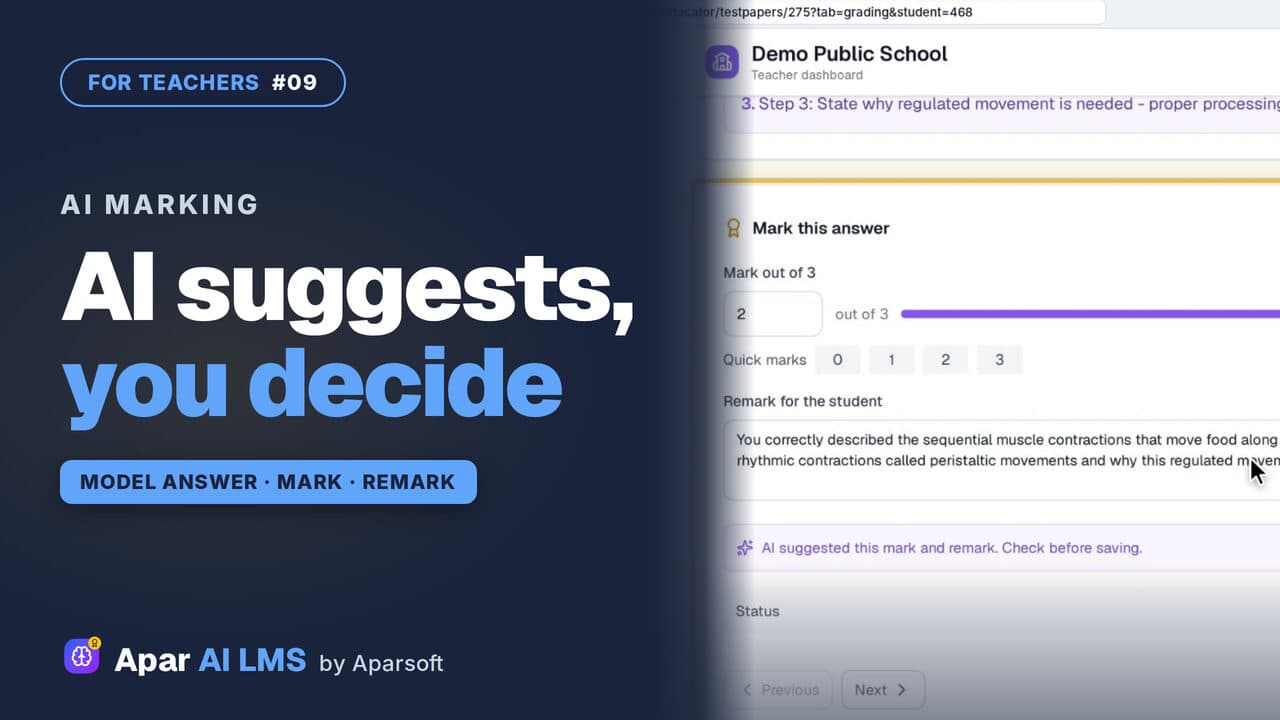 Length2:08#09 · Teachers
AI-Assisted Marking: The Teacher Decides
Open the answers waiting for you, read each beside the model answer, get the AI's suggestion, and decide. The student sees your mark and remark.
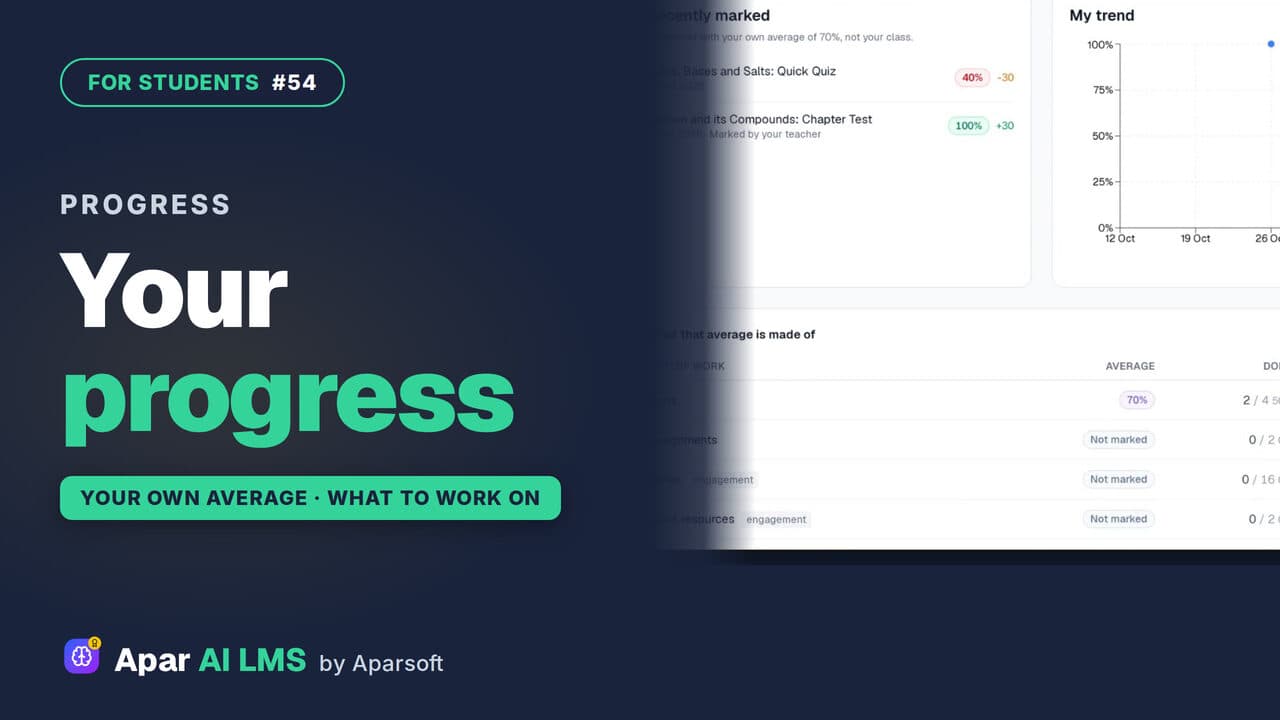 Length1:15#54 · Students
Student Progress: Average and Weak Areas
Where you stand and what to do next: each result against your own average, never your class, and where you lose marks.
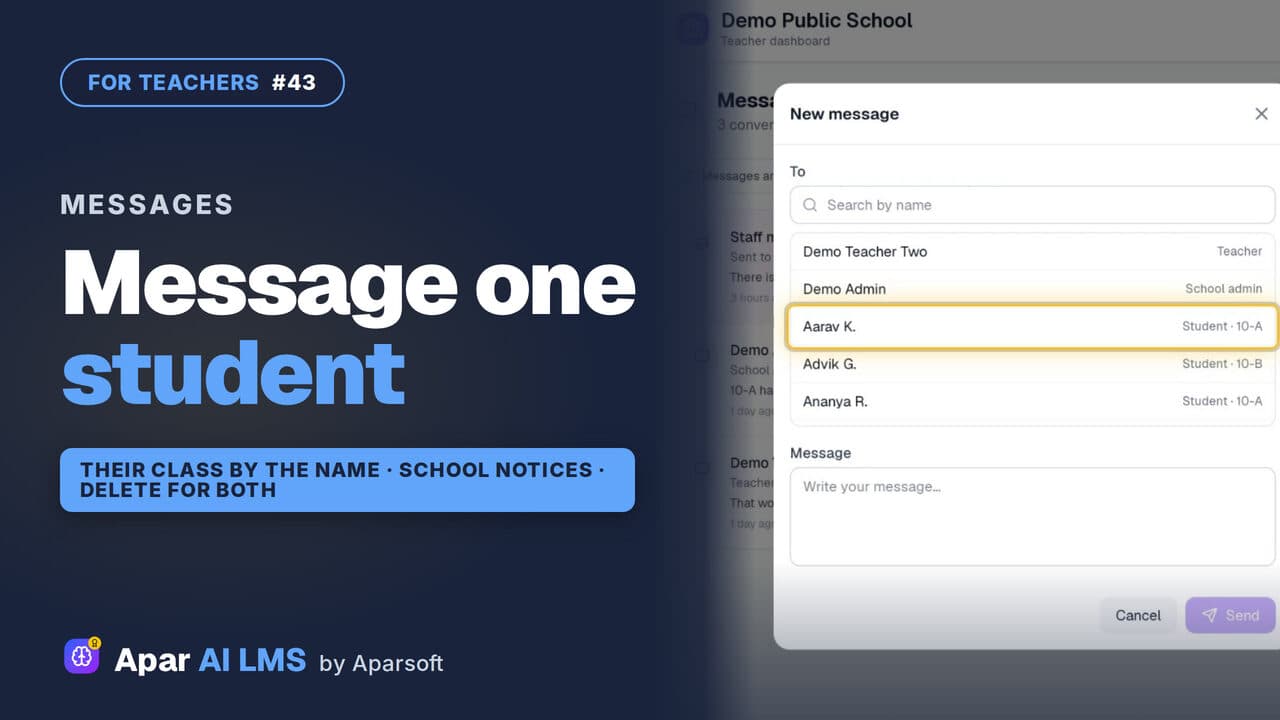 Length1:40#43 · Teachers
Message a Student and Read School Notices
One inbox for your students, colleagues and the school office: write to one student, read school notices, and delete a message sent by mistake.
Try it on your own school
Start the 2-month free trial. No payment.
- No payment
- No commitment
- Onboarding included