AI viva (beta) for students: answer a virtual teacher's questions out loud
A virtual teacher asks each question out loud and you answer by speaking. If the page drops, it picks up where you stopped, then shows your result.
Every screen in the films is the real product, shown on a demo school made for them.
A viva checks whether you can explain an idea in your own words, out loud, which is a different skill from picking an option. In the AI viva, a virtual teacher asks you questions aloud and you answer by speaking. Your words are written down, and at the end you see how you did, question by question. The AI viva is currently in beta.
The film takes a viva on Heredity from To do, answers by voice, reloads the page midway as if the internet dropped, and opens the result.
Step by step
Find your viva
Press To do on the left, then Viva. Press your viva to see who asks the questions, your virtual teacher, and how much time you have.
Watch from 0:11Listen to the question
The virtual teacher reads the question out loud. Missed it? Press Play question to hear it again.
Watch from 0:24Answer out loud
Press Speak, then the microphone, and say your answer. When you finish, press stop. Your voice is turned into text, the answer is saved, and the next question comes up.
Watch from 0:38If the page closes or the internet drops
Open the viva again. It picks up where you stopped, with what you have answered and the time left. Press Carry on and answer the rest the same way.
Watch from 0:55See your result
After the last answer the viva is done, and the result follows in a moment. Press See your result for how many you got right and what went well.
Watch from 1:21Read each answer
Open a question to see your answer as it was written down from your voice, with feedback on it.
Watch from 1:21
Good to know
Currently in beta
The AI viva is a beta feature.
Speak clearly
Your spoken answer is turned into text, and the text is what you see in the result. A quiet room helps it catch every word.
What was real in the film
A demo school and its demo student, with a viva made for the film. The answers were spoken by an adult demo voice into the microphone, and the AI heard and wrote them down for real. The page was reloaded on purpose to show a drop.
Questions
- How does an AI viva work?
- A virtual teacher asks each question out loud. You press Speak and the microphone, say your answer, and press stop. Your answer is turned into text and the next question comes.
- What happens if my internet drops during the viva?
- Open the viva again. It picks up where you stopped, with your answers so far and the time left; press Carry on.
- Can I hear the question again?
- Yes. Press Play question.
What the film saysThe narration, scene by scene.
A viva, out loud. This is the student dashboard. In a viva, a virtual teacher asks you questions out loud, and you answer out loud.
Your viva. On the left, press To do, then Viva. Your viva is here.
Who asks. Press it. It shows who asks, and how much time you have.
Start. Press Start viva. When you are ready, press Begin viva.
The question, out loud. The teacher asks the question out loud. Press Play question to hear it again.
Answer out loud. To answer out loud, press Speak. Then press the microphone, and say your answer.
Stop. When you finish, press stop. Your voice is turned into text, and the next question comes.
If it drops. If the page closes, or the internet drops, open the viva again. It picks up where you stopped: what you answered, and the time left.
Carry on. Press Carry on, and answer every question the same way.
Done. After the last answer, the viva is done. Your result shows in a moment.
Your result. Press See your result: how many you got right, and what went well.
Your answers. Open a question: your answer, written down from your voice, and its feedback.
Coming up. Next: Progress: how you are doing, and what to do next.
Watch next
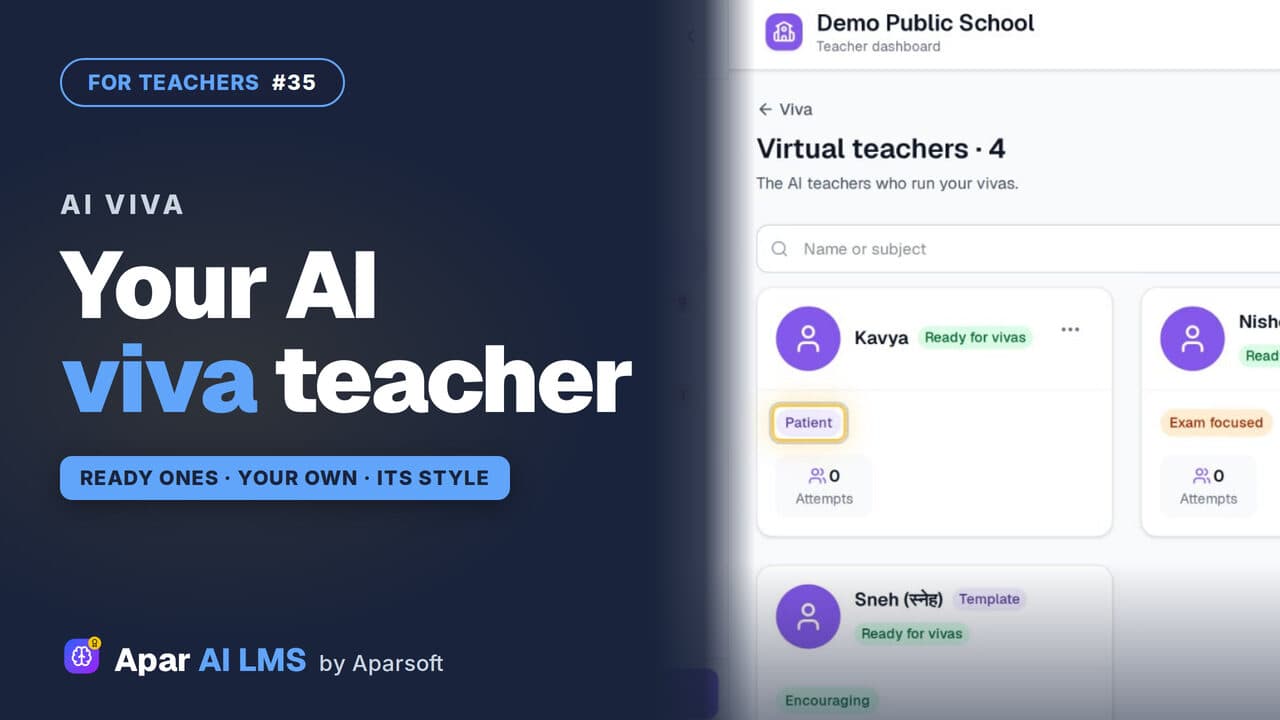 Length1:22#35 · Teachers
AI Viva: Make Your Own Virtual Teacher (Beta)
Meet the ready virtual teachers that run an AI viva, then make one of your own with a name, a teaching style and a way of talking.
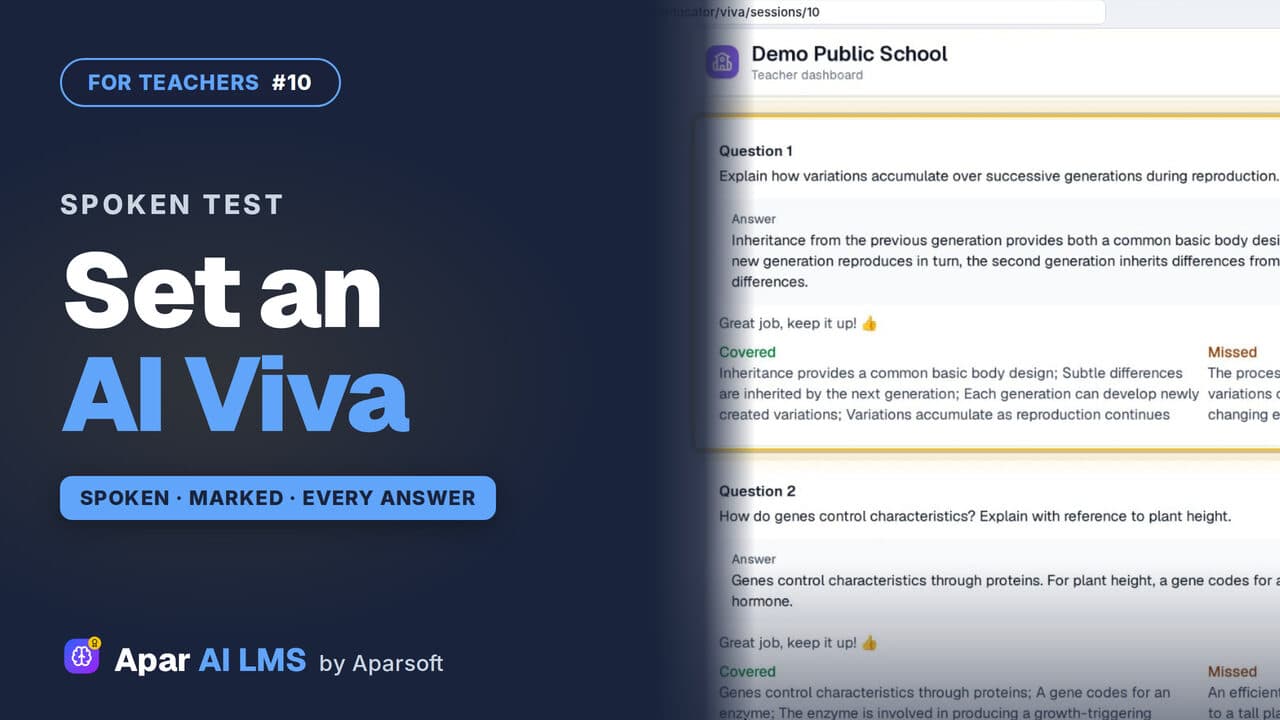 Length2:44#10 · Teachers
AI Viva for Teachers: Set and Review (Beta)
Set a viva in four steps. Each student answers a virtual teacher on their own, and you read every answer, its mark and what it missed.
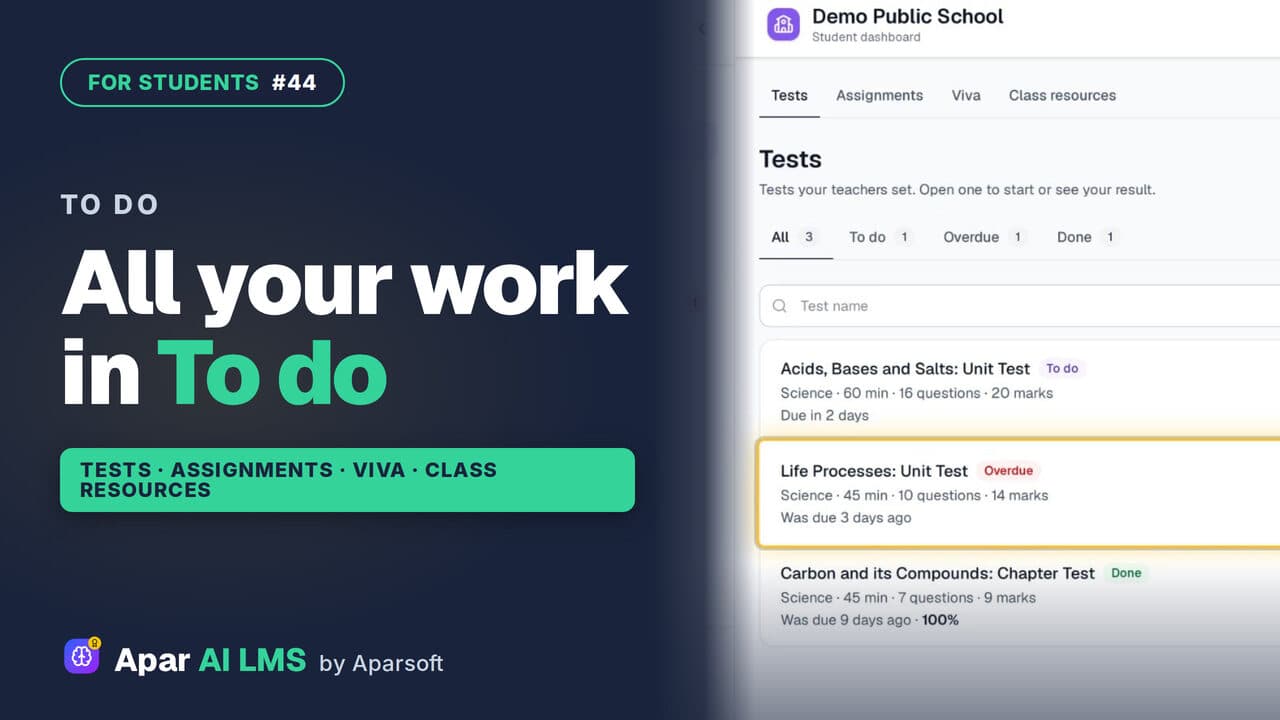 Length1:39#44 · Students
Student To Do: Tests, Assignments, Vivas
To do holds all the work your teachers set, in four tabs: tests, assignments, vivas and class resources, with what is late clearly marked.
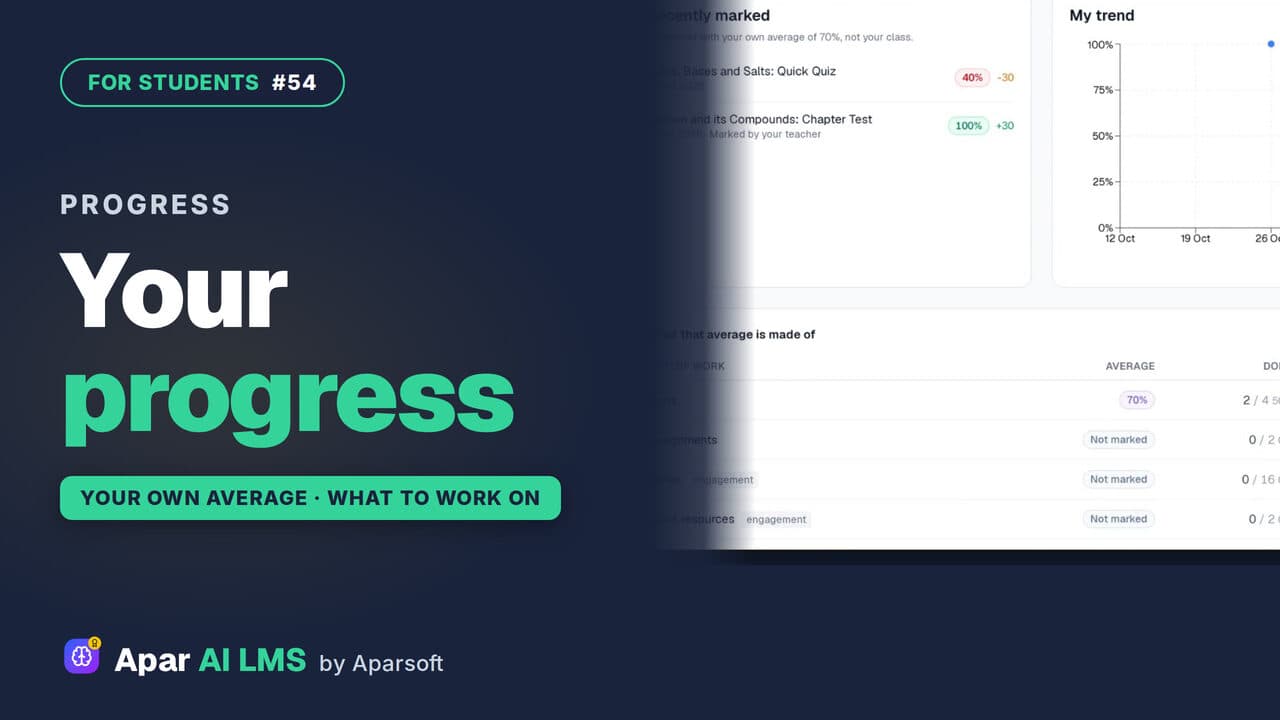 Length1:15#54 · Students
Student Progress: Average and Weak Areas
Where you stand and what to do next: each result against your own average, never your class, and where you lose marks.
Try it on your own school
Start the 2-month free trial. No payment.
- No payment
- No commitment
- Onboarding included